
The mod panel is the web-based moderation interface for your Melonly server. It’s where you log shifts, issue punishments, run commands, manage sessions, and monitor in-game activity in real time.Documentation Index
Fetch the complete documentation index at: https://docs.melonly.xyz/docs/llms.txt
Use this file to discover all available pages before exploring further.
Open the mod panel
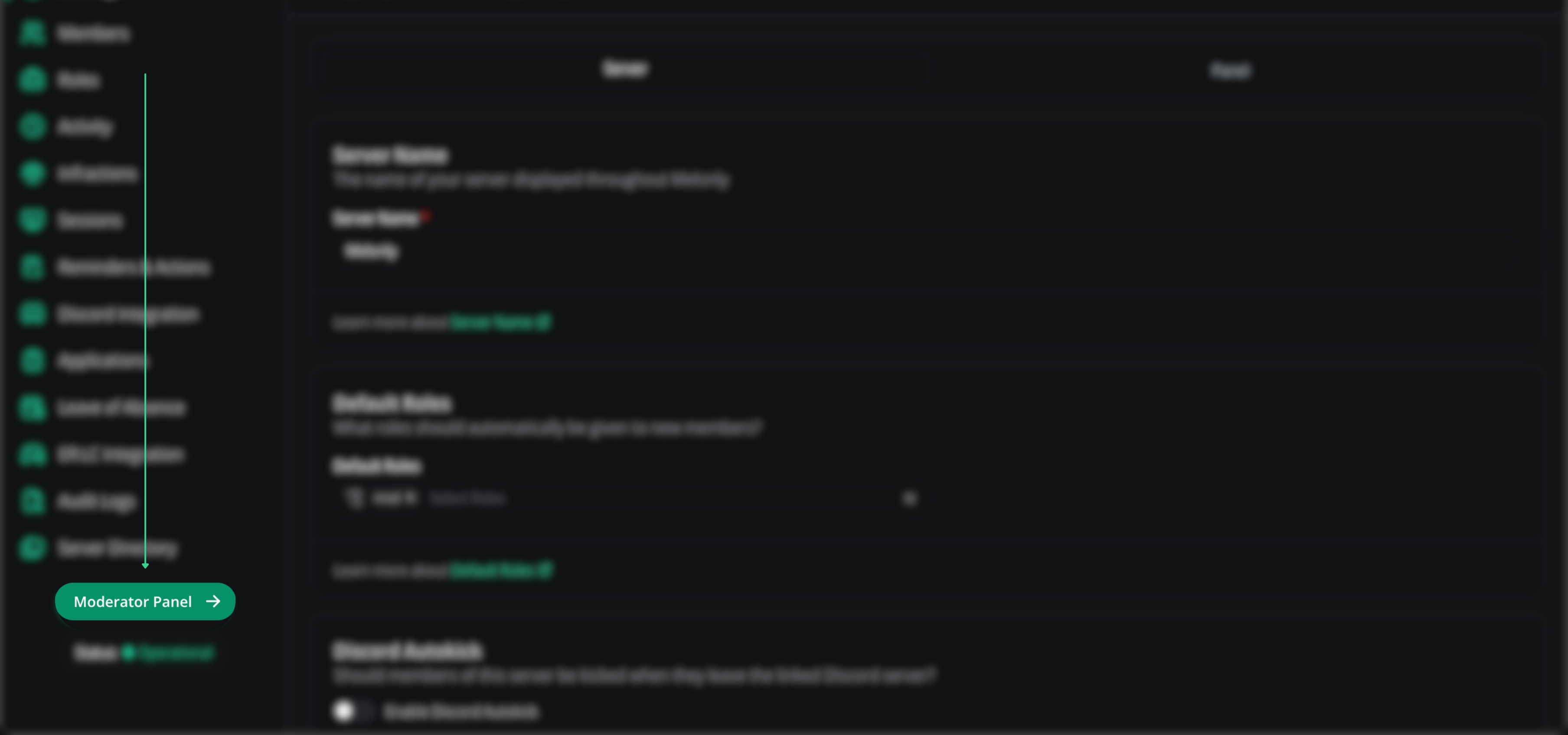
From the dashboard sidebar, click Moderator Panel in the bottom-left of the server view, or click Moderator Panel on your server card in My Servers & Departments.
What’s inside
Shifts
Start, end, and review your moderation shifts.
Moderation logs
Issue warnings, kicks, bans, temp bans, BOLOs, and notes.
Panel toolbox
LOA, actions, message filtering, and staff requests.
ER:LC toolbox
Member checks, virtual server management, and in-game logs.
Command palette
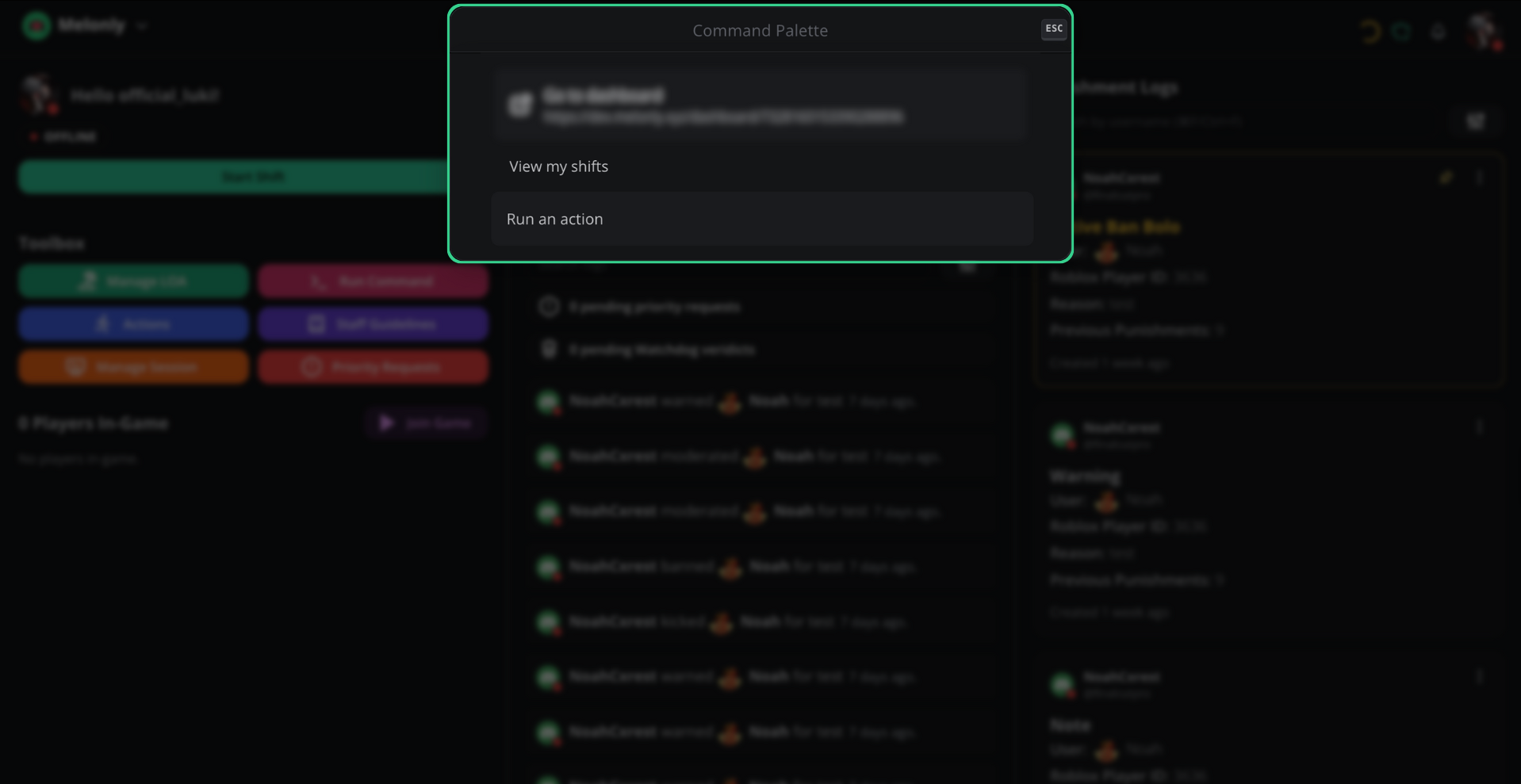
Press/ or click the command palette icon at the top-center of the panel to jump to any action or page.
Shift management
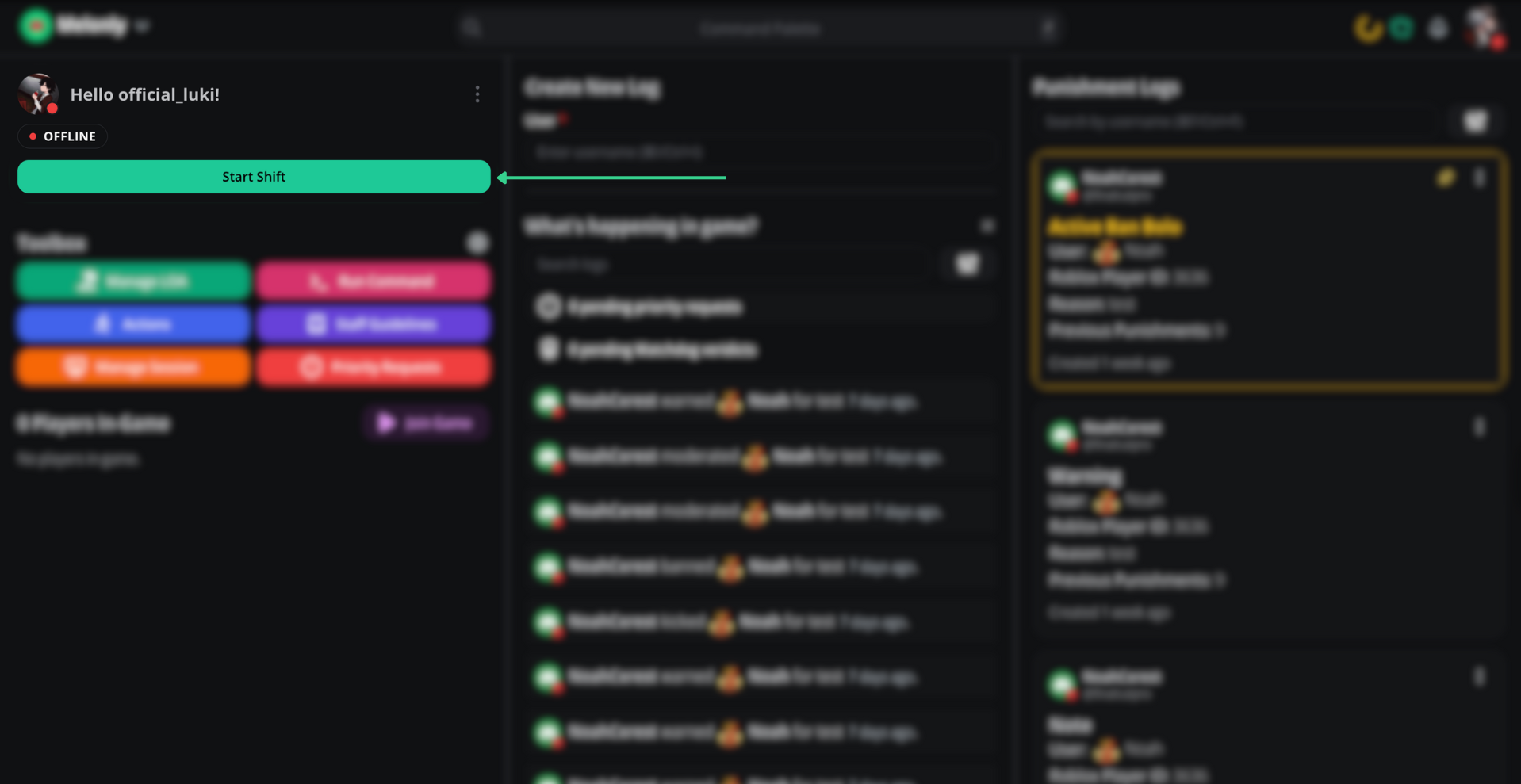
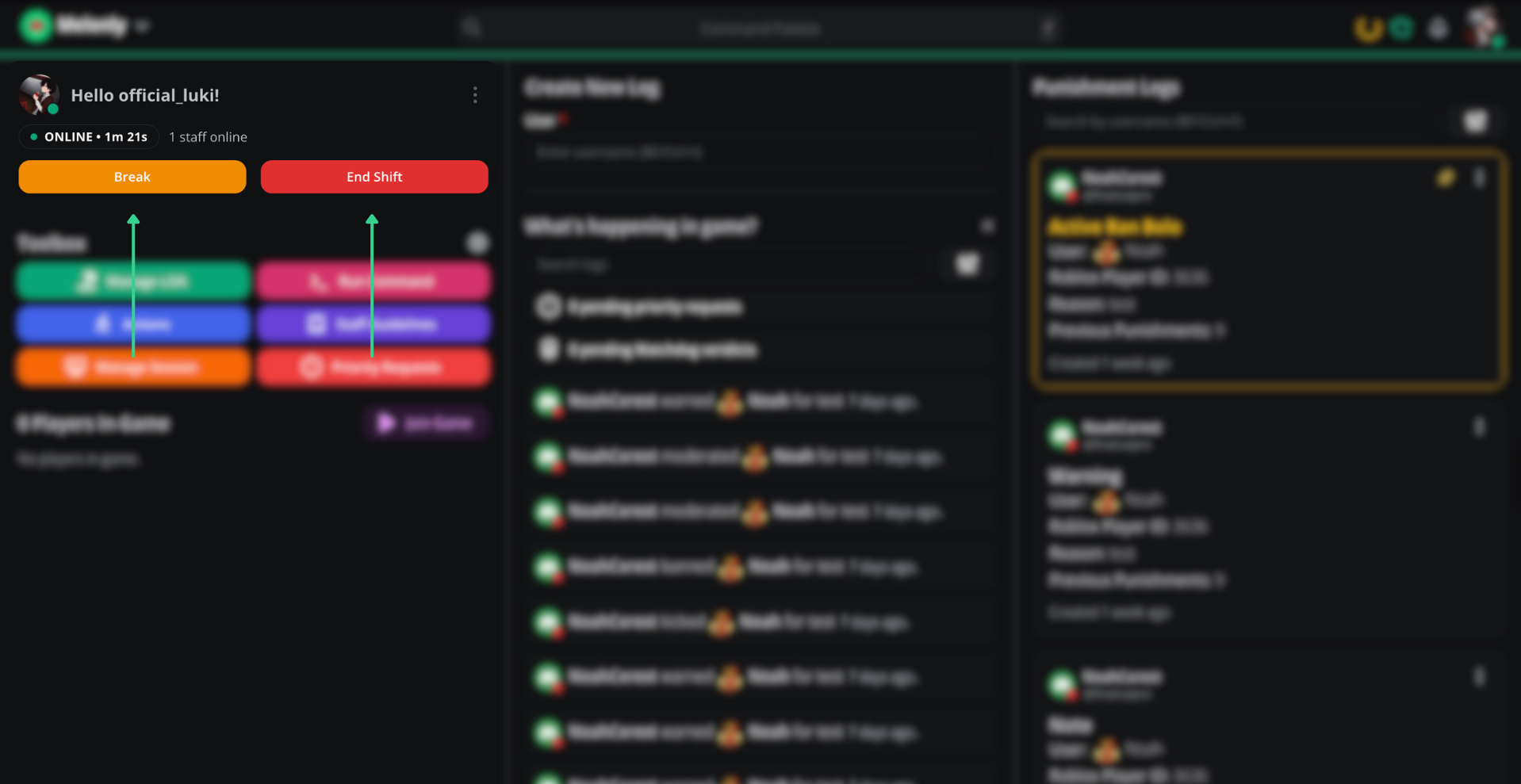
Start a shift to mark yourself on duty. End it when you’re done, or take a short break to pause the timer without ending the shift.If your server has shift types enabled, pick one before starting your shift to categorize the work (e.g. “50/50”, “Admin”, “Support”).
Review past shifts
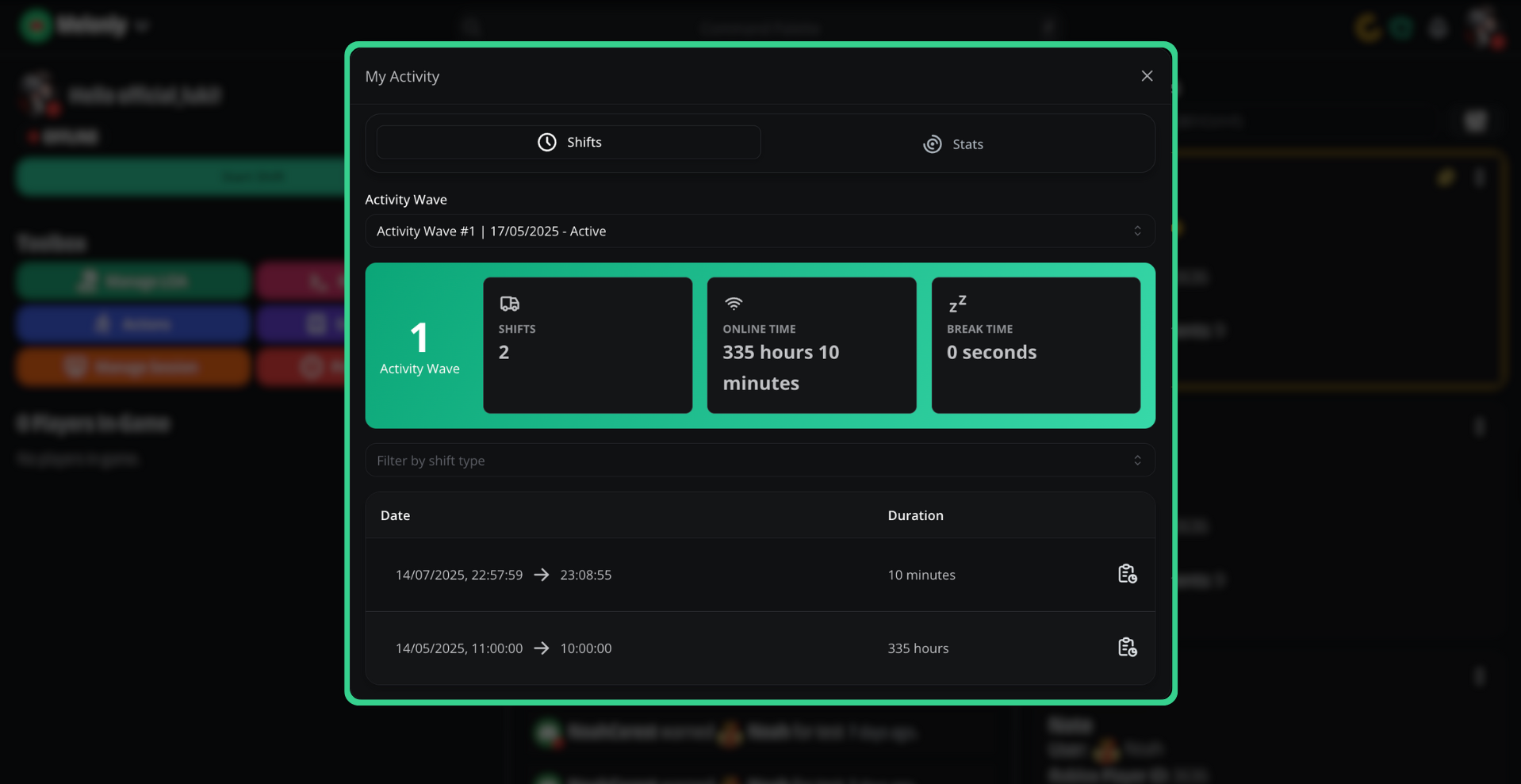
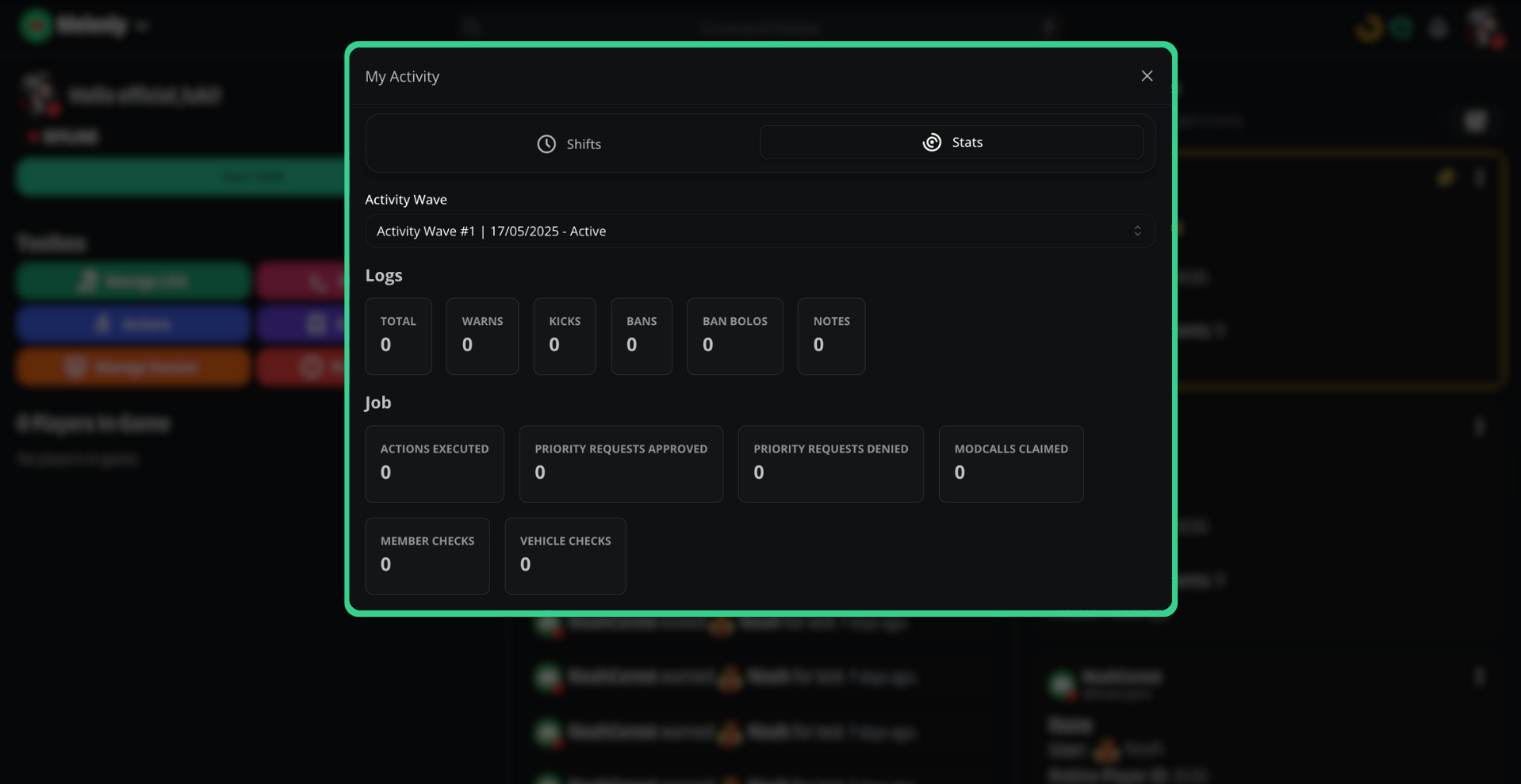
Click the three-dot menu next to Start Shift and select View Previous Shifts to see your shift history with start/end times and stats per activity wave.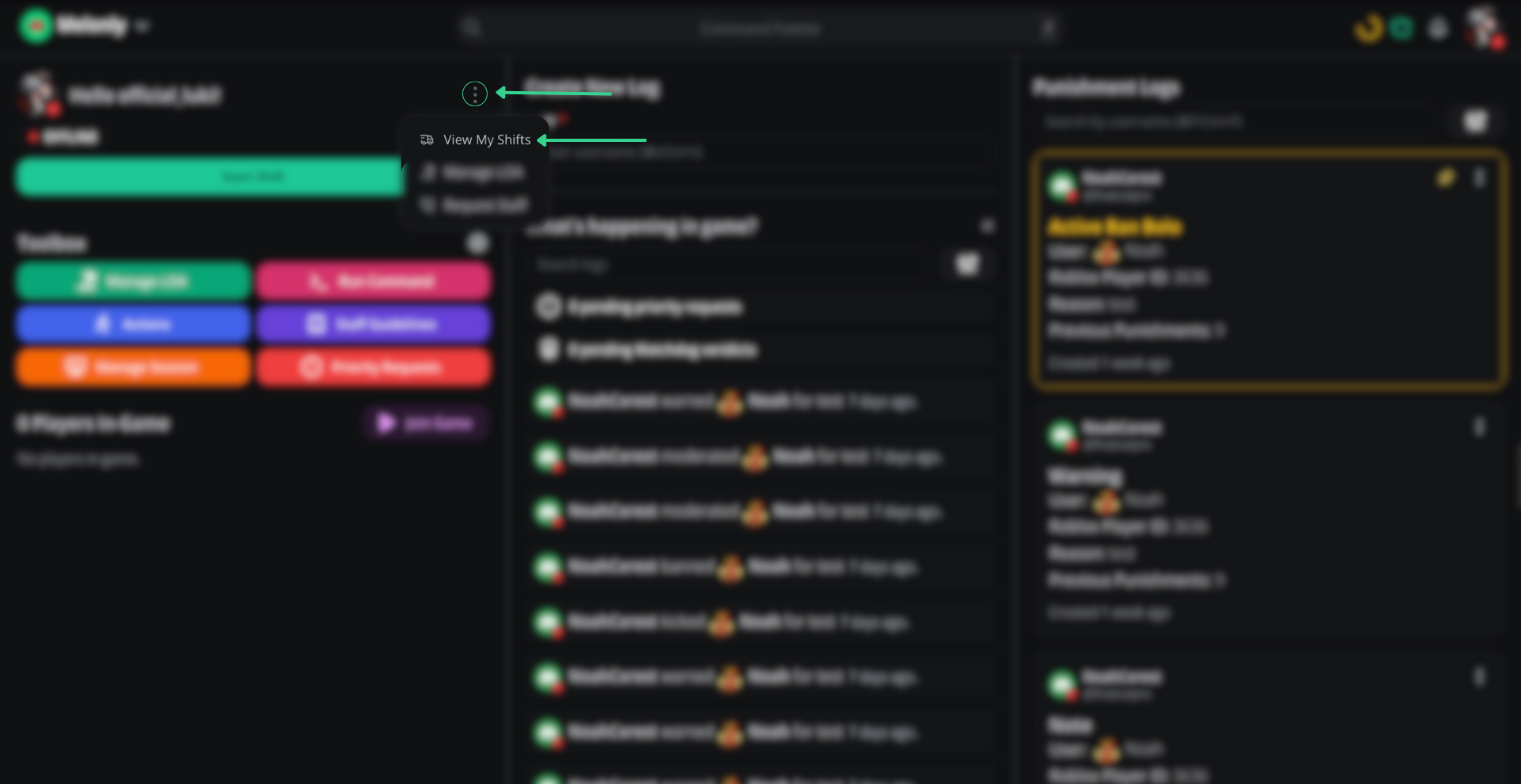
Full shifts guide
Read the dedicated shifts page for force-ending, breaks, and shift reports.
Request staff assistance
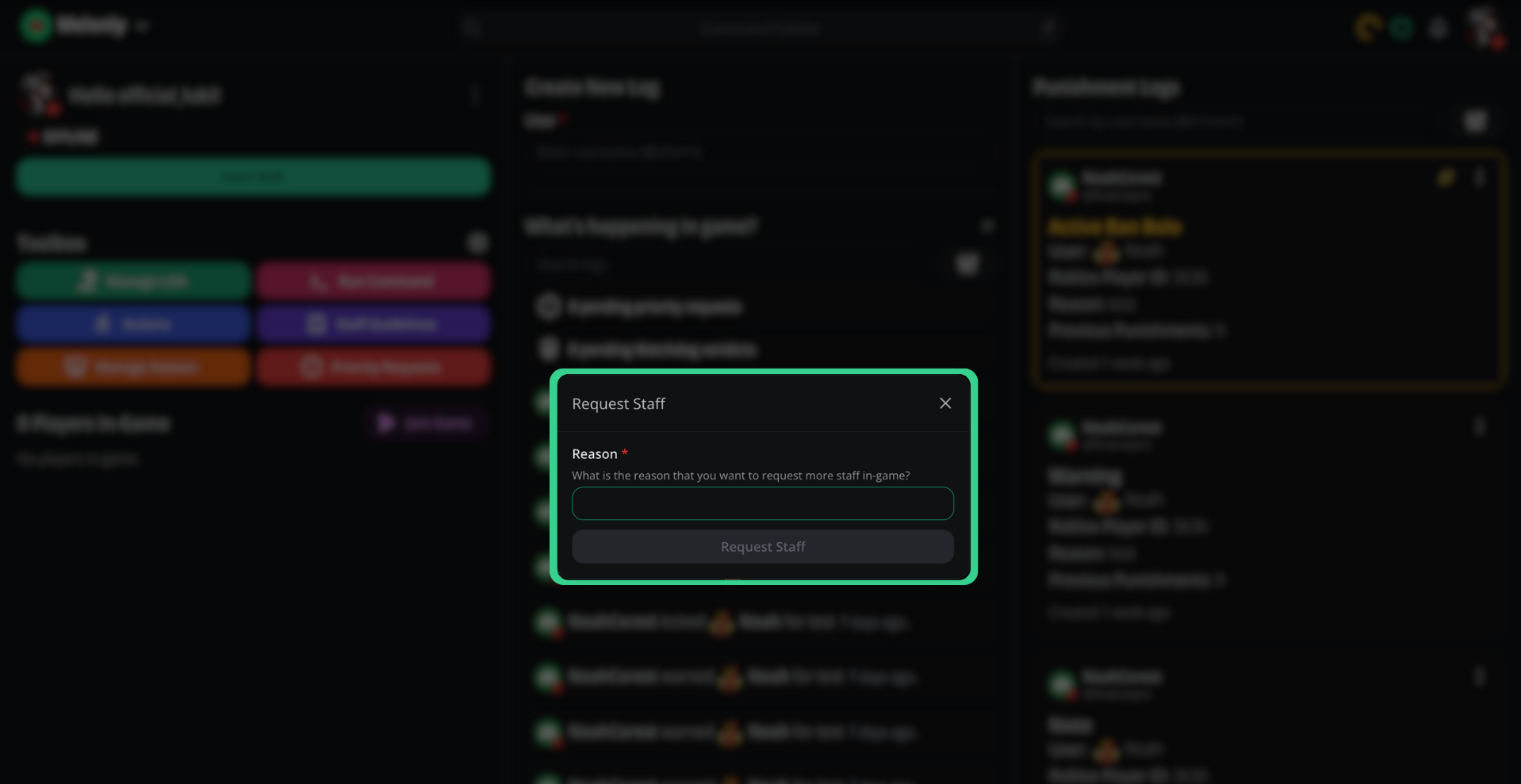
Click the three-dot menu near the shift start button and select Request Staff to notify other moderators in the configured Discord channel.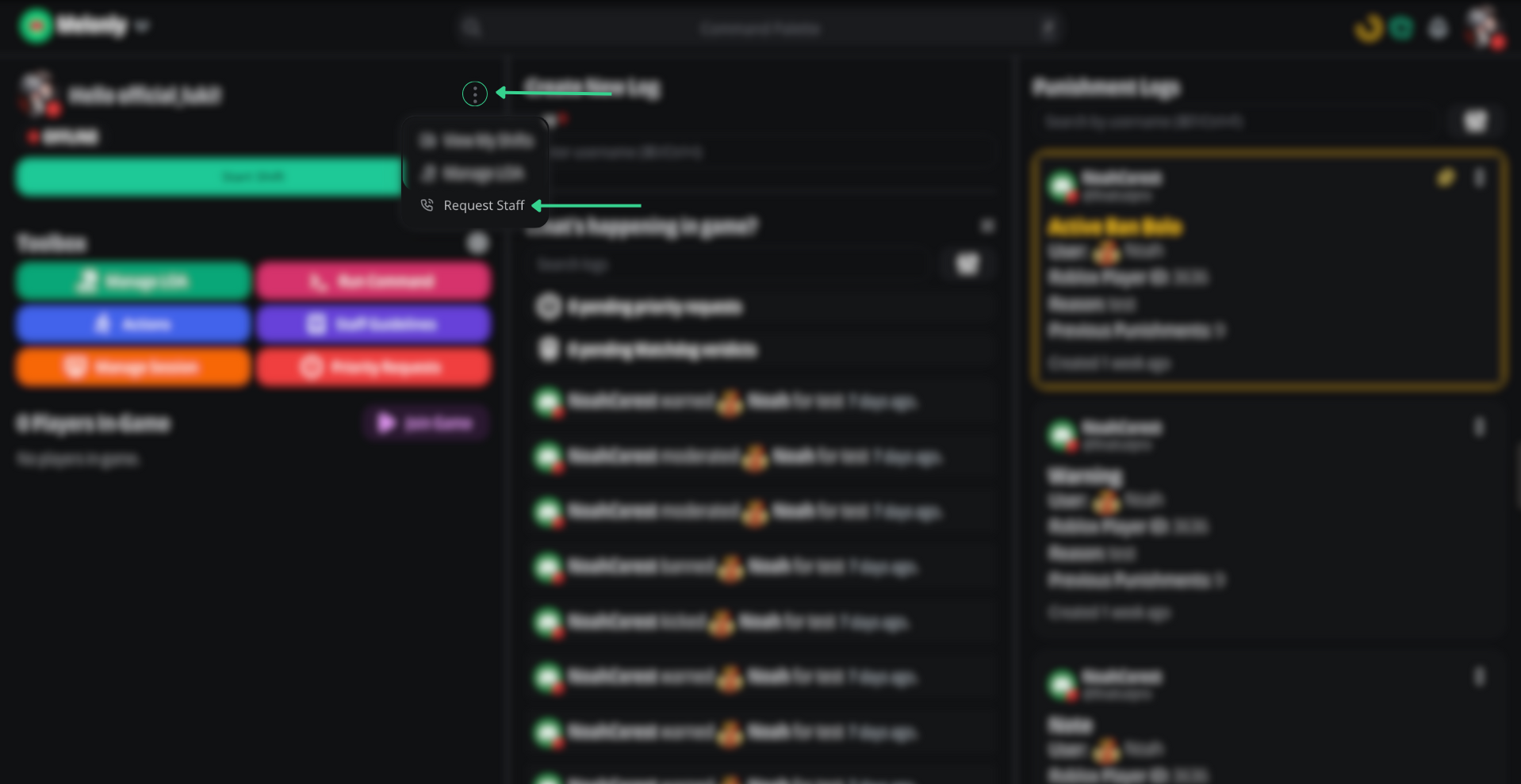
Moderation logs
Issue and review punishments from the panel.Server owners control which log types appear for each role. See the role guide to configure access.
| Log type | Use it for |
|---|---|
| Warning | Verbal warnings tracked against the user |
| Kick | Single-session removal |
| Ban | Permanent ban from the server |
| Temp ban | Time-limited ban with automatic unban |
| Ban BOLO | Watch-list for repeat offenders |
| Note | Private moderator notes about a user |
Full moderation logs guide
Read the dedicated logs page for creating, editing, and filtering logs.
Punishment history
Open Punishment Logs on the right side of the panel to filter past actions by type or search for a specific player. Click any entry to open the user panel.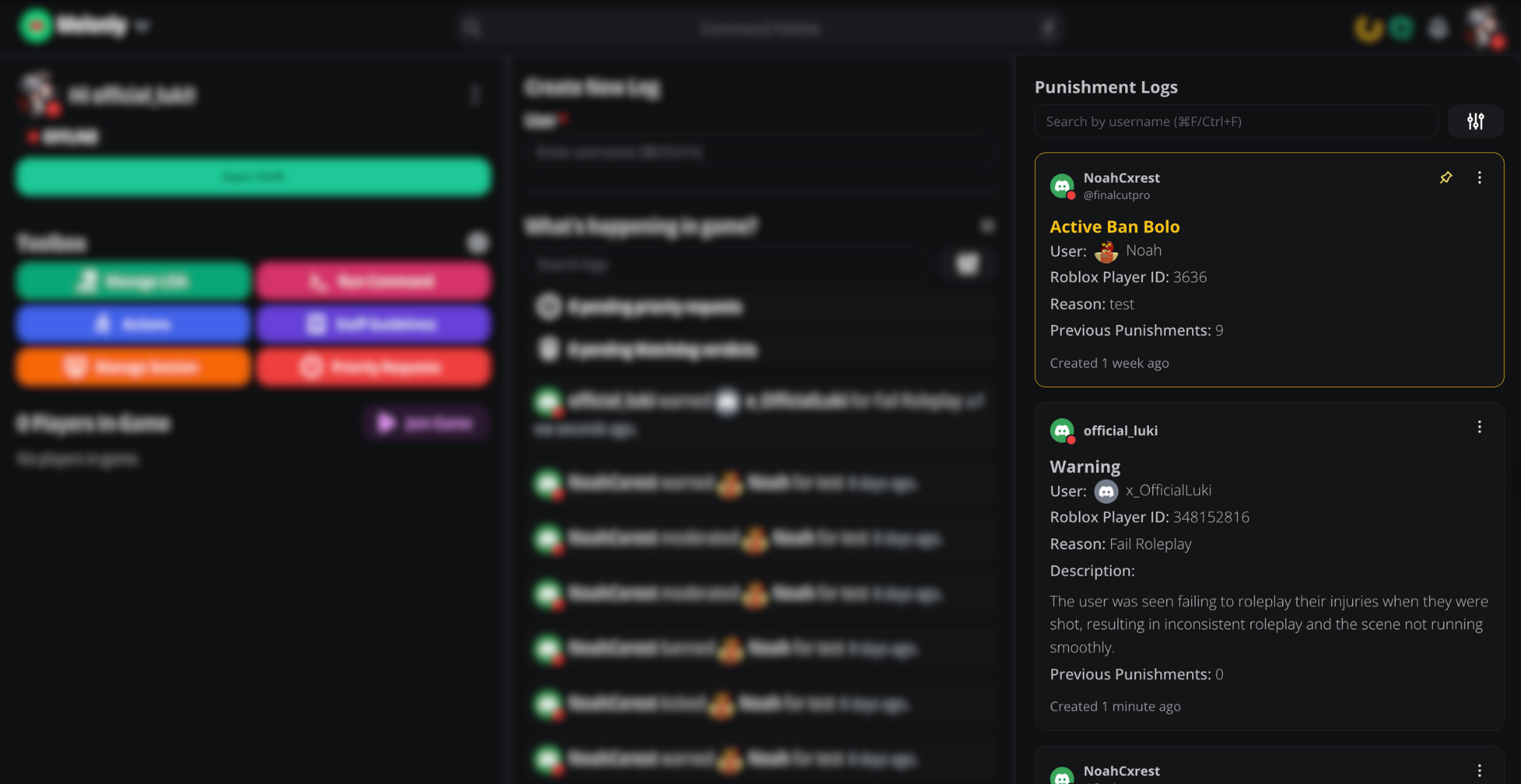
What’s happening in-game
The center of the panel streams live server events — joins, leaves, kills, commands, and modcalls.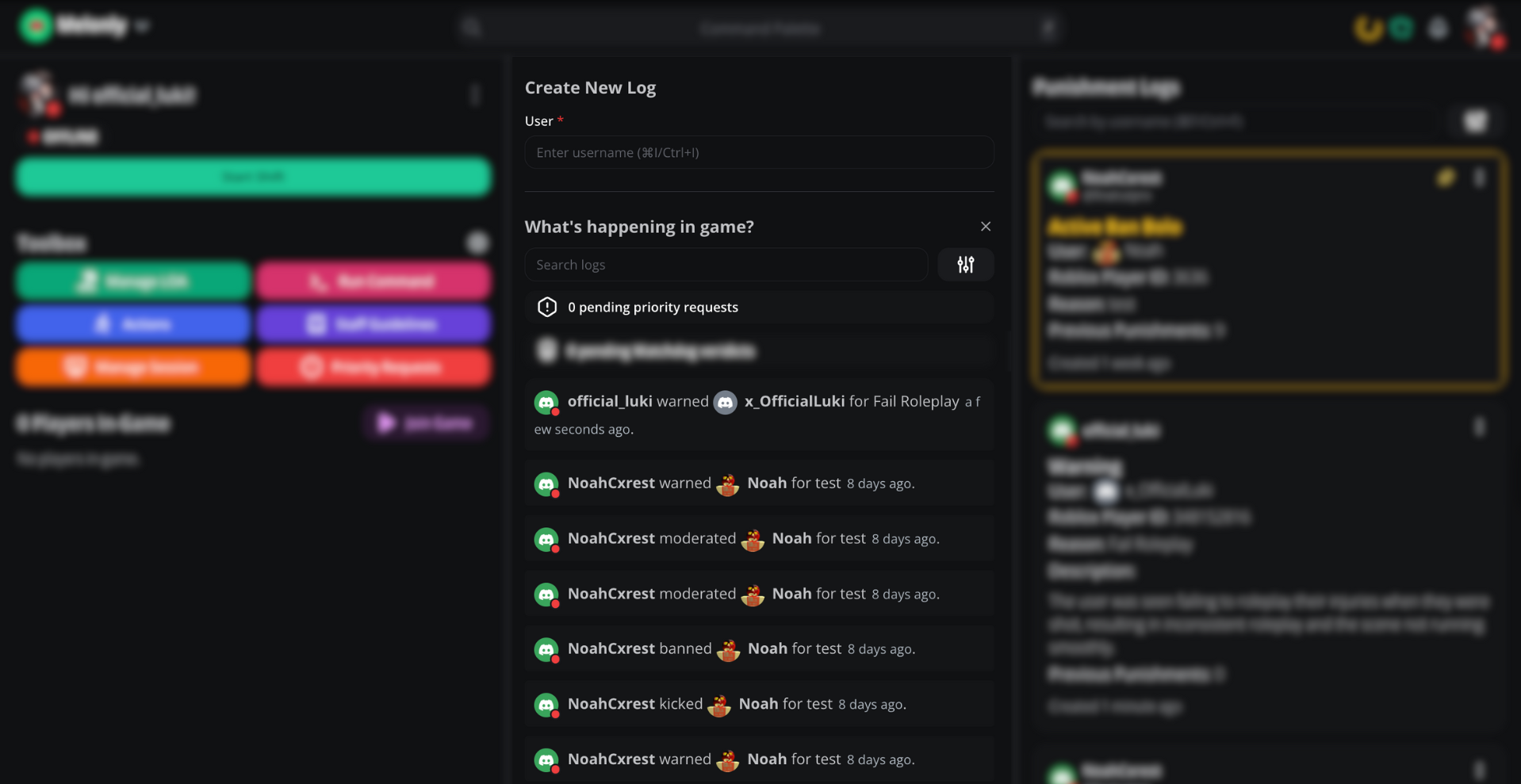
Toolbox
The toolbox holds quick-action utilities — LOA, run command, actions, staff guidelines, sessions, priority requests, and player management.Leave of absence
Submit a leave-of-absence request directly from the panel. Pick the dates and reason, then submit for management review.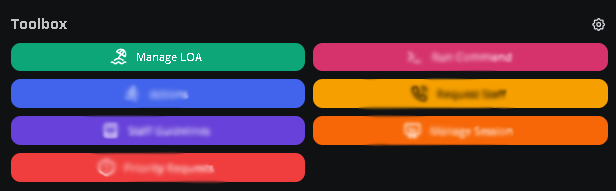
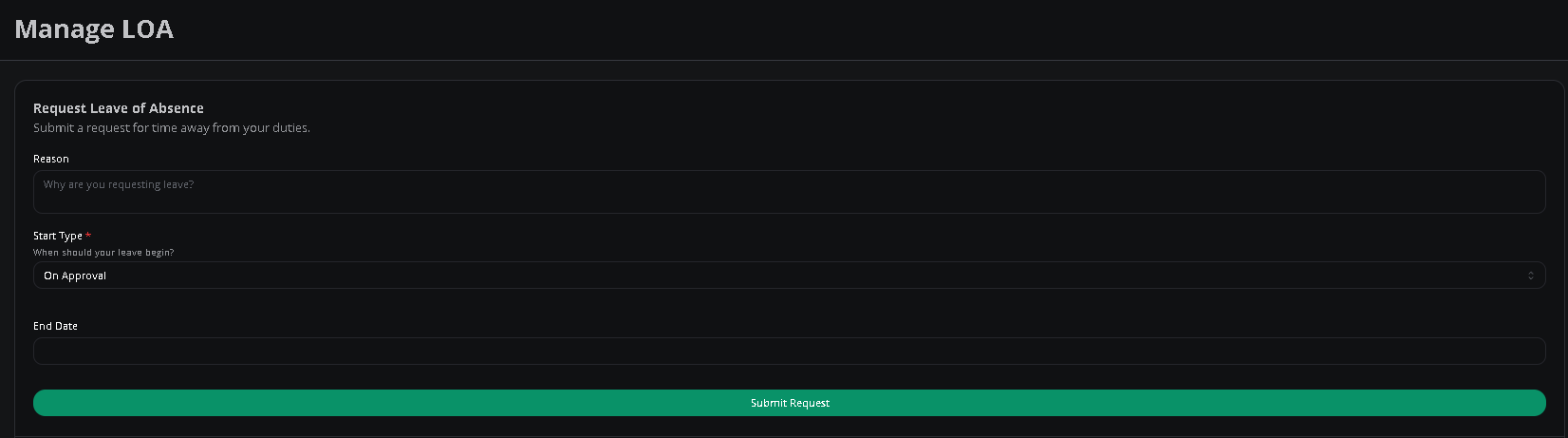
Full LOA guide
Configure LOA settings on the dashboard.
Run command
Execute ER:LC commands without leaving the panel.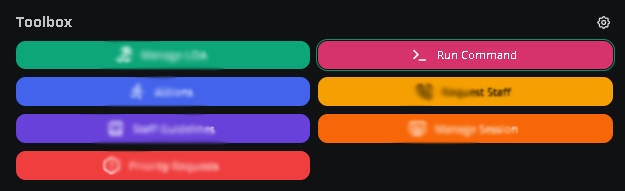
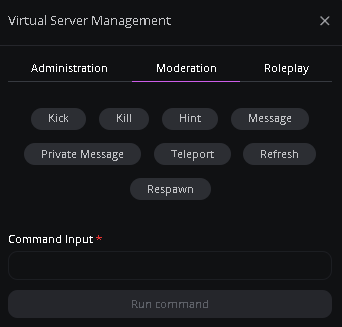
Virtual server management
Read the full VSM reference.
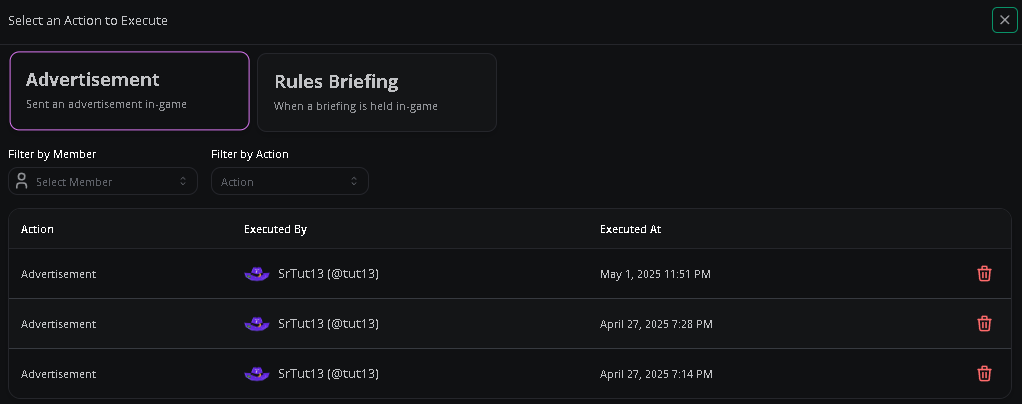
Actions
Custom actions configured by your server’s management team.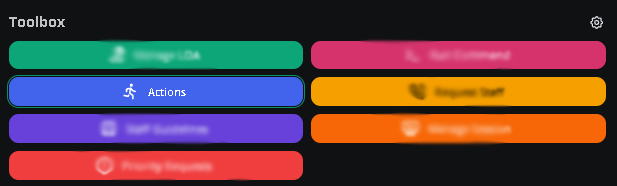
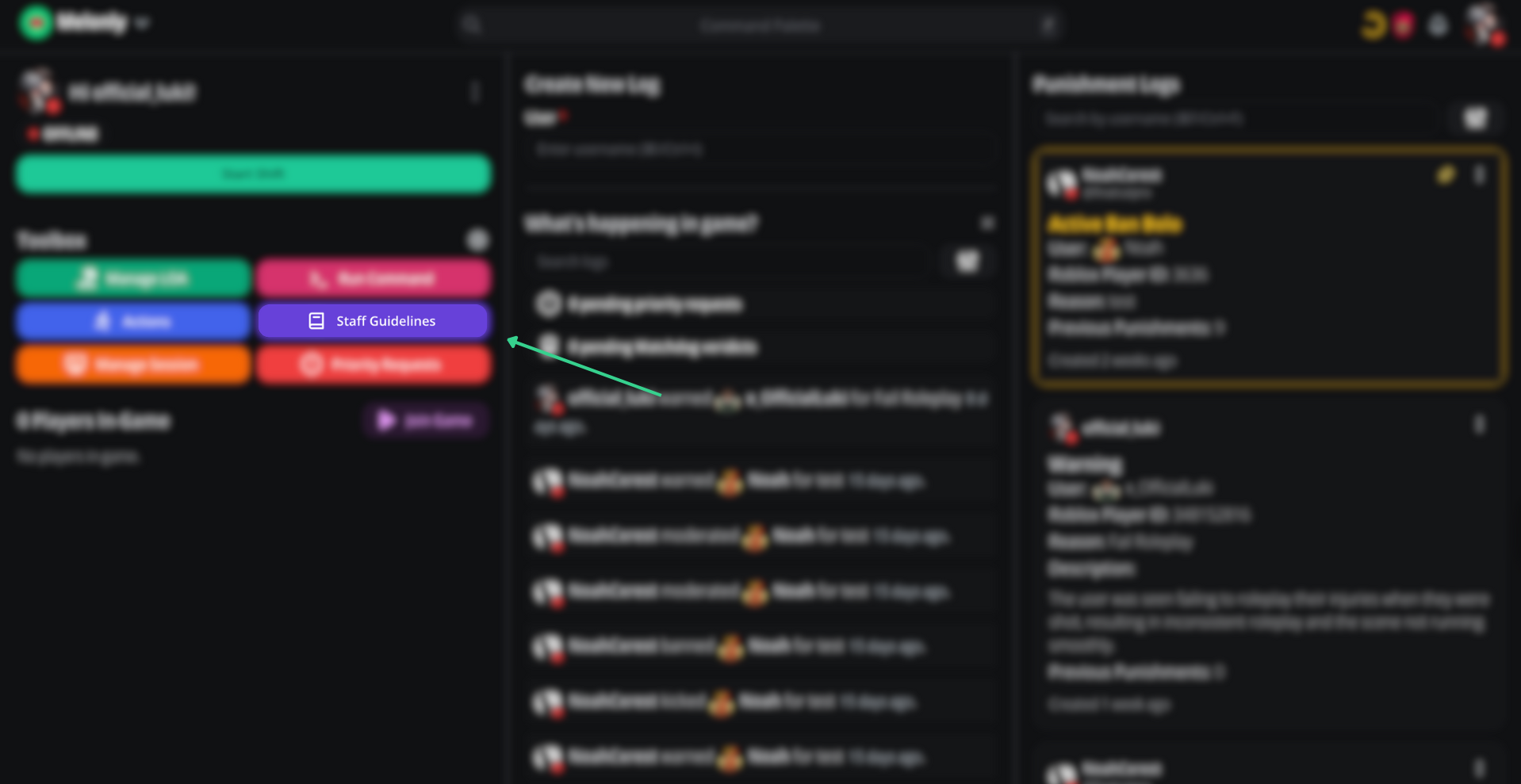
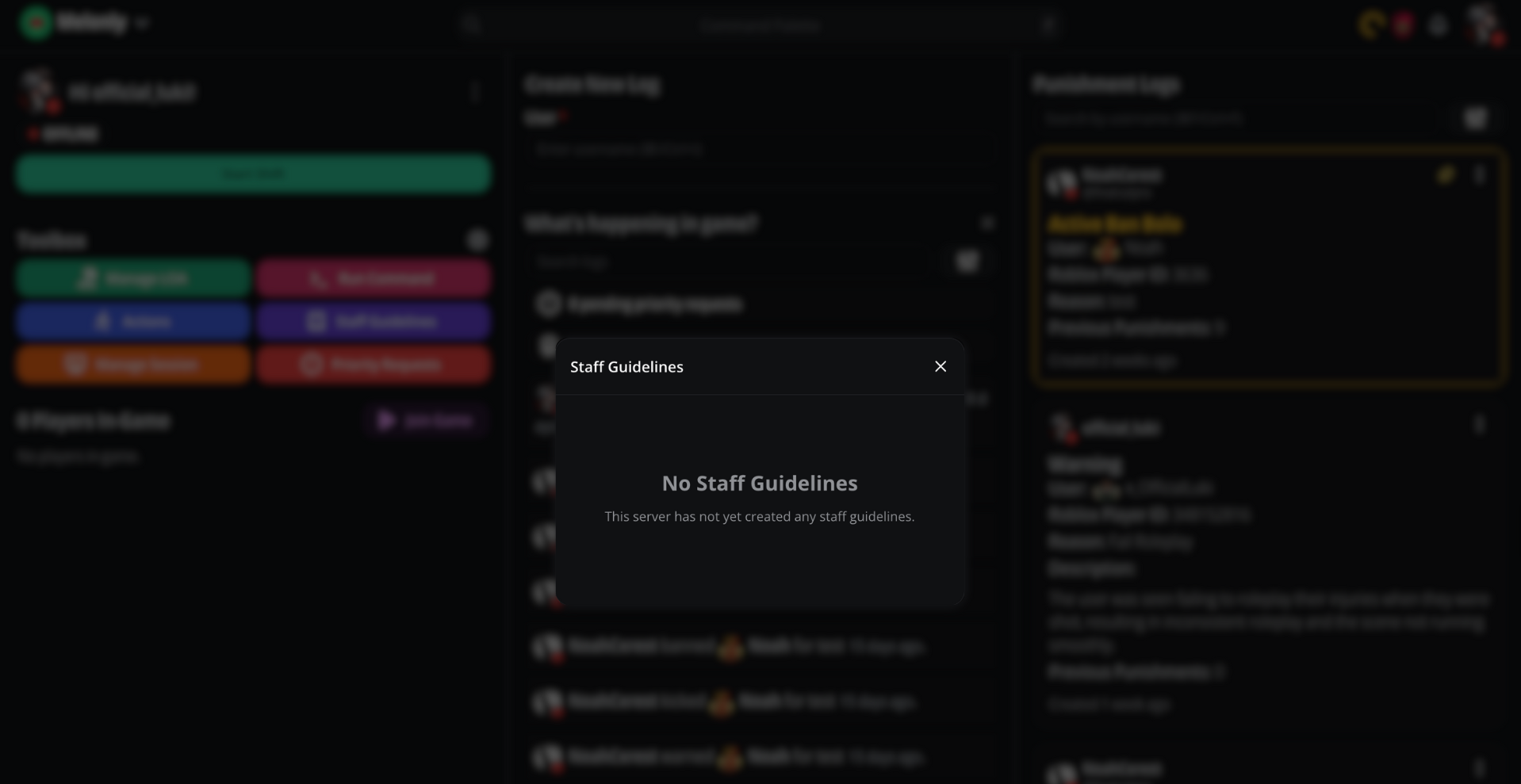
Staff guidelines
Staff guidelines require Melonly Plus.
Manage sessions
Start, end, and poll for ER:LC sessions. Polls let your members vote for a time that works for them.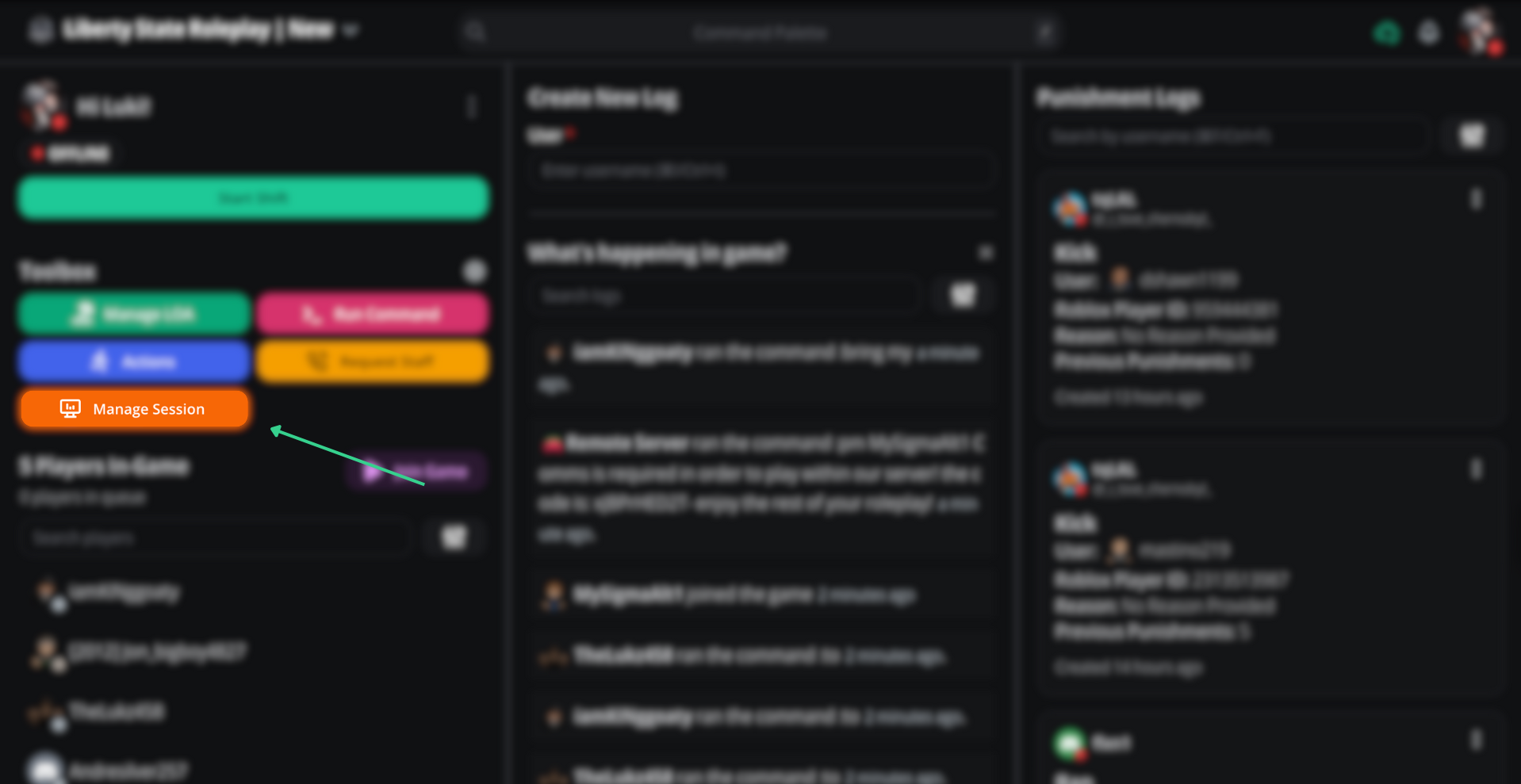
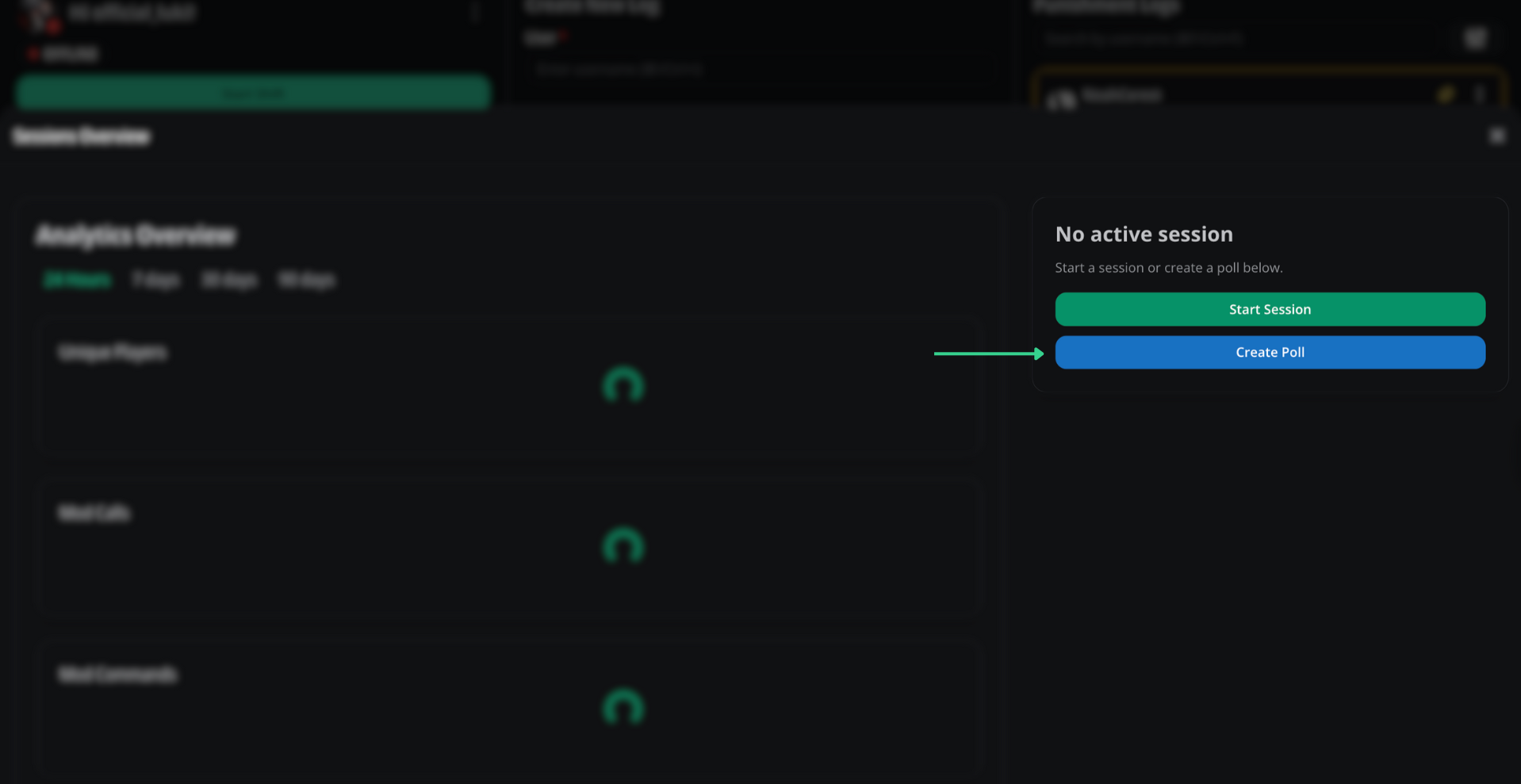
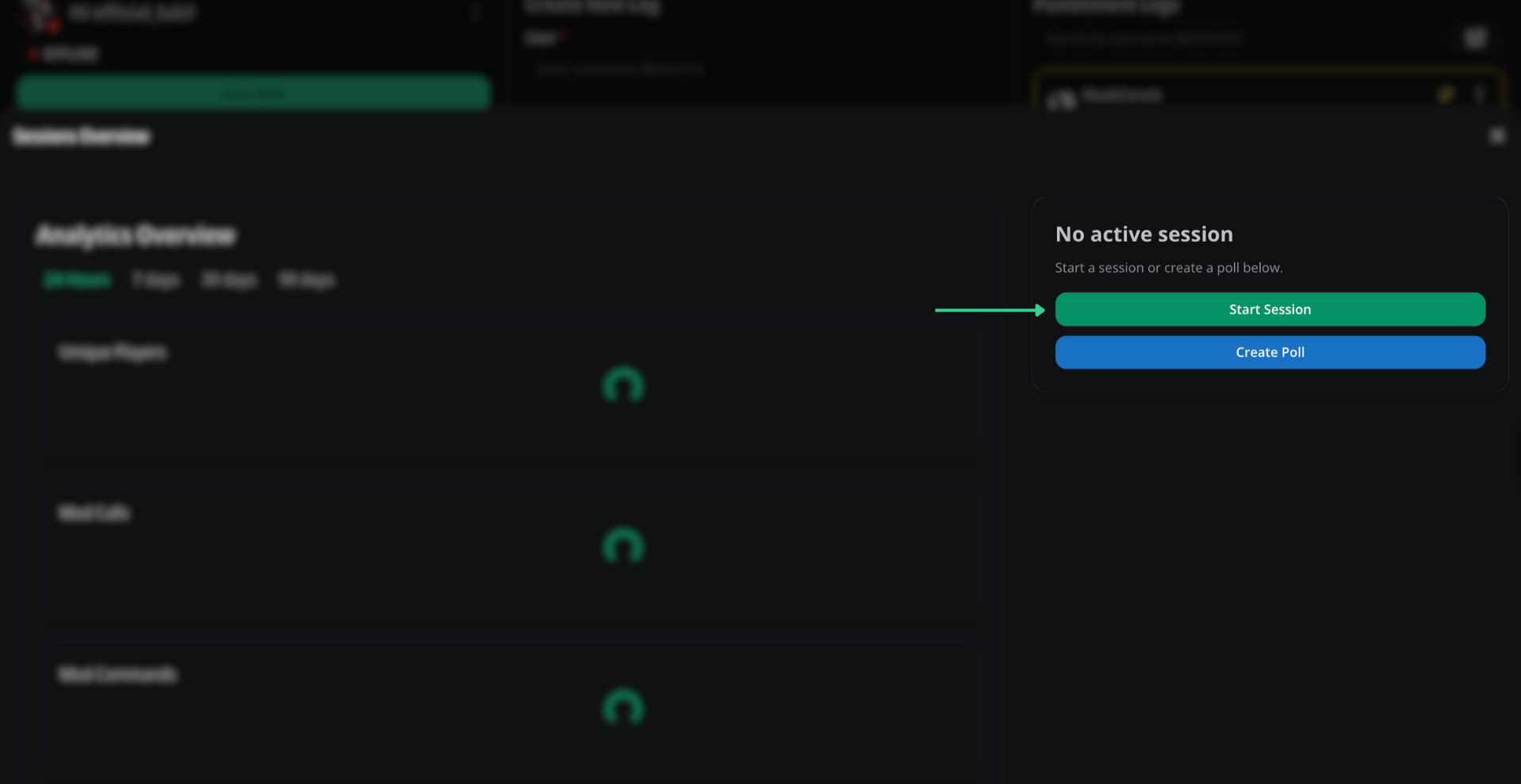
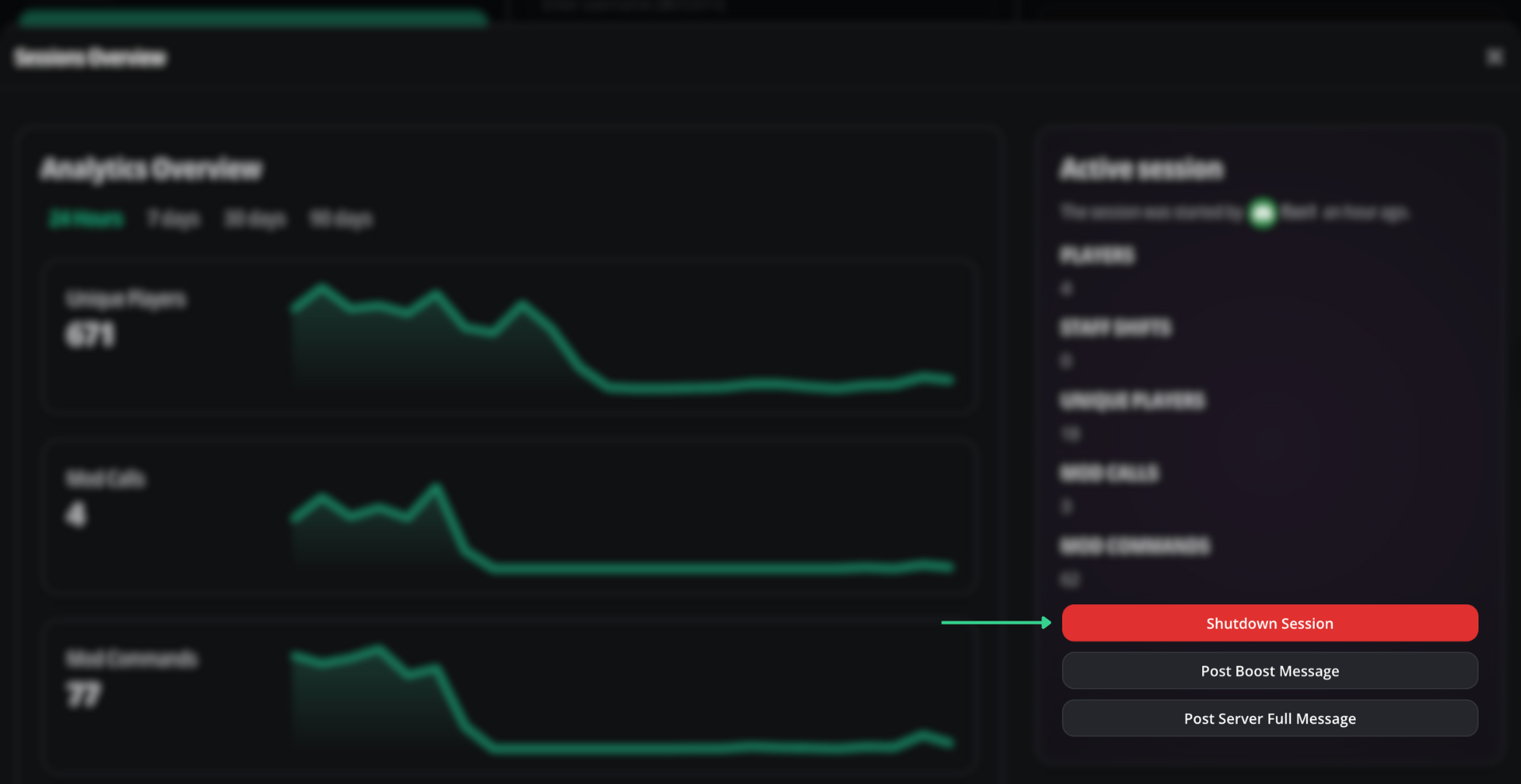
Sessions on the dashboard
Configure session types and rules.
Priority requests
Players can submit priority requests for in-game scenes. Approve or deny each request from the Priority Requests button.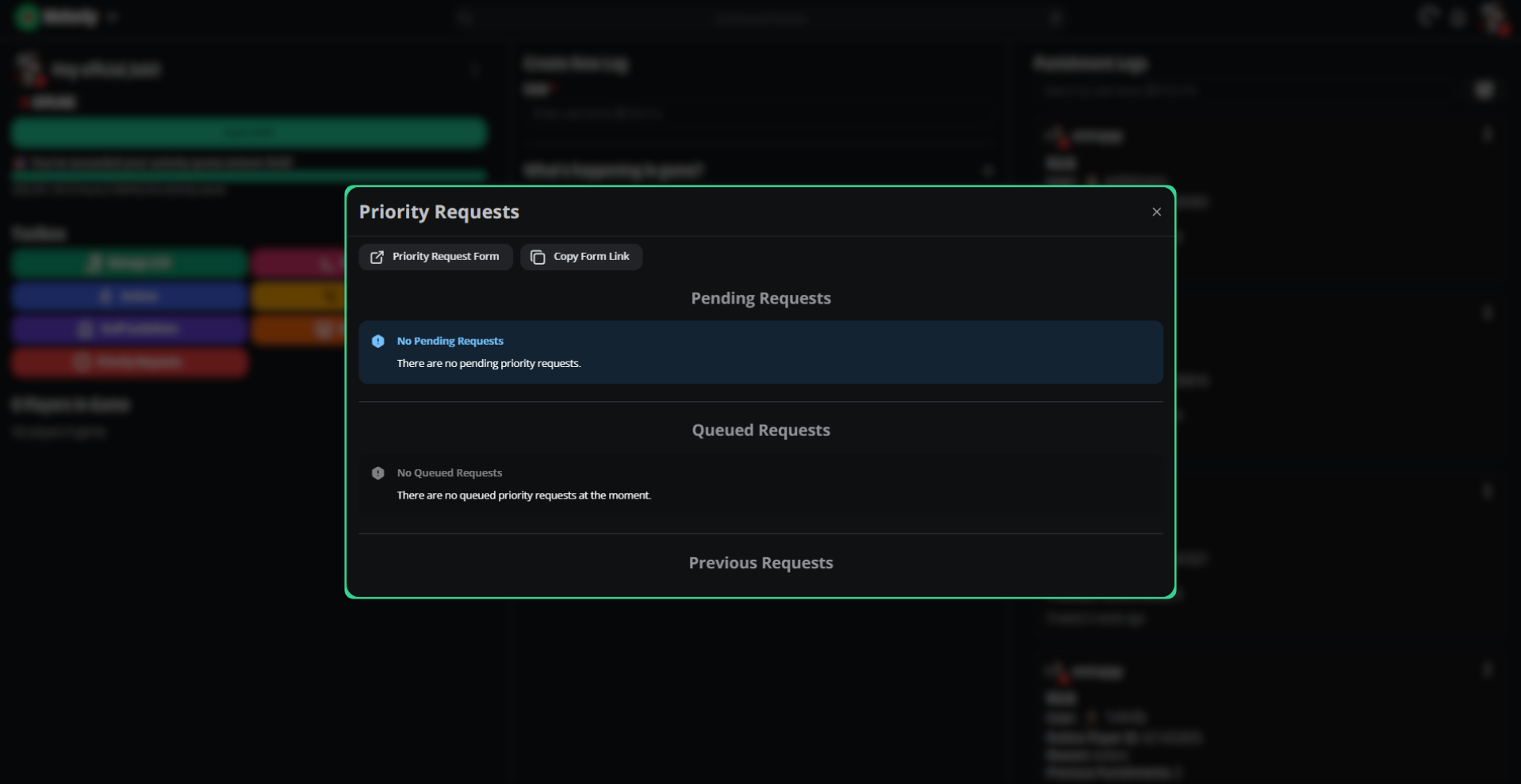
Player management
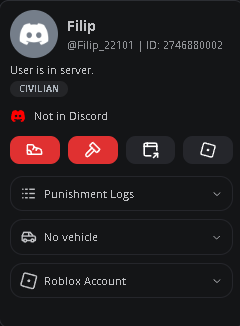
Search for any player to view their profile, past actions, member-check info, and active vehicle. Run punishments or actions on them directly from the user panel.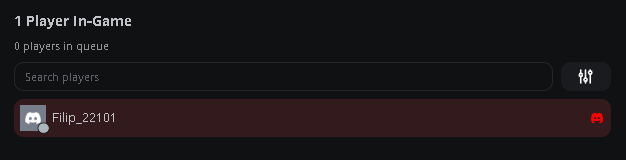
ER:LC toolbox details
Member checks, VSM commands, and in-game logs.
Need help?
Still have questions? Join our Discord server for support from the Melonly team.