
Shifts mark when you’re on duty. Melonly tracks shift duration and generates reports for each shift longer than 5 minutes.Documentation Index
Fetch the complete documentation index at: https://docs.melonly.xyz/docs/llms.txt
Use this file to discover all available pages before exploring further.
Start a shift
Click Start Shift in the top-left of the panel. Your shift begins immediately and the duration starts ticking.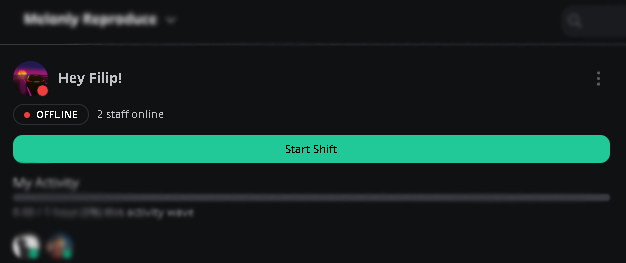
End a shift or take a break
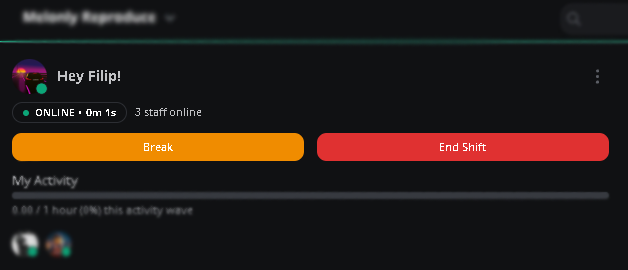
Once a shift is active, two more buttons appear:- Start Break — Pauses your active shift time. Click again to resume.
- End Shift — Ends the shift and finalizes the report.
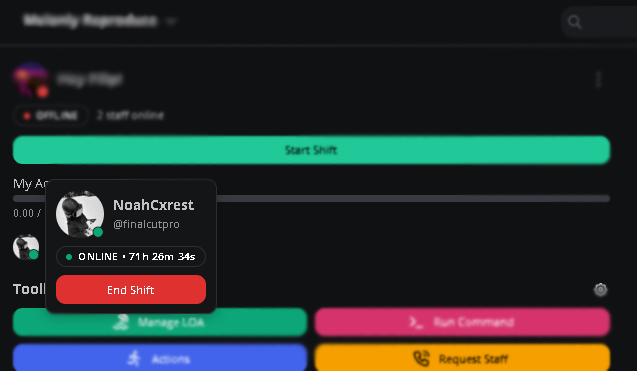
Force-end another shift
Requires the Manage Shifts permission in dashboard settings.
View past shifts
Click the three-dot menu next to your avatar in the top-left, then select View My Shifts. Switch activity waves to view shifts from earlier periods.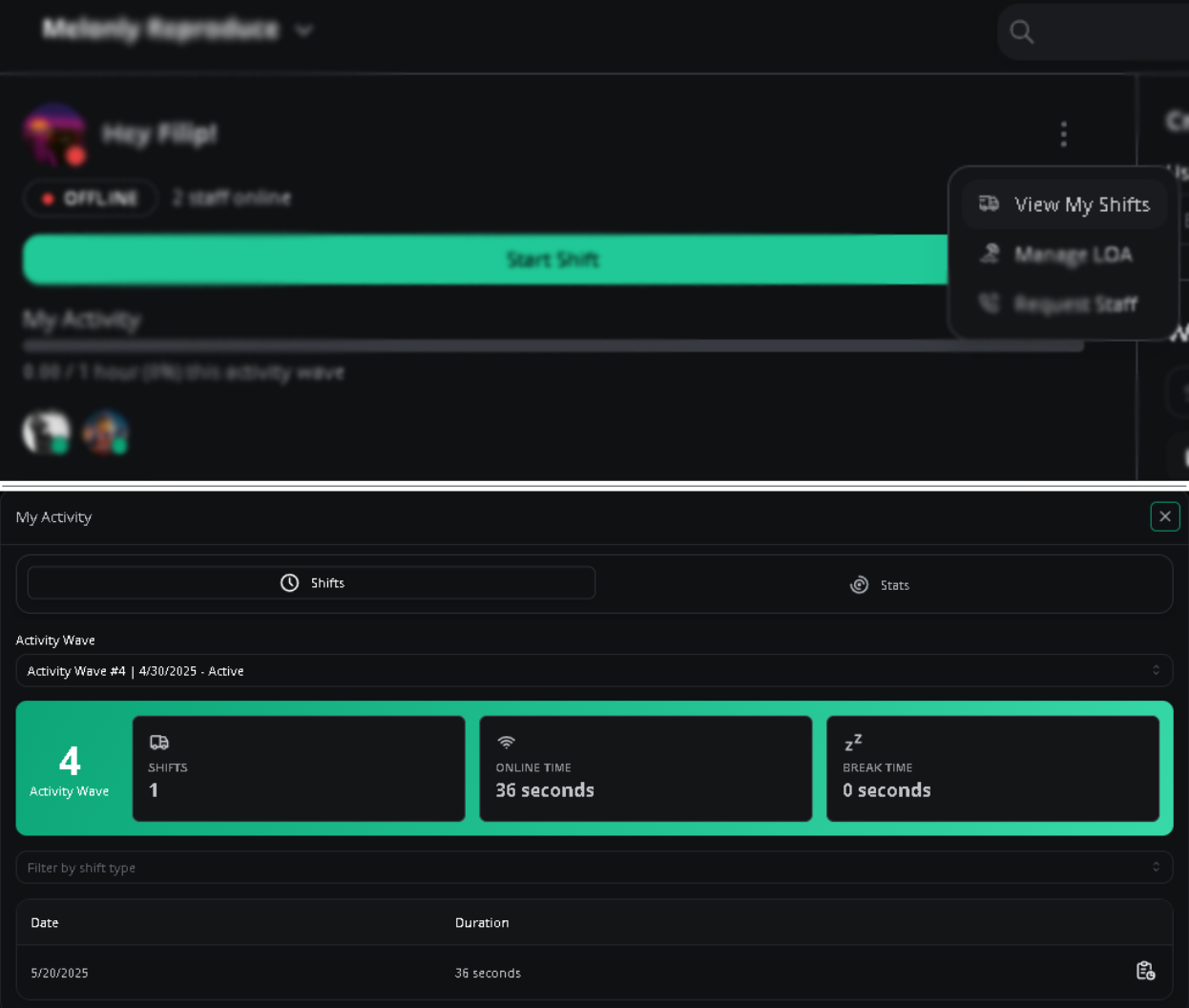
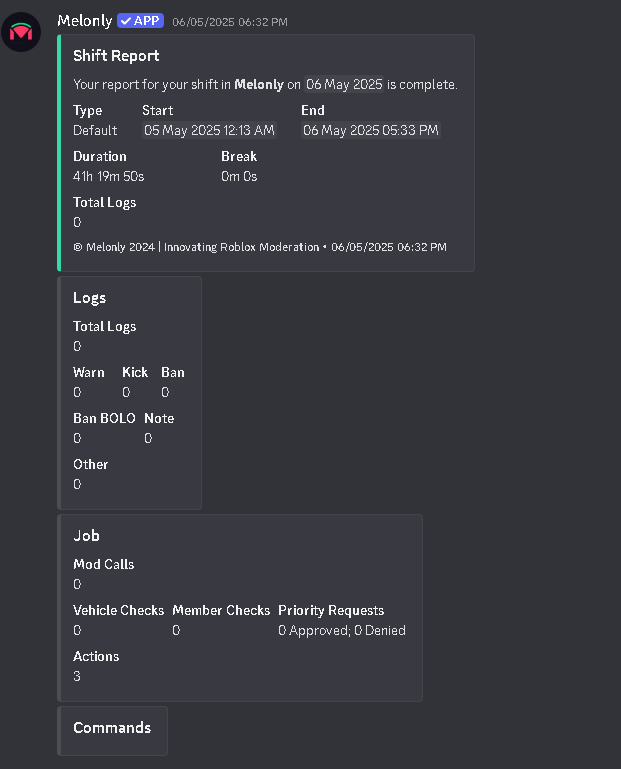
Shift reports
Each shift longer than 5 minutes generates a report. Reports collect:- Moderation logs (warnings, kicks, bans, BOLOs, notes)
- Executed actions
- Responded modcalls
- Vehicle checks
- Member checks
- Command usage counts
Need help?
Still have questions? Join our Discord server for support from the Melonly team.