
What is Converting?
If you already run a team as its own Melonly server, you can turn it into a department under your main server. Its members, roles and most data come with it, and the old server is removed.You need to be the owner or an Administrator of both the server you’re converting and the parent server.
Convert a Server
1
Start the conversion
On the server you want to convert, open Settings, scroll to Convert To a Department and click Convert now.
2
Check the details
The name and Discord server are filled in for you. Upload an icon, pick the parent server and click Continue.
3
Review what transfers
Read the summary, then confirm.
4
Buy a plan if needed
If the parent server has no free slot, you’ll be asked to buy and activate a plan first. See Plans & Billing.
5
Click Create Department
You land on the new department’s Home page.
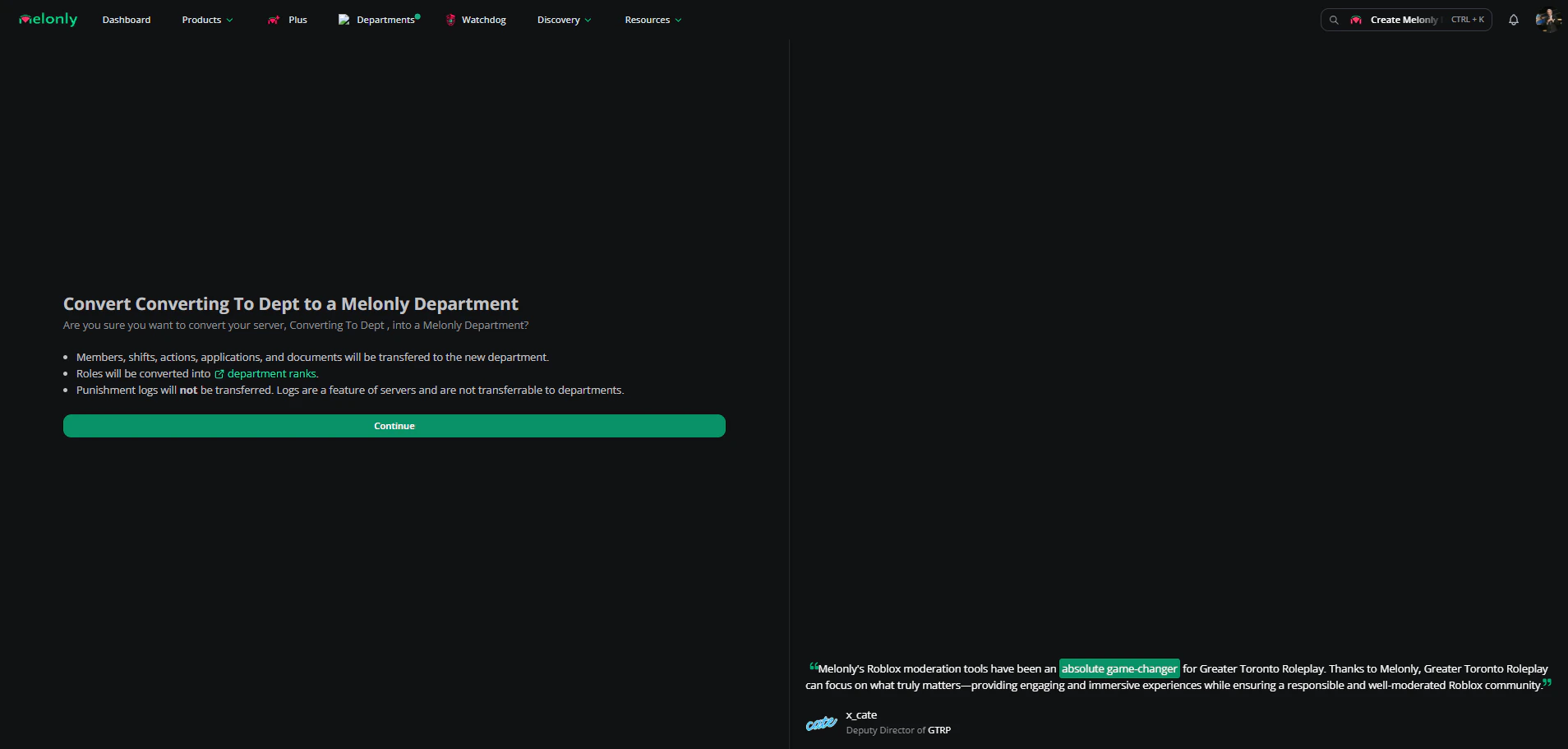
Converting a server
What Transfers
Members with no role are placed in the first rank on the list, so check the roster afterwards.
What Doesn’t Transfer
Need help?
Still have questions? Join our Discord server for support from the Melonly Team.