
What are Join Codes?
Join codes let people join your CAD as temporary members with the permissions you choose. Open Members → Join Codes in the CAD admin panel.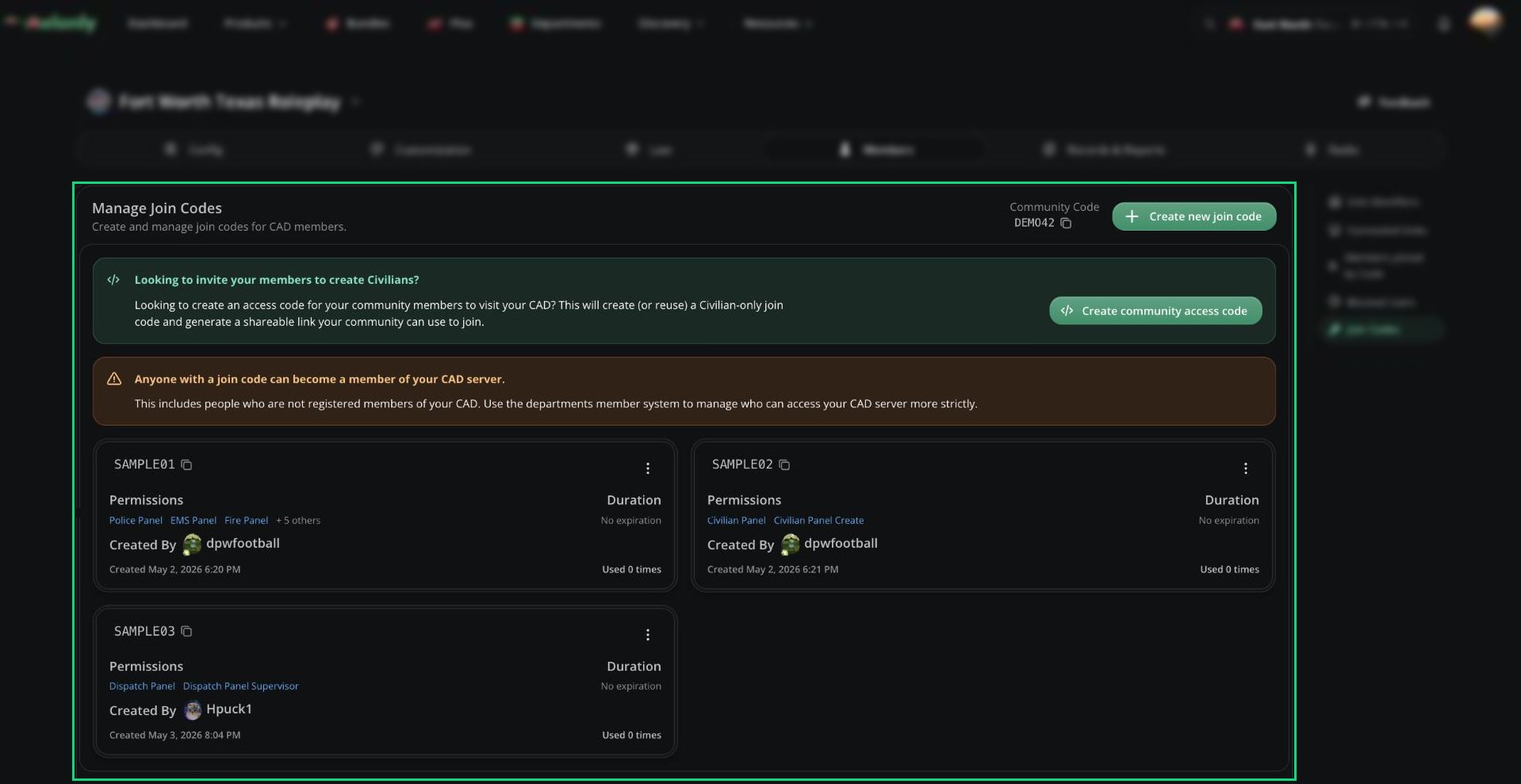
Join Codes
Creating a Join Code
1
Open the form
Click Create new join code. A random 8-letter code is generated for you.
2
Set duration, roles, and permissions
Fill in the fields below and pick at least one permission.
3
Share it
Click Create code, then copy the message with the join link and send it to your members.
The join link includes your community code, so people don’t need to type anything. For what joining looks like, see Joining with a Code.
Community Access Code
Want everyone to be able to make civilians? Click Create community access code. It creates a never-expiring code with all Civilian panel permissions (except Supervisor) and gives you a link to share.Managing Codes
Each code card shows its permissions, duration, required roles, creator, and how many times it’s been used.- Click the code to copy it.
- Click See code usage to see who joined with it and when their access expires.
- Click Delete code to remove it. People who already joined keep access until it expires. To remove them now, block them.
Need help?
Still have questions? Join our Discord server for support from the Melonly Team.