> ## Documentation Index
> Fetch the complete documentation index at: https://docs.melonly.xyz/llms.txt
> Use this file to discover all available pages before exploring further.
# Sessions
> Start and end ER:LC sessions, run session polls, and review session analytics.
***
## What is Sessions Overview?
Sessions Overview is where your team runs ER:LC sessions. Start a session, open a poll to gauge interest, schedule one for later, and see how past sessions went.
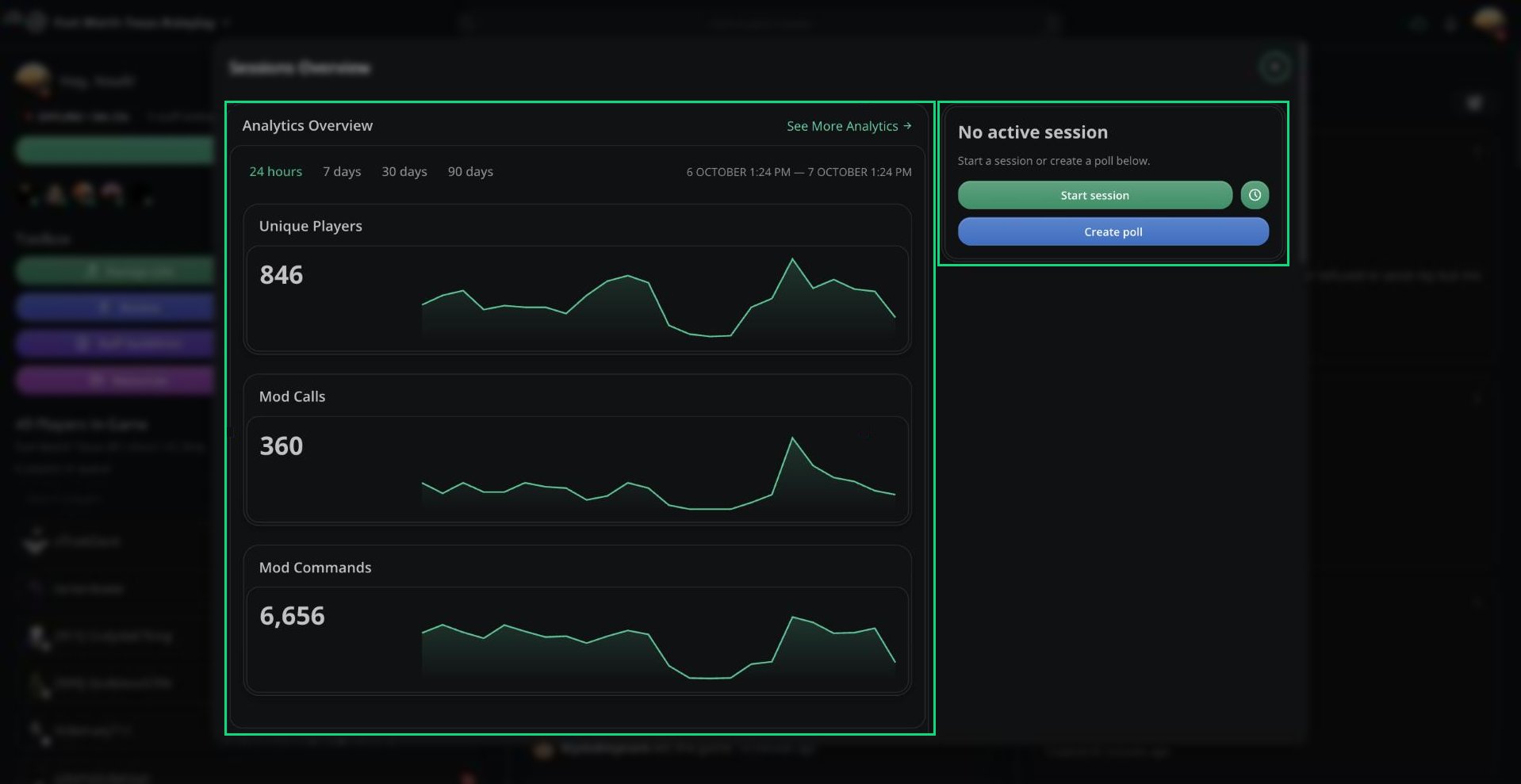 Open it with **Manage Session** in the Toolbox. The button reads Pending Poll or Active Session while one is running.
Anyone can view Sessions Overview. Starting, ending, and managing sessions requires the Manage Sessions permission.
***
## Starting a Session
Under **No active session**, click **Start session**.
Pick an **Area of Play**, or leave it empty for none.
Click **Start session**. Your session announcement is posted to Discord.
***
## Session Polls
A poll lets your community vote before a session starts.
Click **Create poll**, then set **Votes Required** (1 to 99) and an optional **Area of Play**.
Pick a **Scheduled Start Time** to start the session automatically once enough votes are in.
When enough votes are in, click **Start session**.
Click **Cancel poll** to end it without starting a session. Only one poll can run at a time.
***
## Scheduling a Session
Click the clock icon next to **Start session** to schedule one. Choose a time up to 3 days ahead. If a poll is open, the session is linked to it.
Only one session can be scheduled at a time. Click the delete icon on it to cancel.
***
## During a Session
While a session is running you'll see its players, staff shifts, unique players, mod calls, and mod commands.
| Button | What it does |
| - | - |
| Shutdown session | Ends the session |
| Post boost message | Posts a boost message in Discord |
| Post server full message | Posts a server full message in Discord |
| Edit area of play (pencil) | Changes the session's AOP |
Start, shutdown, boost, and full messages each have a 30 second cooldown.
***
## Analytics and History
| Section | What it shows |
| - | - |
| Analytics Overview | Unique players, mod calls, and mod commands over 24 hours, 7, 30, or 90 days |
| Session History | Every past session, with player and staff charts and comparisons to the previous session |
Expand a past session to view its player sessions, staff shifts, and ER:LC logs. Analytics are only available for sessions that lasted at least 5 minutes.
Configure session messages, AOPs, and defaults.
***
Still have questions? Join our Discord server for support from the Melonly Team.
This documentation is built and hosted on [Mintlify](https://mintlify.com), a developer documentation platform.
Open it with **Manage Session** in the Toolbox. The button reads Pending Poll or Active Session while one is running.
Anyone can view Sessions Overview. Starting, ending, and managing sessions requires the Manage Sessions permission.
***
## Starting a Session
Under **No active session**, click **Start session**.
Pick an **Area of Play**, or leave it empty for none.
Click **Start session**. Your session announcement is posted to Discord.
***
## Session Polls
A poll lets your community vote before a session starts.
Click **Create poll**, then set **Votes Required** (1 to 99) and an optional **Area of Play**.
Pick a **Scheduled Start Time** to start the session automatically once enough votes are in.
When enough votes are in, click **Start session**.
Click **Cancel poll** to end it without starting a session. Only one poll can run at a time.
***
## Scheduling a Session
Click the clock icon next to **Start session** to schedule one. Choose a time up to 3 days ahead. If a poll is open, the session is linked to it.
Only one session can be scheduled at a time. Click the delete icon on it to cancel.
***
## During a Session
While a session is running you'll see its players, staff shifts, unique players, mod calls, and mod commands.
| Button | What it does |
| - | - |
| Shutdown session | Ends the session |
| Post boost message | Posts a boost message in Discord |
| Post server full message | Posts a server full message in Discord |
| Edit area of play (pencil) | Changes the session's AOP |
Start, shutdown, boost, and full messages each have a 30 second cooldown.
***
## Analytics and History
| Section | What it shows |
| - | - |
| Analytics Overview | Unique players, mod calls, and mod commands over 24 hours, 7, 30, or 90 days |
| Session History | Every past session, with player and staff charts and comparisons to the previous session |
Expand a past session to view its player sessions, staff shifts, and ER:LC logs. Analytics are only available for sessions that lasted at least 5 minutes.
Configure session messages, AOPs, and defaults.
***
Still have questions? Join our Discord server for support from the Melonly Team.
This documentation is built and hosted on [Mintlify](https://mintlify.com), a developer documentation platform.