> ## Documentation Index
> Fetch the complete documentation index at: https://docs.melonly.xyz/llms.txt
> Use this file to discover all available pages before exploring further.
# My Activity
> Review your past shifts, moderation stats, and shift reports for each activity wave.
***
## What is My Activity?
My Activity shows your shift history and moderation stats for any activity wave. Use it to check your hours, review a past shift, or see how much you've done this wave.
***
## Opening My Activity
Click the **⋮** menu next to **Hey, \[your name]!** and select **View my shifts**. You can also search **View my shifts** in the [Command Palette](/Modpanel/commandpalette).
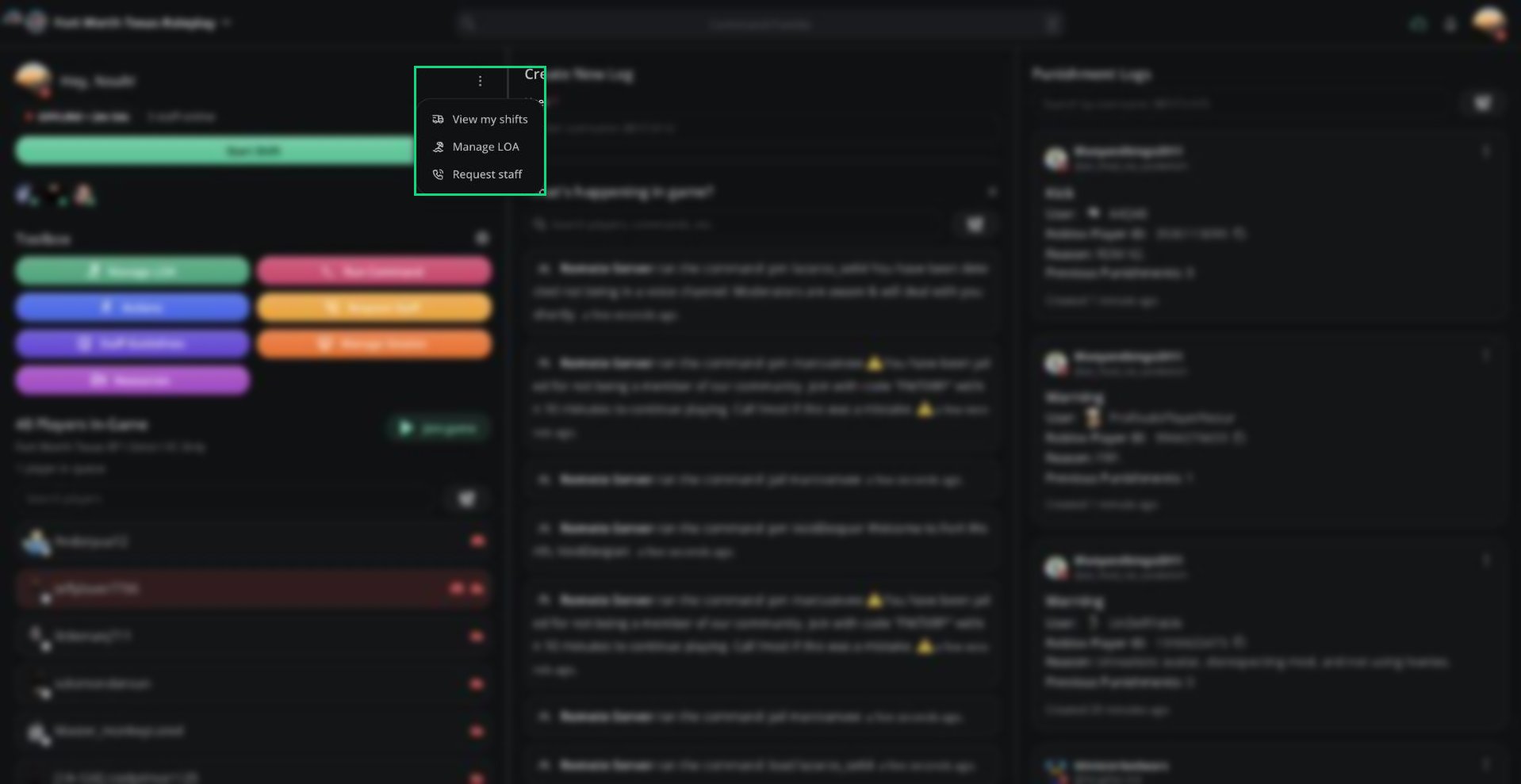 The same menu also has:
* **Manage LOA** opens your [Leave of Absence](/Modpanel/toolbox/loa) page.
* **Request staff** opens [Request Staff](/Modpanel/toolbox/requeststaff).
***
## Shifts Tab
The same menu also has:
* **Manage LOA** opens your [Leave of Absence](/Modpanel/toolbox/loa) page.
* **Request staff** opens [Request Staff](/Modpanel/toolbox/requeststaff).
***
## Shifts Tab
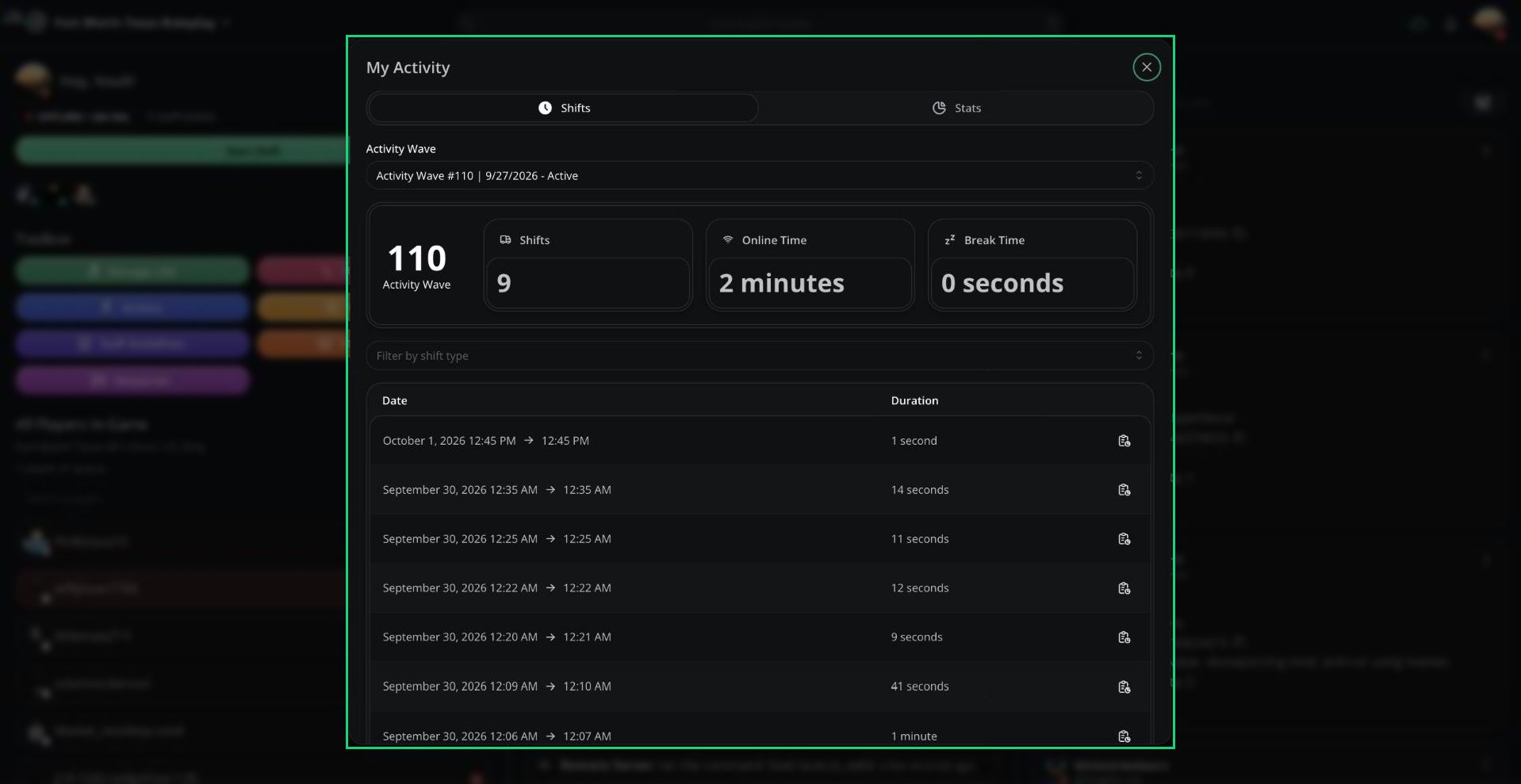 Use the **Activity Wave** dropdown to choose a wave. The current wave is selected by default.
| Section | What it shows |
| - | - |
| Shifts | How many shifts you completed in the wave |
| Online Time | Your total time on shift, not counting breaks |
| Break Time | Your total time on break |
| Filter by shift type | Show only one shift type, or Default for shifts with no type |
| Shift table | Each completed shift with its date, duration, and report |
The Duration column includes break time. Online Time doesn't.
***
## Stats Tab
Use the **Activity Wave** dropdown to choose a wave. The current wave is selected by default.
| Section | What it shows |
| - | - |
| Shifts | How many shifts you completed in the wave |
| Online Time | Your total time on shift, not counting breaks |
| Break Time | Your total time on break |
| Filter by shift type | Show only one shift type, or Default for shifts with no type |
| Shift table | Each completed shift with its date, duration, and report |
The Duration column includes break time. Online Time doesn't.
***
## Stats Tab
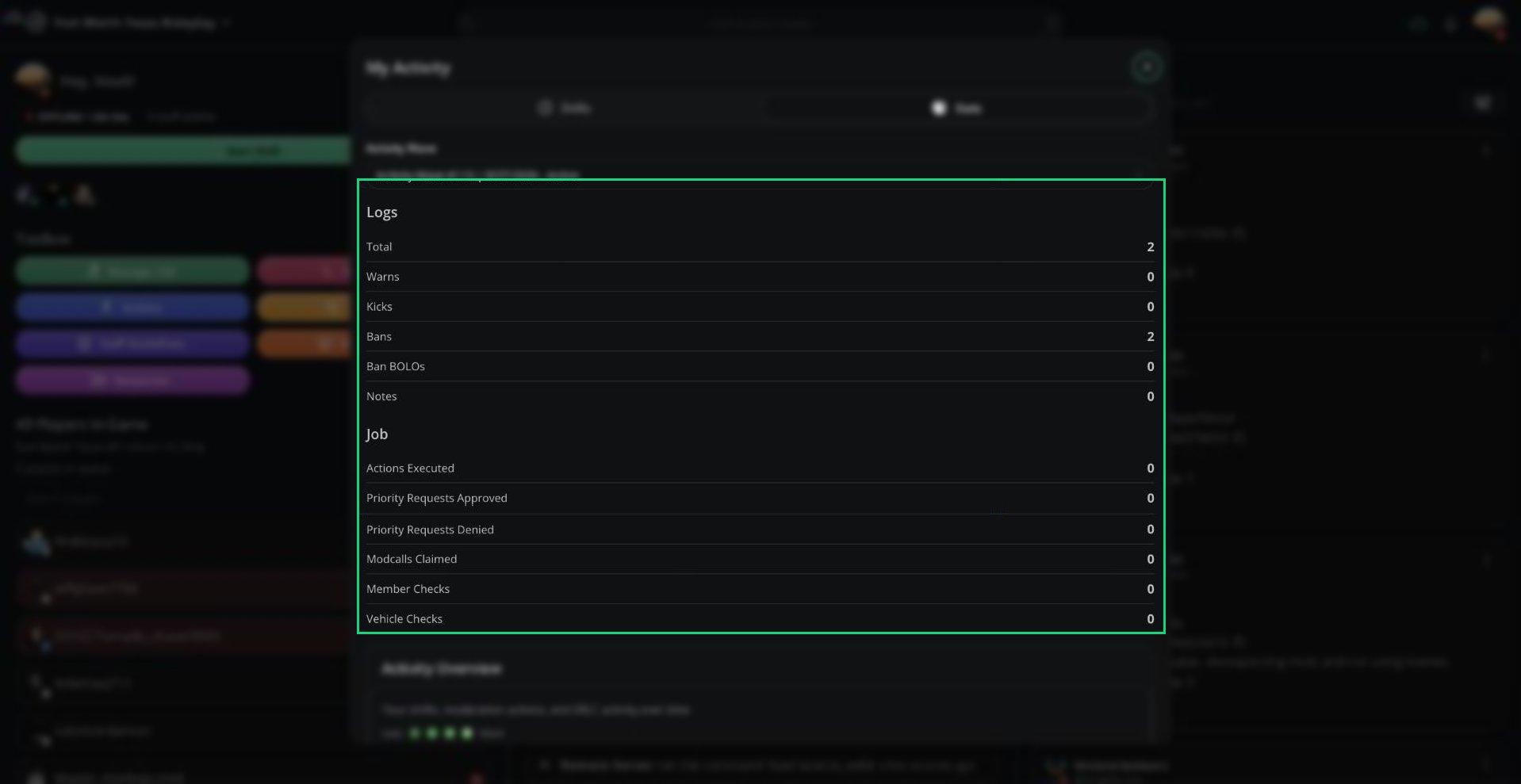 The Stats tab totals your work for the selected wave.
| Group | Stats |
| - | - |
| Logs | Total, Warns, Kicks, Bans, Ban BOLOs, Notes, and any custom log types |
| Job | Actions Executed, Priority Requests Approved, Priority Requests Denied, Modcalls Claimed, Member Checks, Vehicle Checks |
| Activity Overview | A heatmap of your shifts, moderation, and ER:LC activity by day |
***
## Shift Reports
Click the report icon next to a shift to open its **Shift Report**. It has three tabs:
| Tab | What it shows |
| - | - |
| Logs | Logs you created during the shift, by type |
| Job | Actions, mod calls, vehicle checks, and member checks |
| Commands | Every in-game command you ran and how many times |
Reports are only made for shifts of 5 minutes or more, and you can open them for 7 days after the shift ends.
Turn on **Receive DMs for Shift Reports** in your account settings to get each report in your Discord DMs.
***
Still have questions? Join our Discord server for support from the Melonly Team.
This documentation is built and hosted on [Mintlify](https://mintlify.com), a developer documentation platform.
The Stats tab totals your work for the selected wave.
| Group | Stats |
| - | - |
| Logs | Total, Warns, Kicks, Bans, Ban BOLOs, Notes, and any custom log types |
| Job | Actions Executed, Priority Requests Approved, Priority Requests Denied, Modcalls Claimed, Member Checks, Vehicle Checks |
| Activity Overview | A heatmap of your shifts, moderation, and ER:LC activity by day |
***
## Shift Reports
Click the report icon next to a shift to open its **Shift Report**. It has three tabs:
| Tab | What it shows |
| - | - |
| Logs | Logs you created during the shift, by type |
| Job | Actions, mod calls, vehicle checks, and member checks |
| Commands | Every in-game command you ran and how many times |
Reports are only made for shifts of 5 minutes or more, and you can open them for 7 days after the shift ends.
Turn on **Receive DMs for Shift Reports** in your account settings to get each report in your Discord DMs.
***
Still have questions? Join our Discord server for support from the Melonly Team.
This documentation is built and hosted on [Mintlify](https://mintlify.com), a developer documentation platform.