> ## Documentation Index
> Fetch the complete documentation index at: https://docs.melonly.xyz/llms.txt
> Use this file to discover all available pages before exploring further.
# Shifts
> Start and end shifts, take breaks, and track your activity quota from the Mod Panel.
***
## What are Shifts?
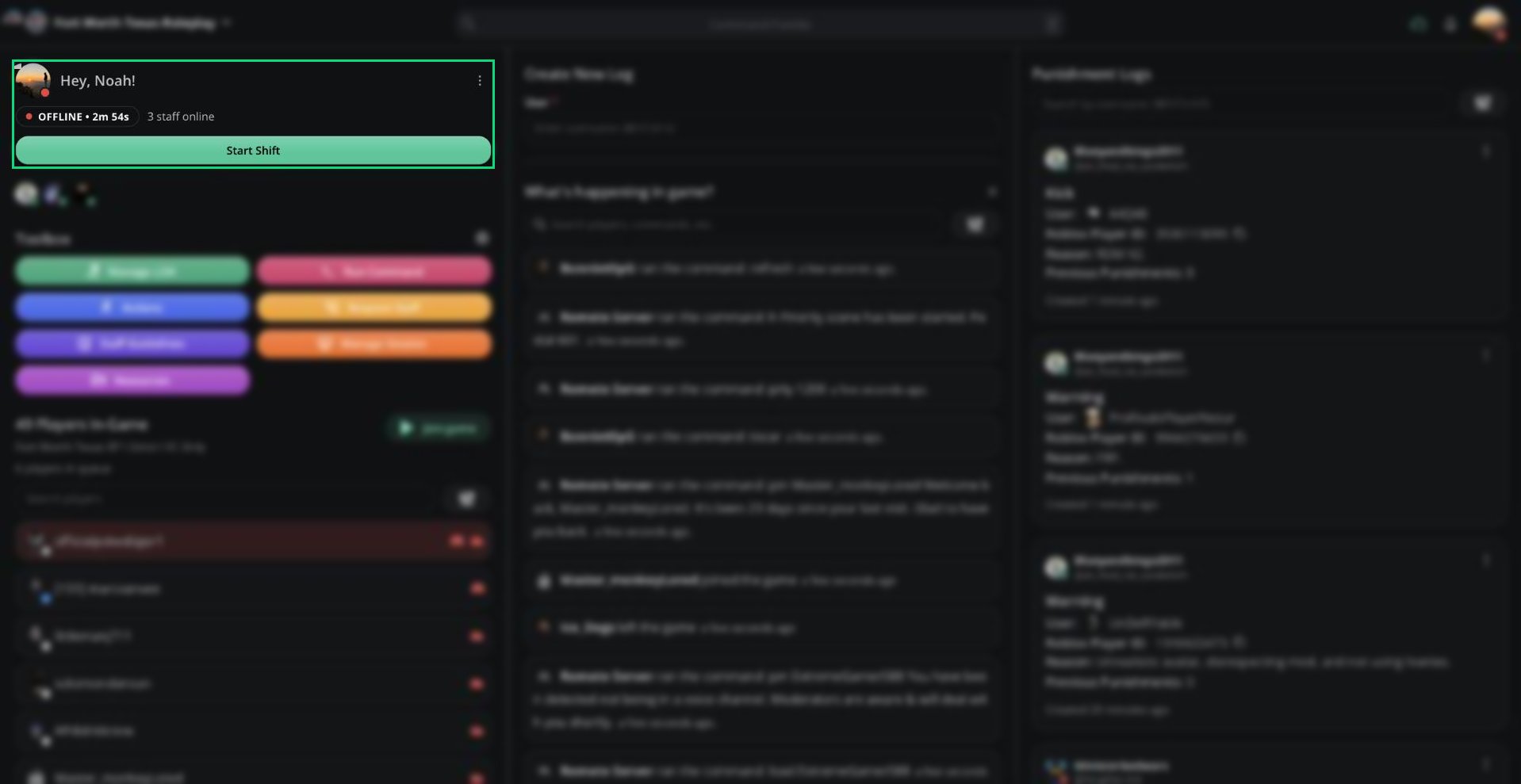
Shifts record when you're on duty. While you're on shift, Melonly tracks your online time, break time, and everything you do. That time counts toward your server's activity requirements.
Your shift controls sit at the top of the left column, under **Hey, \[your name]!**
 ***
## 🧭 Quick Navigation
Review past shifts, stats, and shift reports.
See who's on duty and manage their shifts.
***
## Shift Status
The badge under your name shows your current status.
| Status | What the timer shows |
| - | - |
| OFFLINE | Your total online time in the current activity wave |
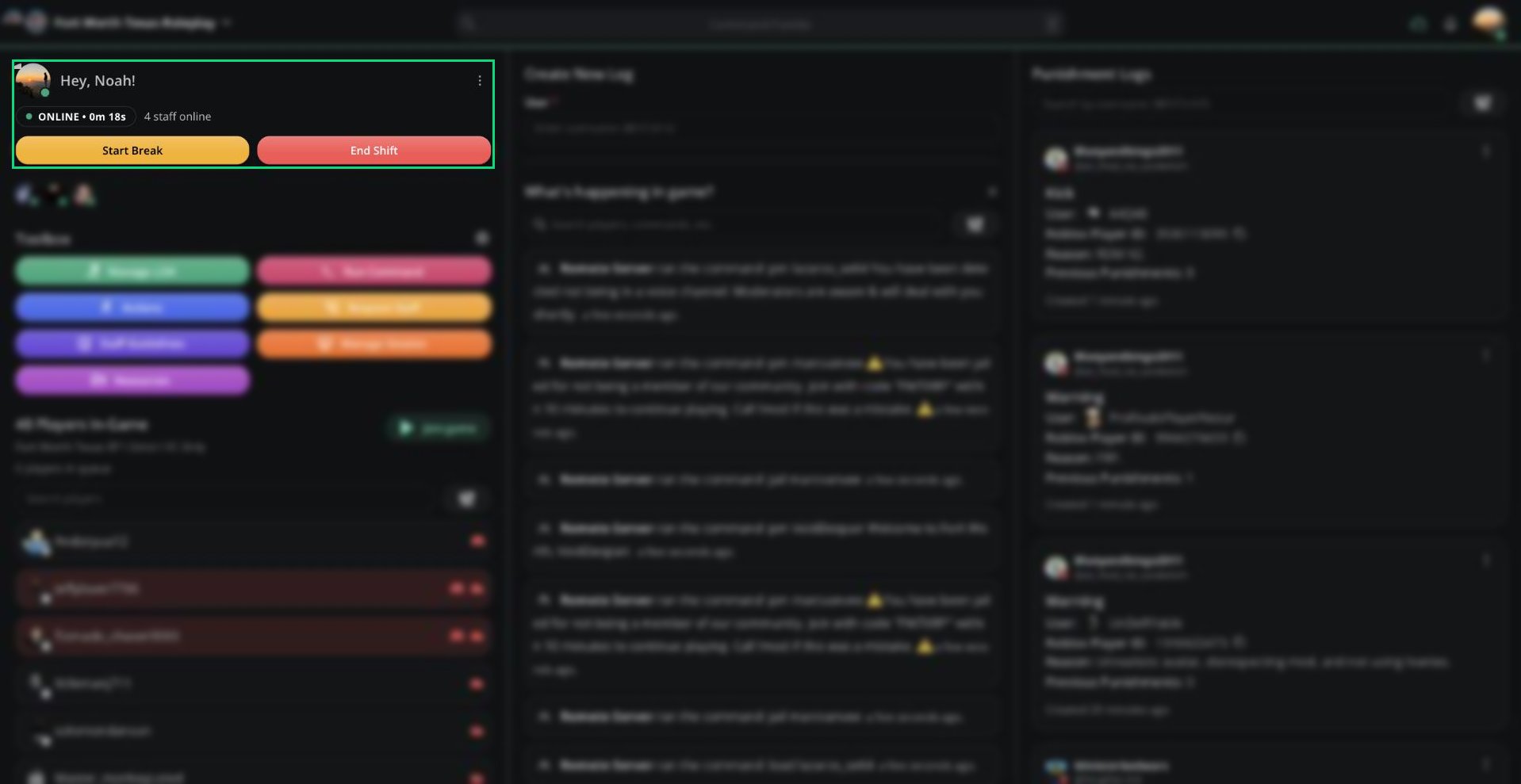
| ONLINE | Time on your current shift, not counting breaks |
| BREAK | How long your current break has lasted |
Next to the badge, **\[N] staff online** shows how many staff are on shift or on break.
***
## Starting a Shift
Click **Start Shift** or press `Ctrl` + `S` (`⌘` + `S` on Mac).
If your server uses shift types, you'll be asked which type to clock in with. Pick **Default (no shift type)** or one of your server's types. Types that need a role you don't have can't be selected.
***
## 🧭 Quick Navigation
Review past shifts, stats, and shift reports.
See who's on duty and manage their shifts.
***
## Shift Status
The badge under your name shows your current status.
| Status | What the timer shows |
| - | - |
| OFFLINE | Your total online time in the current activity wave |
| ONLINE | Time on your current shift, not counting breaks |
| BREAK | How long your current break has lasted |
Next to the badge, **\[N] staff online** shows how many staff are on shift or on break.
***
## Starting a Shift
Click **Start Shift** or press `Ctrl` + `S` (`⌘` + `S` on Mac).
If your server uses shift types, you'll be asked which type to clock in with. Pick **Default (no shift type)** or one of your server's types. Types that need a role you don't have can't be selected.
 When your shift starts, Melonly can also:
* Give you your server's on-shift Discord role
* Add your server's nickname prefix
* Post a shift log in your server's shift channel
These are set up in [Dashboard → Activity → Shifts](/Dashboard/activity/shifts). A shift type can set its own role and prefix.
### Shift requirements
Your server may block shifts until certain conditions are met.
| Requirement | What it means |
| - | - |
| In-game Requirement | You must be in the ER:LC server, with your Roblox account linked. |
| Minimum Playercount | The server needs enough players online. |
| Max On Shift | Only a set number of staff can be on shift at once. |
| Disallow Shifts on LOA | You can't start a shift while on leave. |
Administrators skip the in-game and player count requirements. Max On Shift applies to everyone.
***
## Taking a Break
Click **Start Break** or press `Ctrl` + `B` (`⌘` + `B`). Your shift timer pauses, and other staff see you as on break.
When your shift starts, Melonly can also:
* Give you your server's on-shift Discord role
* Add your server's nickname prefix
* Post a shift log in your server's shift channel
These are set up in [Dashboard → Activity → Shifts](/Dashboard/activity/shifts). A shift type can set its own role and prefix.
### Shift requirements
Your server may block shifts until certain conditions are met.
| Requirement | What it means |
| - | - |
| In-game Requirement | You must be in the ER:LC server, with your Roblox account linked. |
| Minimum Playercount | The server needs enough players online. |
| Max On Shift | Only a set number of staff can be on shift at once. |
| Disallow Shifts on LOA | You can't start a shift while on leave. |
Administrators skip the in-game and player count requirements. Max On Shift applies to everyone.
***
## Taking a Break
Click **Start Break** or press `Ctrl` + `B` (`⌘` + `B`). Your shift timer pauses, and other staff see you as on break.
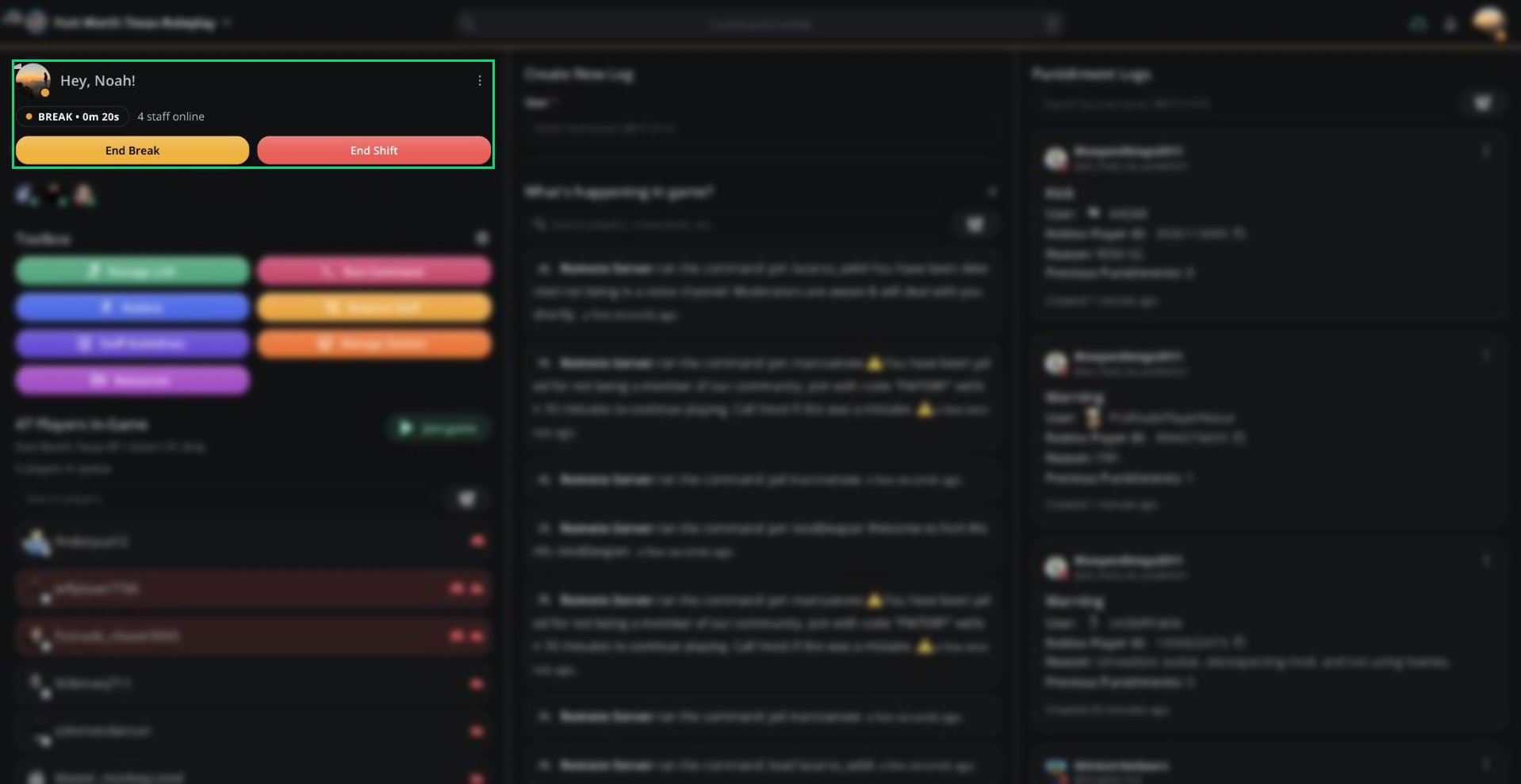 Click **End Break** or press the same shortcut again to resume your shift.
***
## Ending a Shift
Click **End Shift** or press `Ctrl` + `E` (`⌘` + `E`). This works whether you're on shift or on break.
Your Discord role and nickname are reverted, and the shift is logged.
If your server uses a shift report form, click **Open Report** after ending your shift to fill it in. Shifts of 5 minutes or more also get an automatic shift report, which you can view in [My Activity](/Modpanel/shifts/myactivity#shift-reports).
***
## Activity Quota
If your server has an activity requirement, a progress bar appears under your shift controls.
* It shows your time toward the quota for the current activity wave.
* The bar turns green once you meet the quota.
* Your requirement may differ from other staff if your server sets custom requirements per role.
The quota bar updates when you end a shift. Time from your current shift isn't counted until it ends.
### New activity waves
If an administrator starts a new activity wave while you're on shift, your shift ends and a new one starts automatically, so your time counts toward the new wave.
***
Still have questions? Join our Discord server for support from the Melonly Team.
This documentation is built and hosted on [Mintlify](https://mintlify.com), a developer documentation platform.
Click **End Break** or press the same shortcut again to resume your shift.
***
## Ending a Shift
Click **End Shift** or press `Ctrl` + `E` (`⌘` + `E`). This works whether you're on shift or on break.
Your Discord role and nickname are reverted, and the shift is logged.
If your server uses a shift report form, click **Open Report** after ending your shift to fill it in. Shifts of 5 minutes or more also get an automatic shift report, which you can view in [My Activity](/Modpanel/shifts/myactivity#shift-reports).
***
## Activity Quota
If your server has an activity requirement, a progress bar appears under your shift controls.
* It shows your time toward the quota for the current activity wave.
* The bar turns green once you meet the quota.
* Your requirement may differ from other staff if your server sets custom requirements per role.
The quota bar updates when you end a shift. Time from your current shift isn't counted until it ends.
### New activity waves
If an administrator starts a new activity wave while you're on shift, your shift ends and a new one starts automatically, so your time counts toward the new wave.
***
Still have questions? Join our Discord server for support from the Melonly Team.
This documentation is built and hosted on [Mintlify](https://mintlify.com), a developer documentation platform.