> ## Documentation Index
> Fetch the complete documentation index at: https://docs.melonly.xyz/llms.txt
> Use this file to discover all available pages before exploring further.
# User Panel
> See one player's profile, in-game status, and full moderation history on one screen.
***
## What is the User Panel?
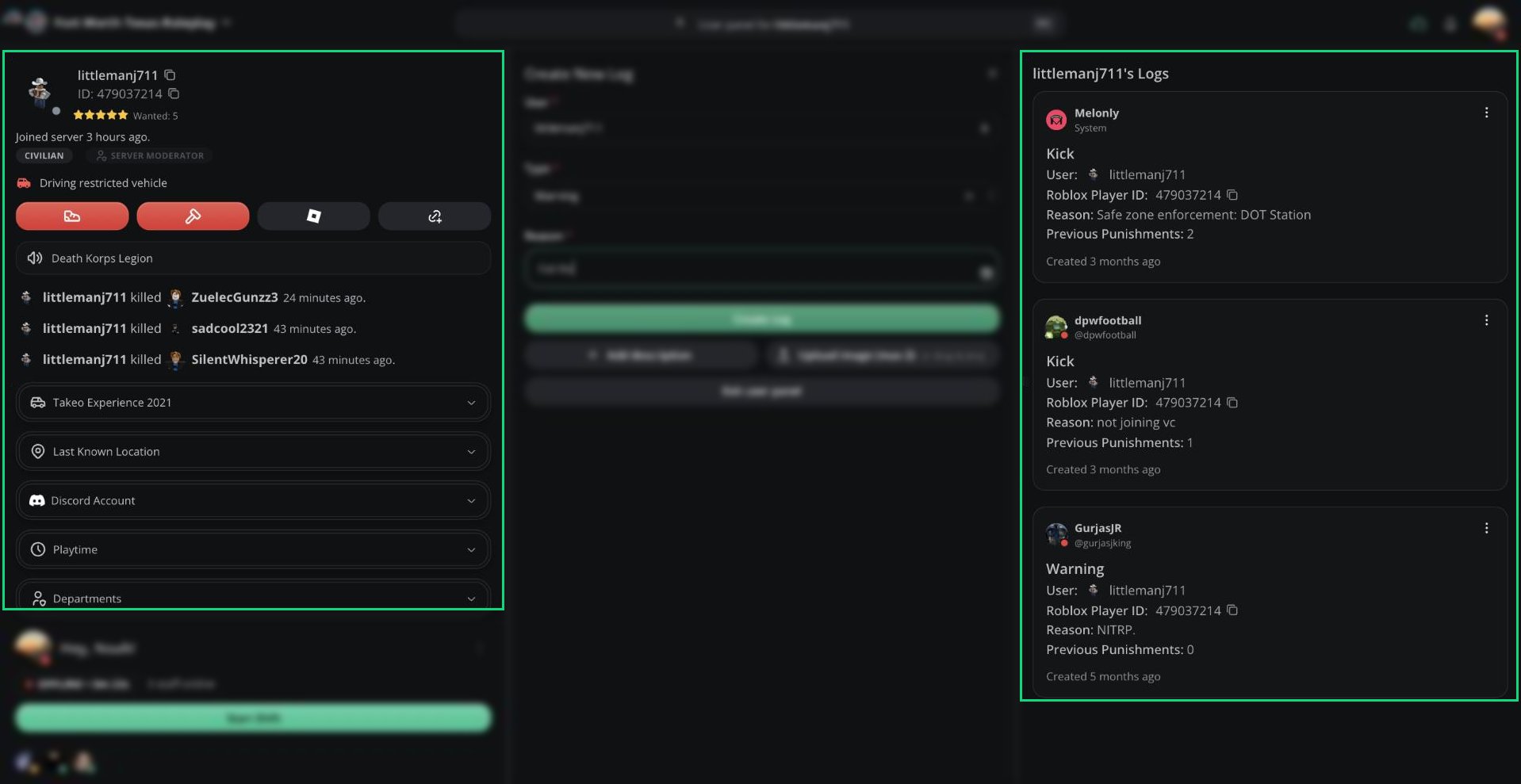
The User Panel focuses the whole panel on one player. The left column shows their profile and live in-game info. The right column shows every log for that player.
 ***
## Opening the User Panel
* Type a username in the **User** field of the log form.
* Search a player in the [Command Palette](/Modpanel/commandpalette) and select **Open user panel for \[name]**.
* Click **Open user panel** after searching in Punishment Logs, or press `Ctrl` + `U`.
* `Ctrl` + click any player's name on the panel.
* Open a shared User Panel link.
To close it, click **Exit user panel** or press `Ctrl` + `X` or `Esc`.
***
## Player Profile
| Section | What it shows |
| - | - |
| Header | Avatar, username, and Roblox ID. Click either to copy it. The dot shows whether they're online on Roblox or in your server. |
| Wanted level | Their in-game wanted stars. |
| Status | When they joined your server, or whether they're in it. |
| Team and permission | Their in-game team, callsign, and staff permission. |
| Alerts | Not in Discord, Driving restricted vehicle, or time spent outside the AOP or jurisdiction. |
| Voice channel | The Discord voice channel they're in. |
| Recent activity | Their 3 most recent kills, joins, commands, or mod calls. |
### Details
Expand these sections for more information:
| Section | What it shows |
| - | - |
| Vehicle | The vehicle they're driving and its colour. |
| Last Known Location | Street, postal code, building number, estimated speed, and a map. |
| Discord Account | Their linked Discord account. |
| Playtime | Their total playtime on your server and a heatmap. |
| Departments | Their department memberships and ranks. |
Vehicle and location details need the [ER:LC integration](/Dashboard/erlcintegration/home).
***
## Quick Actions
| Button | What it does | Requires |
| - | - | - |
| Kick | Kicks the player in-game and creates a Kick log. | ER:LC Mod |
| Ban | Bans the player in-game and creates a Ban log. | ER:LC Admin |
| Roblox | Opens their Roblox profile. | Nothing |
| Copy link | Copies a link that opens this User Panel. | Nothing |
Kick and Ban only appear while the player is in your server. See [Kicking and Banning](/Modpanel/erlc/players#kicking-and-banning).
***
## Player Logs
The right column, **\[name]'s Logs**, shows the player's 20 most recent logs. Every option from [Punishment Logs](/Modpanel/logs/punishmentlogs#managing-a-log) works here too.
***
Still have questions? Join our Discord server for support from the Melonly Team.
This documentation is built and hosted on [Mintlify](https://mintlify.com), a developer documentation platform.
***
## Opening the User Panel
* Type a username in the **User** field of the log form.
* Search a player in the [Command Palette](/Modpanel/commandpalette) and select **Open user panel for \[name]**.
* Click **Open user panel** after searching in Punishment Logs, or press `Ctrl` + `U`.
* `Ctrl` + click any player's name on the panel.
* Open a shared User Panel link.
To close it, click **Exit user panel** or press `Ctrl` + `X` or `Esc`.
***
## Player Profile
| Section | What it shows |
| - | - |
| Header | Avatar, username, and Roblox ID. Click either to copy it. The dot shows whether they're online on Roblox or in your server. |
| Wanted level | Their in-game wanted stars. |
| Status | When they joined your server, or whether they're in it. |
| Team and permission | Their in-game team, callsign, and staff permission. |
| Alerts | Not in Discord, Driving restricted vehicle, or time spent outside the AOP or jurisdiction. |
| Voice channel | The Discord voice channel they're in. |
| Recent activity | Their 3 most recent kills, joins, commands, or mod calls. |
### Details
Expand these sections for more information:
| Section | What it shows |
| - | - |
| Vehicle | The vehicle they're driving and its colour. |
| Last Known Location | Street, postal code, building number, estimated speed, and a map. |
| Discord Account | Their linked Discord account. |
| Playtime | Their total playtime on your server and a heatmap. |
| Departments | Their department memberships and ranks. |
Vehicle and location details need the [ER:LC integration](/Dashboard/erlcintegration/home).
***
## Quick Actions
| Button | What it does | Requires |
| - | - | - |
| Kick | Kicks the player in-game and creates a Kick log. | ER:LC Mod |
| Ban | Bans the player in-game and creates a Ban log. | ER:LC Admin |
| Roblox | Opens their Roblox profile. | Nothing |
| Copy link | Copies a link that opens this User Panel. | Nothing |
Kick and Ban only appear while the player is in your server. See [Kicking and Banning](/Modpanel/erlc/players#kicking-and-banning).
***
## Player Logs
The right column, **\[name]'s Logs**, shows the player's 20 most recent logs. Every option from [Punishment Logs](/Modpanel/logs/punishmentlogs#managing-a-log) works here too.
***
Still have questions? Join our Discord server for support from the Melonly Team.
This documentation is built and hosted on [Mintlify](https://mintlify.com), a developer documentation platform.