> ## Documentation Index
> Fetch the complete documentation index at: https://docs.melonly.xyz/llms.txt
> Use this file to discover all available pages before exploring further.
# Creating Logs
> Use the log form to punish one or more players, add proof, set temporary bans, and apply presets.
***
## The Log Form
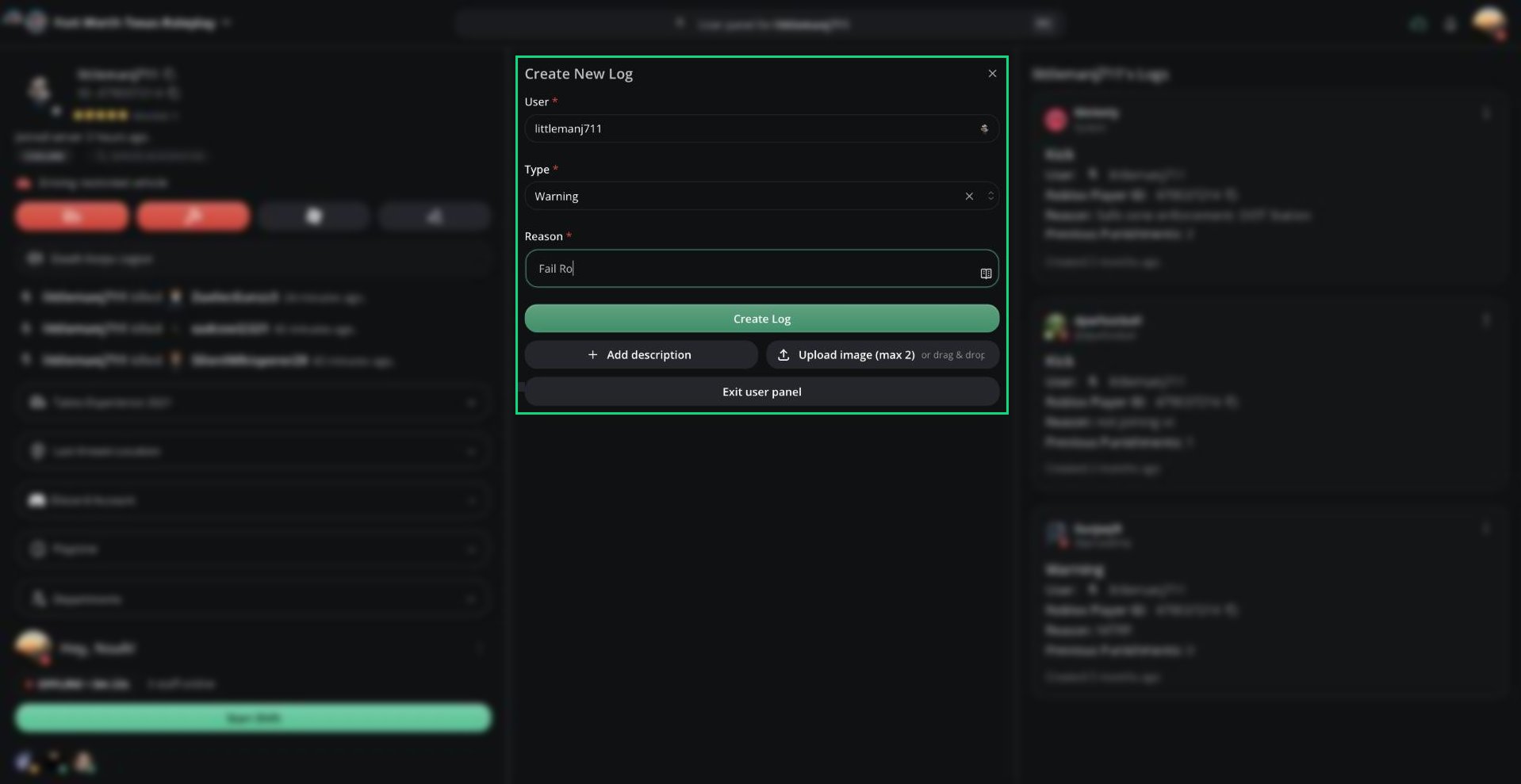
The Create New Log form sits at the top of the middle column. The rest of the form opens once you enter a player.
 ***
## Creating a Log
Type a Roblox username in **User**, or press `Ctrl` + `I` to jump to the field. Press `Tab` to accept a suggestion.
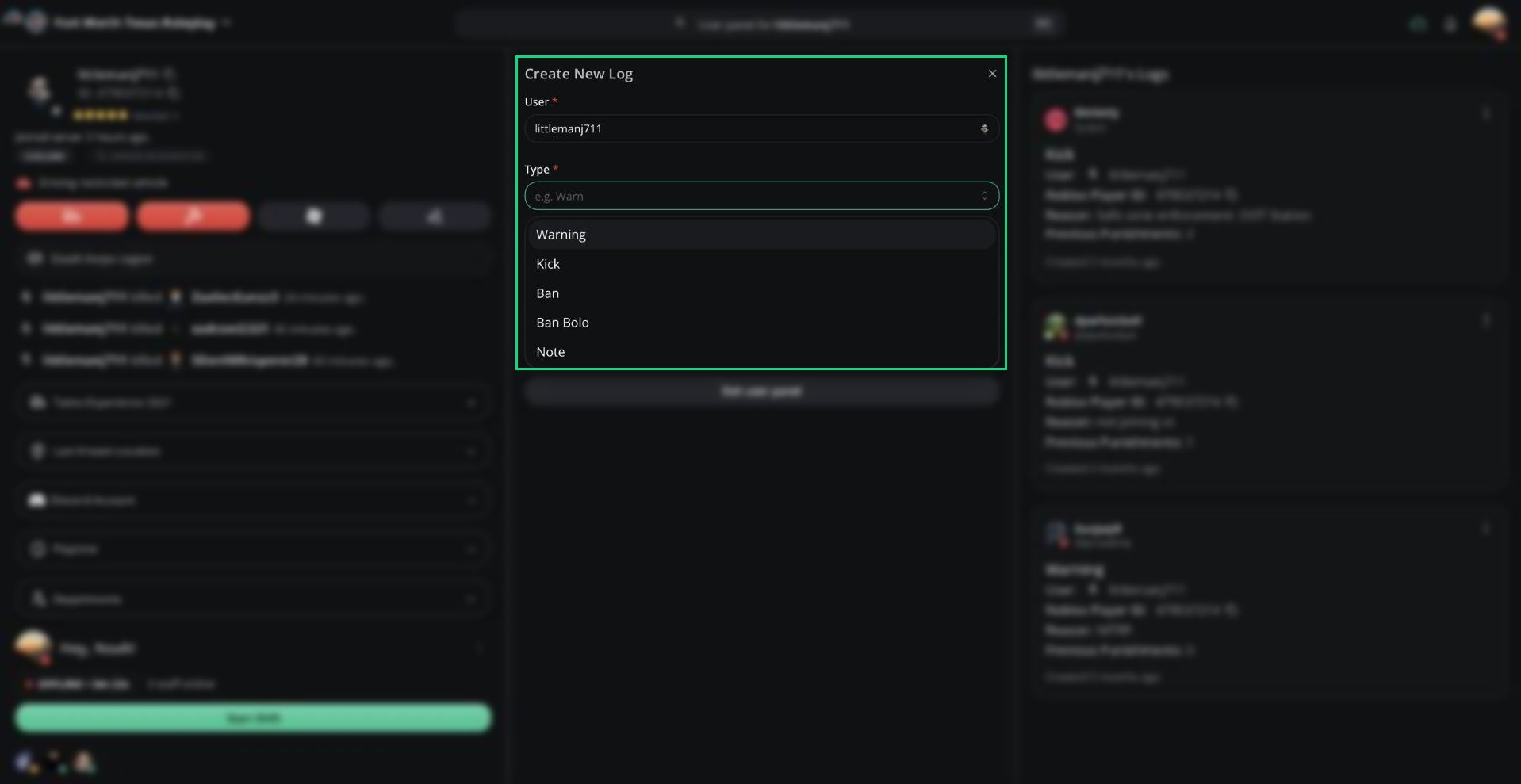
Select a log **Type**. Types you don't have permission for are greyed out.
Enter a **Reason**. Melonly suggests common reasons as you type; press `Tab` to accept one.
Click **Create Log** or press `Ctrl` + `Enter`.
***
## Creating a Log
Type a Roblox username in **User**, or press `Ctrl` + `I` to jump to the field. Press `Tab` to accept a suggestion.
Select a log **Type**. Types you don't have permission for are greyed out.
Enter a **Reason**. Melonly suggests common reasons as you type; press `Tab` to accept one.
Click **Create Log** or press `Ctrl` + `Enter`.
 Made a mistake? Press `Ctrl` + `Z` right after creating a log to reopen it for editing.
Typing a player in **User** also opens their [User Panel](/Modpanel/logs/userpanel), so you can check their history before you log.
### Reason box
The reason box supports a few extras:
* `@` mentions a Melonly user.
* `:` opens an emoji picker, including your Discord server's emojis.
* Links in the reason are clickable on the log.
***
## Logging Multiple Players
You can log several players at once with the same type and reason.
Made a mistake? Press `Ctrl` + `Z` right after creating a log to reopen it for editing.
Typing a player in **User** also opens their [User Panel](/Modpanel/logs/userpanel), so you can check their history before you log.
### Reason box
The reason box supports a few extras:
* `@` mentions a Melonly user.
* `:` opens an emoji picker, including your Discord server's emojis.
* Links in the reason are clickable on the log.
***
## Logging Multiple Players
You can log several players at once with the same type and reason.
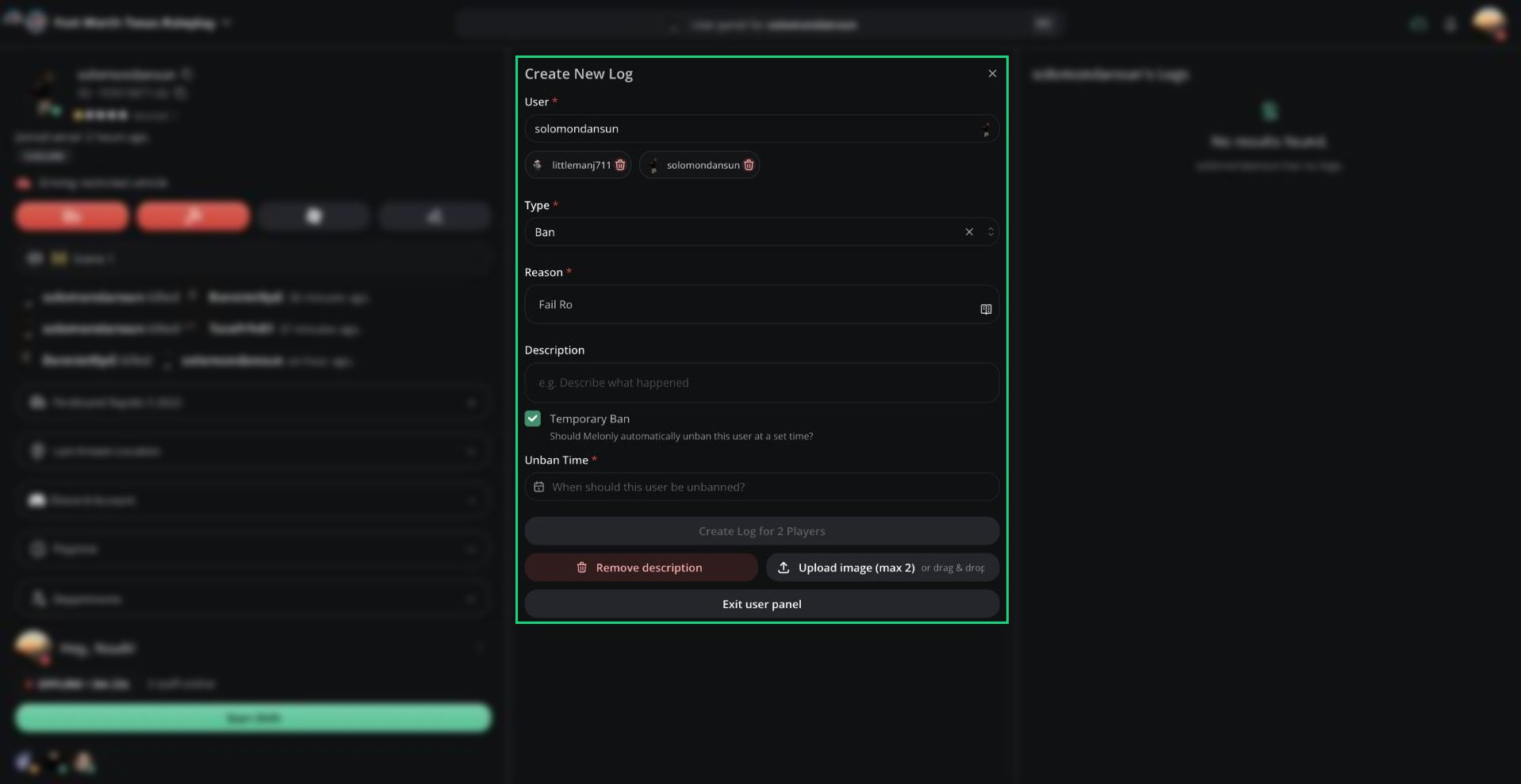 Type a username and press `Enter`. Repeat for each player.
Choose a type and reason as usual. Everything you add applies to every player.
Click **Create Log**. Each player gets their own separate log.
***
## Descriptions
Requires [Melonly Plus](https://melonly.xyz/plus).
Click **Add description** to add more detail under the reason. Use it for context, timelines, or clip links. Medal.tv clip links show up as clips on the log.
***
## Temporary Bans
Requires [Melonly Plus](https://melonly.xyz/plus).
When the type is Ban, tick **Temporary Ban** and choose an **Unban Time** (up to 1 year away). Melonly unbans the player automatically, and the log shows when the ban ends.
***
## Proof Images
Requires [Melonly Plus](https://melonly.xyz/plus).
Click **Upload image** or drag images onto the form. You can attach up to 2 PNG or JPEG images.
***
## Punishment Presets
Presets are saved punishments with a name, reason, type, and optional temporary ban length. They require [Melonly Plus](https://melonly.xyz/plus) and are set up under [Dashboard → Panel](/Dashboard/settings#punishment-presets).
Type a username and press `Enter`. Repeat for each player.
Choose a type and reason as usual. Everything you add applies to every player.
Click **Create Log**. Each player gets their own separate log.
***
## Descriptions
Requires [Melonly Plus](https://melonly.xyz/plus).
Click **Add description** to add more detail under the reason. Use it for context, timelines, or clip links. Medal.tv clip links show up as clips on the log.
***
## Temporary Bans
Requires [Melonly Plus](https://melonly.xyz/plus).
When the type is Ban, tick **Temporary Ban** and choose an **Unban Time** (up to 1 year away). Melonly unbans the player automatically, and the log shows when the ban ends.
***
## Proof Images
Requires [Melonly Plus](https://melonly.xyz/plus).
Click **Upload image** or drag images onto the form. You can attach up to 2 PNG or JPEG images.
***
## Punishment Presets
Presets are saved punishments with a name, reason, type, and optional temporary ban length. They require [Melonly Plus](https://melonly.xyz/plus) and are set up under [Dashboard → Panel](/Dashboard/settings#punishment-presets).
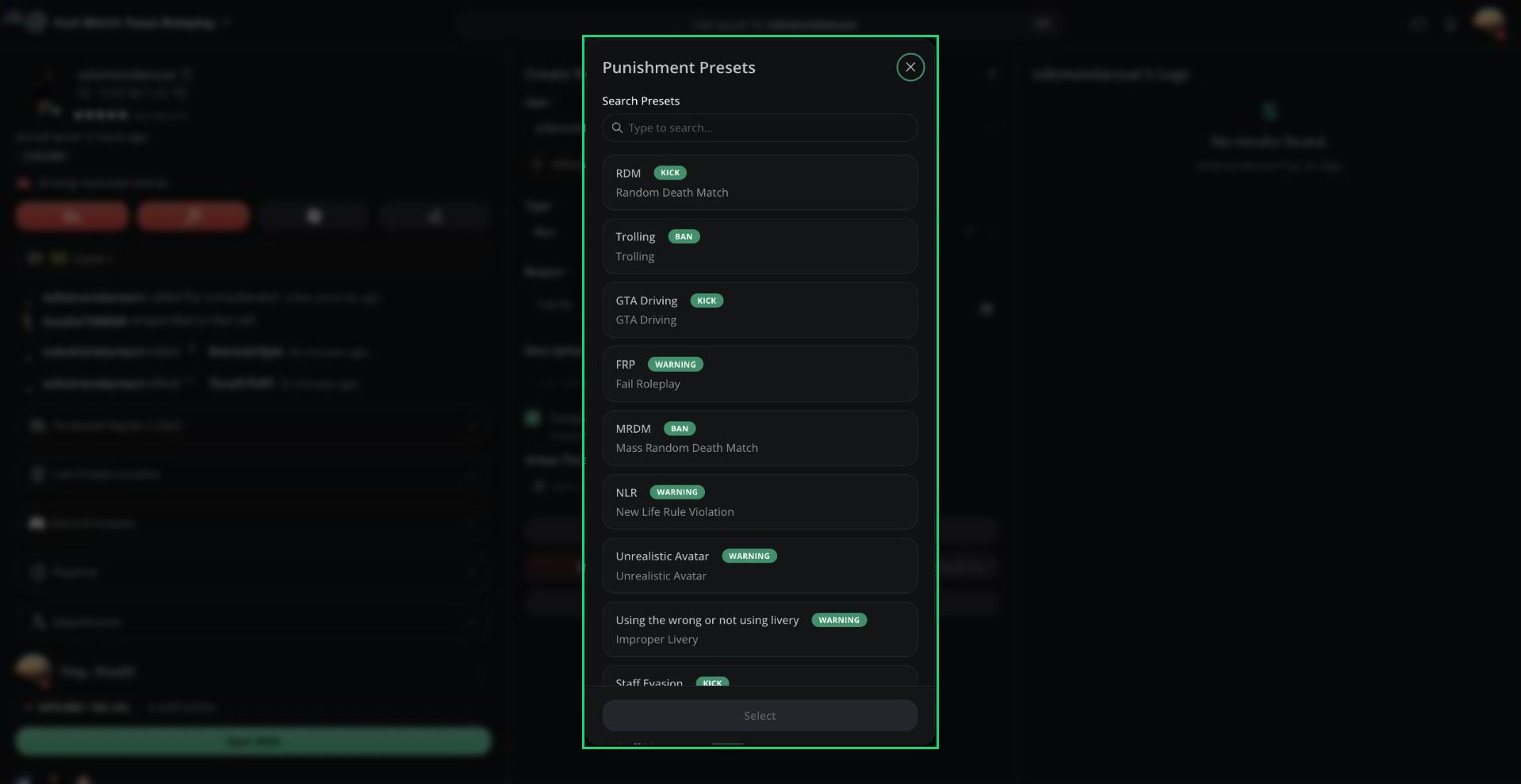 Click the book icon in the **Reason** box, or press `Ctrl` + `P`.
Click one or more presets to select them, then click **Select**. Double-click a preset to apply it straight away.
The reasons are combined, and the type is set to the most severe one you picked. If a Ban preset has a duration, the temporary ban is filled in for you.
Presets for log types you can't use are greyed out.
***
## Resetting Previous Punishments
Requires the Reset previous punishments count permission.
When the type is Note, you can tick **Reset previous punishments count**. Logs created after this note start counting previous punishments from zero. See [Previous Punishments](/Modpanel/logs/punishmentlogs#previous-punishments).
***
Still have questions? Join our Discord server for support from the Melonly Team.
This documentation is built and hosted on [Mintlify](https://mintlify.com), a developer documentation platform.
Click the book icon in the **Reason** box, or press `Ctrl` + `P`.
Click one or more presets to select them, then click **Select**. Double-click a preset to apply it straight away.
The reasons are combined, and the type is set to the most severe one you picked. If a Ban preset has a duration, the temporary ban is filled in for you.
Presets for log types you can't use are greyed out.
***
## Resetting Previous Punishments
Requires the Reset previous punishments count permission.
When the type is Note, you can tick **Reset previous punishments count**. Logs created after this note start counting previous punishments from zero. See [Previous Punishments](/Modpanel/logs/punishmentlogs#previous-punishments).
***
Still have questions? Join our Discord server for support from the Melonly Team.
This documentation is built and hosted on [Mintlify](https://mintlify.com), a developer documentation platform.