> ## Documentation Index
> Fetch the complete documentation index at: https://docs.melonly.xyz/llms.txt
> Use this file to discover all available pages before exploring further.
# Players
> See everyone in your ER:LC server, spot rule breaks, and kick or ban players.
***
## What is the Players List?
Players In-Game, at the bottom of the left column, lists everyone in your ER:LC server and flags players who may be breaking your rules.
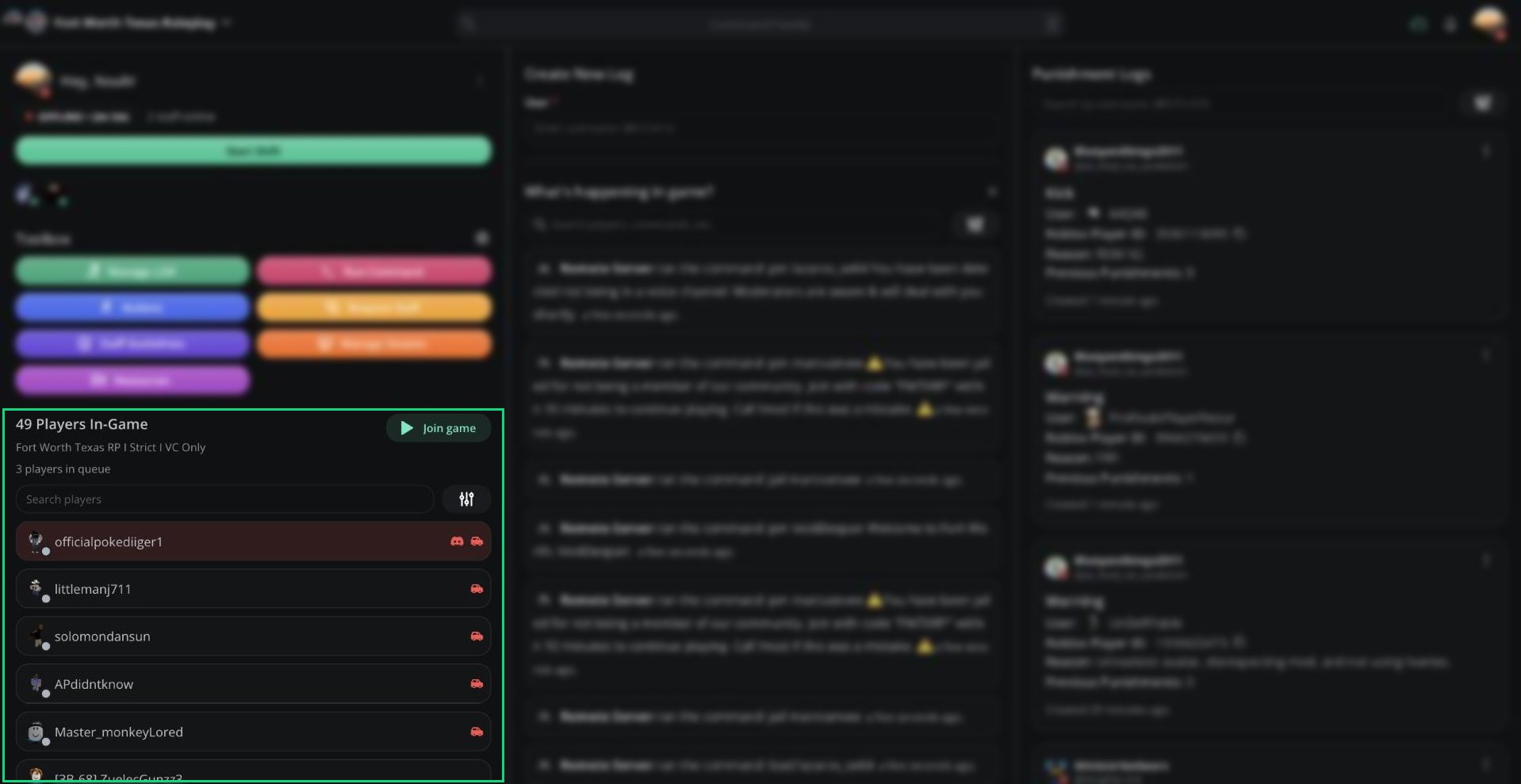 The header shows the player count, your server's name, and how many players are in the queue. Click **Join game** to join your private server in Roblox.
***
## Player Alerts
Players with possible issues are sorted to the top and show red icons.
| Alert | Meaning |
| - | - |
| Not in Discord | The player isn't in your linked Discord server. |
| Driving restricted vehicle | The player is driving a vehicle they don't have the role for. |
| Driving restricted livery | The player is using a livery they don't have the role for. |
| Outside of AOP | The player has been outside the Area of Play for a while. |
| Outside of jurisdiction | The player has been outside their team's jurisdiction for a while. |
Hover over a player to see their alerts in full.
Vehicle restrictions are set in [Dashboard → ER:LC](/Dashboard/erlcintegration/home). AOP and jurisdiction alerts come from your session settings.
***
## Searching and Filtering
Type in **Search players** to find a player by username, callsign, or Roblox ID.
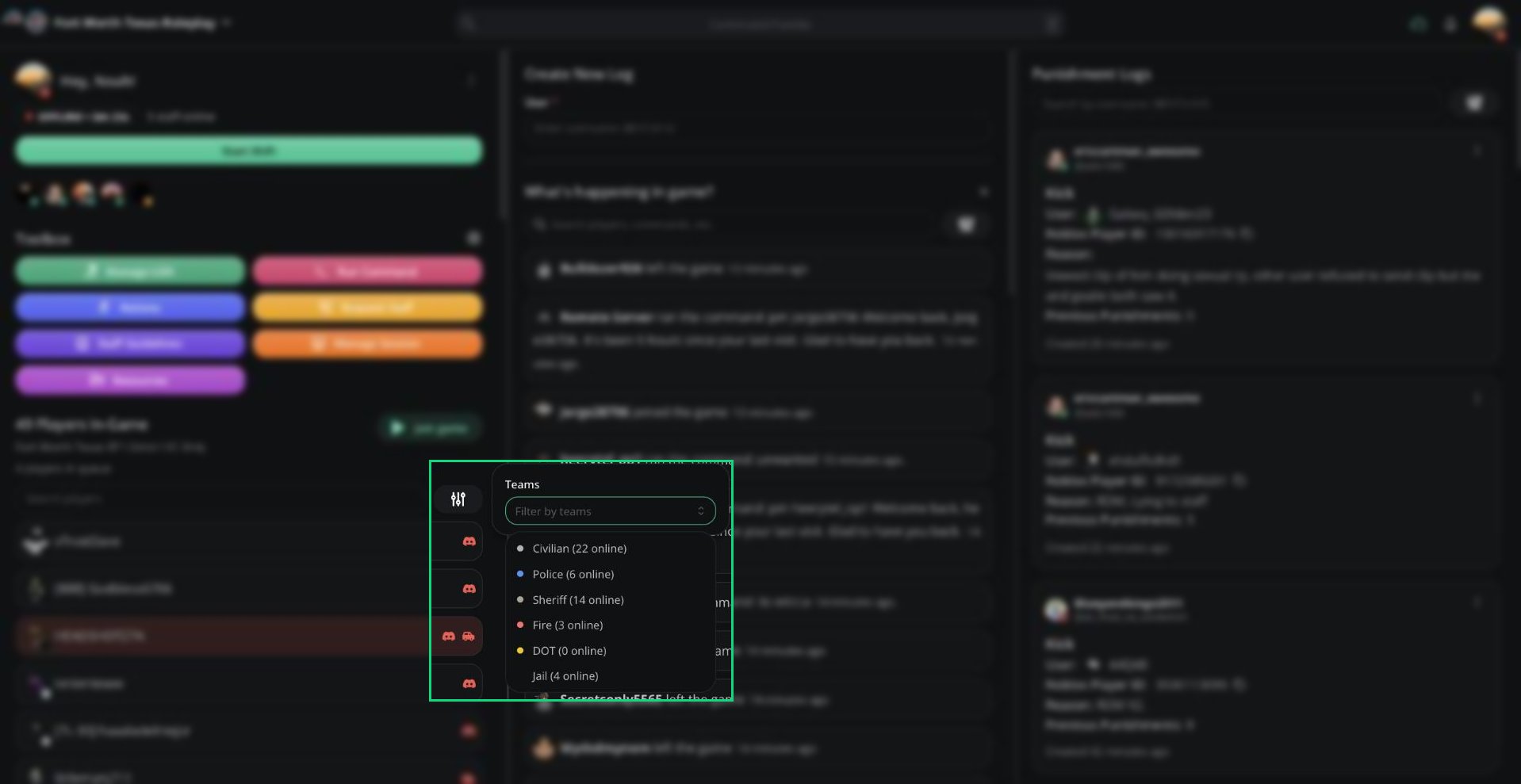
Click the filter button to show only certain teams.
The header shows the player count, your server's name, and how many players are in the queue. Click **Join game** to join your private server in Roblox.
***
## Player Alerts
Players with possible issues are sorted to the top and show red icons.
| Alert | Meaning |
| - | - |
| Not in Discord | The player isn't in your linked Discord server. |
| Driving restricted vehicle | The player is driving a vehicle they don't have the role for. |
| Driving restricted livery | The player is using a livery they don't have the role for. |
| Outside of AOP | The player has been outside the Area of Play for a while. |
| Outside of jurisdiction | The player has been outside their team's jurisdiction for a while. |
Hover over a player to see their alerts in full.
Vehicle restrictions are set in [Dashboard → ER:LC](/Dashboard/erlcintegration/home). AOP and jurisdiction alerts come from your session settings.
***
## Searching and Filtering
Type in **Search players** to find a player by username, callsign, or Roblox ID.
Click the filter button to show only certain teams.
 ***
## Player Info
Click a player to see a quick profile without leaving the list.
***
## Player Info
Click a player to see a quick profile without leaving the list.
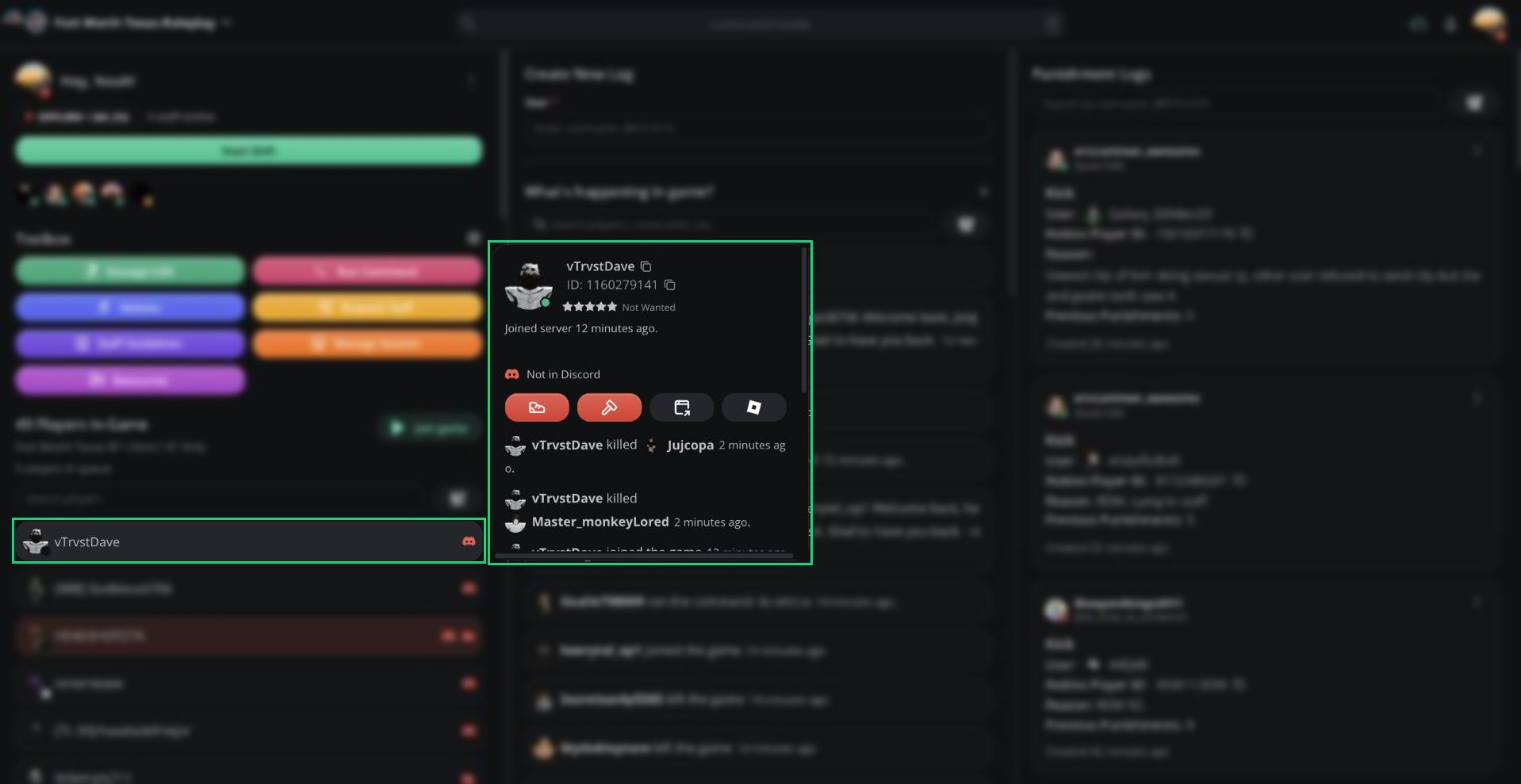 The card shows the same profile as the [User Panel](/Modpanel/logs/userpanel), plus their punishment history.
| Button | What it does |
| - | - |
| Kick | Kick the player |
| Ban | Ban the player |
| Open User Panel | Open their full [User Panel](/Modpanel/logs/userpanel). Shortcut: `Ctrl` + `U`. |
| Roblox | Open their Roblox profile |
You can also drag a player's name into the log form's User field to fill it in.
***
## Kicking and Banning
Kick requires the ER:LC mod permission. Ban requires ER:LC admin.
The card shows the same profile as the [User Panel](/Modpanel/logs/userpanel), plus their punishment history.
| Button | What it does |
| - | - |
| Kick | Kick the player |
| Ban | Ban the player |
| Open User Panel | Open their full [User Panel](/Modpanel/logs/userpanel). Shortcut: `Ctrl` + `U`. |
| Roblox | Open their Roblox profile |
You can also drag a player's name into the log form's User field to fill it in.
***
## Kicking and Banning
Kick requires the ER:LC mod permission. Ban requires ER:LC admin.
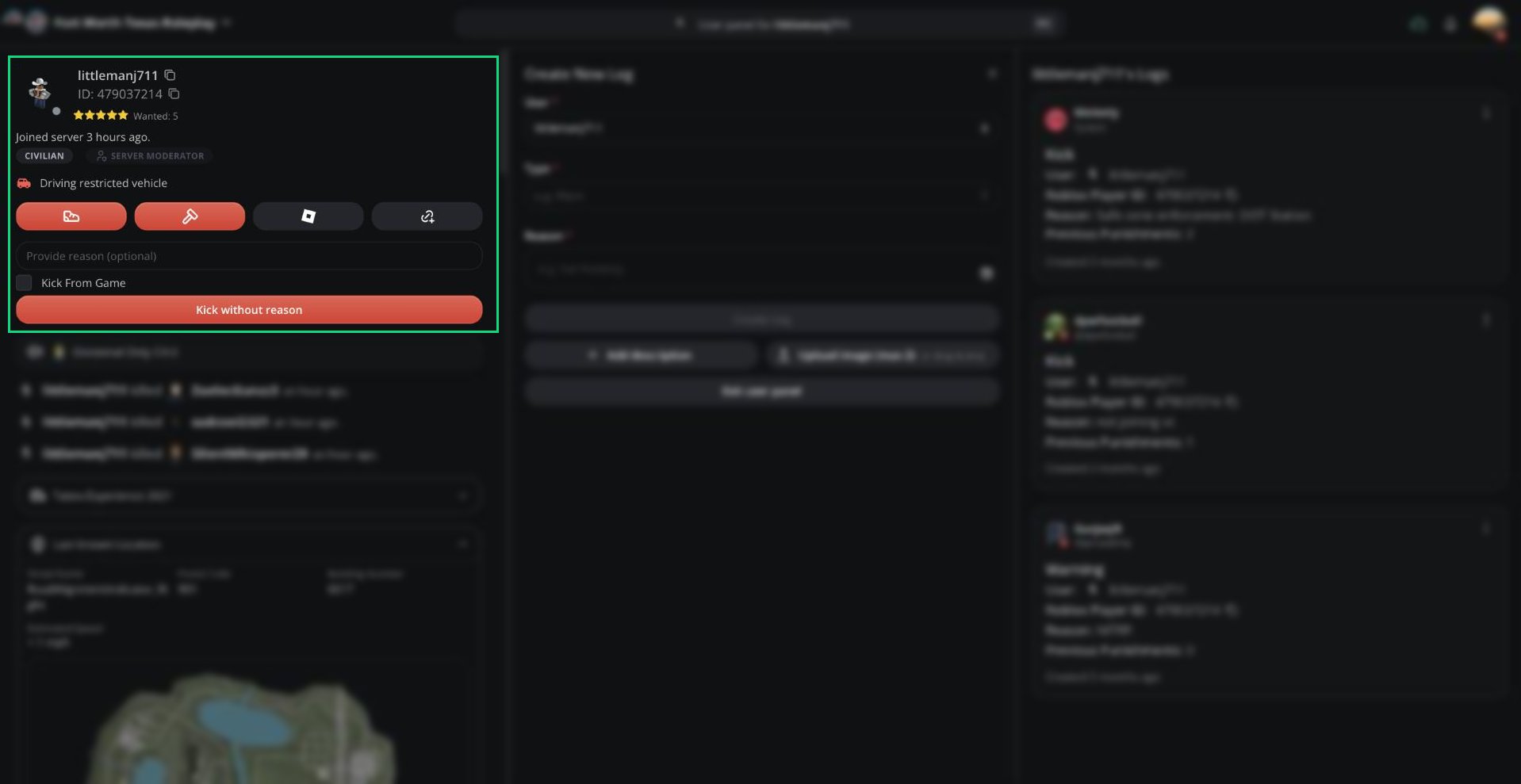 Click the kick (shoe) or ban (hammer) button on the player's info card or User Panel.
Type a reason. This is optional.
Click the confirm button or press `Enter`.
Melonly runs the command in-game and creates a Kick or Ban log for you.
***
## Queue
Click **\[N] players in queue** under the player count to see who's waiting to join.
Click the kick (shoe) or ban (hammer) button on the player's info card or User Panel.
Type a reason. This is optional.
Click the confirm button or press `Enter`.
Melonly runs the command in-game and creates a Kick or Ban log for you.
***
## Queue
Click **\[N] players in queue** under the player count to see who's waiting to join.
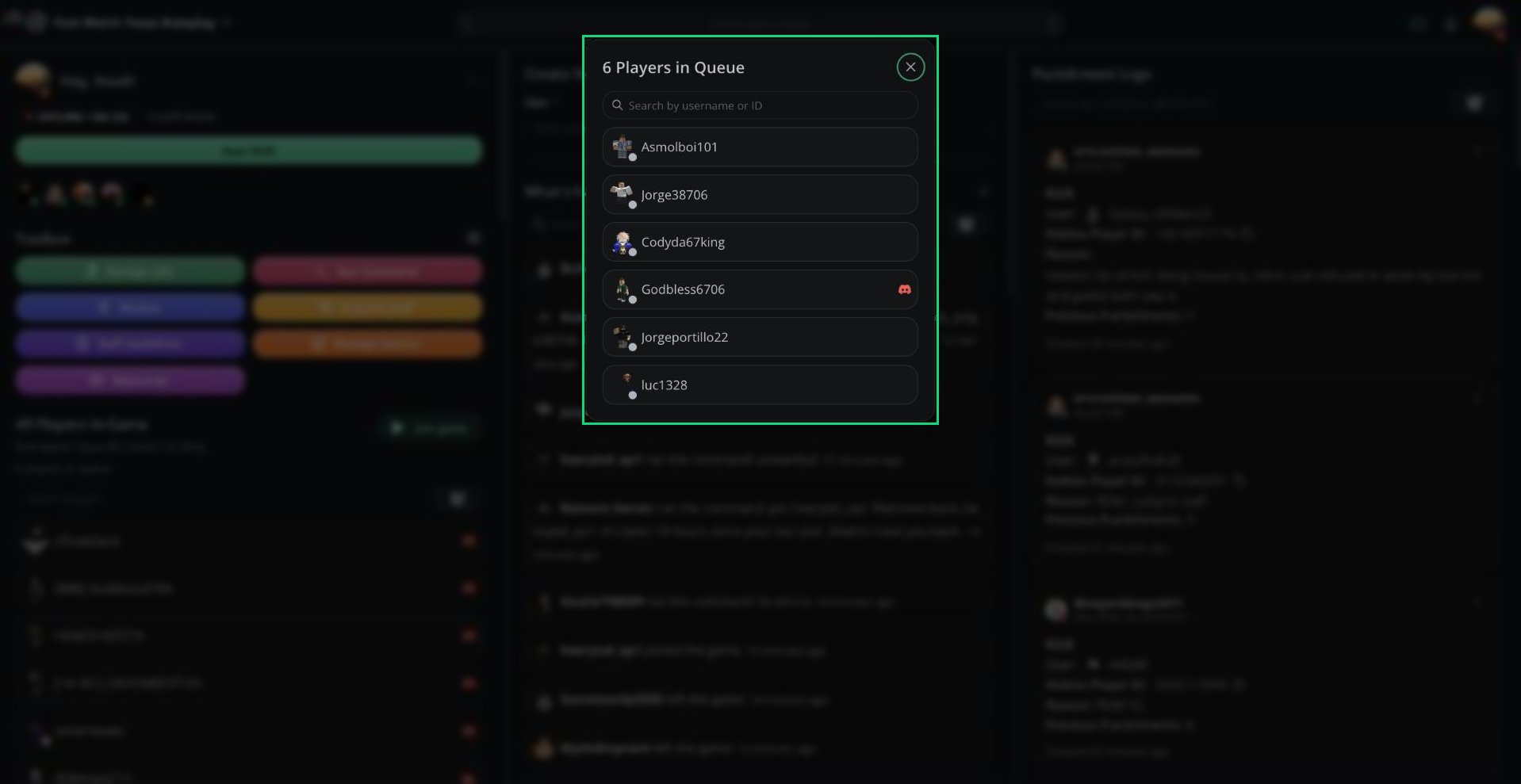 Search by username or ID, and click a player to see their info.
***
Still have questions? Join our Discord server for support from the Melonly Team.
This documentation is built and hosted on [Mintlify](https://mintlify.com), a developer documentation platform.
Search by username or ID, and click a player to see their info.
***
Still have questions? Join our Discord server for support from the Melonly Team.
This documentation is built and hosted on [Mintlify](https://mintlify.com), a developer documentation platform.