> ## Documentation Index
> Fetch the complete documentation index at: https://docs.melonly.xyz/llms.txt
> Use this file to discover all available pages before exploring further.
# Command Palette
> Search players, run game commands, and open panel tools from the keyboard.
***
## What is the Command Palette?
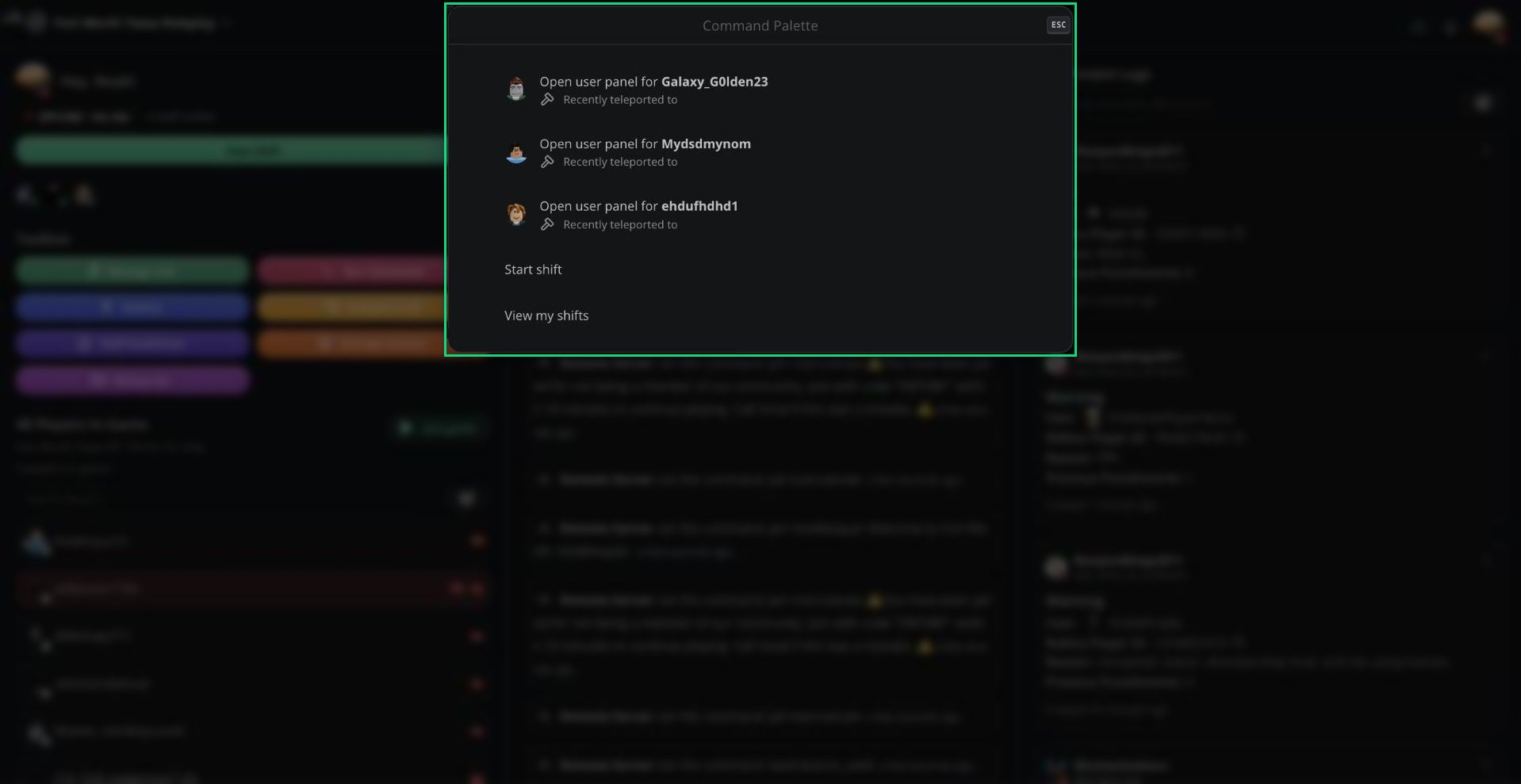
The Command Palette is the search bar at the top of the panel. It finds players, runs ER:LC commands, controls your shift, and opens panel tools without leaving the keyboard.
Press `/` anywhere on the panel to open it. Press `Esc` to close it.
 ***
## Suggestions
When you open the palette without typing, it shows:
* **Recent players** you kicked, banned, or teleported to. Select one to open their [User Panel](/Modpanel/logs/userpanel).
* **Start shift**, **End shift**, or **End break**, depending on your status.
* **View my shifts** and **Run an action**.
***
## Commands
Start typing to search these commands:
| Command | What it does | Shown when |
| - | - | - |
| Start shift | Starts a shift. | You're off shift |
| End shift | Ends your shift. | You're on shift |
| Start break | Starts a break. | You're on shift |
| End break | Ends your break. | You're on break |
| View my shifts | Opens [My Activity](/Modpanel/shifts/myactivity). | Always |
| Run an action | Opens [Actions](/Modpanel/toolbox/actions). | Always |
| Request staff | Opens [Request Staff](/Modpanel/toolbox/requeststaff). | Always |
| Manage priority requests | Opens [Priority Requests](/Modpanel/toolbox/priorityrequests). | Always |
| Filter messages | Opens the Roblox chat filter checker. | Always |
| View watchdog verdicts | Opens [pending Watchdog verdicts](/Modpanel/erlc/gamelogs#watchdog-verdicts). | Watchdog is enabled |
**Start shift** from the palette always starts a shift with no shift type. Use the **Start Shift** button if you need to pick a type.
***
## Finding Players
Type a username or Roblox ID to search for players.
***
## Suggestions
When you open the palette without typing, it shows:
* **Recent players** you kicked, banned, or teleported to. Select one to open their [User Panel](/Modpanel/logs/userpanel).
* **Start shift**, **End shift**, or **End break**, depending on your status.
* **View my shifts** and **Run an action**.
***
## Commands
Start typing to search these commands:
| Command | What it does | Shown when |
| - | - | - |
| Start shift | Starts a shift. | You're off shift |
| End shift | Ends your shift. | You're on shift |
| Start break | Starts a break. | You're on shift |
| End break | Ends your break. | You're on break |
| View my shifts | Opens [My Activity](/Modpanel/shifts/myactivity). | Always |
| Run an action | Opens [Actions](/Modpanel/toolbox/actions). | Always |
| Request staff | Opens [Request Staff](/Modpanel/toolbox/requeststaff). | Always |
| Manage priority requests | Opens [Priority Requests](/Modpanel/toolbox/priorityrequests). | Always |
| Filter messages | Opens the Roblox chat filter checker. | Always |
| View watchdog verdicts | Opens [pending Watchdog verdicts](/Modpanel/erlc/gamelogs#watchdog-verdicts). | Watchdog is enabled |
**Start shift** from the palette always starts a shift with no shift type. Use the **Start Shift** button if you need to pick a type.
***
## Finding Players
Type a username or Roblox ID to search for players.
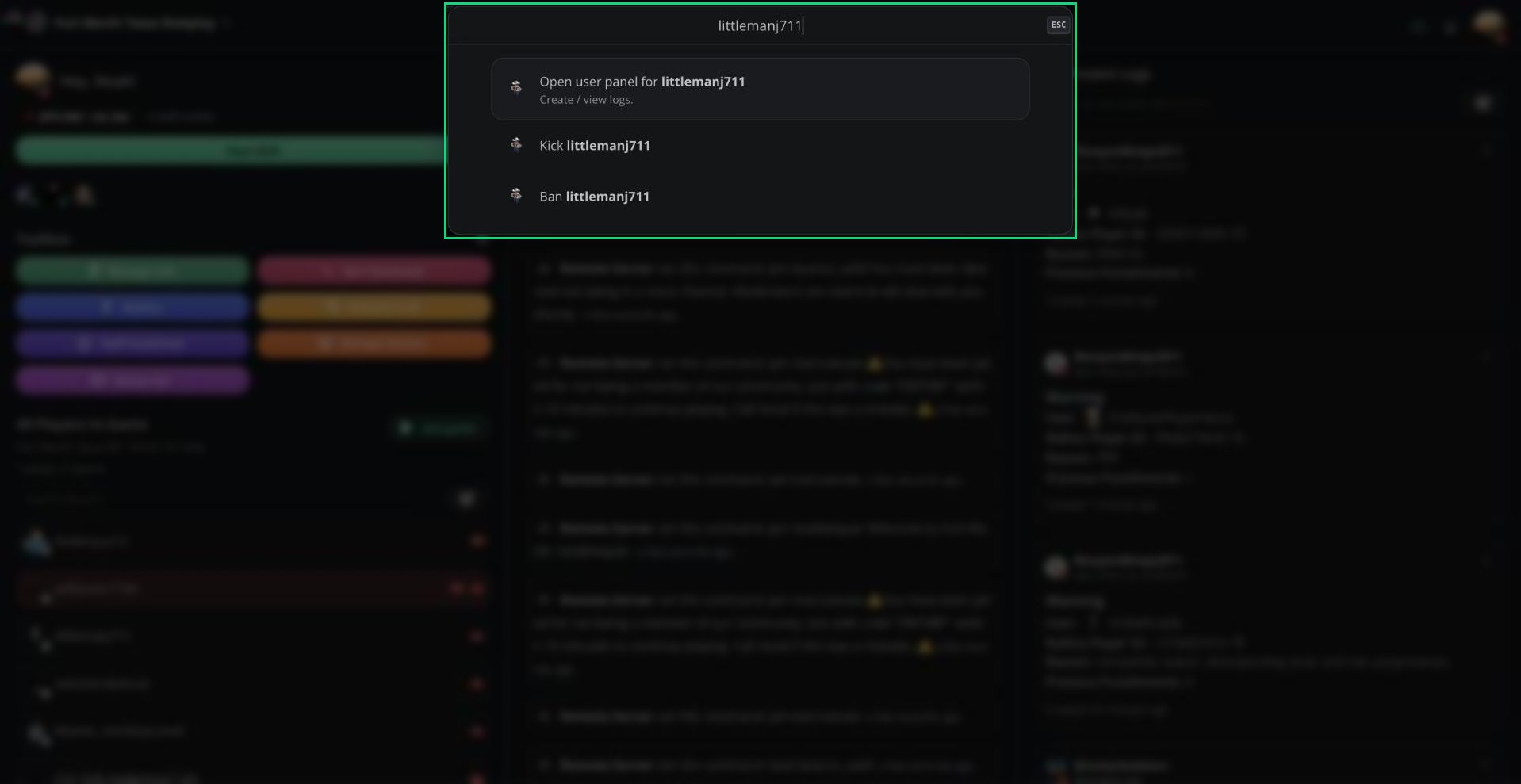 * **Open user panel for \[name]** opens the player's [User Panel](/Modpanel/logs/userpanel), where you can create and view logs.
* Players currently in your ER:LC server appear first.
* Melonly also searches all of Roblox once you type 3 or more characters.
If your search exactly matches a player in your server, two more options appear:
| Option | Requires |
| - | - |
| Kick \[name] | ER:LC Mod permission |
| Ban \[name] | ER:LC Admin permission |
Kick and Ban from the palette run immediately with no confirmation, and they don't create a moderation log. To kick or ban with a log, use the [User Panel](/Modpanel/erlc/players#kicking-and-banning).
***
## Running Game Commands
Start your search with `:` to run an ER:LC command, for example `:pt on` or `:h Server restart in 5 minutes`.
Press `Enter` to send it to your server. The same permissions as [Run Command](/Modpanel/erlc/runcommand#command-permissions) apply.
***
## Filter Messages
Filter messages checks how Roblox's chat filter will treat a message before you send it in-game.
* **Open user panel for \[name]** opens the player's [User Panel](/Modpanel/logs/userpanel), where you can create and view logs.
* Players currently in your ER:LC server appear first.
* Melonly also searches all of Roblox once you type 3 or more characters.
If your search exactly matches a player in your server, two more options appear:
| Option | Requires |
| - | - |
| Kick \[name] | ER:LC Mod permission |
| Ban \[name] | ER:LC Admin permission |
Kick and Ban from the palette run immediately with no confirmation, and they don't create a moderation log. To kick or ban with a log, use the [User Panel](/Modpanel/erlc/players#kicking-and-banning).
***
## Running Game Commands
Start your search with `:` to run an ER:LC command, for example `:pt on` or `:h Server restart in 5 minutes`.
Press `Enter` to send it to your server. The same permissions as [Run Command](/Modpanel/erlc/runcommand#command-permissions) apply.
***
## Filter Messages
Filter messages checks how Roblox's chat filter will treat a message before you send it in-game.
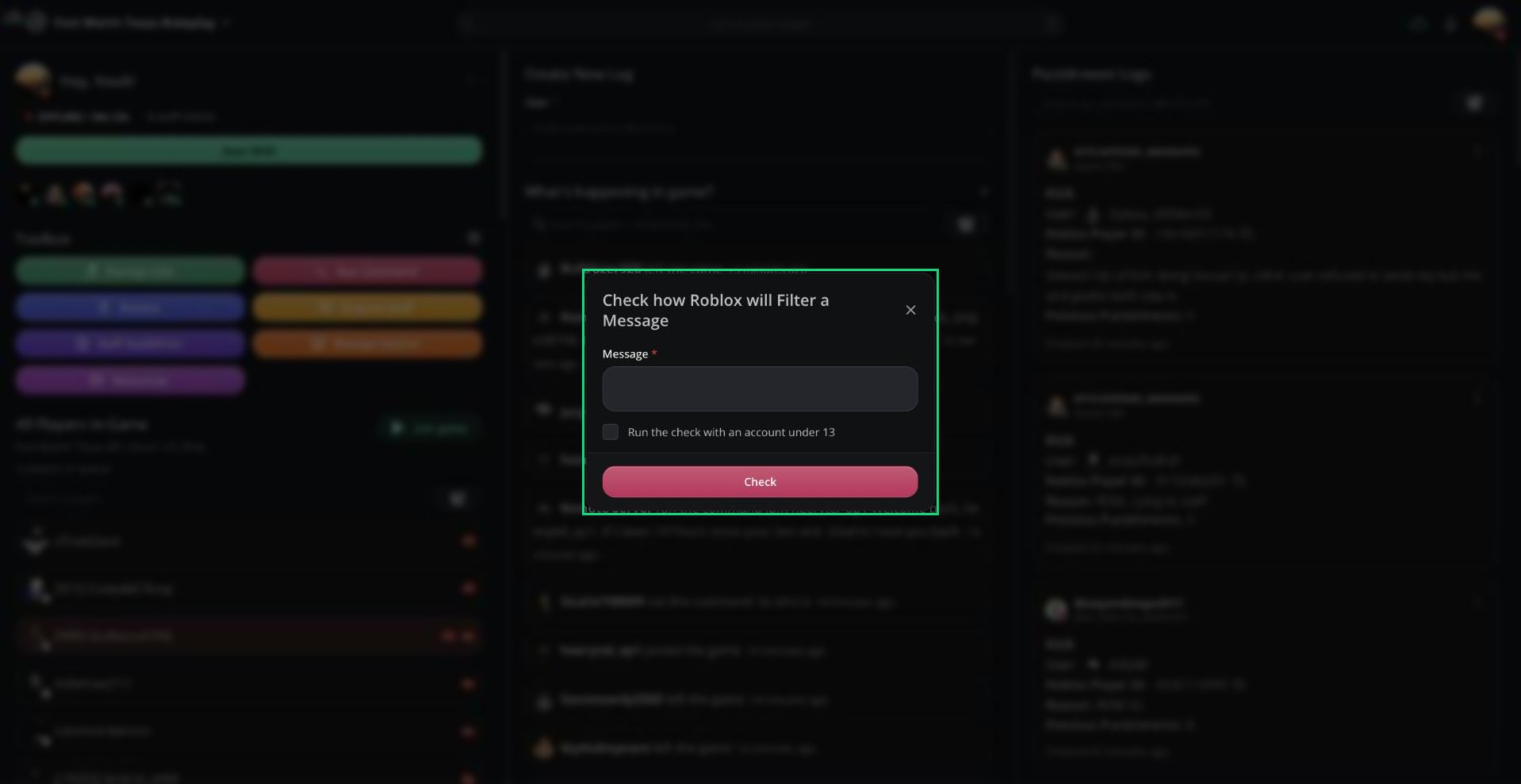 Press `/`, type Filter messages, and press `Enter`.
Type the message you want to check.
Click **Check** or press `Ctrl` + `Enter`. You'll see the message as Roblox would show it, with any hidden words filtered out.
Tick Run the check with an account under 13 to test against Roblox's stricter under-13 filter.
***
## Keyboard Controls
| Key | Action |
| - | - |
| `/` | Open the palette |
| `↓` or `Tab` | Next result |
| `↑` | Previous result |
| `Enter` | Run the selected result |
| `Esc` | Close the palette (also closes an open User Panel) |
***
Still have questions? Join our Discord server for support from the Melonly Team.
This documentation is built and hosted on [Mintlify](https://mintlify.com), a developer documentation platform.
Press `/`, type Filter messages, and press `Enter`.
Type the message you want to check.
Click **Check** or press `Ctrl` + `Enter`. You'll see the message as Roblox would show it, with any hidden words filtered out.
Tick Run the check with an account under 13 to test against Roblox's stricter under-13 filter.
***
## Keyboard Controls
| Key | Action |
| - | - |
| `/` | Open the palette |
| `↓` or `Tab` | Next result |
| `↑` | Previous result |
| `Enter` | Run the selected result |
| `Esc` | Close the palette (also closes an open User Panel) |
***
Still have questions? Join our Discord server for support from the Melonly Team.
This documentation is built and hosted on [Mintlify](https://mintlify.com), a developer documentation platform.