> ## Documentation Index
> Fetch the complete documentation index at: https://docs.melonly.xyz/llms.txt
> Use this file to discover all available pages before exploring further.
# Experience
> Add the servers you've been staff in to your profile and get each one verified by the server's admins.
***
## What is Experience?
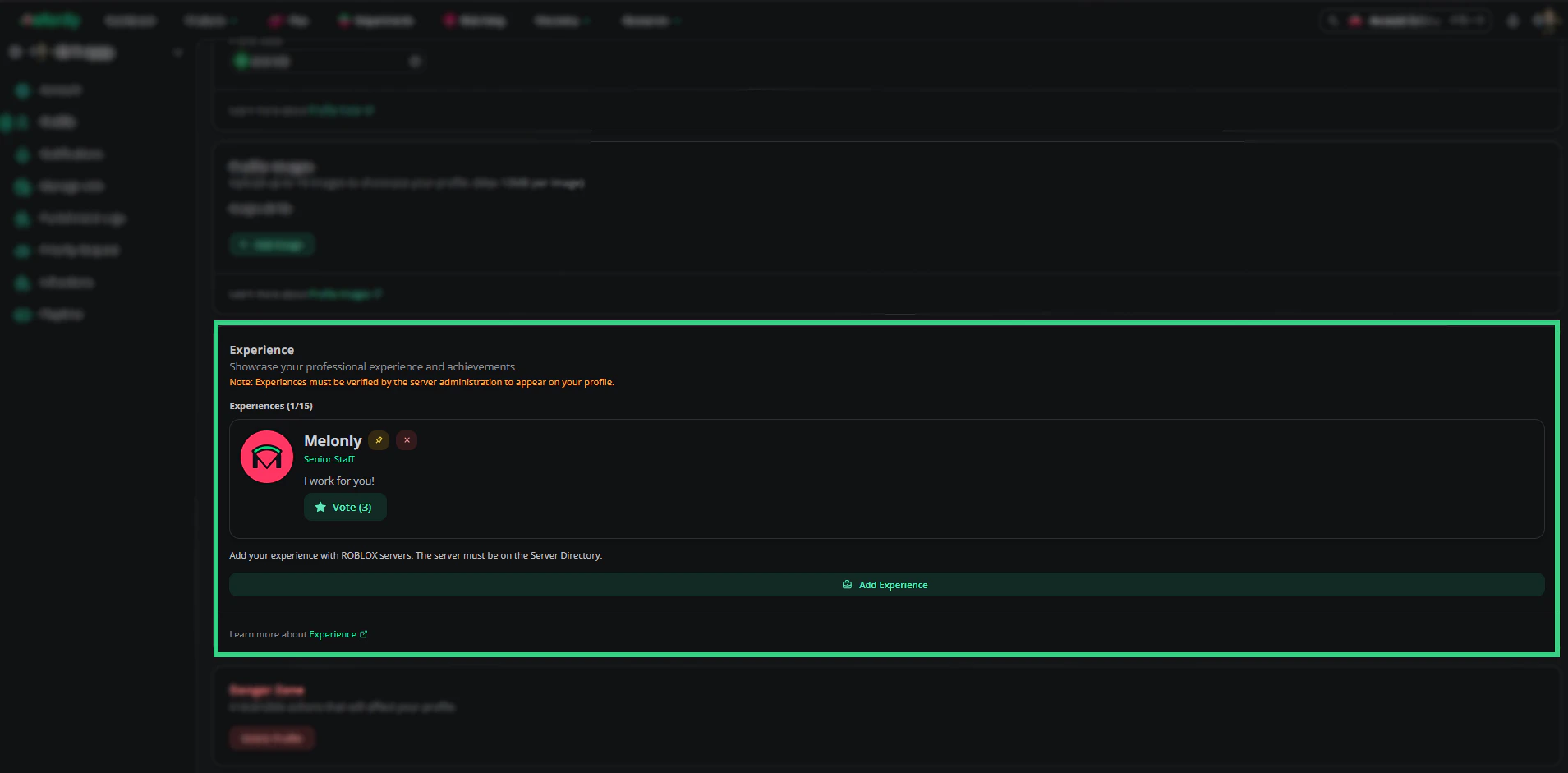
Experience shows the servers you've been staff in, with your rank and what you did. It helps other server owners see your track record.
Each entry has to be verified by an administrator of that server before it appears on your public profile.
 ***
## Adding Experience
The server needs to be listed on the [Server Directory](/Discovery/serverdirectory). You can add up to 15 entries, one per server.
In the Experience card on [your profile](https://melonly.xyz/my/profile), click **Add experience** and search for the server (at least 3 characters). If it doesn't show up, paste its Server Directory link and click **Find server**.
Enter the rank you held (up to 100 characters) and describe your duties (up to 500 characters), then click **Save experience**.
Click **Save** on the Experience card to keep the new entry.
***
## Getting Verified
New entries start unverified. Click **Copy Verification Link** on the entry and send it to an administrator of that server.
When they open the link, they review your rank and duties and click **Verify experience**. The entry then appears on your public profile.
***
## Adding Experience
The server needs to be listed on the [Server Directory](/Discovery/serverdirectory). You can add up to 15 entries, one per server.
In the Experience card on [your profile](https://melonly.xyz/my/profile), click **Add experience** and search for the server (at least 3 characters). If it doesn't show up, paste its Server Directory link and click **Find server**.
Enter the rank you held (up to 100 characters) and describe your duties (up to 500 characters), then click **Save experience**.
Click **Save** on the Experience card to keep the new entry.
***
## Getting Verified
New entries start unverified. Click **Copy Verification Link** on the entry and send it to an administrator of that server.
When they open the link, they review your rank and duties and click **Verify experience**. The entry then appears on your public profile.
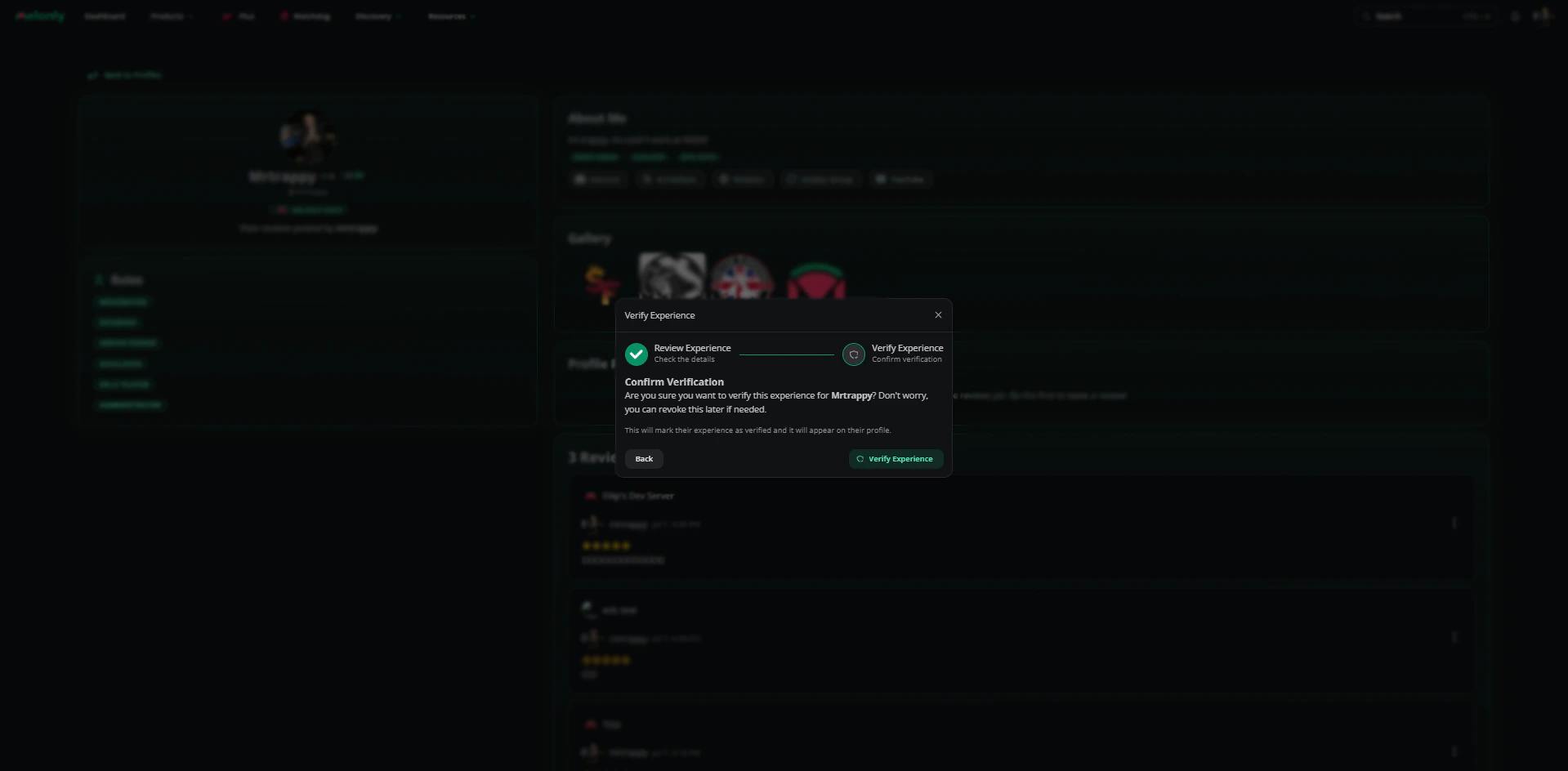 Only members with the Administrator permission in that server's Melonly server can verify experience.
***
## Managing Entries
| Action | What it does |
| - | - |
| Pin | Pins one entry to the top. Pinning another unpins the first. |
| Remove | Deletes the entry. |
| Copy Verification Link | Copies the link an admin uses to verify it. Only on unverified entries. |
***
## Related
* [Your Profile](/Guides/profile)
* [Profile Directory](/Discovery/profilediscovery)
***
Still have questions? Join our Discord server for support from the Melonly Team.
This documentation is built and hosted on [Mintlify](https://mintlify.com), a developer documentation platform.
Only members with the Administrator permission in that server's Melonly server can verify experience.
***
## Managing Entries
| Action | What it does |
| - | - |
| Pin | Pins one entry to the top. Pinning another unpins the first. |
| Remove | Deletes the entry. |
| Copy Verification Link | Copies the link an admin uses to verify it. Only on unverified entries. |
***
## Related
* [Your Profile](/Guides/profile)
* [Profile Directory](/Discovery/profilediscovery)
***
Still have questions? Join our Discord server for support from the Melonly Team.
This documentation is built and hosted on [Mintlify](https://mintlify.com), a developer documentation platform.