> ## Documentation Index
> Fetch the complete documentation index at: https://docs.melonly.xyz/llms.txt
> Use this file to discover all available pages before exploring further.
# Billing and Cancelling
> Open the billing portal to update your payment method, see invoices, switch to annual billing, fix a paused subscription, or cancel.
***
## What is the Billing Portal?
Melonly payments are handled by Stripe. The billing portal is where you update your payment method and billing details, download invoices, and cancel a subscription.
***
## Opening the Billing Portal
Go to [melonly.xyz/billing](https://melonly.xyz/billing), or click **Billing portal** in **Manage subscriptions** on your dashboard or on the Pro card on your [profile](https://melonly.xyz/my/profile).
If you have one billing account, you go straight to Stripe. If you've bought with more than one (for example, different emails), you pick which one to manage first.
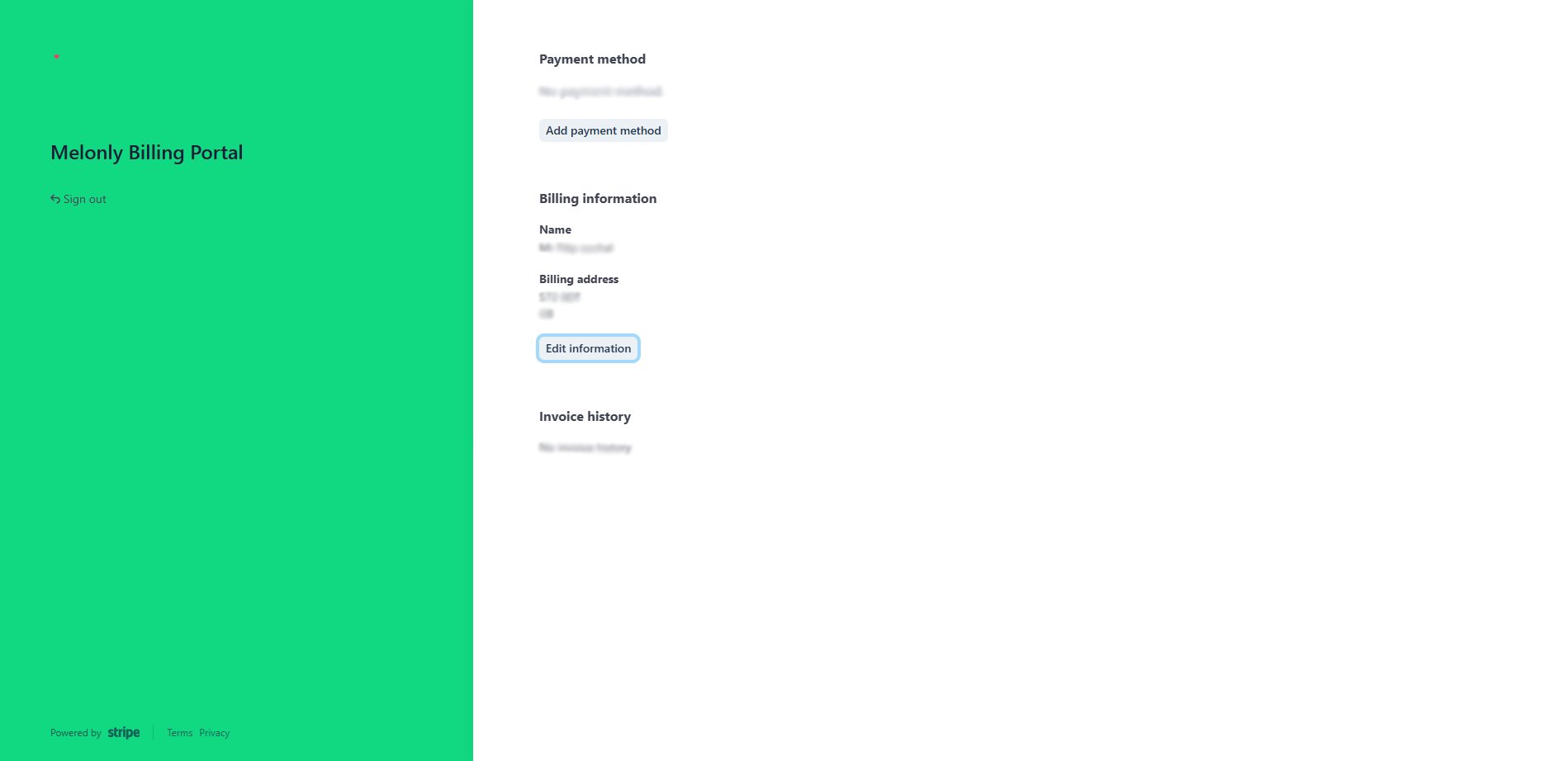 | In the portal | What you can do |
| - | - |
| Payment method | Add or change the card you pay with. |
| Billing information | Edit your name and billing address. |
| Invoice history | See and download past, paid and failed invoices. |
| Subscriptions | Cancel a subscription. |
With more than one billing account, select one and click **Use for new purchases** to choose which account future checkouts use.
***
## Cancelling a Subscription
Go to [melonly.xyz/billing](https://melonly.xyz/billing) and choose the billing account if asked.
Find the subscription you want to stop in the portal.
Click **Cancel subscription** and confirm.
Removing a subscription from a server in **Manage subscriptions** doesn't cancel it. Lifetime Plus is a one-time payment, so there's nothing to cancel.
***
## Switching to Annual Billing
If you pay monthly and an annual plan is available, **Manage subscriptions** (and the Pro card on your profile) shows how much you'd save a year.
Click **Switch to annual**, check the summary, and confirm. You're then billed yearly instead of monthly.
***
## Paused Subscriptions
If a payment fails, Stripe can pause the subscription. While it's paused its features are on hold, and you can't activate it or remove it from a server.
**Manage subscriptions** shows a warning when this happens. Click **Update payment details**, fix your card in the billing portal, and the subscription resumes by itself.
***
## Good to Know
* A billing account is created the first time you buy something.
* Refunds are covered by the [refund policy](https://melonly.xyz/refund).
***
Still have questions? Join our Discord server for support from the Melonly Team.
This documentation is built and hosted on [Mintlify](https://mintlify.com), a developer documentation platform.
| In the portal | What you can do |
| - | - |
| Payment method | Add or change the card you pay with. |
| Billing information | Edit your name and billing address. |
| Invoice history | See and download past, paid and failed invoices. |
| Subscriptions | Cancel a subscription. |
With more than one billing account, select one and click **Use for new purchases** to choose which account future checkouts use.
***
## Cancelling a Subscription
Go to [melonly.xyz/billing](https://melonly.xyz/billing) and choose the billing account if asked.
Find the subscription you want to stop in the portal.
Click **Cancel subscription** and confirm.
Removing a subscription from a server in **Manage subscriptions** doesn't cancel it. Lifetime Plus is a one-time payment, so there's nothing to cancel.
***
## Switching to Annual Billing
If you pay monthly and an annual plan is available, **Manage subscriptions** (and the Pro card on your profile) shows how much you'd save a year.
Click **Switch to annual**, check the summary, and confirm. You're then billed yearly instead of monthly.
***
## Paused Subscriptions
If a payment fails, Stripe can pause the subscription. While it's paused its features are on hold, and you can't activate it or remove it from a server.
**Manage subscriptions** shows a warning when this happens. Click **Update payment details**, fix your card in the billing portal, and the subscription resumes by itself.
***
## Good to Know
* A billing account is created the first time you buy something.
* Refunds are covered by the [refund policy](https://melonly.xyz/refund).
***
Still have questions? Join our Discord server for support from the Melonly Team.
This documentation is built and hosted on [Mintlify](https://mintlify.com), a developer documentation platform.