> ## Documentation Index
> Fetch the complete documentation index at: https://docs.melonly.xyz/llms.txt
> Use this file to discover all available pages before exploring further.
# Managing Subscriptions
> Activate, manage, or cancel your subscriptions
Manage your Melonly Plus, Watchdog, Departments, Vision Seats, User Pro, or Bundle subscriptions directly from your dashboard.\
Use the tabs below to activate, manage, or cancel your subscriptions.
***
## Activate Subscriptions
Such as Melonly Plus, Watchdog, Departments, User Pro, Bundles or Vision Seats
Go to your [Melonly dashboard](https://melonly.xyz/dashboard) and select the `Manage Subscriptions` button.
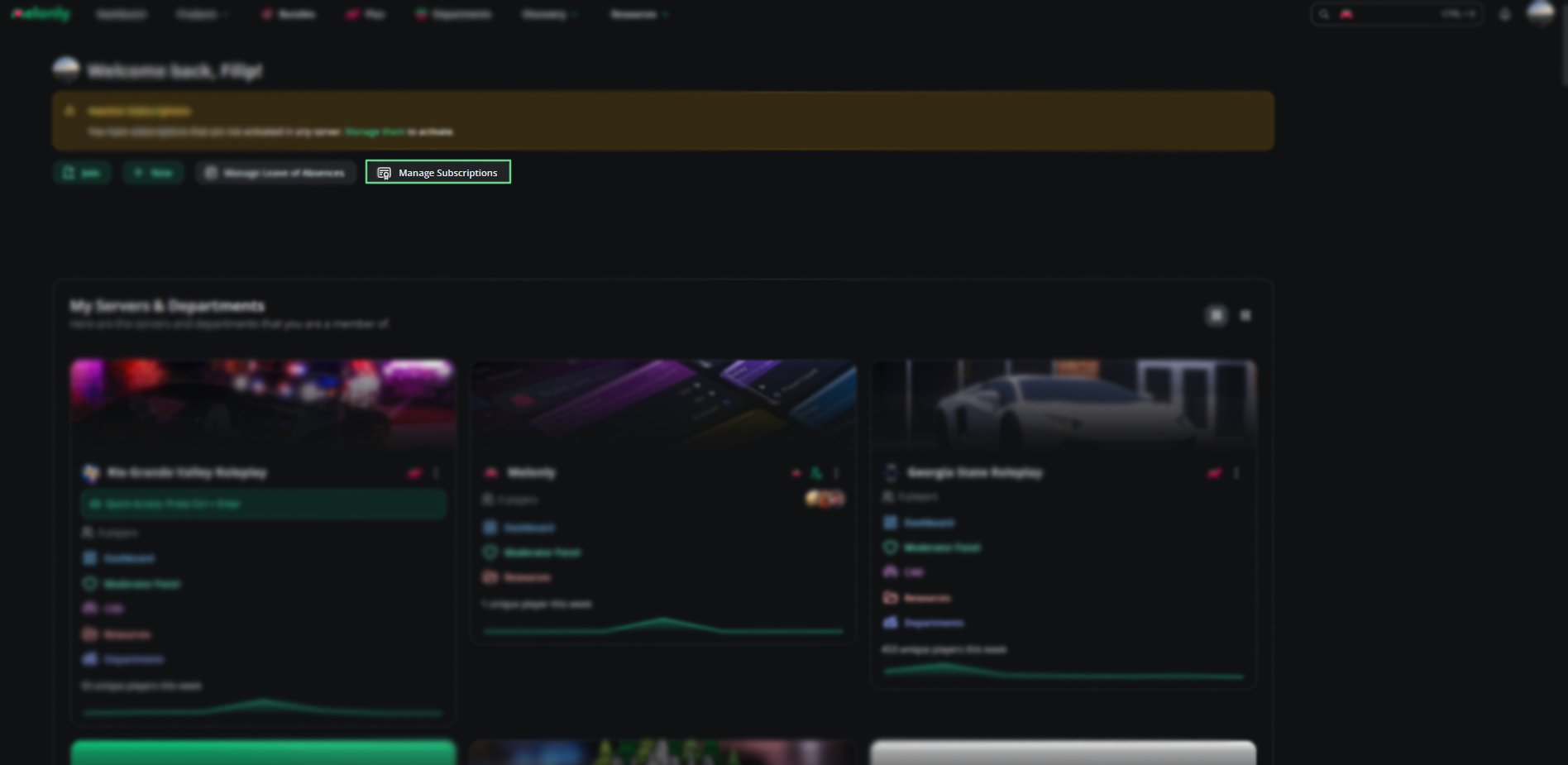 Select an unused subscription, choose a server and select `Activate Server`.
If you purchased a bundle, all of the items inside of the bundle will appear.
Select an unused subscription, choose a server and select `Activate Server`.
If you purchased a bundle, all of the items inside of the bundle will appear.
 ## Manage Active Subscriptions
Go to your [Melonly dashboard](https://melonly.xyz/dashboard) and select the `Manage Subscriptions` button.
Inside the popup, you will see all active subscriptions assigned to your servers.
## Manage Active Subscriptions
Go to your [Melonly dashboard](https://melonly.xyz/dashboard) and select the `Manage Subscriptions` button.
Inside the popup, you will see all active subscriptions assigned to your servers.
 You can:
* **Remove** a subscription from a server
* **Remove & Move** a subscription to another server
To Remove a Subscription, click the **Red X Icon** adjecent to your Server Name & Subscription Type
You can:
* **Remove** a subscription from a server
* **Remove & Move** a subscription to another server
To Remove a Subscription, click the **Red X Icon** adjecent to your Server Name & Subscription Type
 To remove and move a subscription, first remove the subscription by following the steps above.
Then follow the [guide on activating subscriptions](./managingsubs#activating-a-subscription) to active the subscription onto a different server.
The Stripe Billing Portal allows you to view and edit details associated with your subscription(s).
Such as your Billing Address and Payment Method. You are also able to view your invoice history which displays successful, failed and past invoices.
You cannot cancel subscriptions through the biling portal - refer to the [Cancellation Guide](./managingsubs#cancelling-a-subscription)
To remove and move a subscription, first remove the subscription by following the steps above.
Then follow the [guide on activating subscriptions](./managingsubs#activating-a-subscription) to active the subscription onto a different server.
The Stripe Billing Portal allows you to view and edit details associated with your subscription(s).
Such as your Billing Address and Payment Method. You are also able to view your invoice history which displays successful, failed and past invoices.
You cannot cancel subscriptions through the biling portal - refer to the [Cancellation Guide](./managingsubs#cancelling-a-subscription)
 ## Cancel a Subscription
Subscription cancellations are **not** handled through the Stripe Billing Portal.\
All cancellations must be submitted through the **Subscription Manager** inside your Melonly dashboard. Follow the steps below.
Go to your [Melonly dashboard](https://melonly.xyz/dashboard) and select the `Manage Subscriptions` button.
Inside the popup, select **Modify Subscriptions** to view your active subscriptions.\~
## Cancel a Subscription
Subscription cancellations are **not** handled through the Stripe Billing Portal.\
All cancellations must be submitted through the **Subscription Manager** inside your Melonly dashboard. Follow the steps below.
Go to your [Melonly dashboard](https://melonly.xyz/dashboard) and select the `Manage Subscriptions` button.
Inside the popup, select **Modify Subscriptions** to view your active subscriptions.\~
 Choose the subscription you want to manage, select Continue, Confirm your ecision and your subscription will be cancellated at the end of your billing cycle.
 Still have questions? Join our Discord server for support from the Melonly team.