> ## Documentation Index
> Fetch the complete documentation index at: https://docs.melonly.xyz/llms.txt
> Use this file to discover all available pages before exploring further.
# Joining a Server or Department
> Join a Melonly server or department with a join code or join link, and track or cancel your pending membership requests.
***
## How Joining Works
Servers and departments each have a join code. When you use it, you either join straight away or send a membership request that an administrator reviews.
You join straight away if you already have a Discord role that's linked to one of their roles or ranks. Otherwise your request waits for approval.
***
## Using a Join Link
If someone sends you a join link (like `melon.ly/join/ABC123`), open it in your browser. You'll see who invited you. Sign in if asked, then confirm to send your request.
***
## Using a Join Code
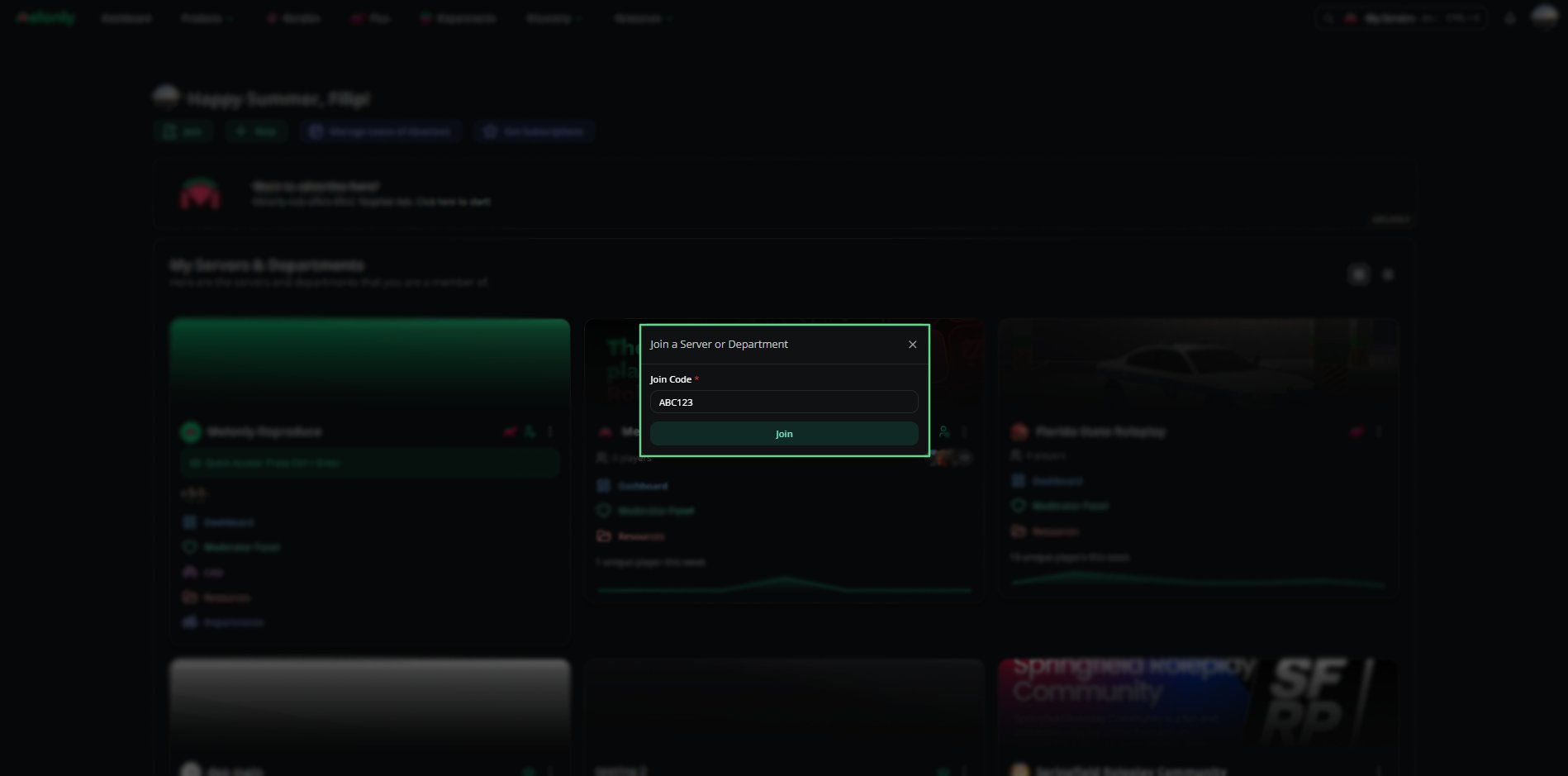
Go to your [Dashboard](https://melonly.xyz/dashboard) and click **Join**.
Type the join code and click **Join**. Codes are 3 to 20 letters, numbers or hyphens.
If you joined straight away, you're taken to the server or department. If not, your request shows under Pending Membership Requests until an administrator accepts it.
 Some department join codes require Discord roles. If you have them, you join the department straight away at its lowest rank. If you don't, you can't use that code. See [Joining a Department](/Department/joining).
***
## Pending Membership Requests
The Pending Membership Requests section at the bottom of your dashboard lists every request that hasn't been accepted yet.
| Column | What it shows |
| - | - |
| Join Code | The code you used. |
| Pending Since | The date you sent the request. |
Click the delete icon on a row to cancel that request. You can only have one pending request per server or department, so cancel an old one if you need to send it again.
***
## Good to Know
* Ask the server's administrators for the join code. They find it, and review requests, in [Member Requests](/Dashboard/members/requests).
* If a code doesn't work, it may have been changed. Ask for a new one.
* Once accepted, the server or department appears in [My Servers & Departments](/Guides/dashboard).
***
Still have questions? Join our Discord server for support from the Melonly Team.
This documentation is built and hosted on [Mintlify](https://mintlify.com), a developer documentation platform.
Some department join codes require Discord roles. If you have them, you join the department straight away at its lowest rank. If you don't, you can't use that code. See [Joining a Department](/Department/joining).
***
## Pending Membership Requests
The Pending Membership Requests section at the bottom of your dashboard lists every request that hasn't been accepted yet.
| Column | What it shows |
| - | - |
| Join Code | The code you used. |
| Pending Since | The date you sent the request. |
Click the delete icon on a row to cancel that request. You can only have one pending request per server or department, so cancel an old one if you need to send it again.
***
## Good to Know
* Ask the server's administrators for the join code. They find it, and review requests, in [Member Requests](/Dashboard/members/requests).
* If a code doesn't work, it may have been changed. Ask for a new one.
* Once accepted, the server or department appears in [My Servers & Departments](/Guides/dashboard).
***
Still have questions? Join our Discord server for support from the Melonly Team.
This documentation is built and hosted on [Mintlify](https://mintlify.com), a developer documentation platform.