> ## Documentation Index
> Fetch the complete documentation index at: https://docs.melonly.xyz/llms.txt
> Use this file to discover all available pages before exploring further.
# Posting Shouts
> Write, attach files to, limit, schedule, edit, and delete department shouts.
***
Shouts are posted from the composer at the top of the [Home](/Department/home) page feed. You need the Post Shouts permission, see [Permissions](/Department/shouts#permissions).
***
## Writing a Shout
Type your message in the composer at the top of the feed, then click the send button or press `Ctrl` + `Enter` (`⌘` + `Enter` on Mac).
Shouts use Discord-style markdown, so `**bold**`, `*italics*`, `# headings`, and lists look the same in both places. Type `@` to mention members, ranks, or Discord roles, `#` for Discord channels, and `:` for emoji.
A shout always needs some text. Attachments on their own can't be sent.
***
## Attachments
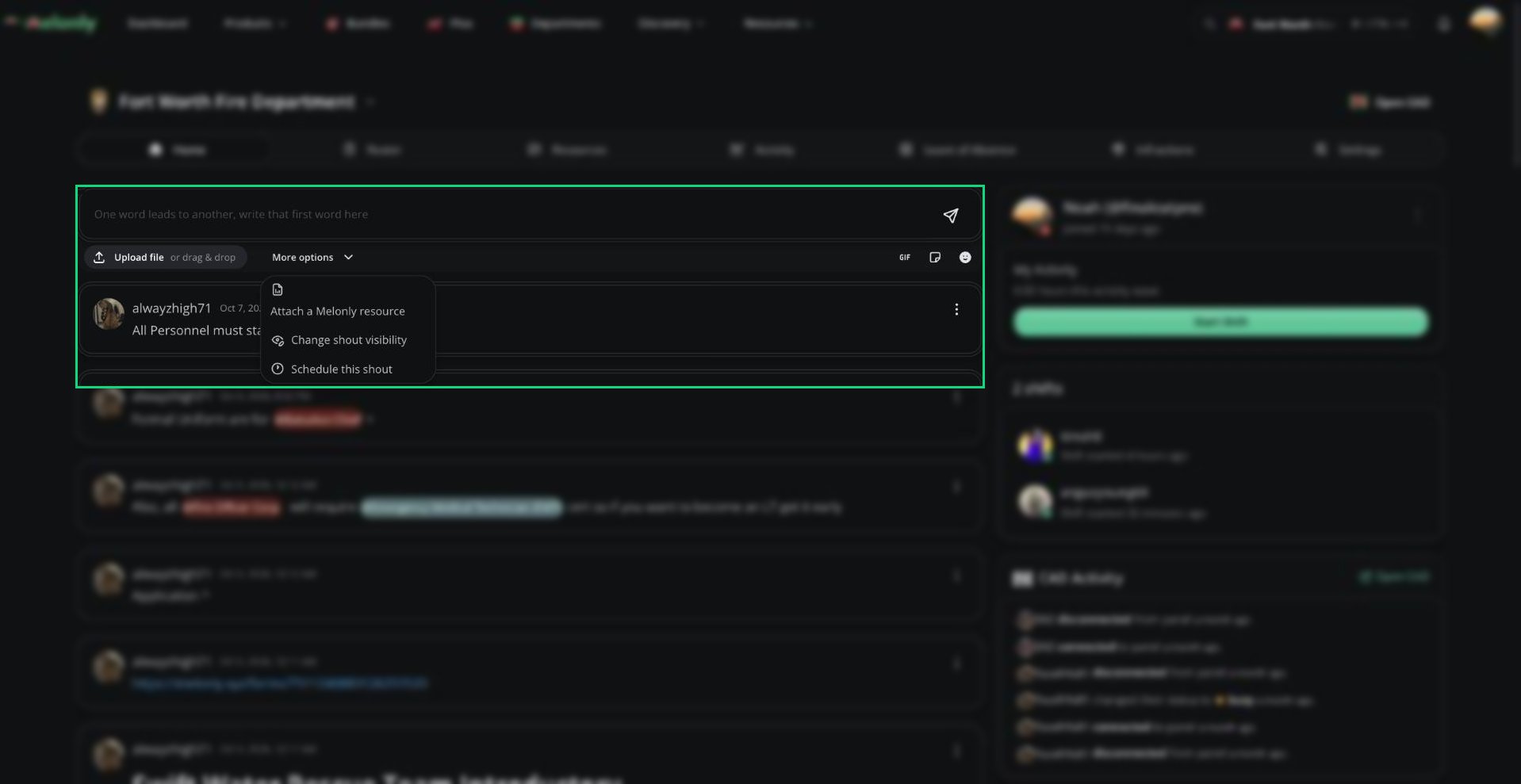
Use the toolbar under the text box to add:
| Attachment | Notes |
| - | - |
| Images and videos | Upload or paste them. Hover an image to mark it as a spoiler. |
| GIFs | Search and add a GIF. |
| Sticker | One Discord sticker per shout. |
| Emoji | Includes your linked Discord server's custom emoji. |
| Melonly resources | Open More options and choose Attach a Melonly resource to add documents, forms, or workflows. |
 ***
## Shout Visibility
By default, every member sees a shout. To limit it, open **More options** and choose **Change shout visibility**.
| Option | Who sees the shout |
| - | - |
| @everyone | Every member (default) |
| Select ranks | Members with the ranks you pick. You can only pick ranks below yours. |
| Select users | The members you pick |
Limited shouts show a Limited visibility tag. Members with Post Shouts can always see them.
Shouts that aren't visible to @everyone are never sent to Discord.
***
## Scheduling a Shout
Open **More options**, choose **Schedule this shout**, pick a future date and time, and click **Save**.
Write your shout and send it. It waits at the top of the feed until the scheduled time.
Scheduled shouts are only shown to members with Post Shouts. Click **⋮** on one to post it now, edit its text or time, or cancel it.
Promotions scheduled from the [Roster](/Department/roster/promotions) wait in the feed too. Members with Promote can post them now, change the time or announcement, or cancel them.
***
## Editing and Deleting
Click **⋮** on a shout, or right-click it, to open its menu.
* Edit: only the author can edit. You can change the text and sticker, but not files, resources, or visibility.
* Delete: the author or anyone with Manage Shouts. Hold `Shift` to skip the confirmation.
If the shout was sent to Discord, the Discord message is edited or deleted too. See [Discord Sync](/Department/shouts#discord-sync).
***
Still have questions? Join our Discord server for support from the Melonly Team.
This documentation is built and hosted on [Mintlify](https://mintlify.com), a developer documentation platform.
***
## Shout Visibility
By default, every member sees a shout. To limit it, open **More options** and choose **Change shout visibility**.
| Option | Who sees the shout |
| - | - |
| @everyone | Every member (default) |
| Select ranks | Members with the ranks you pick. You can only pick ranks below yours. |
| Select users | The members you pick |
Limited shouts show a Limited visibility tag. Members with Post Shouts can always see them.
Shouts that aren't visible to @everyone are never sent to Discord.
***
## Scheduling a Shout
Open **More options**, choose **Schedule this shout**, pick a future date and time, and click **Save**.
Write your shout and send it. It waits at the top of the feed until the scheduled time.
Scheduled shouts are only shown to members with Post Shouts. Click **⋮** on one to post it now, edit its text or time, or cancel it.
Promotions scheduled from the [Roster](/Department/roster/promotions) wait in the feed too. Members with Promote can post them now, change the time or announcement, or cancel them.
***
## Editing and Deleting
Click **⋮** on a shout, or right-click it, to open its menu.
* Edit: only the author can edit. You can change the text and sticker, but not files, resources, or visibility.
* Delete: the author or anyone with Manage Shouts. Hold `Shift` to skip the confirmation.
If the shout was sent to Discord, the Discord message is edited or deleted too. See [Discord Sync](/Department/shouts#discord-sync).
***
Still have questions? Join our Discord server for support from the Melonly Team.
This documentation is built and hosted on [Mintlify](https://mintlify.com), a developer documentation platform.