> ## Documentation Index
> Fetch the complete documentation index at: https://docs.melonly.xyz/llms.txt
> Use this file to discover all available pages before exploring further.
# General Settings
> Set your department's name, type, look, pinned buttons, join code, and danger zone options.
***
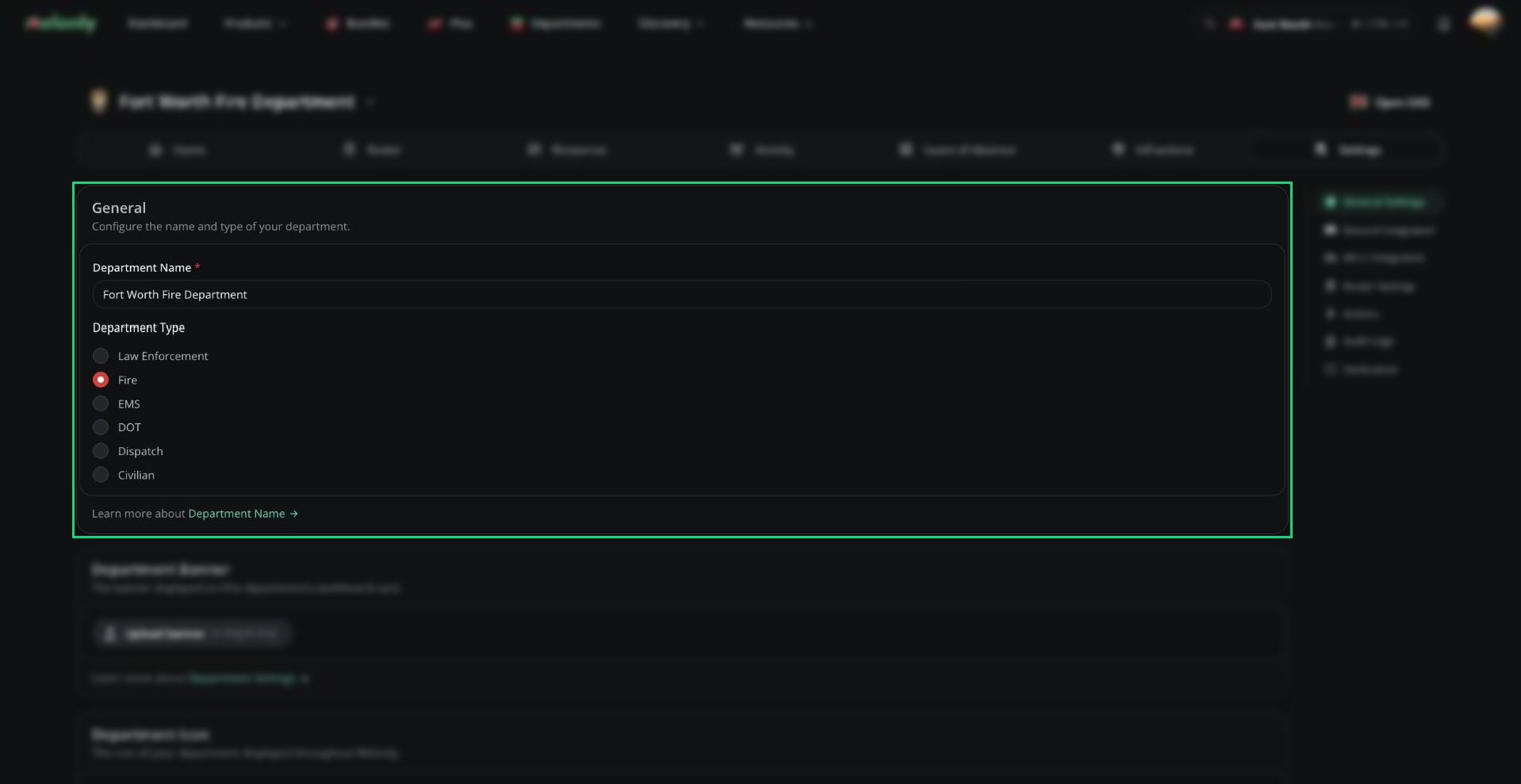
## Department Name and Type
 | Setting | Description |
| - | - |
| Department Name | Shown everywhere your department appears in Melonly. Required. |
| Department Type | Law Enforcement, Fire, EMS, DOT, Dispatch or Civilian. Decides which [CAD](/CAD/Intro/introduction) panel your department uses. |
Changing the type removes any CAD panel permissions that don't fit the new type from every rank. Check your ranks afterwards.
Most settings use a save bar at the bottom of the page. Uploads, join code changes and everything in the Danger Zone apply straight away.
***
## Banner and Icon
* The banner is shown on your department's card on the dashboard. Click **Upload banner** to set one, or **Remove banner** to clear it.
* The icon shows next to your department's name throughout Melonly. Click **Upload icon** to change it.
***
## Pinned Buttons
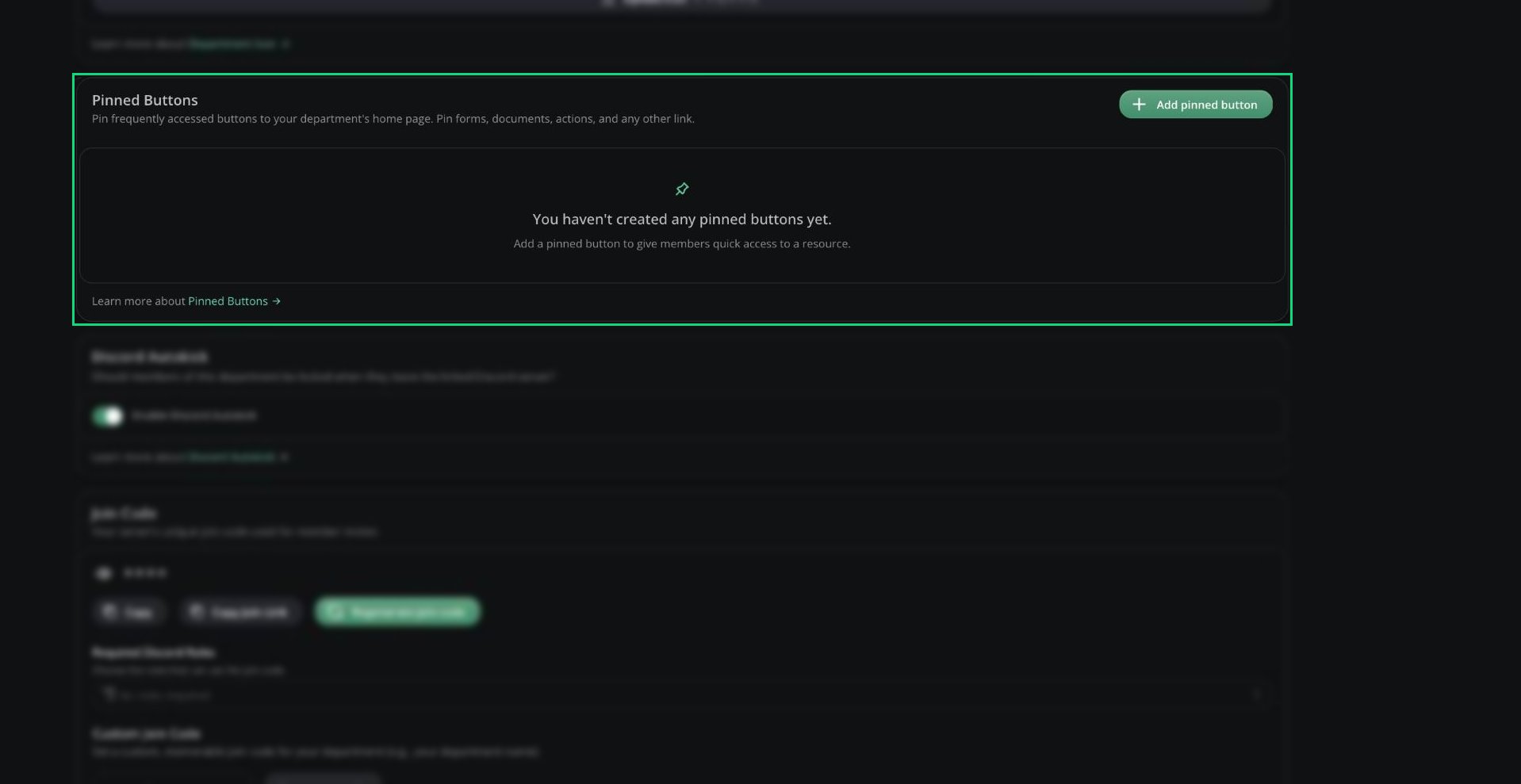
Pinned buttons give every member one-click shortcuts on the department [Home](/Department/home) page. Click **Add pinned button**, then use the arrows to reorder them.
| Setting | Description |
| - | - |
| Department Name | Shown everywhere your department appears in Melonly. Required. |
| Department Type | Law Enforcement, Fire, EMS, DOT, Dispatch or Civilian. Decides which [CAD](/CAD/Intro/introduction) panel your department uses. |
Changing the type removes any CAD panel permissions that don't fit the new type from every rank. Check your ranks afterwards.
Most settings use a save bar at the bottom of the page. Uploads, join code changes and everything in the Danger Zone apply straight away.
***
## Banner and Icon
* The banner is shown on your department's card on the dashboard. Click **Upload banner** to set one, or **Remove banner** to clear it.
* The icon shows next to your department's name throughout Melonly. Click **Upload icon** to change it.
***
## Pinned Buttons
Pinned buttons give every member one-click shortcuts on the department [Home](/Department/home) page. Click **Add pinned button**, then use the arrows to reorder them.
 | Type | What it opens |
| - | - |
| Link | A web page in a new tab. Must be a valid URL. |
| Melonly Form | A form from [Resources](/Department/Resources), in a pop-up |
| Melonly Document | A document from Resources, in a pop-up |
| Melonly Action | An [action](/Department/settings#actions), opening its form first if it has one |
Each button needs a label (up to 300 characters) and its link, form, document or action before you can save.
***
## Discord Autokick
Turn on **Enable Discord Autokick** to remove members from the department when they leave your linked Discord server. Needs a [linked Discord server](/Department/settings/discord).
***
## Join Code
New members join by entering your join code on the dashboard or opening your join link.
| Type | What it opens |
| - | - |
| Link | A web page in a new tab. Must be a valid URL. |
| Melonly Form | A form from [Resources](/Department/Resources), in a pop-up |
| Melonly Document | A document from Resources, in a pop-up |
| Melonly Action | An [action](/Department/settings#actions), opening its form first if it has one |
Each button needs a label (up to 300 characters) and its link, form, document or action before you can save.
***
## Discord Autokick
Turn on **Enable Discord Autokick** to remove members from the department when they leave your linked Discord server. Needs a [linked Discord server](/Department/settings/discord).
***
## Join Code
New members join by entering your join code on the dashboard or opening your join link.
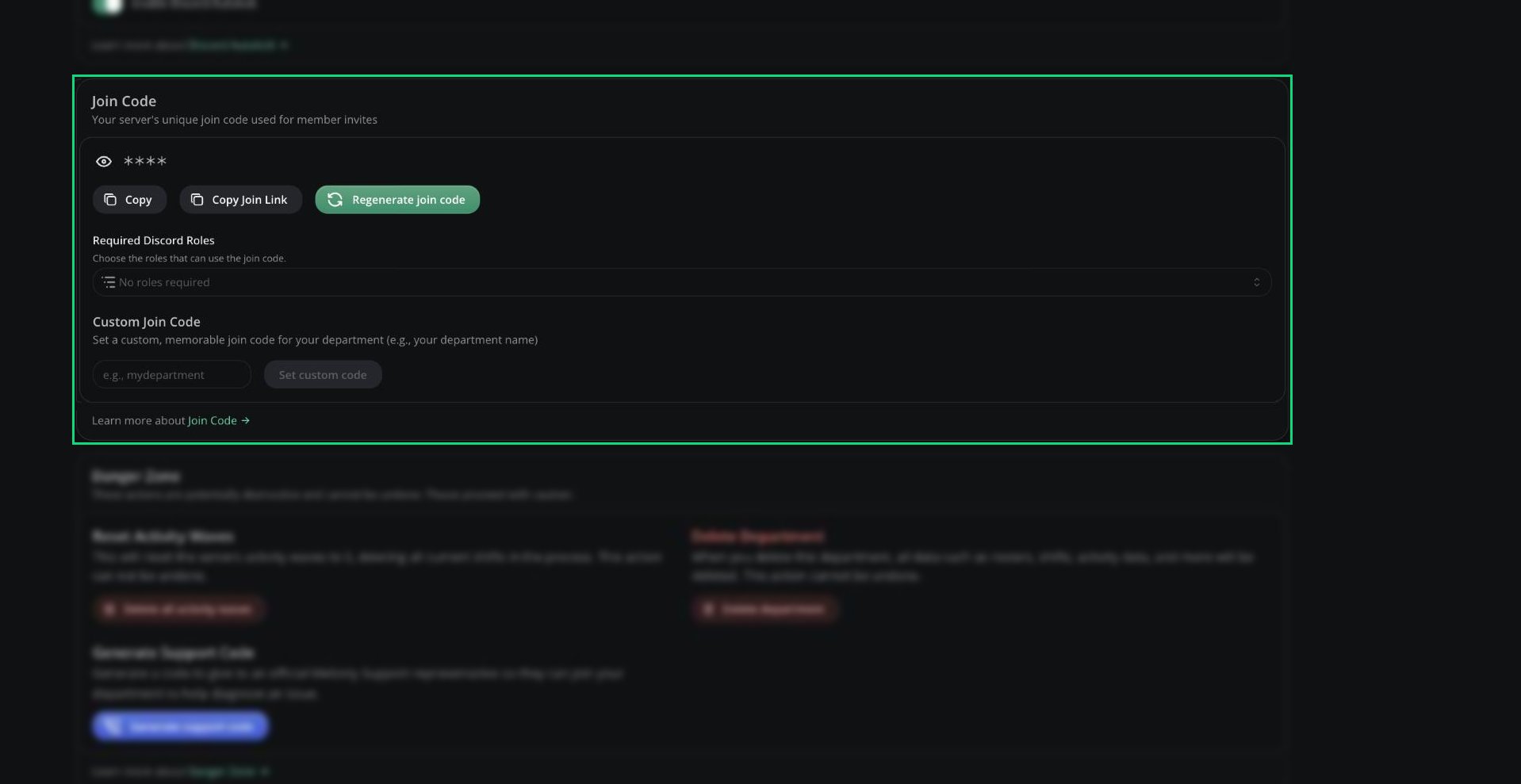 * **Copy** or **Copy Join Link** to share it.
* **Regenerate join code** if it leaks. The old code and link stop working straight away.
By default, joining sends a membership request that someone with Manage Members reviews on the [roster](/Department/roster#review-membership-requests). If your Discord server is linked and the person already has a Discord role tied to one of your ranks, they join straight away at that rank.
| Setting | Description |
| - | - |
| Required Discord Roles | Only people with these Discord roles (from the department or parent server) can join. They join instantly at your lowest rank, and everyone else is blocked. Up to 25 roles, with an Any or All option. |
| Custom Join Code | A memorable code like your department's name. 3 to 20 letters, numbers or hyphens, and not already used elsewhere. |
***
## Danger Zone
These actions happen straight away and can't be undone.
| Action | Who can use it | What it does |
| - | - | - |
| Reset Activity Waves | Administrators | Resets activity waves to 0 and deletes all current shifts |
| Delete Department | Super administrators | Deletes the department and all its data. You type its name to confirm. |
| Generate Support Code | Administrators | A code that lets Melonly Support join to help you. Expires after 24 hours. Support can view settings but not change them. |
Super administrators are the parent server's owner, its administrators, and anyone with the Departments dashboard permission. Departments can't be transferred to another owner or parent server.
***
Still have questions? Join our Discord server for support from the Melonly Team.
This documentation is built and hosted on [Mintlify](https://mintlify.com), a developer documentation platform.
* **Copy** or **Copy Join Link** to share it.
* **Regenerate join code** if it leaks. The old code and link stop working straight away.
By default, joining sends a membership request that someone with Manage Members reviews on the [roster](/Department/roster#review-membership-requests). If your Discord server is linked and the person already has a Discord role tied to one of your ranks, they join straight away at that rank.
| Setting | Description |
| - | - |
| Required Discord Roles | Only people with these Discord roles (from the department or parent server) can join. They join instantly at your lowest rank, and everyone else is blocked. Up to 25 roles, with an Any or All option. |
| Custom Join Code | A memorable code like your department's name. 3 to 20 letters, numbers or hyphens, and not already used elsewhere. |
***
## Danger Zone
These actions happen straight away and can't be undone.
| Action | Who can use it | What it does |
| - | - | - |
| Reset Activity Waves | Administrators | Resets activity waves to 0 and deletes all current shifts |
| Delete Department | Super administrators | Deletes the department and all its data. You type its name to confirm. |
| Generate Support Code | Administrators | A code that lets Melonly Support join to help you. Expires after 24 hours. Support can view settings but not change them. |
Super administrators are the parent server's owner, its administrators, and anyone with the Departments dashboard permission. Departments can't be transferred to another owner or parent server.
***
Still have questions? Join our Discord server for support from the Melonly Team.
This documentation is built and hosted on [Mintlify](https://mintlify.com), a developer documentation platform.