> ## Documentation Index
> Fetch the complete documentation index at: https://docs.melonly.xyz/llms.txt
> Use this file to discover all available pages before exploring further.
# Discord Integration
> Link a Discord server to your department and set channels, roles, nicknames, and log messages.
***
## Linking a Discord Server
Linking a Discord server lets your department sync shouts, post logs, and give roles and nicknames automatically. You need to be signed in to Melonly with Discord.
Go to **Settings**, then **Discord Integration**.
Click a server marked **Click to Link**, then confirm with **Link**.
If Melonly isn't in that server yet, click **Invite Melonly bot**, add it in Discord, then come back and finish linking.
You need the Discord Administrator permission in the server. Each Discord server can only be linked to one Melonly server or department. If it's already linked elsewhere, unlink it there first or run `/unlink` in Discord.
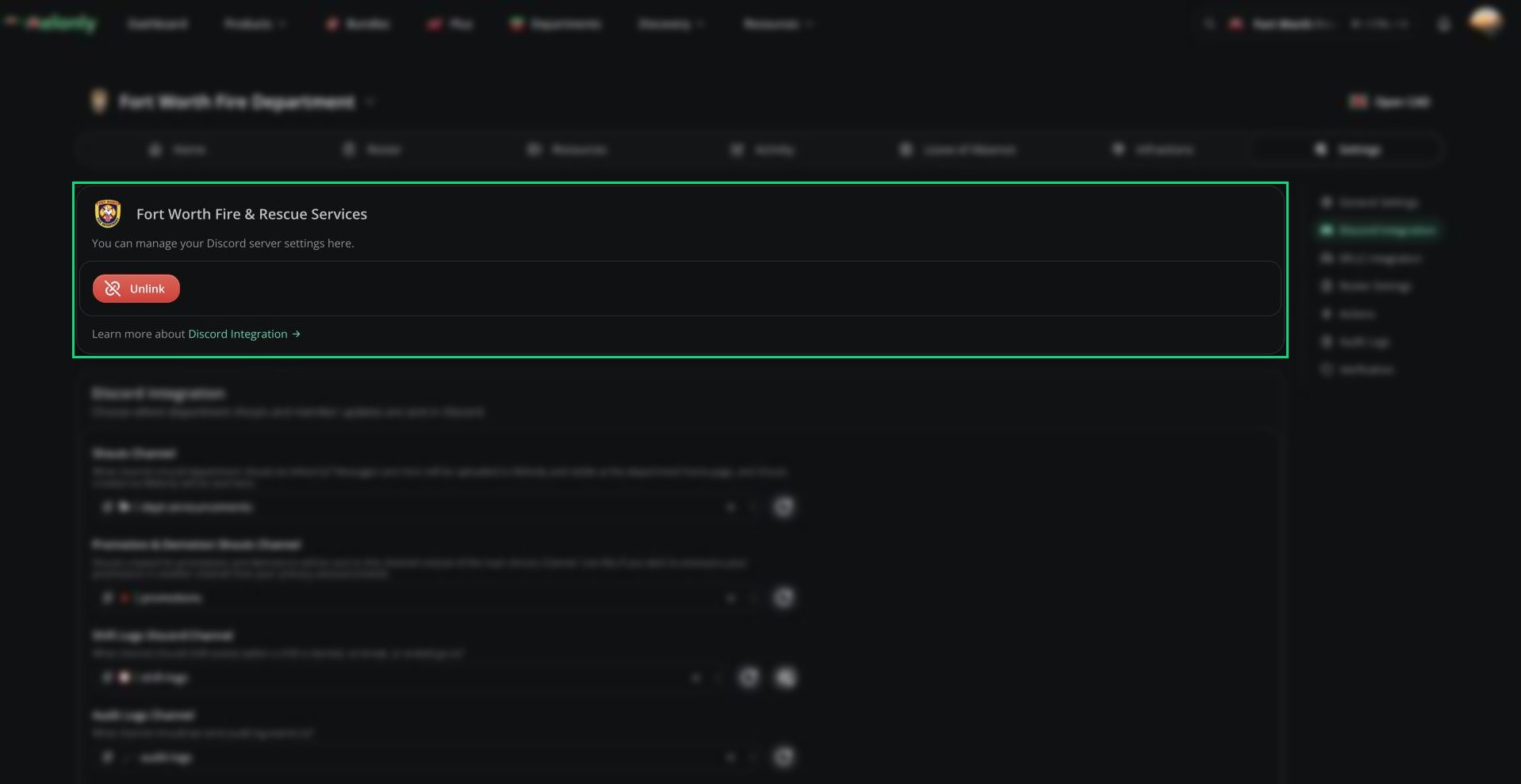 Click **Unlink** to disconnect. All Discord features stop until you link a server again.
***
## Channels
Click **Unlink** to disconnect. All Discord features stop until you link a server again.
***
## Channels
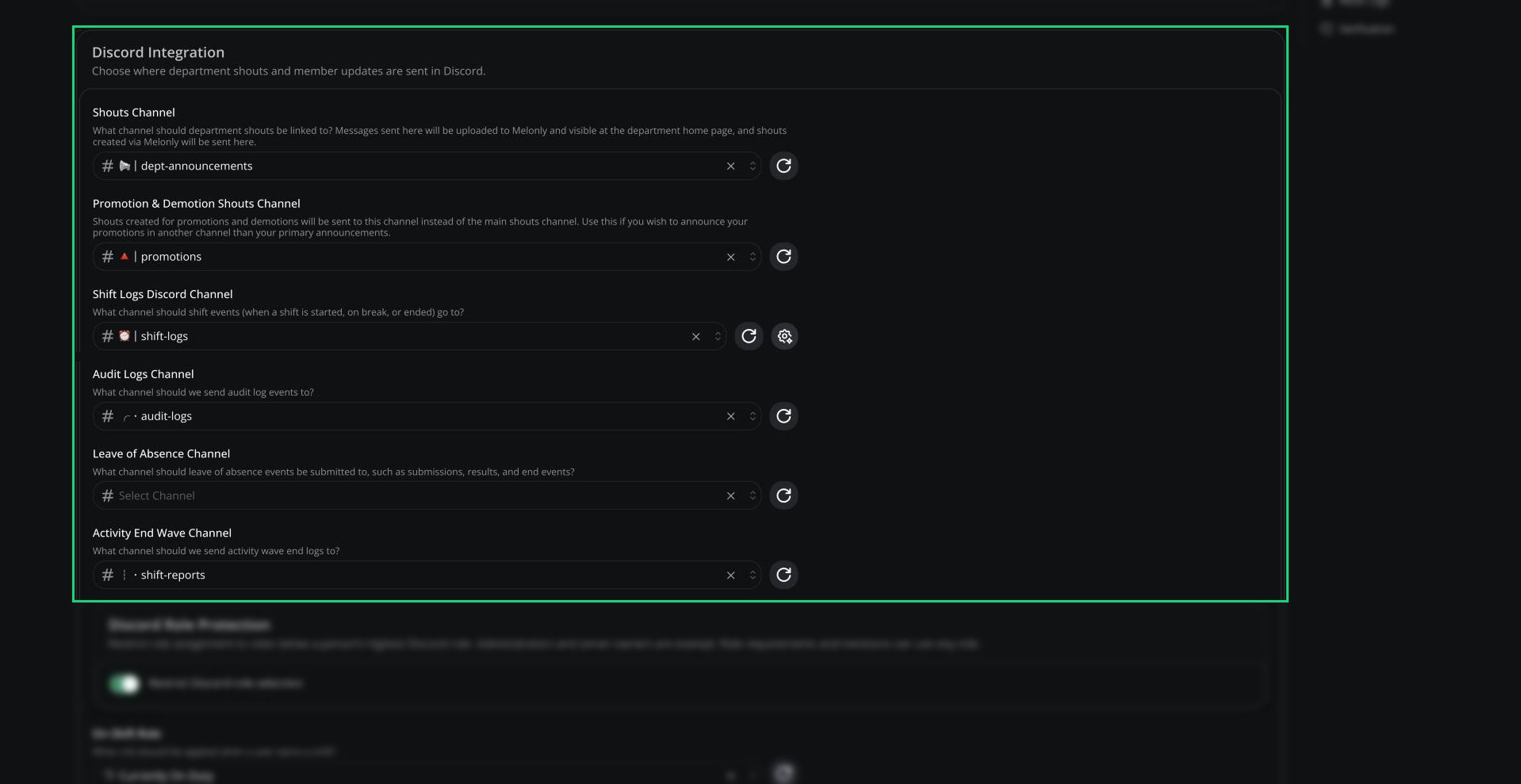 | Setting | Description |
| - | - |
| Shouts Channel | Two-way sync. Messages here show on the department home page, and shouts from Melonly post here. |
| Promotion & Demotion Shouts Channel | Sends promotion and demotion shouts here instead of the main shouts channel |
| Shift Logs Discord Channel | Shift starts, breaks and shift ends |
| Audit Logs Channel | [Audit log](/Department/settings#audit-logs) events |
| Leave of Absence Channel | LOA requests, decisions and endings |
| Activity End Wave Channel | A summary when an activity wave ends |
| Promotion Logs Channel | A log when a member is promoted |
| Demotion Logs Channel | A log when a member is demoted |
***
## Roles and Nicknames
| Setting | Description |
| - | - |
| On Shift Role | Given while a member is on shift |
| On Break Role | Given while a member is on break |
| LOA Role | Given while a member is on leave of absence |
| On Shift Nickname | Prefix added to the member's nickname while on shift. 3 to 15 characters. |
| On LOA Nickname | Prefix added to the member's nickname while on LOA. 3 to 15 characters. |
| Restrict Discord role selection | Stops people picking Discord roles at or above their own highest role anywhere in Melonly. On by default. Only Discord administrators and the server owner can turn it off. |
| Setting | Description |
| - | - |
| Shouts Channel | Two-way sync. Messages here show on the department home page, and shouts from Melonly post here. |
| Promotion & Demotion Shouts Channel | Sends promotion and demotion shouts here instead of the main shouts channel |
| Shift Logs Discord Channel | Shift starts, breaks and shift ends |
| Audit Logs Channel | [Audit log](/Department/settings#audit-logs) events |
| Leave of Absence Channel | LOA requests, decisions and endings |
| Activity End Wave Channel | A summary when an activity wave ends |
| Promotion Logs Channel | A log when a member is promoted |
| Demotion Logs Channel | A log when a member is demoted |
***
## Roles and Nicknames
| Setting | Description |
| - | - |
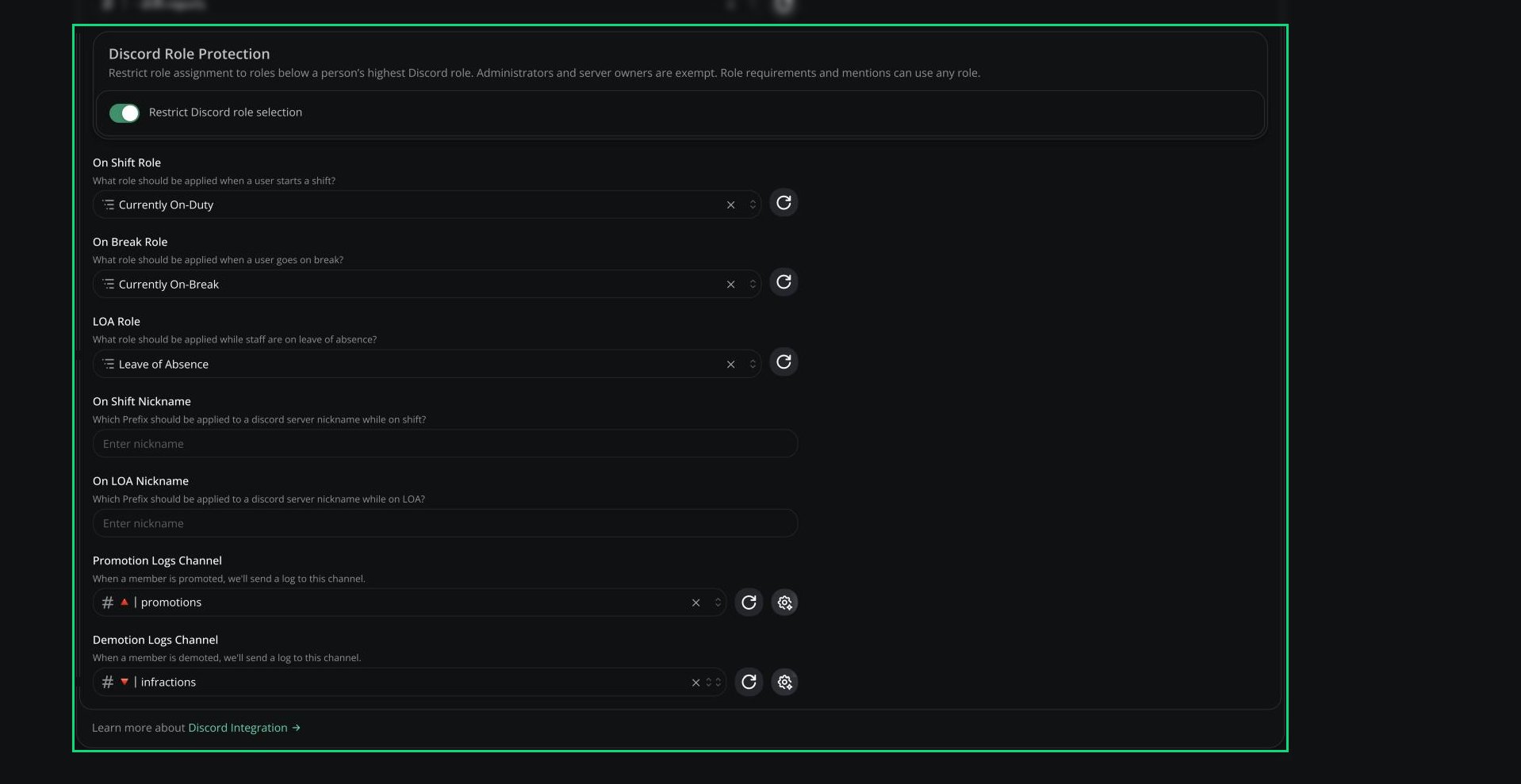
| On Shift Role | Given while a member is on shift |
| On Break Role | Given while a member is on break |
| LOA Role | Given while a member is on leave of absence |
| On Shift Nickname | Prefix added to the member's nickname while on shift. 3 to 15 characters. |
| On LOA Nickname | Prefix added to the member's nickname while on LOA. 3 to 15 characters. |
| Restrict Discord role selection | Stops people picking Discord roles at or above their own highest role anywhere in Melonly. On by default. Only Discord administrators and the server owner can turn it off. |
 ***
## Custom Discord Messages
You can rewrite the messages Melonly sends to your shift, promotion and demotion log channels.
* For shift messages, click the sparkle icon next to Shift Logs Discord Channel and pick the event.
* For promotions and demotions, use the customise button under each log channel.
Each editor can also show the member in the embed's author line.
Settings marked Plus, like custom messages and promotion logs, are included with every department. No separate subscription needed.
| Variable | Available in | Description |
| - | - | - |
| `{user}` | All | The member whose shift changed |
| `{mentionuser}` | All | Mentions the member |
| `{eventtext}` | All | The full shift log text |
| `{shifttype}` | All | The shift type, or Default |
| `{startedat}` | Shift Started, Shift Ended | When the shift started |
| `{endedat}` | Shift Ended | When the shift ended |
| `{elapsedtime}` | Shift Ended | Length of the shift |
| `{endedby}` | Shift Ended, Break Ended | Who ended the shift or break |
| `{breakstartedat}` | Break Started, Break Ended | When the break started |
| `{breakendedat}` | Break Ended | When the break ended |
| `{breakelapsedtime}` | Break Ended | Length of the break |
| Variable | Description |
| - | - |
| `{user}` | The member who was promoted or demoted |
| `{mentionuser}` | Mentions that member |
| `{rank}` | Their new rank |
| `{promotedby}` / `{demotedby}` | Who made the change |
| `{mentionpromotedby}` / `{mentiondemotedby}` | Mentions who made the change |
| Variable | Example |
| - | - |
| `{time}` | 20 April 2021 16:20 |
| `{timet}` | 16:20 |
| `{timeT}` | 16:20:30 |
| `{timed}` | 20/04/2021 |
| `{timeD}` | 20 April 2021 |
| `{timef}` | 20 April 2021 16:20 |
| `{timeF}` | Tuesday, 20 April 2021 16:20 |
| `{timeR}` | 2 months ago |
***
Still have questions? Join our Discord server for support from the Melonly Team.
This documentation is built and hosted on [Mintlify](https://mintlify.com), a developer documentation platform.
***
## Custom Discord Messages
You can rewrite the messages Melonly sends to your shift, promotion and demotion log channels.
* For shift messages, click the sparkle icon next to Shift Logs Discord Channel and pick the event.
* For promotions and demotions, use the customise button under each log channel.
Each editor can also show the member in the embed's author line.
Settings marked Plus, like custom messages and promotion logs, are included with every department. No separate subscription needed.
| Variable | Available in | Description |
| - | - | - |
| `{user}` | All | The member whose shift changed |
| `{mentionuser}` | All | Mentions the member |
| `{eventtext}` | All | The full shift log text |
| `{shifttype}` | All | The shift type, or Default |
| `{startedat}` | Shift Started, Shift Ended | When the shift started |
| `{endedat}` | Shift Ended | When the shift ended |
| `{elapsedtime}` | Shift Ended | Length of the shift |
| `{endedby}` | Shift Ended, Break Ended | Who ended the shift or break |
| `{breakstartedat}` | Break Started, Break Ended | When the break started |
| `{breakendedat}` | Break Ended | When the break ended |
| `{breakelapsedtime}` | Break Ended | Length of the break |
| Variable | Description |
| - | - |
| `{user}` | The member who was promoted or demoted |
| `{mentionuser}` | Mentions that member |
| `{rank}` | Their new rank |
| `{promotedby}` / `{demotedby}` | Who made the change |
| `{mentionpromotedby}` / `{mentiondemotedby}` | Mentions who made the change |
| Variable | Example |
| - | - |
| `{time}` | 20 April 2021 16:20 |
| `{timet}` | 16:20 |
| `{timeT}` | 16:20:30 |
| `{timed}` | 20/04/2021 |
| `{timeD}` | 20 April 2021 |
| `{timef}` | 20 April 2021 16:20 |
| `{timeF}` | Tuesday, 20 April 2021 16:20 |
| `{timeR}` | 2 months ago |
***
Still have questions? Join our Discord server for support from the Melonly Team.
This documentation is built and hosted on [Mintlify](https://mintlify.com), a developer documentation platform.