> ## Documentation Index
> Fetch the complete documentation index at: https://docs.melonly.xyz/llms.txt
> Use this file to discover all available pages before exploring further.
# Requesting & Reviewing LOAs
> Request a leave of absence, and approve, deny, extend or end LOAs in your department.
***
Members request leave from the department, and managers with the Loa Manager permission approve or deny it. Approved LOAs end on their own when the end date passes.
***
## Requesting an LOA
On the department [Home](/Department/home) page, open the menu on your profile card and choose **Manage LOA**. You can also use a request link shared by your department.
Enter a reason, choose whether it starts on approval or on a future date, and pick an end date.
Click **Submit Request** and wait for a manager to review it.
From the same page you can cancel a request, update your reason, or ask for an extension. See [Manage LOA](/Guides/account/loa) for the full member guide.
***
## Reviewing LOAs
Expand an LOA to see the member's reason and a timeline of everything that's happened. From there you can:
* **Approve** or **Deny** a request, with an optional reason the member can see.
* **Accept** or **Deny** an extension request. These show a pending request badge.
* **End leave of absence** early. This can't be undone.
You can only act on LOAs of members ranked below you.
***
## Recent
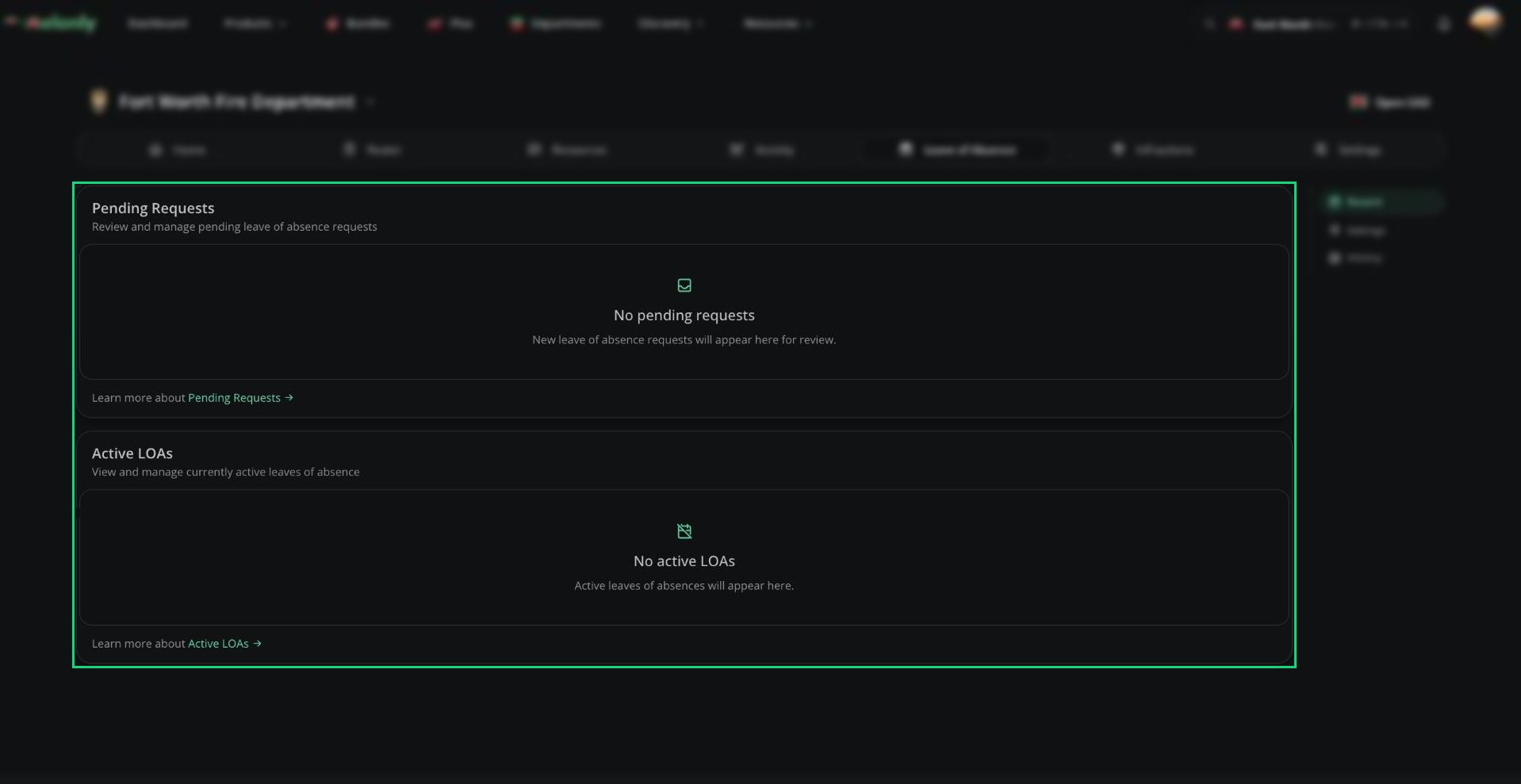
Your day-to-day view: pending requests (including extensions) at the top, and members currently on leave or about to start below.
 ***
## History
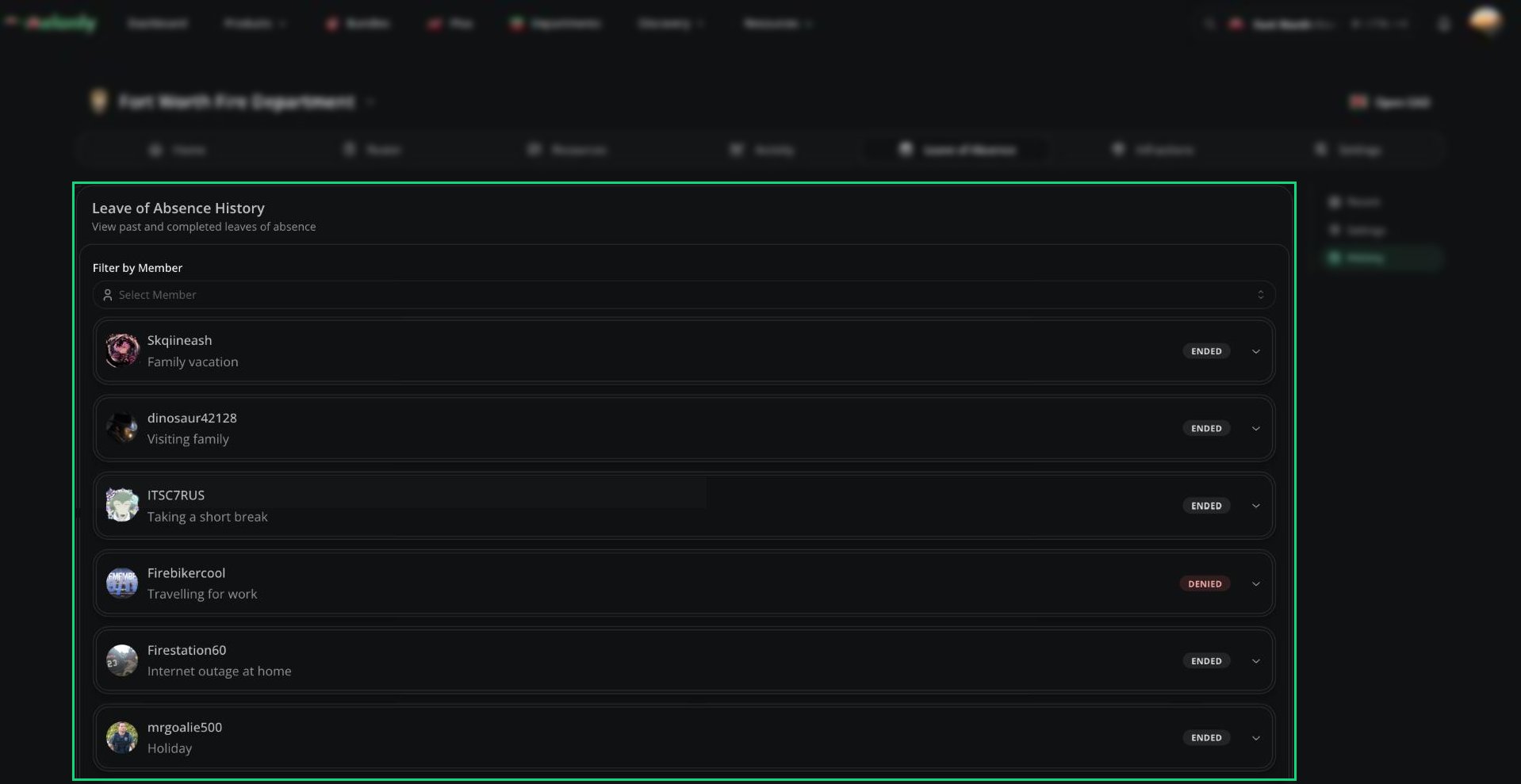
Every past and current LOA in the department. Filter by member to see one person's leave history. You can review and end LOAs from here too.
***
## History
Every past and current LOA in the department. Filter by member to see one person's leave history. You can review and end LOAs from here too.
 ***
Still have questions? Join our Discord server for support from the Melonly Team.
This documentation is built and hosted on [Mintlify](https://mintlify.com), a developer documentation platform.
***
Still have questions? Join our Discord server for support from the Melonly Team.
This documentation is built and hosted on [Mintlify](https://mintlify.com), a developer documentation platform.