> ## Documentation Index
> Fetch the complete documentation index at: https://docs.melonly.xyz/llms.txt
> Use this file to discover all available pages before exploring further.
# Panel Settings
> Control how the Mod Panel works for your staff: access, Ban BOLOs, presets, custom log types and staff requests.
***
## What is the Panel Page?
The **Panel** page of your dashboard controls how the [Mod Panel](/Modpanel/overview) behaves for your staff. Server-wide settings like your name, join code and API tokens are on [General Settings](/Dashboard/settings) instead.
Click **Save** after each change.
***
## Panel Access
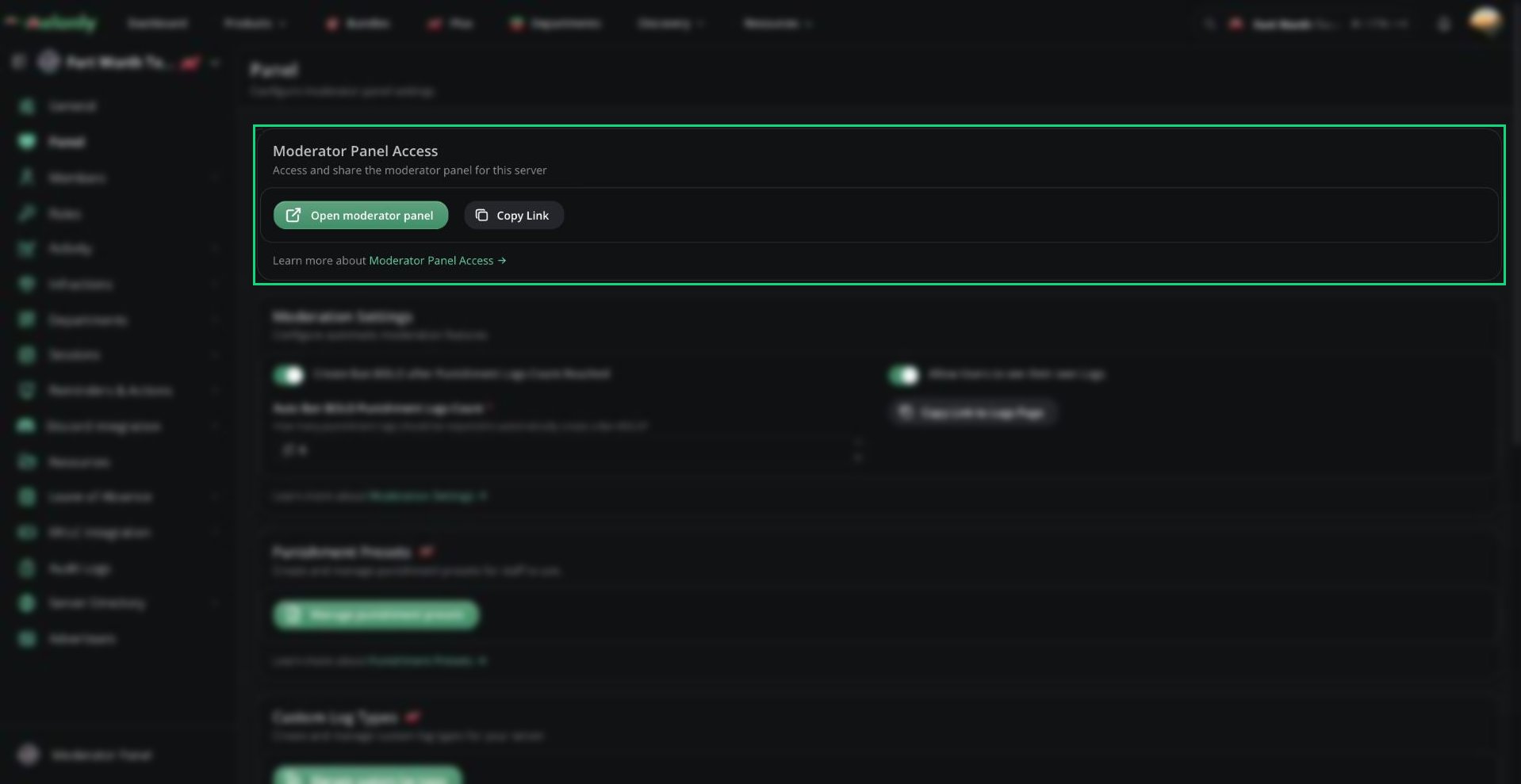
Click **Open moderator panel** to open your server's panel, or **Copy Link** to share it with staff.
Staff can only open the panel once they're members of your server, through your [join code](/Dashboard/settings#join-code) or [Discord linked roles](/Dashboard/discordintegration/roles).
 ***
## Moderation Settings
***
## Moderation Settings
 ### Automatic Ban BOLO
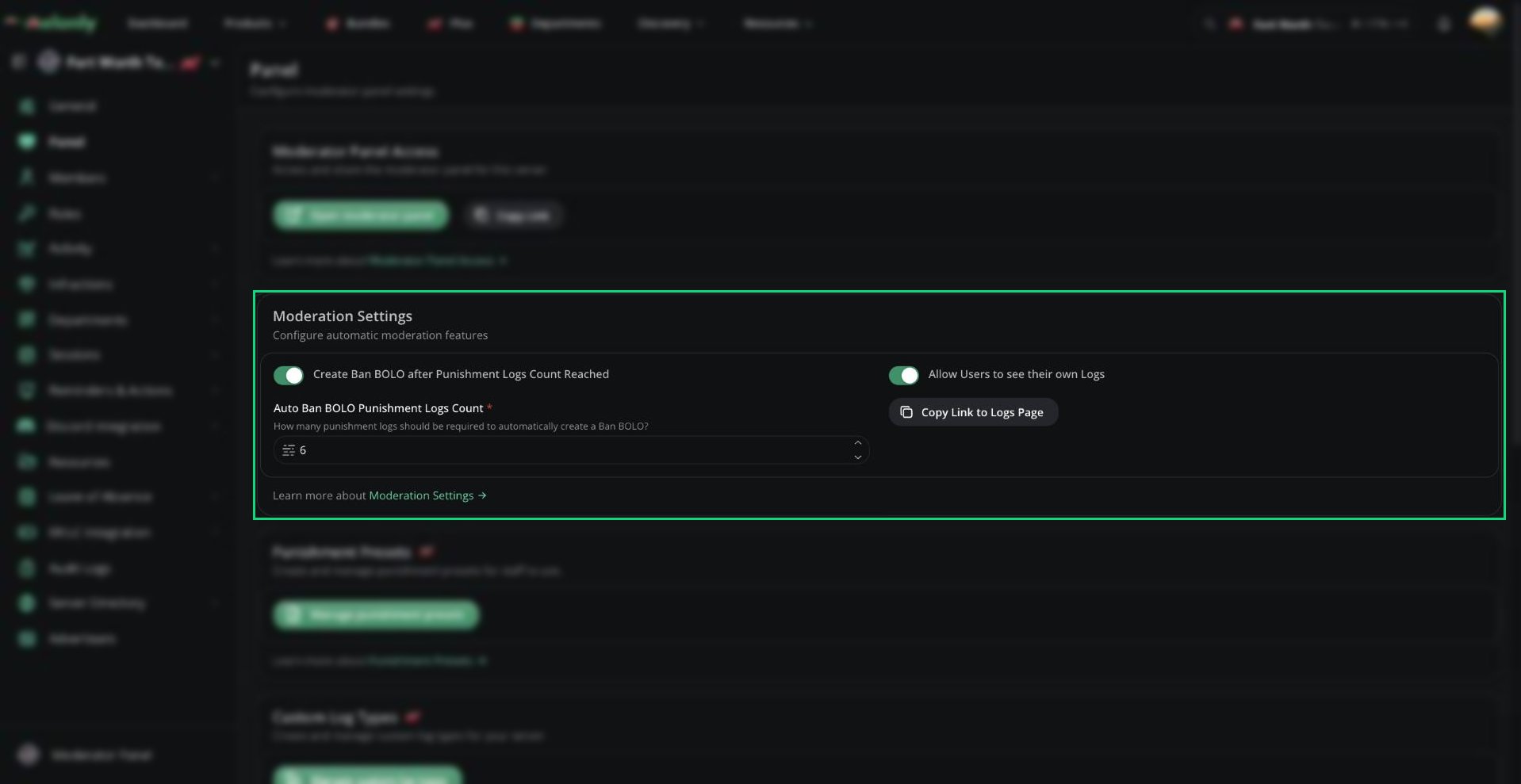
Create a Ban BOLO automatically when a player collects too many punishments.
| Setting | Description |
| - | - |
| Create Ban BOLO after Punishment Logs Count Reached | Turns automatic Ban BOLOs on or off |
| Auto Ban BOLO Punishment Logs Count | How many punishment logs a player needs before a Ban BOLO is created |
Only warnings and kicks count, and the count resets after a ban. See [Ban BOLOs](/Modpanel/logs/banbolos#automatic-ban-bolos).
### Allow Users to See Their Own Logs
Turn on **Allow Users to see their own Logs** to let players view the punishment logs issued to them. Click **Copy Link to Logs Page** to get a link to share with your community.
This also lets staff hide individual logs from the player. See [Hiding a log](/Modpanel/logs/punishmentlogs#hiding-a-log).
***
## Punishment Presets
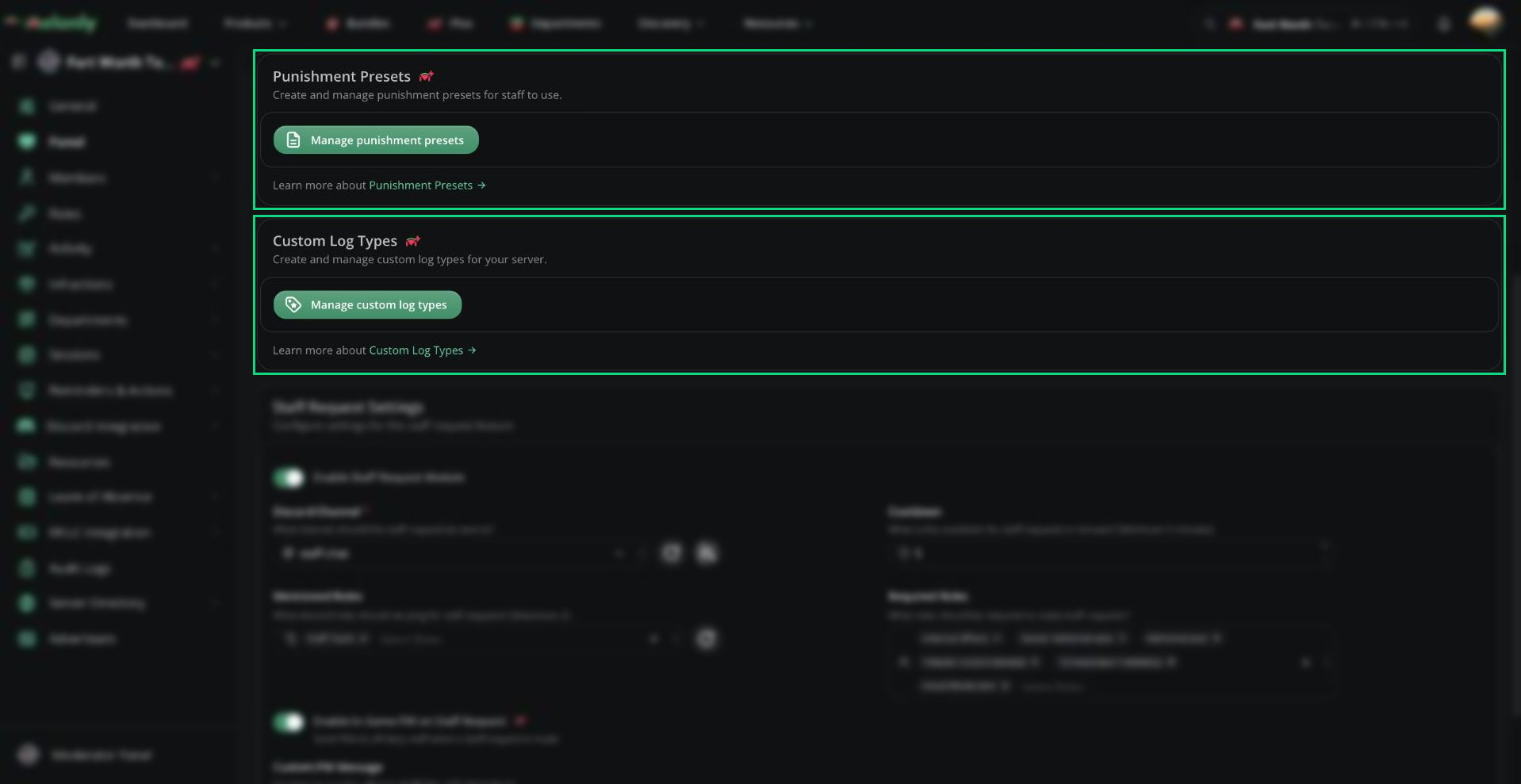
Presets are saved punishments your staff can apply in one click from the log form. They need [Melonly Plus](https://melonly.xyz/plus). Click **Manage punishment presets** to add, edit or remove them.
### Automatic Ban BOLO
Create a Ban BOLO automatically when a player collects too many punishments.
| Setting | Description |
| - | - |
| Create Ban BOLO after Punishment Logs Count Reached | Turns automatic Ban BOLOs on or off |
| Auto Ban BOLO Punishment Logs Count | How many punishment logs a player needs before a Ban BOLO is created |
Only warnings and kicks count, and the count resets after a ban. See [Ban BOLOs](/Modpanel/logs/banbolos#automatic-ban-bolos).
### Allow Users to See Their Own Logs
Turn on **Allow Users to see their own Logs** to let players view the punishment logs issued to them. Click **Copy Link to Logs Page** to get a link to share with your community.
This also lets staff hide individual logs from the player. See [Hiding a log](/Modpanel/logs/punishmentlogs#hiding-a-log).
***
## Punishment Presets
Presets are saved punishments your staff can apply in one click from the log form. They need [Melonly Plus](https://melonly.xyz/plus). Click **Manage punishment presets** to add, edit or remove them.
 | Field | Description |
| - | - |
| Name | What staff see in the preset list, for example "Rule 1" |
| Reason | The reason added to the log |
| Type | Warn, Kick, Ban, Ban Bolo, Note, or one of your custom types |
| Temporary Ban Duration (hours) | Ban presets only. Fills in a temporary ban, for example 24 for one day |
| Field | Description |
| - | - |
| Name | What staff see in the preset list, for example "Rule 1" |
| Reason | The reason added to the log |
| Type | Warn, Kick, Ban, Ban Bolo, Note, or one of your custom types |
| Temporary Ban Duration (hours) | Ban presets only. Fills in a temporary ban, for example 24 for one day |
 To see how staff use presets, read [Creating Logs](/Modpanel/logs/creating#punishment-presets).
***
## Custom Log Types
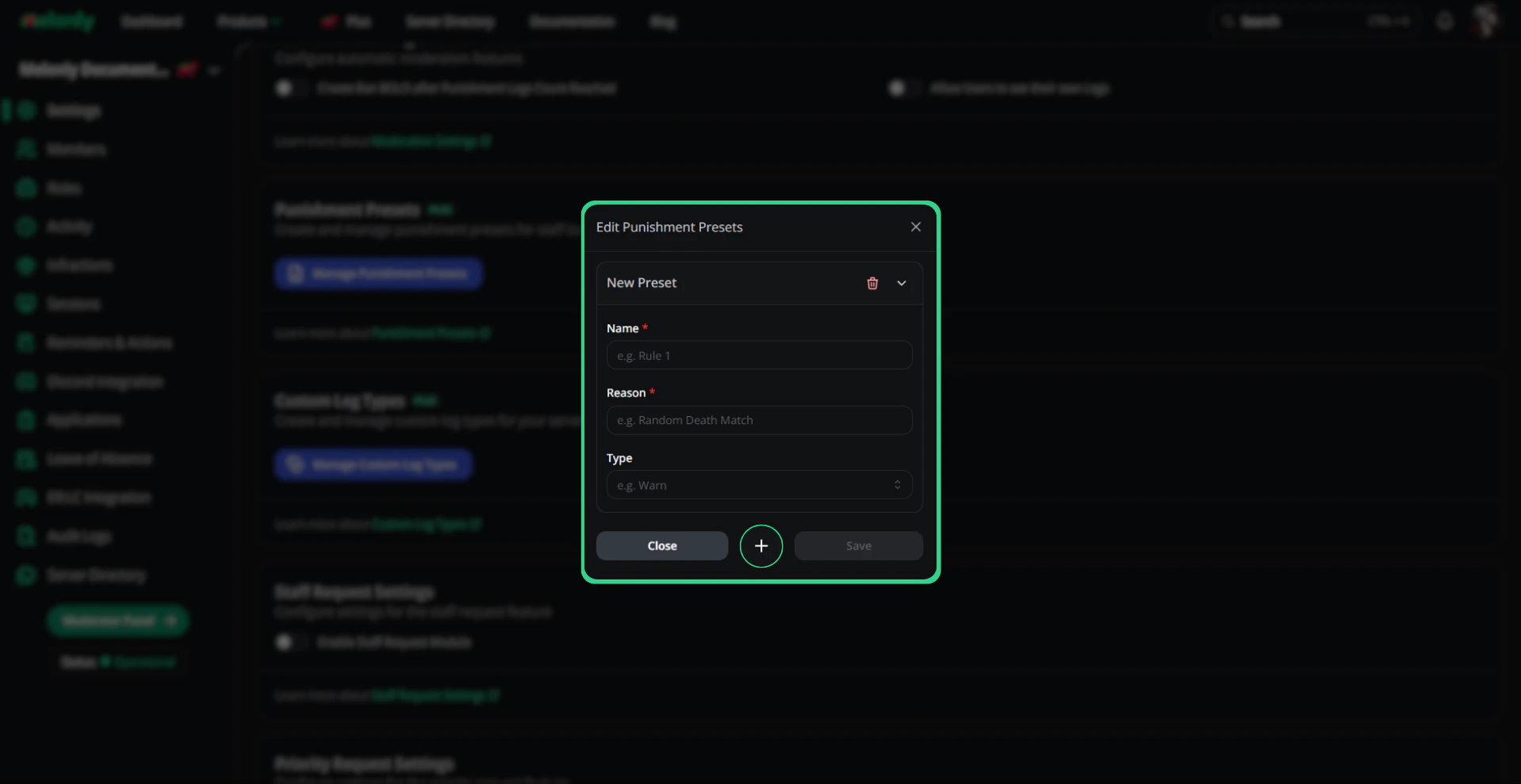
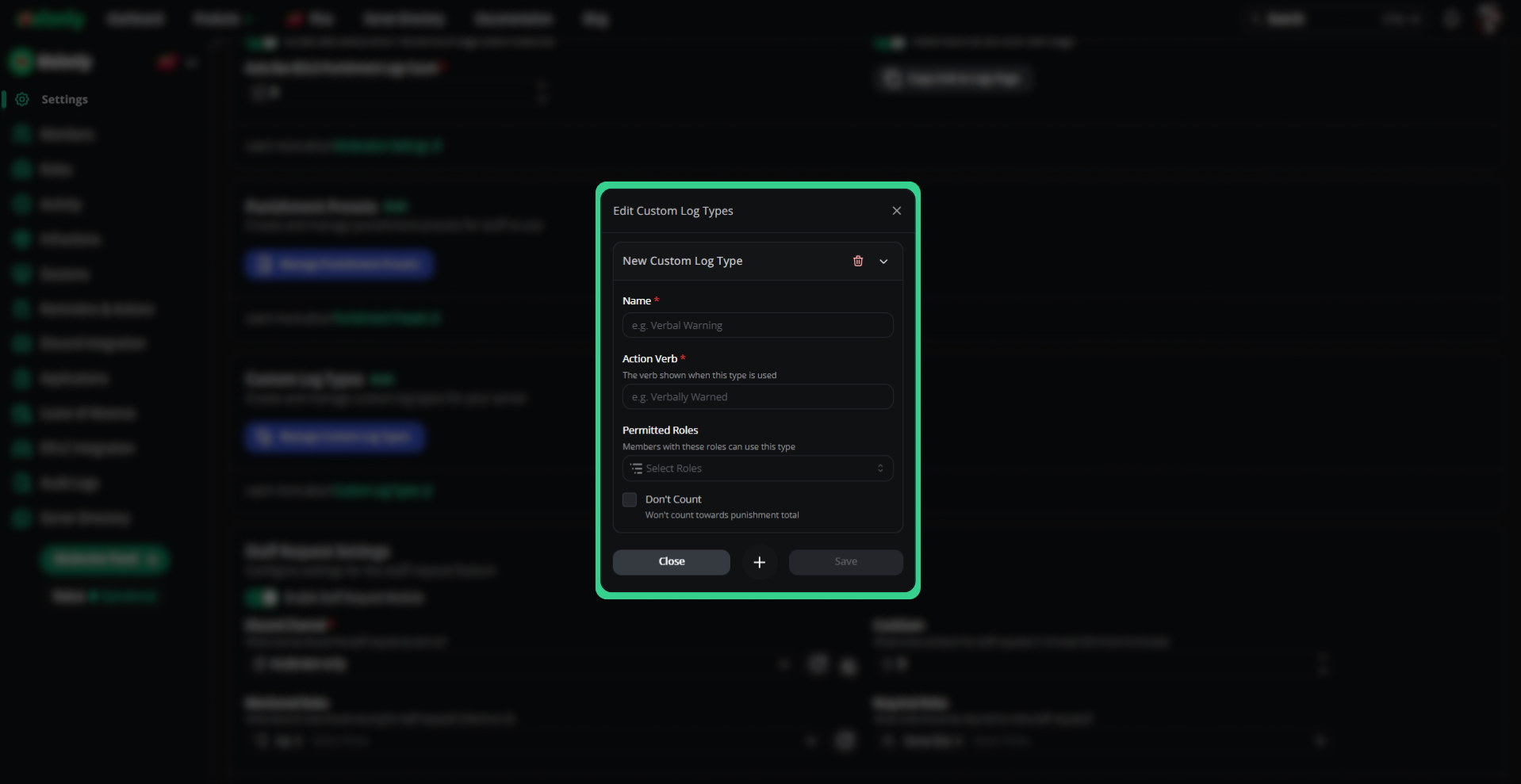
Add your own log types next to the built-in ones, such as "Verbal Warning". This needs [Melonly Plus](https://melonly.xyz/plus). Click **Manage custom log types** to set them up.
| Field | Description |
| - | - |
| Name | The type's name, for example "Verbal Warning" |
| Action Verb | The verb used in the player's DM, for example "Verbally Warned" |
| Permitted Roles | Members with these roles can use this type. Administrators always can |
| Ingame Invocation Command | Lets staff use this type in-game with `:log [type] [username] [reason]`. No spaces |
| Don't Count | The type won't count toward a player's previous punishments |
To see how staff use presets, read [Creating Logs](/Modpanel/logs/creating#punishment-presets).
***
## Custom Log Types
Add your own log types next to the built-in ones, such as "Verbal Warning". This needs [Melonly Plus](https://melonly.xyz/plus). Click **Manage custom log types** to set them up.
| Field | Description |
| - | - |
| Name | The type's name, for example "Verbal Warning" |
| Action Verb | The verb used in the player's DM, for example "Verbally Warned" |
| Permitted Roles | Members with these roles can use this type. Administrators always can |
| Ingame Invocation Command | Lets staff use this type in-game with `:log [type] [username] [reason]`. No spaces |
| Don't Count | The type won't count toward a player's previous punishments |
 ***
## Staff Requests
Staff requests let moderators call for backup from the panel. Each request posts to a Discord channel. See [Request Staff](/Modpanel/toolbox/requeststaff) for how staff use it.
Your server must be linked to Discord. Without it, the card shows **Discord Integration Required** with a **Configure linked guild** button.
***
## Staff Requests
Staff requests let moderators call for backup from the panel. Each request posts to a Discord channel. See [Request Staff](/Modpanel/toolbox/requeststaff) for how staff use it.
Your server must be linked to Discord. Without it, the card shows **Discord Integration Required** with a **Configure linked guild** button.
 | Setting | Description |
| - | - |
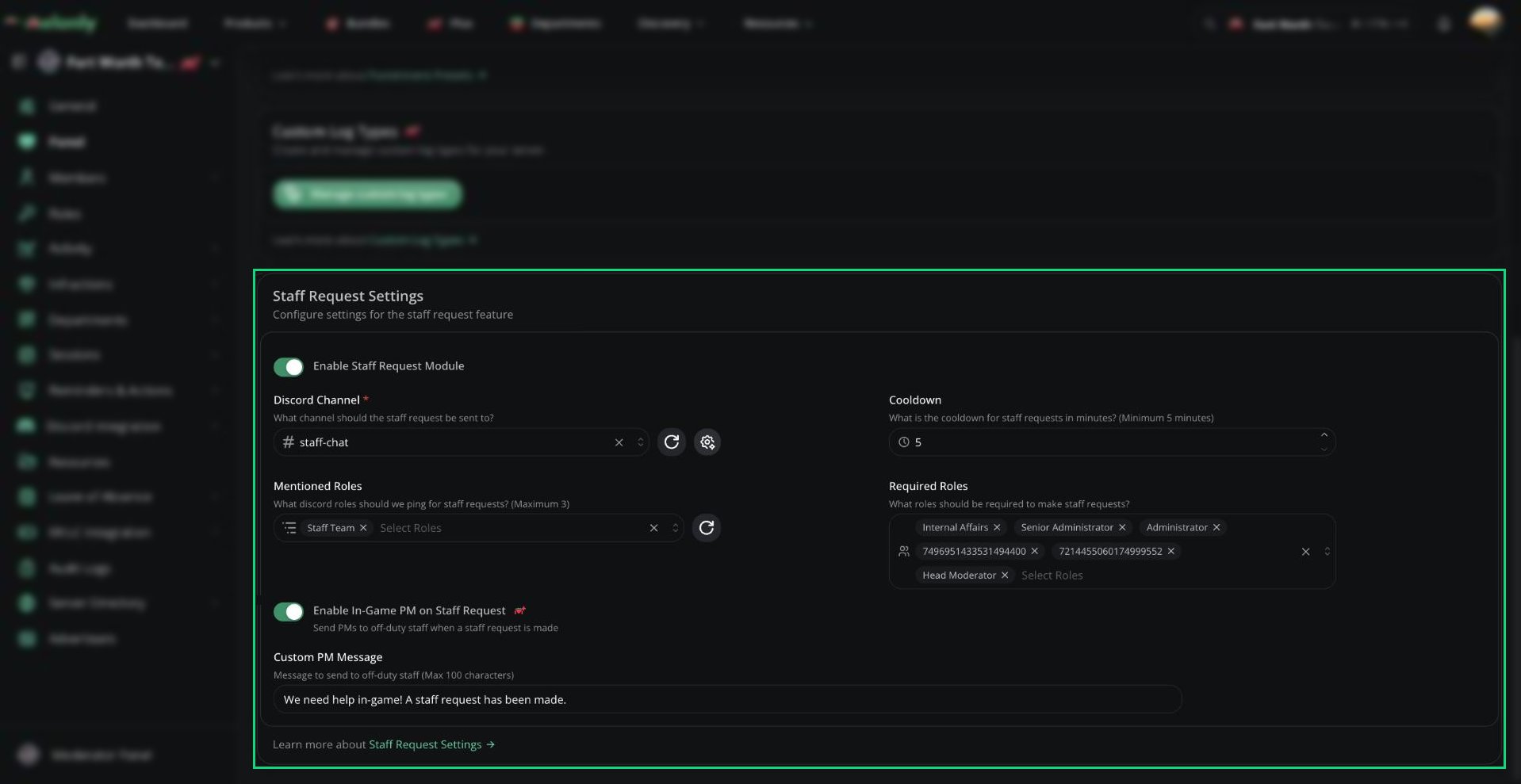
| Enable Staff Request Module | Turns staff requests on and adds Request Staff to the panel's Toolbox |
| Discord Channel | Where requests are posted. Required. Melonly needs permission to send messages there |
| Cooldown | Minutes before anyone can request staff again. 5 to 120, default 5. Shared by the whole server |
| Mentioned Roles | Up to 3 Discord roles to ping with each request. You can also pick @here |
| Required Roles | Only members with one of these roles can request staff. Administrators always can |
With [Melonly Plus](https://melonly.xyz/plus), click the message icon next to **Discord Channel** to customise the request message. You can use variables such as `{user}`, `{reason}`, `{onduty}`, `{players}` and `{ingamestaff}`.
### In-Game PMs
Turn on **Enable In-Game PM on Staff Request** to PM off-duty staff in-game whenever someone requests staff. Off-duty means staff who are in your ER:LC server but not on a Melonly shift. This needs [Melonly Plus](https://melonly.xyz/plus) and the [ER:LC integration](/Dashboard/erlcintegration/home).
Set the message in **Custom PM Message** (up to 100 characters). If you leave it empty, Melonly sends "A staff request was made; please respond in-game."
***
Still have questions? Join our Discord server for support from the Melonly Team.
This documentation is built and hosted on [Mintlify](https://mintlify.com), a developer documentation platform.
| Setting | Description |
| - | - |
| Enable Staff Request Module | Turns staff requests on and adds Request Staff to the panel's Toolbox |
| Discord Channel | Where requests are posted. Required. Melonly needs permission to send messages there |
| Cooldown | Minutes before anyone can request staff again. 5 to 120, default 5. Shared by the whole server |
| Mentioned Roles | Up to 3 Discord roles to ping with each request. You can also pick @here |
| Required Roles | Only members with one of these roles can request staff. Administrators always can |
With [Melonly Plus](https://melonly.xyz/plus), click the message icon next to **Discord Channel** to customise the request message. You can use variables such as `{user}`, `{reason}`, `{onduty}`, `{players}` and `{ingamestaff}`.
### In-Game PMs
Turn on **Enable In-Game PM on Staff Request** to PM off-duty staff in-game whenever someone requests staff. Off-duty means staff who are in your ER:LC server but not on a Melonly shift. This needs [Melonly Plus](https://melonly.xyz/plus) and the [ER:LC integration](/Dashboard/erlcintegration/home).
Set the message in **Custom PM Message** (up to 100 characters). If you leave it empty, Melonly sends "A staff request was made; please respond in-game."
***
Still have questions? Join our Discord server for support from the Melonly Team.
This documentation is built and hosted on [Mintlify](https://mintlify.com), a developer documentation platform.