> ## Documentation Index
> Fetch the complete documentation index at: https://docs.melonly.xyz/llms.txt
> Use this file to discover all available pages before exploring further.
# Vehicle Restrictions
> Create role based restrictions for ERLC vehicles and control which players can drive specific vehicles during sessions.
***
## What are Vehicle Restrictions?
Vehicle Restrictions allow you to lock specific ERLC vehicles behind Discord roles.\
Players who do not meet the required role will be flagged in the panel or reminded in game.\
This is useful for VIP vehicles, Booster vehicles, department vehicles, or any vehicle you want to limit to certain groups.
***
## How to use Vehicle Restrictions
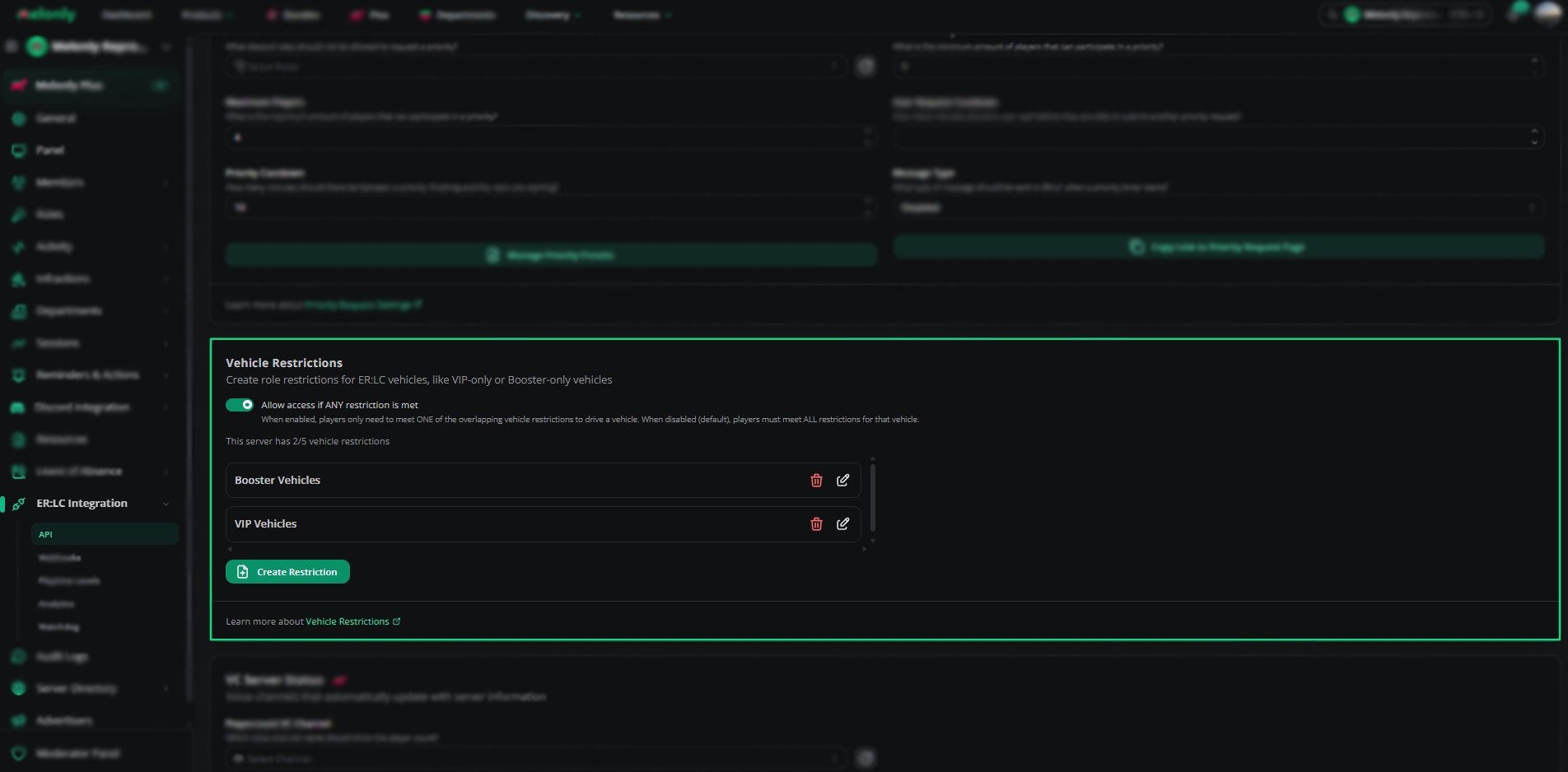
You can configure **Vehicle Restrictions** from your\
**ERLC Integration → API** page, located beneath **Priority Requests**.
### Configuration Options
Enable this if you want players to meet only one of the overlapping restrictions to drive a vehicle.\
When disabled, players must meet all restrictions that apply to that vehicle.
Click **Create Restriction** to open the Vehicle Restriction Editor.\
Each restriction contains a name, a required Discord role, and a list of allowed vehicles.
Existing restrictions can be edited or removed at any time.\
Editing allows you to update the role or change the allowed vehicles.
 ***
## Using the Vehicle Restriction Editor
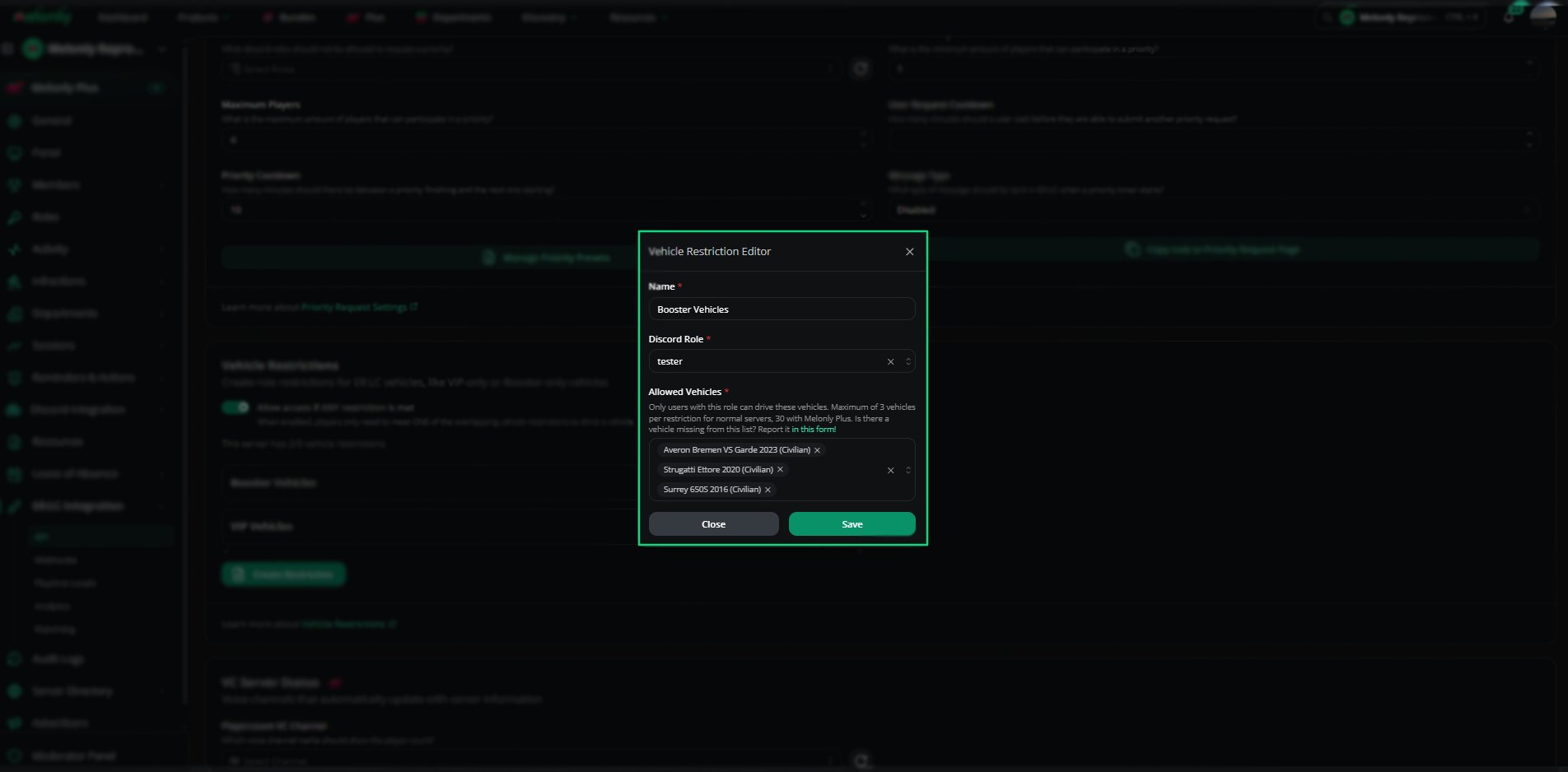
The Vehicle Restriction Editor allows you to create and manage restrictions with full control.
Enter a clear name such as VIP Vehicles or Booster Access.\
This helps staff understand the purpose of the restriction.
Choose the role that players must have to drive the vehicles in this restriction.\
Only players with this role will be allowed to use the selected vehicles.
Select up to 3 vehicles for normal servers or up to 30 vehicles with Melonly Plus.\
These are the vehicles that will require the selected role.
Click **Save** to apply the restriction.\
It will appear in your list of active restrictions.
***
## Using the Vehicle Restriction Editor
The Vehicle Restriction Editor allows you to create and manage restrictions with full control.
Enter a clear name such as VIP Vehicles or Booster Access.\
This helps staff understand the purpose of the restriction.
Choose the role that players must have to drive the vehicles in this restriction.\
Only players with this role will be allowed to use the selected vehicles.
Select up to 3 vehicles for normal servers or up to 30 vehicles with Melonly Plus.\
These are the vehicles that will require the selected role.
Click **Save** to apply the restriction.\
It will appear in your list of active restrictions.
 ***
## Example Use Cases
* Create VIP only vehicles for supporters
* Restrict department vehicles to trained members
* Allow Booster exclusive vehicles
* Limit high performance vehicles to trusted roles
* Flag players who attempt to drive restricted vehicles without permission
***
Still have questions? Join our Discord server for support from the Melonly Team.
***
## Example Use Cases
* Create VIP only vehicles for supporters
* Restrict department vehicles to trained members
* Allow Booster exclusive vehicles
* Limit high performance vehicles to trusted roles
* Flag players who attempt to drive restricted vehicles without permission
***
Still have questions? Join our Discord server for support from the Melonly Team.