> ## Documentation Index
> Fetch the complete documentation index at: https://docs.melonly.xyz/llms.txt
> Use this file to discover all available pages before exploring further.
# Team Restrictions
> Control which ER:LC teams players can join by enforcing Discord‑based requirements, department checks, and role‑locked access.
***
## What are Team Restrictions?
Team Restrictions allow you to control which ER:LC teams players can join based on their Discord roles, departments, or other requirements.\
This ensures only authorised members can access sensitive teams such as Police, Sheriff, Fire/EMS, or DOT - helping maintain realism, and structure.
With this feature, you can lock teams, set minimum player counts, customise alert messages, and enforce department membership automatically.
***
## How to use Team Restrictions
You can configure **Team Restrictions** from your\
**ER:LC Integration → API** page, located beneath **AFK Inactivity Checks**.
### Opening the Team Restrictions Editor
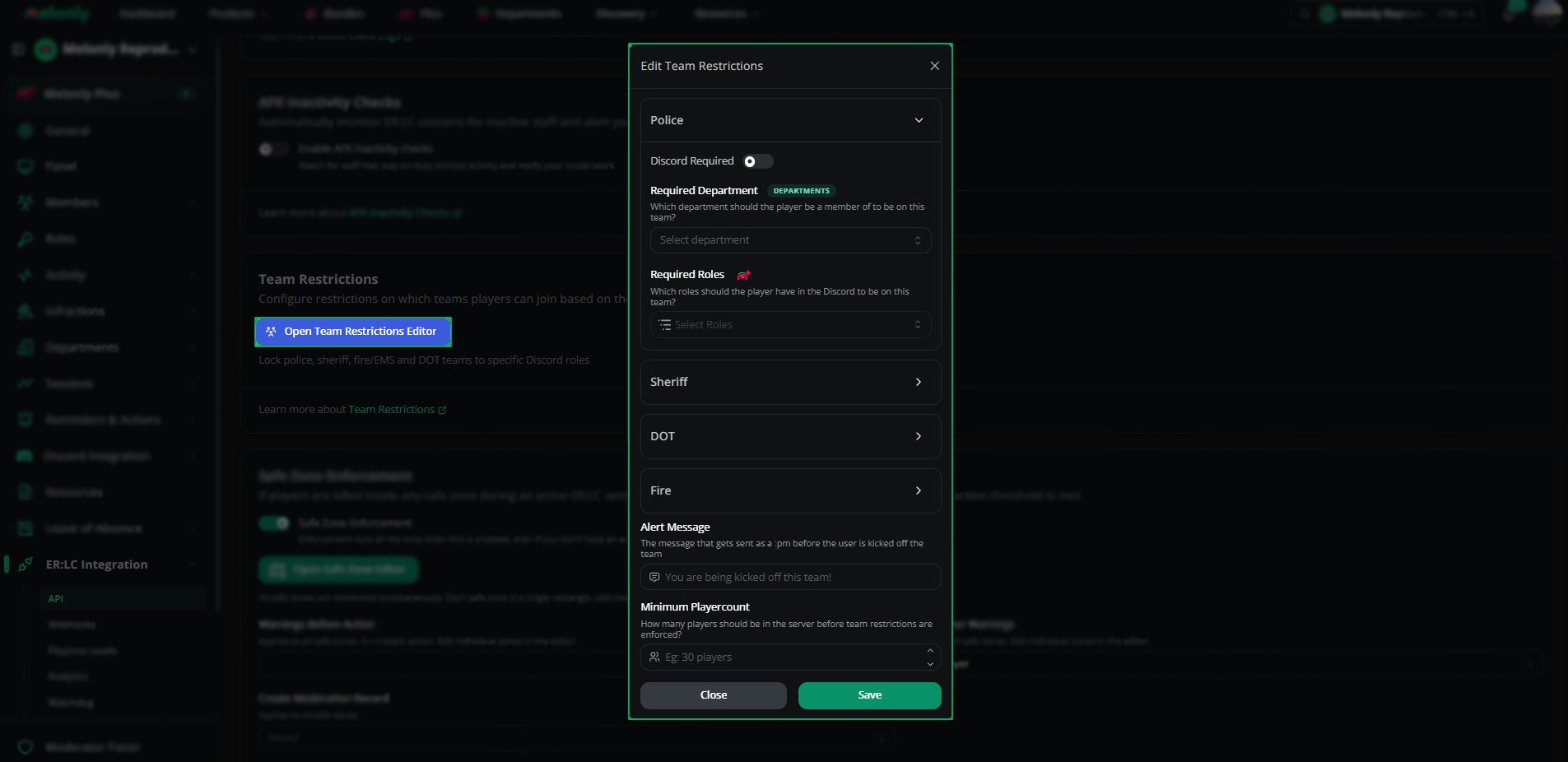
Click **Open Team Restrictions Editor** to view all available ER:LC teams and their configuration options.
Choose the team you want to configure - such as Police, Sheriff, Fire/EMS, or DOT.\
Each team has its own set of restriction options.
***
## Configuration Options
Each team includes several configurable fields that determine who can join and under what conditions.
Enable this to require players to have their Discord account linked and a member of your Discord Server before joining the team.
Select a department that players must belong to in order to join the team.
Choose one or more Discord roles that players must have to join the team.
Customise the message shown to players when they are denied access.\
For example: *“You are being kicked off this team!”*
Set the minimum number of players required in the server before the restriction applies.\
Example: **30 players** - restrictions only activate once the server reaches this threshold.
Click **Save** to apply your restrictions.\
Changes take effect immediately in your ER:LC server.
 Some options within this feature require Melonly Plus. You can find out more about what Plus offers [**here**](https://melonly.xyz/plus?referer=page_header_pc).
***
Still have questions? Join our [Discord server](https://melonly.xyz/discord) for support from the Melonly Team.
Some options within this feature require Melonly Plus. You can find out more about what Plus offers [**here**](https://melonly.xyz/plus?referer=page_header_pc).
***
Still have questions? Join our [Discord server](https://melonly.xyz/discord) for support from the Melonly Team.