> ## Documentation Index
> Fetch the complete documentation index at: https://docs.melonly.xyz/llms.txt
> Use this file to discover all available pages before exploring further.
# Team Jurisdictions
> Automatically enforce where each ER:LC team is allowed to operate using configurable boundaries, warnings, and jurisdiction‑based actions.
***
## What are Team Jurisdictions?
Team Jurisdictions allow you to define where each ER:LC team is permitted to operate.\
If a player leaves their assigned jurisdiction for too long, the system will automatically warn them and if needed, take action such as respawning the player.
***
## How to use Team Jurisdictions
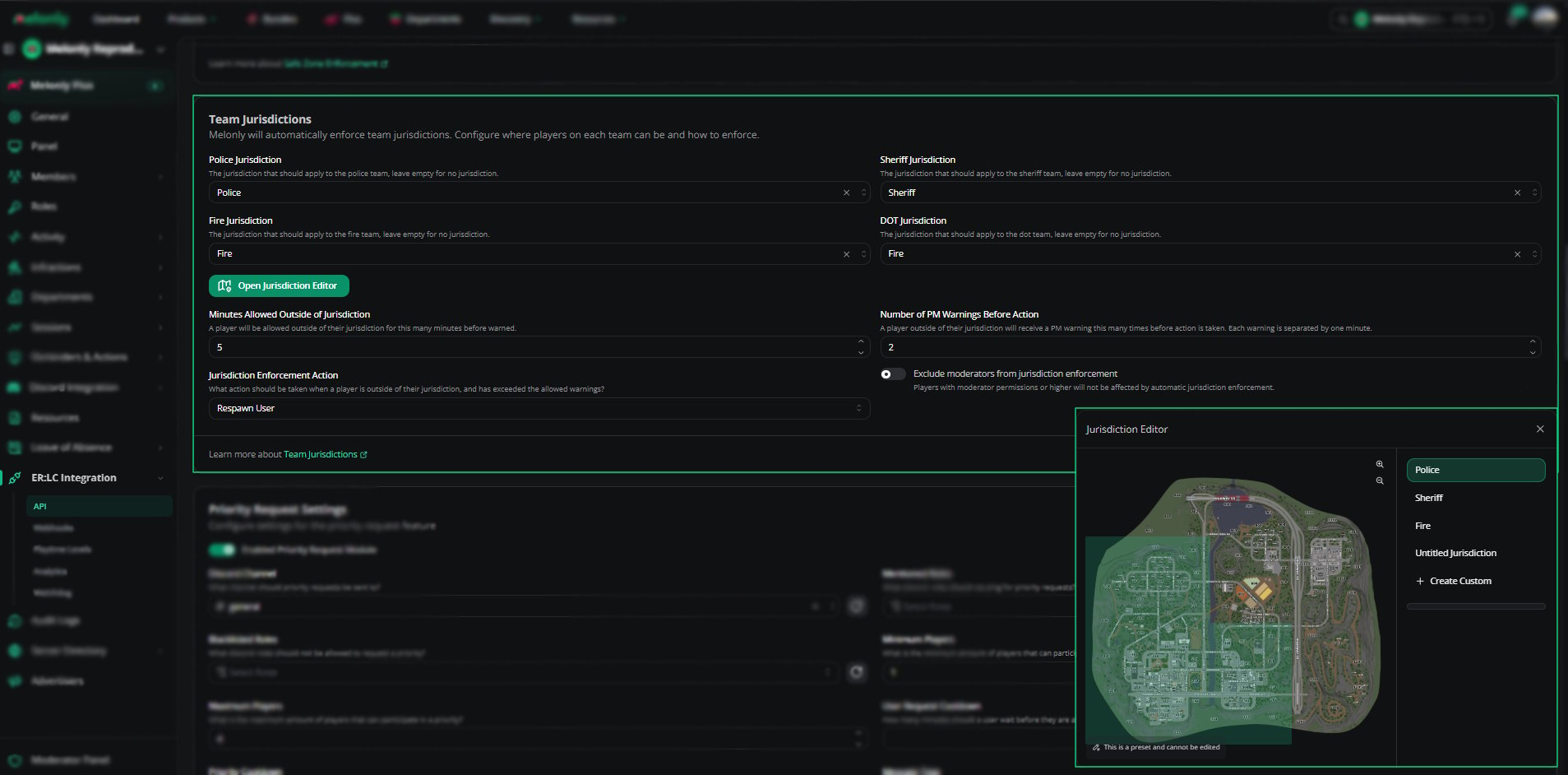
You can configure **Team Jurisdictions** from your\
**ER:LC Integration → API** page, located beneath **Safe Zone Enforcement**.
### Configuration Options
Each team, Police, Sheriff, Fire, and DOT, can be assigned a specific jurisdiction.\
Leave a team blank if you do not want it to be restricted.
Click this button to view or modify the boundaries of each jurisdiction.\
You can use preset jurisdictions or create custom ones.
Set how long a player may remain outside their jurisdiction before receiving a warning.\
For example, **5 minutes** gives players time to return without immediate actions.
Choose how many PM warnings a player receives before enforcement occurs.\
Each warning is sent one minute apart.
Select what happens when a player exceeds both the time limit and warning limit.\
Such as **Respawn the User**, **Make the User wanted** and **Kick the User**.
Enable this to prevent moderators and higher staff from being affected by jurisdiction enforcement.
***
## Using the Jurisdiction Editor
The Jurisdiction Editor allows you to view, assign, and create jurisdiction boundaries directly on the ER:LC map.
Choose from preset jurisdictions such as **Police** or **Sheriff**, or select a custom one.
Preset jurisdictions cannot be edited, but custom ones can be reshaped by adjusting boundary points on the map.
Select **+ Create Custom** to draw a new jurisdiction anywhere on the map.
Click **Save** to apply your updated jurisdiction layout.\
Changes take effect immediately during active sessions.
 ***
## Example Use Cases
* Restrict Police to city limits while Sheriff covers county areas
* Assign Fire/EMS to a specific district for structured response
* Create custom DOT jurisdictions for roadwork or event zones
* Automatically respawn players who repeatedly leave their assigned area
* Allow moderators to bypass restrictions while still enforcing them for regular players
***
Still have questions? Join our [Discord server](https://melonly.xyz/discord) for support from the Melonly Team.
***
## Example Use Cases
* Restrict Police to city limits while Sheriff covers county areas
* Assign Fire/EMS to a specific district for structured response
* Create custom DOT jurisdictions for roadwork or event zones
* Automatically respawn players who repeatedly leave their assigned area
* Allow moderators to bypass restrictions while still enforcing them for regular players
***
Still have questions? Join our [Discord server](https://melonly.xyz/discord) for support from the Melonly Team.