> ## Documentation Index
> Fetch the complete documentation index at: https://docs.melonly.xyz/llms.txt
> Use this file to discover all available pages before exploring further.
# Advertisers
> Advertise your server across Melonly with creatives, campaigns, and ad credits.
***
## What is the Advertisers page?
The Advertisers page lets you promote your server on Melonly. You design an ad (a creative), get it approved, then run it in a campaign that's paid for with credits. Your ad then appears in sponsored spots across Melonly.
The server owner, Administrators, and roles with the advertisers dashboard permission can open this page. Only the owner and Administrators can buy credits.
***
## How Advertising Works
Buy a credit pack under **Add Credits**. One credit pays for about 1,000 views.
Design your ad with a headline, body text, an image, and a link.
The Melonly team checks every creative against the Advertising Guidelines before it can run.
Once a creative is approved, create a campaign with dates and a budget. Your ad starts showing when the campaign goes live.
***
## Overview
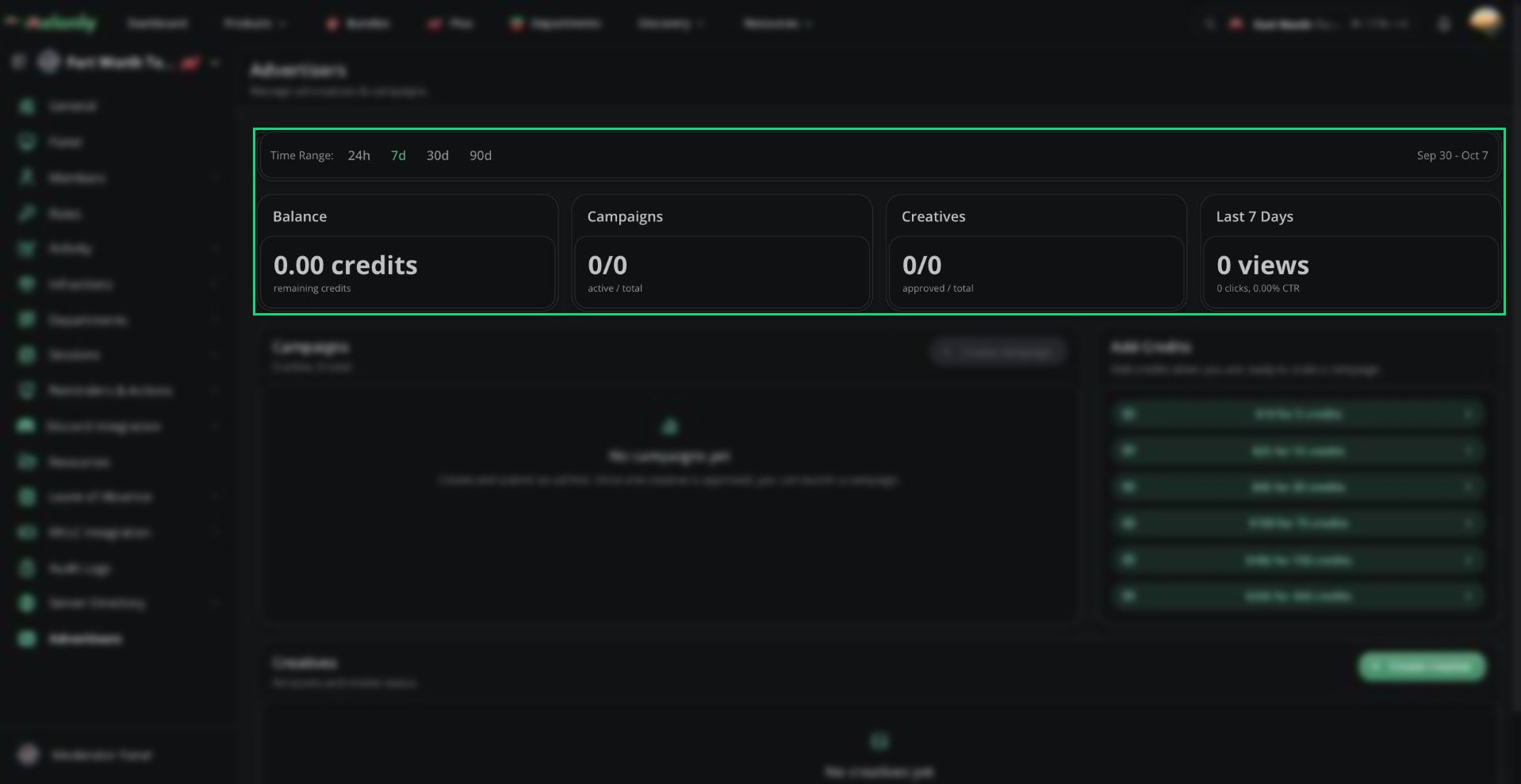
The cards at the top show your credit balance, active campaigns, approved creatives, and your views, clicks, and click-through rate (CTR). You can change the time range or pick a single campaign to see only its numbers.
 ***
## Credits
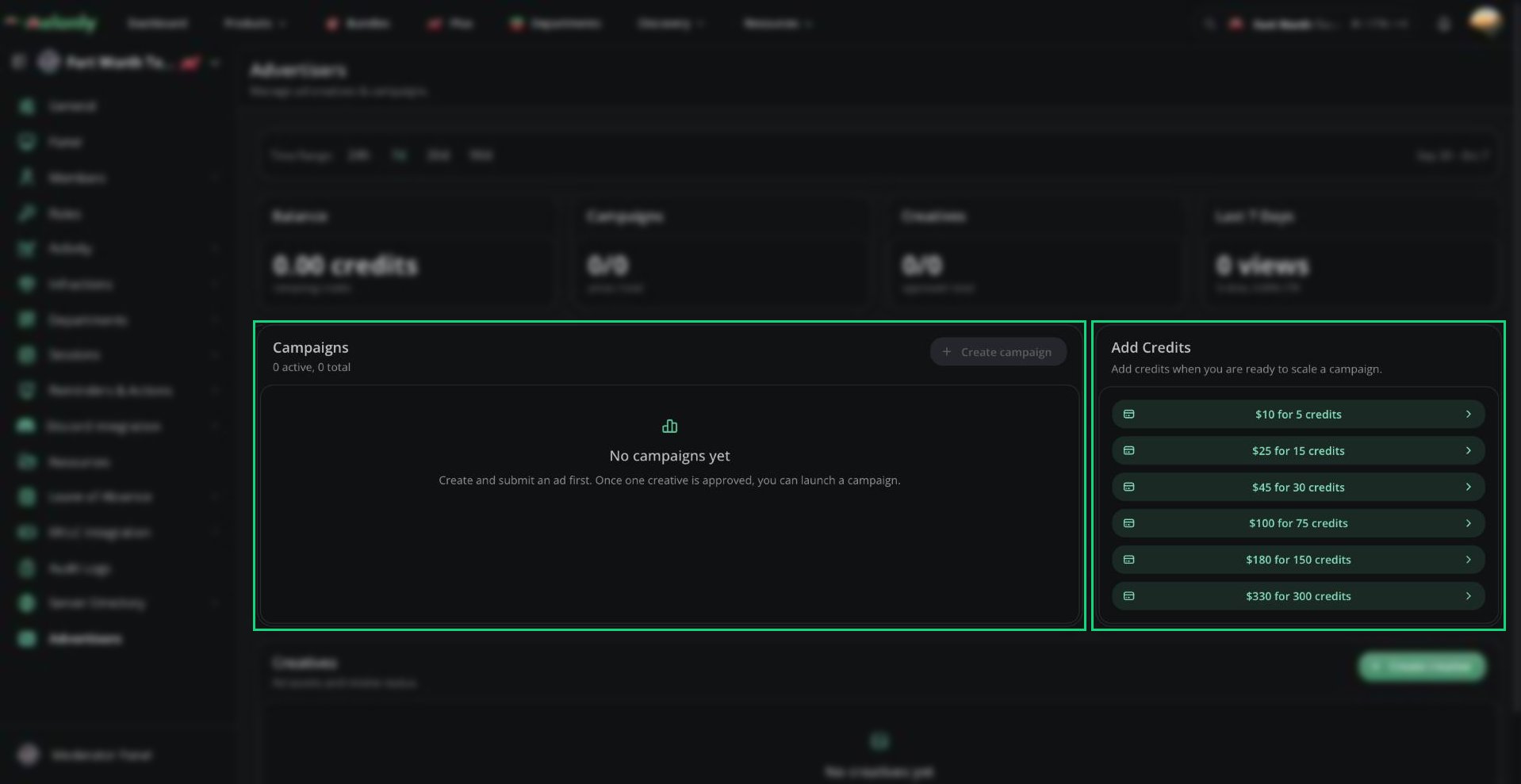
Credits pay for your campaigns. You're charged as people see your ad (about 1 credit per 1,000 views). Clicks are free.
***
## Credits
Credits pay for your campaigns. You're charged as people see your ad (about 1 credit per 1,000 views). Clicks are free.
 | Pack | Price per credit |
| - | - |
| \$10 for 5 credits | \$2.00 |
| \$25 for 15 credits | About \$1.67 |
| \$45 for 30 credits | \$1.50 |
| \$100 for 75 credits | About \$1.33 |
| \$180 for 150 credits | \$1.20 |
| \$330 for 300 credits | \$1.10 |
Click a pack to pay through Stripe. Credits don't expire.
***
## Creatives
A creative is the ad itself.
| Pack | Price per credit |
| - | - |
| \$10 for 5 credits | \$2.00 |
| \$25 for 15 credits | About \$1.67 |
| \$45 for 30 credits | \$1.50 |
| \$100 for 75 credits | About \$1.33 |
| \$180 for 150 credits | \$1.20 |
| \$330 for 300 credits | \$1.10 |
Click a pack to pay through Stripe. Credits don't expire.
***
## Creatives
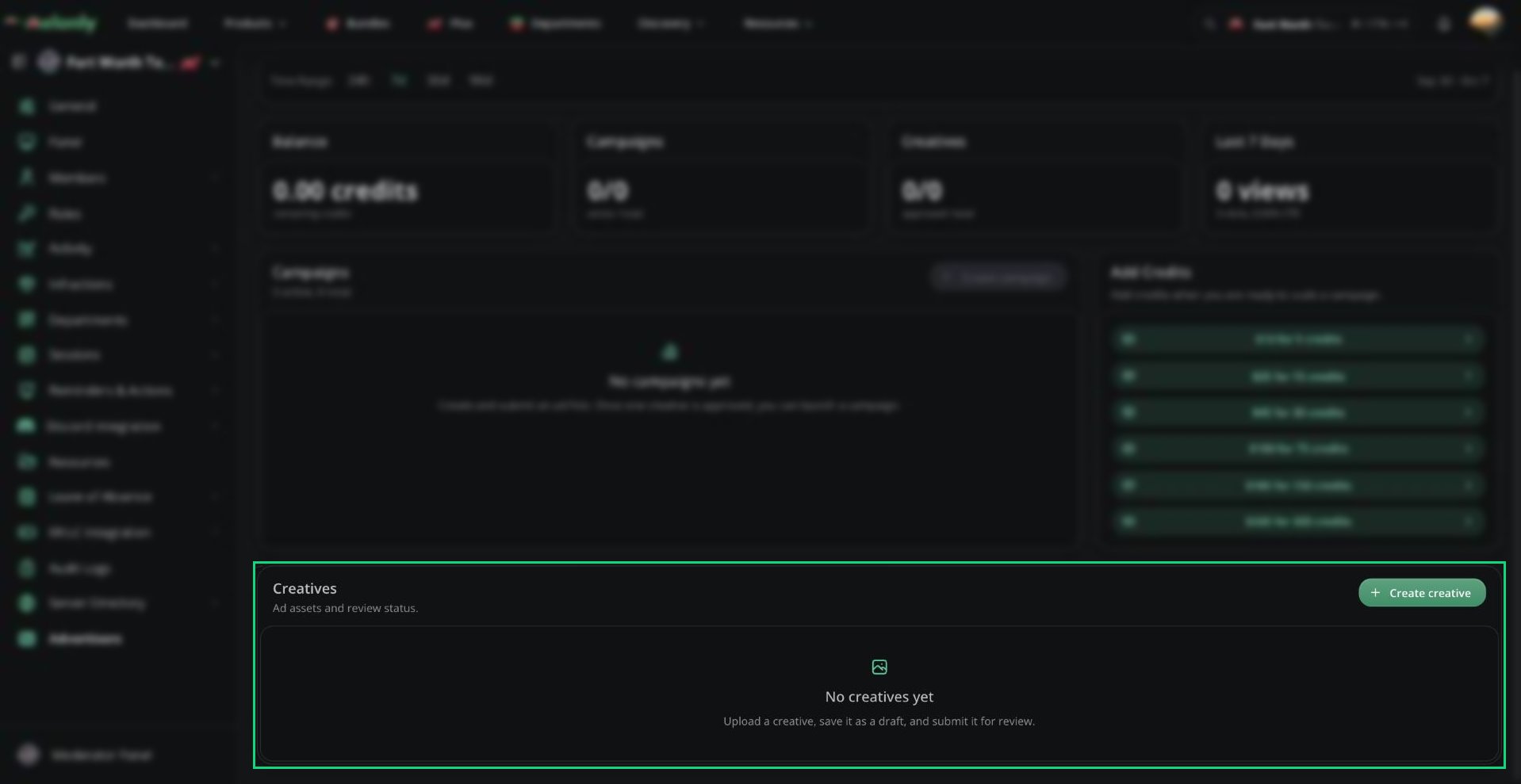
A creative is the ad itself.
 ### Creating a creative
Click **Create creative** and fill in:
| Field | Description |
| - | - |
| Headline | The ad's title. 3 to 100 characters. |
| Body | A short line of supporting text. 3 to 100 characters. |
| Creative Image | One image up to 10 MB. It's cropped to fit the left side of the ad, so a square or landscape image works best. |
| Destination URL | Where the ad links to. Must start with `http://` or `https://`. |
Click **Save Draft** to save it.
### Submitting for review
Click the send icon on a draft creative.
Review the [Advertising Guidelines](https://melonly.xyz/policies#advertisers-policies), then click **Continue**.
Tick both confirmations and click **Confirm and Submit**.
| Status | Meaning |
| - | - |
| Draft | Saved but not submitted. You can still edit it. |
| Pending review | Waiting for the Melonly team. |
| Approved | Ready to use in a campaign. |
| Rejected | Not approved. The reviewer's reason is shown on the creative. Fix it and resubmit. |
Editing a creative puts it back to Draft, so it needs to be reviewed again. To change an approved ad without losing it, use **Duplicate creative** instead.
You can't delete a creative while it's pending review or still linked to a campaign. Delete the campaign first.
***
## Campaigns
A campaign runs your approved creatives for a set time and budget.
### Creating a campaign
You need at least one approved creative first. Click **Create campaign** and fill in:
| Field | Description |
| - | - |
| Name | 3 to 120 characters. |
| Start and End | When the campaign runs. |
| Campaign Budget (credits) | The most this campaign can spend in total. |
| Campaign Creatives | Pick one or more approved creatives. |
The budget is capped at 12 credits per day of the campaign, up to 100 credits. For example, a 3-day campaign can spend up to 36 credits, and anything 9 days or longer can spend up to 100. Campaigns shorter than a week, or with fewer than 10 credits, may deliver less reliably.
### Expected performance
Before you launch, Expected Performance estimates your campaign's reach, clicks, and CTR based on your budget.
Click **Start Campaign** to create and launch it. Launching sets aside the budget from your balance. Credits are only spent as people see the ad, spread evenly across the campaign's dates.
If you don't have enough credits for the full budget, the campaign is saved as a draft. Add credits, then click **Launch campaign**.
### Managing campaigns
| Action | What it does |
| - | - |
| Running / Paused switch | Pauses or resumes a campaign. Pausing frees up its unspent budget. |
| Edit campaign | Edit a draft campaign. Saving keeps it as a draft until you launch it. |
| Duplicate campaign | Copies the campaign with its dates, budget, and approved creatives. |
| Delete ended campaign | Removes a campaign after its end date. |
Click a campaign to see its budget, spend, creatives, and performance.
| Status | Meaning |
| - | - |
| Draft | Saved but not launched. |
| Scheduled | Launched and waiting for its start time. |
| Live | Running now. |
| Paused | Stopped until you resume it. |
| Ended | Past its end date. |
***
## Where Ads Appear
Ads show in sponsored spots across Melonly, including the dashboard and Mod Panel of servers without Melonly Plus, the Server Directory, profiles, forms, departments, and the blog.
You can't choose where your ad appears. Each viewer sees an ad at most 10 times a day, and members with Melonly Pro don't see ads.
***
Still have questions? Join our Discord server for support from the Melonly Team.
This documentation is built and hosted on [Mintlify](https://mintlify.com), a developer documentation platform.
### Creating a creative
Click **Create creative** and fill in:
| Field | Description |
| - | - |
| Headline | The ad's title. 3 to 100 characters. |
| Body | A short line of supporting text. 3 to 100 characters. |
| Creative Image | One image up to 10 MB. It's cropped to fit the left side of the ad, so a square or landscape image works best. |
| Destination URL | Where the ad links to. Must start with `http://` or `https://`. |
Click **Save Draft** to save it.
### Submitting for review
Click the send icon on a draft creative.
Review the [Advertising Guidelines](https://melonly.xyz/policies#advertisers-policies), then click **Continue**.
Tick both confirmations and click **Confirm and Submit**.
| Status | Meaning |
| - | - |
| Draft | Saved but not submitted. You can still edit it. |
| Pending review | Waiting for the Melonly team. |
| Approved | Ready to use in a campaign. |
| Rejected | Not approved. The reviewer's reason is shown on the creative. Fix it and resubmit. |
Editing a creative puts it back to Draft, so it needs to be reviewed again. To change an approved ad without losing it, use **Duplicate creative** instead.
You can't delete a creative while it's pending review or still linked to a campaign. Delete the campaign first.
***
## Campaigns
A campaign runs your approved creatives for a set time and budget.
### Creating a campaign
You need at least one approved creative first. Click **Create campaign** and fill in:
| Field | Description |
| - | - |
| Name | 3 to 120 characters. |
| Start and End | When the campaign runs. |
| Campaign Budget (credits) | The most this campaign can spend in total. |
| Campaign Creatives | Pick one or more approved creatives. |
The budget is capped at 12 credits per day of the campaign, up to 100 credits. For example, a 3-day campaign can spend up to 36 credits, and anything 9 days or longer can spend up to 100. Campaigns shorter than a week, or with fewer than 10 credits, may deliver less reliably.
### Expected performance
Before you launch, Expected Performance estimates your campaign's reach, clicks, and CTR based on your budget.
Click **Start Campaign** to create and launch it. Launching sets aside the budget from your balance. Credits are only spent as people see the ad, spread evenly across the campaign's dates.
If you don't have enough credits for the full budget, the campaign is saved as a draft. Add credits, then click **Launch campaign**.
### Managing campaigns
| Action | What it does |
| - | - |
| Running / Paused switch | Pauses or resumes a campaign. Pausing frees up its unspent budget. |
| Edit campaign | Edit a draft campaign. Saving keeps it as a draft until you launch it. |
| Duplicate campaign | Copies the campaign with its dates, budget, and approved creatives. |
| Delete ended campaign | Removes a campaign after its end date. |
Click a campaign to see its budget, spend, creatives, and performance.
| Status | Meaning |
| - | - |
| Draft | Saved but not launched. |
| Scheduled | Launched and waiting for its start time. |
| Live | Running now. |
| Paused | Stopped until you resume it. |
| Ended | Past its end date. |
***
## Where Ads Appear
Ads show in sponsored spots across Melonly, including the dashboard and Mod Panel of servers without Melonly Plus, the Server Directory, profiles, forms, departments, and the blog.
You can't choose where your ad appears. Each viewer sees an ad at most 10 times a day, and members with Melonly Pro don't see ads.
***
Still have questions? Join our Discord server for support from the Melonly Team.
This documentation is built and hosted on [Mintlify](https://mintlify.com), a developer documentation platform.