> ## Documentation Index
> Fetch the complete documentation index at: https://docs.melonly.xyz/llms.txt
> Use this file to discover all available pages before exploring further.
# Units & Groups
> Create your units, go on duty, set your status, use panic, and work in groups on the Police, Fire, EMS, DOT and Dispatch panels.
***
## What are Units?
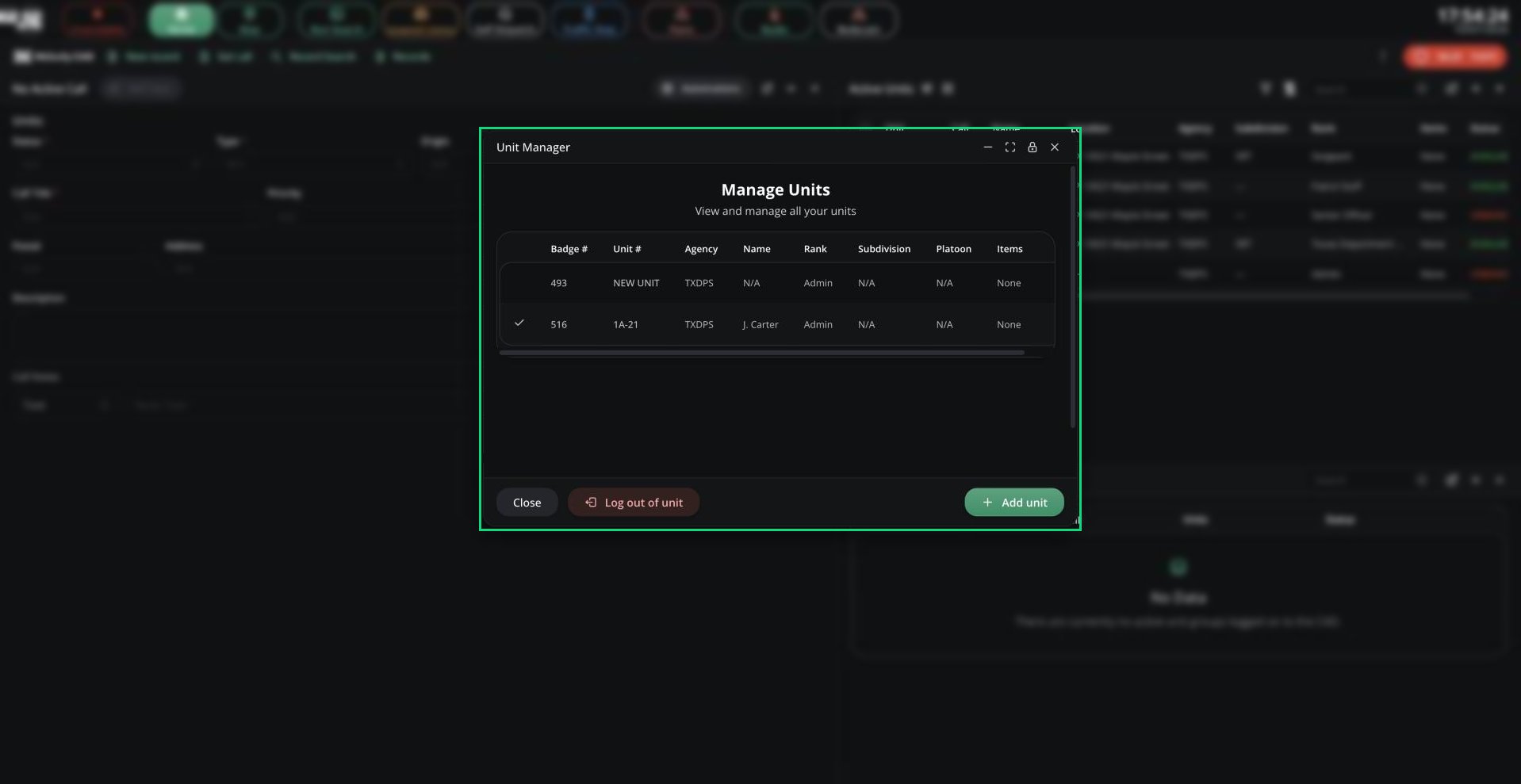
A unit is your on-duty identity in the CAD: your callsign, roleplay name, rank, agency and equipment. You need an active unit before you can use the Police, Fire, EMS, DOT or Dispatch panels.
Units can also be put into groups, so several units are dispatched and tracked as one.
 ***
## 🧭 Quick Navigation
Create a unit, fill in its details and go on duty.
Set your status, use Auto Status and press panic.
Squads, apparatus, rigs and vehicles, including premade groups.
***
## Active Units
The Active Units pane lists everyone on duty, with their callsign, call, details, location and status. It's on the Home tab of service panels and in every Dispatch layout.
***
## 🧭 Quick Navigation
Create a unit, fill in its details and go on duty.
Set your status, use Auto Status and press panic.
Squads, apparatus, rigs and vehicles, including premade groups.
***
## Active Units
The Active Units pane lists everyone on duty, with their callsign, call, details, location and status. It's on the Home tab of service panels and in every Dispatch layout.
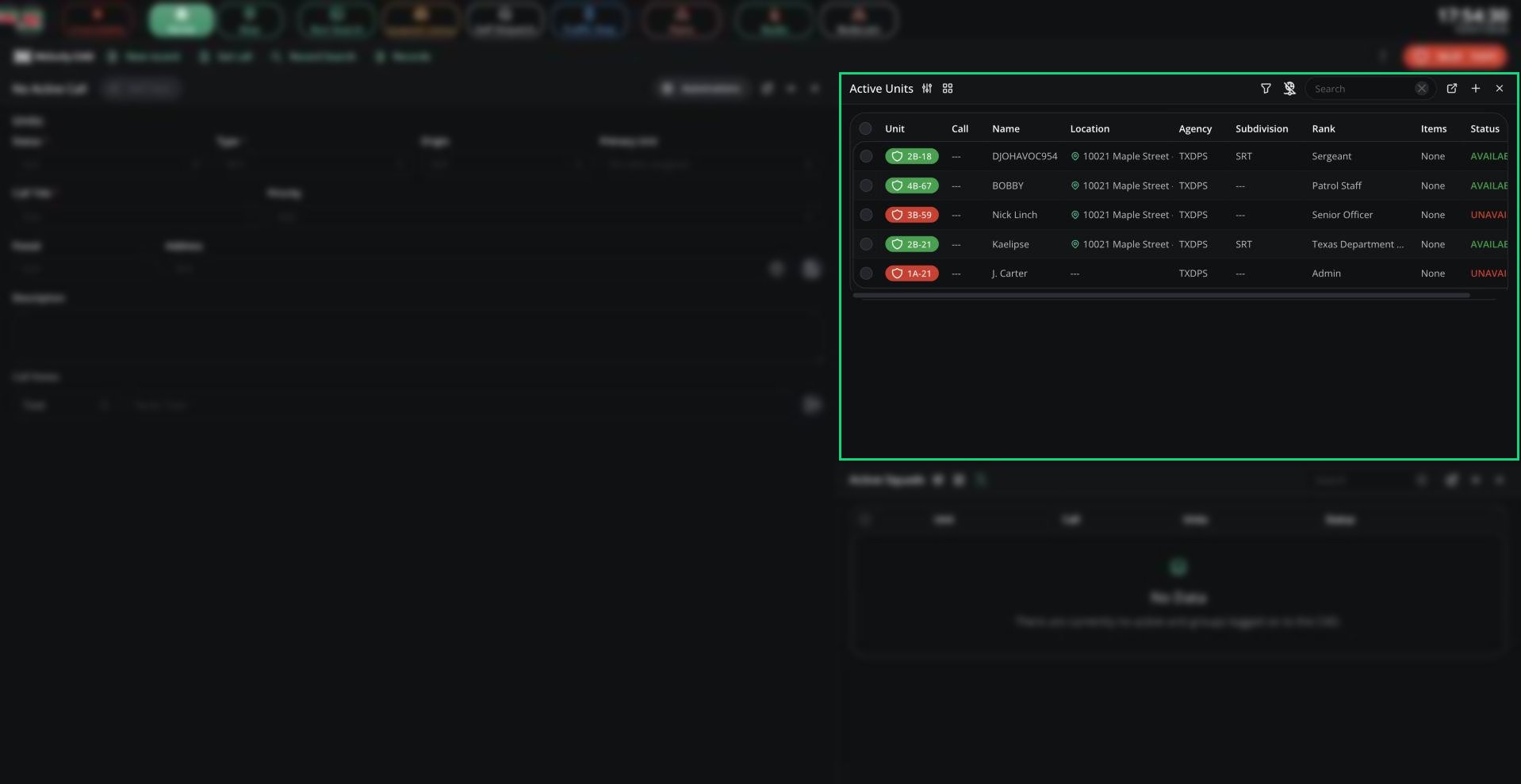 You can search, hide columns, switch between table and cards, show dispatchers, and filter by jurisdiction.
Right-click a unit (or tick several) to manage them. On a service panel, most actions need self dispatching or the panel's supervisor permission.
| Action | What it does | Who can use it |
| - | - | - |
| Set Status | Change the unit's status | Dispatch, supervisors |
| View on map | Centre the live map on the unit | Anyone |
| View bodycam | Watch the unit's bodycam | Dispatch, supervisors |
| Quick traffic stop | Start a traffic stop call (Police and Dispatch) | Dispatch, supervisors |
| Add to Group / Remove from group | Manage the unit's group | Dispatch, supervisors |
| Assign Call | Put the unit on a call | Dispatch, supervisors |
| Add to Timer | Add the unit to a [timer](/CAD/User/tones-signals#timers) | Dispatch, supervisors |
| Tone Board | Play a [tone](/CAD/User/tones-signals#tone-board) for the unit | Dispatch, supervisors |
| Send lookup / Send record | Send the unit a search or record | Anyone |
| Toggle panic | Turn the unit's panic on or off | Dispatch, supervisors |
| Edit identifier | Edit the unit's details | Dispatch, supervisors, CAD admins |
| Kick | Remove the user from the panel | CAD admins |
***
Still have questions? Join our Discord server for support from the Melonly Team.
This documentation is built and hosted on [Mintlify](https://mintlify.com), a developer documentation platform.
You can search, hide columns, switch between table and cards, show dispatchers, and filter by jurisdiction.
Right-click a unit (or tick several) to manage them. On a service panel, most actions need self dispatching or the panel's supervisor permission.
| Action | What it does | Who can use it |
| - | - | - |
| Set Status | Change the unit's status | Dispatch, supervisors |
| View on map | Centre the live map on the unit | Anyone |
| View bodycam | Watch the unit's bodycam | Dispatch, supervisors |
| Quick traffic stop | Start a traffic stop call (Police and Dispatch) | Dispatch, supervisors |
| Add to Group / Remove from group | Manage the unit's group | Dispatch, supervisors |
| Assign Call | Put the unit on a call | Dispatch, supervisors |
| Add to Timer | Add the unit to a [timer](/CAD/User/tones-signals#timers) | Dispatch, supervisors |
| Tone Board | Play a [tone](/CAD/User/tones-signals#tone-board) for the unit | Dispatch, supervisors |
| Send lookup / Send record | Send the unit a search or record | Anyone |
| Toggle panic | Turn the unit's panic on or off | Dispatch, supervisors |
| Edit identifier | Edit the unit's details | Dispatch, supervisors, CAD admins |
| Kick | Remove the user from the panel | CAD admins |
***
Still have questions? Join our Discord server for support from the Melonly Team.
This documentation is built and hosted on [Mintlify](https://mintlify.com), a developer documentation platform.