> ## Documentation Index
> Fetch the complete documentation index at: https://docs.melonly.xyz/llms.txt
> Use this file to discover all available pages before exploring further.
# Tones, Signals & Tools
> Send tones and signals, run timers, and use the live map and notepad.
***
## Dispatch Tools
The tone board, signal manager and timers live under **Dispatch Tools** in the CAD menu.
Sending tones, signals and timers needs the Dispatch panel, or the panel's supervisor permission. Supervisors can only target units and agencies on their own panel.
***
## Tone Board
The tone board plays alert tones to units, panels or radio channels, such as a station alert before a call.
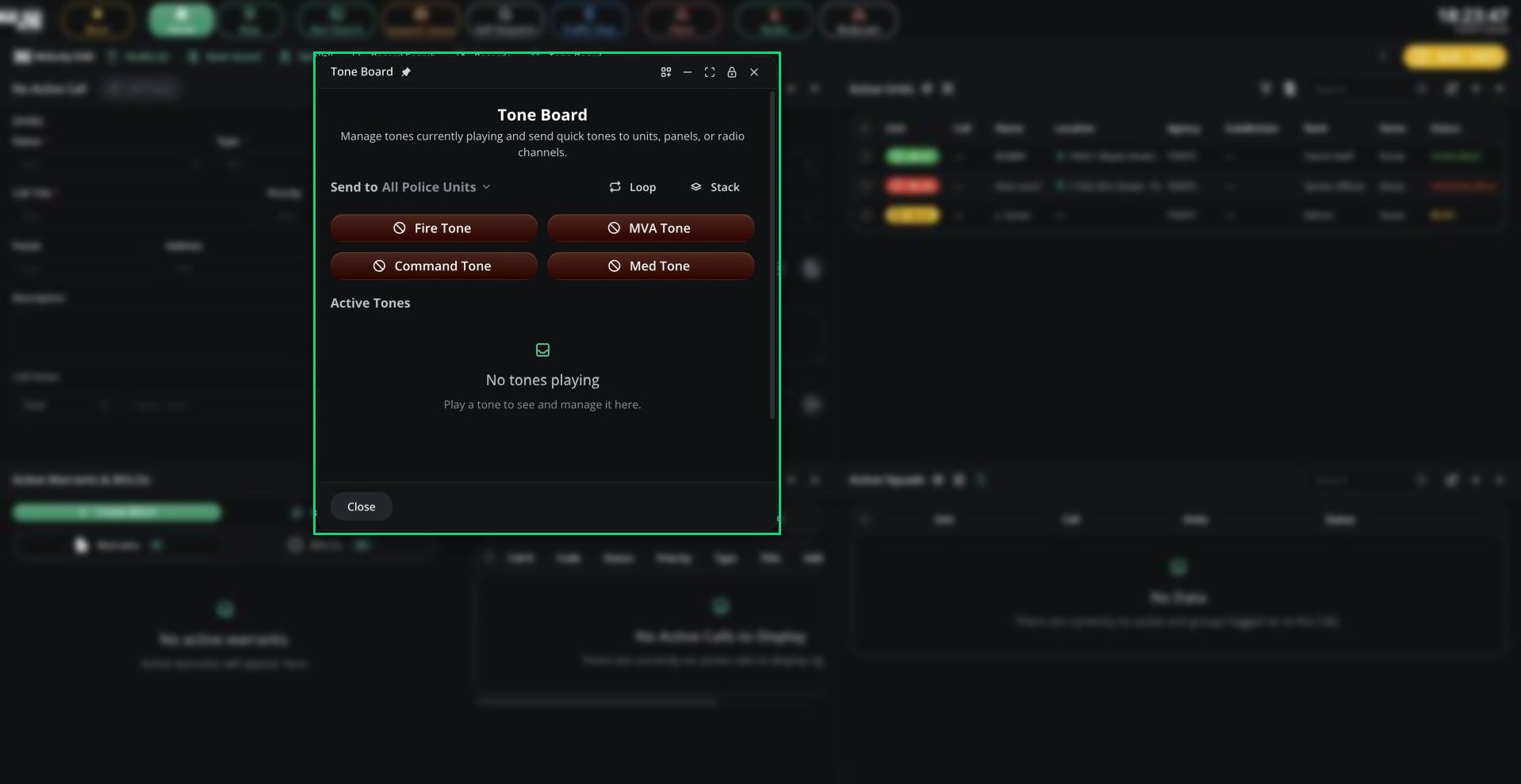 Pick a target under **Send to**. Service panels send to their own units. Dispatch can send to all units, filtered units, or a radio channel.
Click a tone button to play it once.
| Mode | How it works |
| - | - |
| Loop | Repeat a tone every 1 to 300 seconds, forever or a set number of times |
| Stack | Build a sequence of up to 10 tones and delays, then play it. Save stacks to reuse them on this device. |
**Active Tones** lists everything playing, where you can preview, change the repeat or stop a tone. Supervisors can stop anyone's tones.
You can also right-click a unit or call and choose **Tone Board**, or click the bell on a radio channel.
The tone buttons are your server's custom tones (up to 30), set up in [Customization](/CAD/Admin/customization/tones#custom-tones).
***
## Signals
A signal is a server-wide alert code, such as Signal 100, that tells units something is in effect, for example emergency traffic only.
Open **Signal manager** from Dispatch Tools.
| Field | Description |
| - | - |
| Preset | Load one of your server's saved signals |
| Signal Code | Required. At least 2 characters. |
| Signal Panels | The panels or agencies that get the signal |
| Tone / Tone Panels | An optional tone, and who hears it |
Click **Emit signal**. Units see a red bar under the top bar and hear a reminder tone every 30 seconds until you click **End Signal**. Presets are set up in [Customization](/CAD/Admin/customization/tones#signal-presets).
***
## Timers
Timers count down and alert listeners when they finish, for example to check on a unit.
1. Open **Timers** from Dispatch Tools, or right-click a unit or call and choose **Add to Timer**.
2. Click **New timer** and enter a name, a duration (up to 60 minutes) and the listeners.
3. Click **Create timer**.
Running timers can be paused, restarted or ended. When one finishes, a tone plays and a popup shows its name.
***
## Live Map
The live map shows units and calls on your ER:LC map in real time. Open the **Map** tab on service panels, or **Live Map** on Dispatch. **Pop out** opens it in its own window.
Pick a target under **Send to**. Service panels send to their own units. Dispatch can send to all units, filtered units, or a radio channel.
Click a tone button to play it once.
| Mode | How it works |
| - | - |
| Loop | Repeat a tone every 1 to 300 seconds, forever or a set number of times |
| Stack | Build a sequence of up to 10 tones and delays, then play it. Save stacks to reuse them on this device. |
**Active Tones** lists everything playing, where you can preview, change the repeat or stop a tone. Supervisors can stop anyone's tones.
You can also right-click a unit or call and choose **Tone Board**, or click the bell on a radio channel.
The tone buttons are your server's custom tones (up to 30), set up in [Customization](/CAD/Admin/customization/tones#custom-tones).
***
## Signals
A signal is a server-wide alert code, such as Signal 100, that tells units something is in effect, for example emergency traffic only.
Open **Signal manager** from Dispatch Tools.
| Field | Description |
| - | - |
| Preset | Load one of your server's saved signals |
| Signal Code | Required. At least 2 characters. |
| Signal Panels | The panels or agencies that get the signal |
| Tone / Tone Panels | An optional tone, and who hears it |
Click **Emit signal**. Units see a red bar under the top bar and hear a reminder tone every 30 seconds until you click **End Signal**. Presets are set up in [Customization](/CAD/Admin/customization/tones#signal-presets).
***
## Timers
Timers count down and alert listeners when they finish, for example to check on a unit.
1. Open **Timers** from Dispatch Tools, or right-click a unit or call and choose **Add to Timer**.
2. Click **New timer** and enter a name, a duration (up to 60 minutes) and the listeners.
3. Click **Create timer**.
Running timers can be paused, restarted or ended. When one finishes, a tone plays and a popup shows its name.
***
## Live Map
The live map shows units and calls on your ER:LC map in real time. Open the **Map** tab on service panels, or **Live Map** on Dispatch. **Pop out** opens it in its own window.
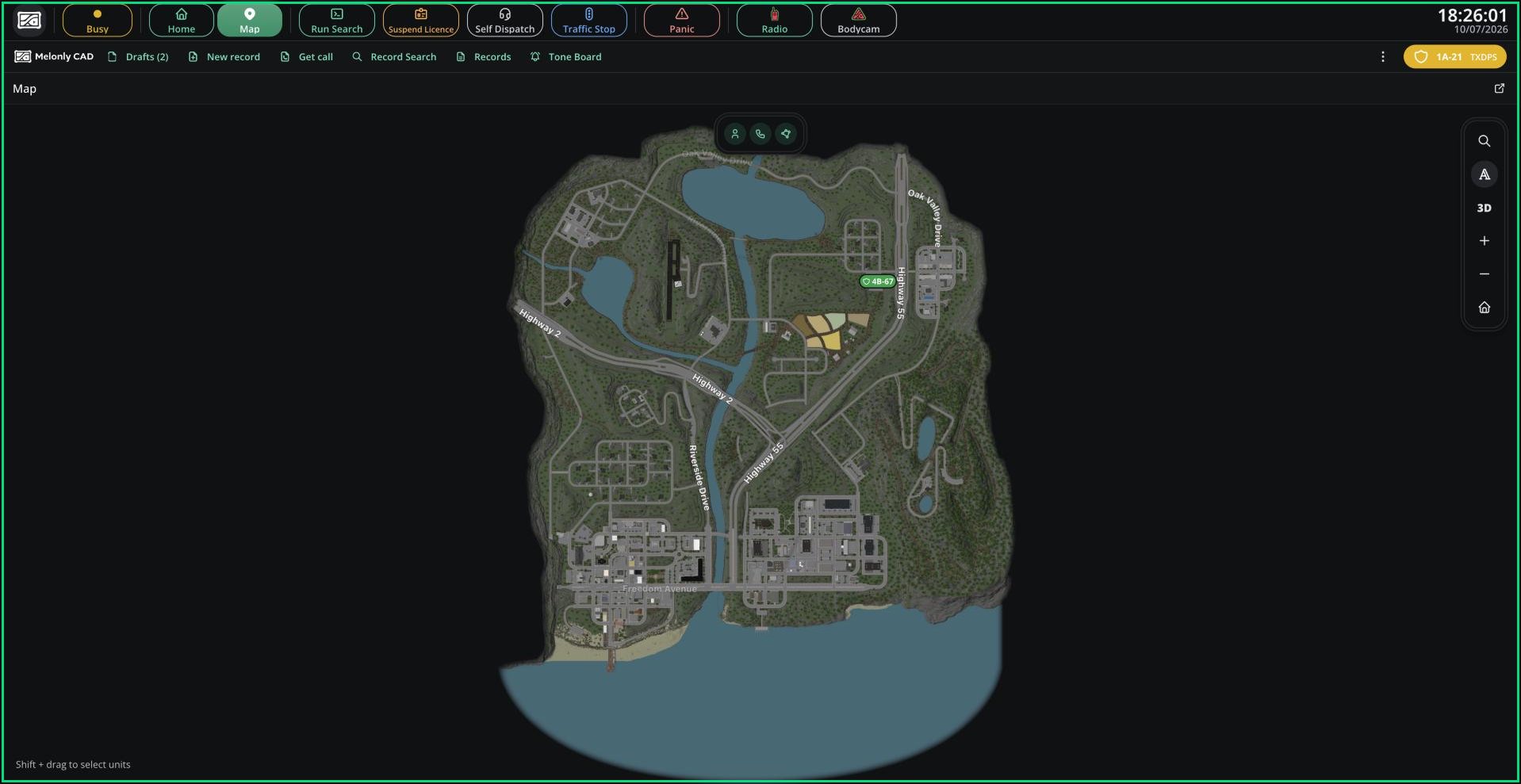 * Toggle units, calls, jurisdictions and labels, and switch between 2D and 3D.
* Search for a street, postal or building with **Find a location**.
* Click a marker for its menu. Right-click the map for the closest units.
* Dispatchers can Shift + drag to select units, then drop them on a call.
You only appear on the map if your Roblox account is linked. Click **Authorize Roblox** when asked on joining a panel.
***
## Notepad
The notepad is a scratch pad for your shift. Open **Notepad** from the CAD menu. Add as many notes as you like, and drag records onto a note to attach them.
Notes are saved on this device only and don't follow your account.
***
Still have questions? Join our Discord server for support from the Melonly Team.
This documentation is built and hosted on [Mintlify](https://mintlify.com), a developer documentation platform.
* Toggle units, calls, jurisdictions and labels, and switch between 2D and 3D.
* Search for a street, postal or building with **Find a location**.
* Click a marker for its menu. Right-click the map for the closest units.
* Dispatchers can Shift + drag to select units, then drop them on a call.
You only appear on the map if your Roblox account is linked. Click **Authorize Roblox** when asked on joining a panel.
***
## Notepad
The notepad is a scratch pad for your shift. Open **Notepad** from the CAD menu. Add as many notes as you like, and drag records onto a note to attach them.
Notes are saved on this device only and don't follow your account.
***
Still have questions? Join our Discord server for support from the Melonly Team.
This documentation is built and hosted on [Mintlify](https://mintlify.com), a developer documentation platform.