> ## Documentation Index
> Fetch the complete documentation index at: https://docs.melonly.xyz/llms.txt
> Use this file to discover all available pages before exploring further.
# Bodycam
> Stream your Roblox window as a bodycam so dispatchers and supervisors can watch, and record clips.
***
## What is the Bodycam?
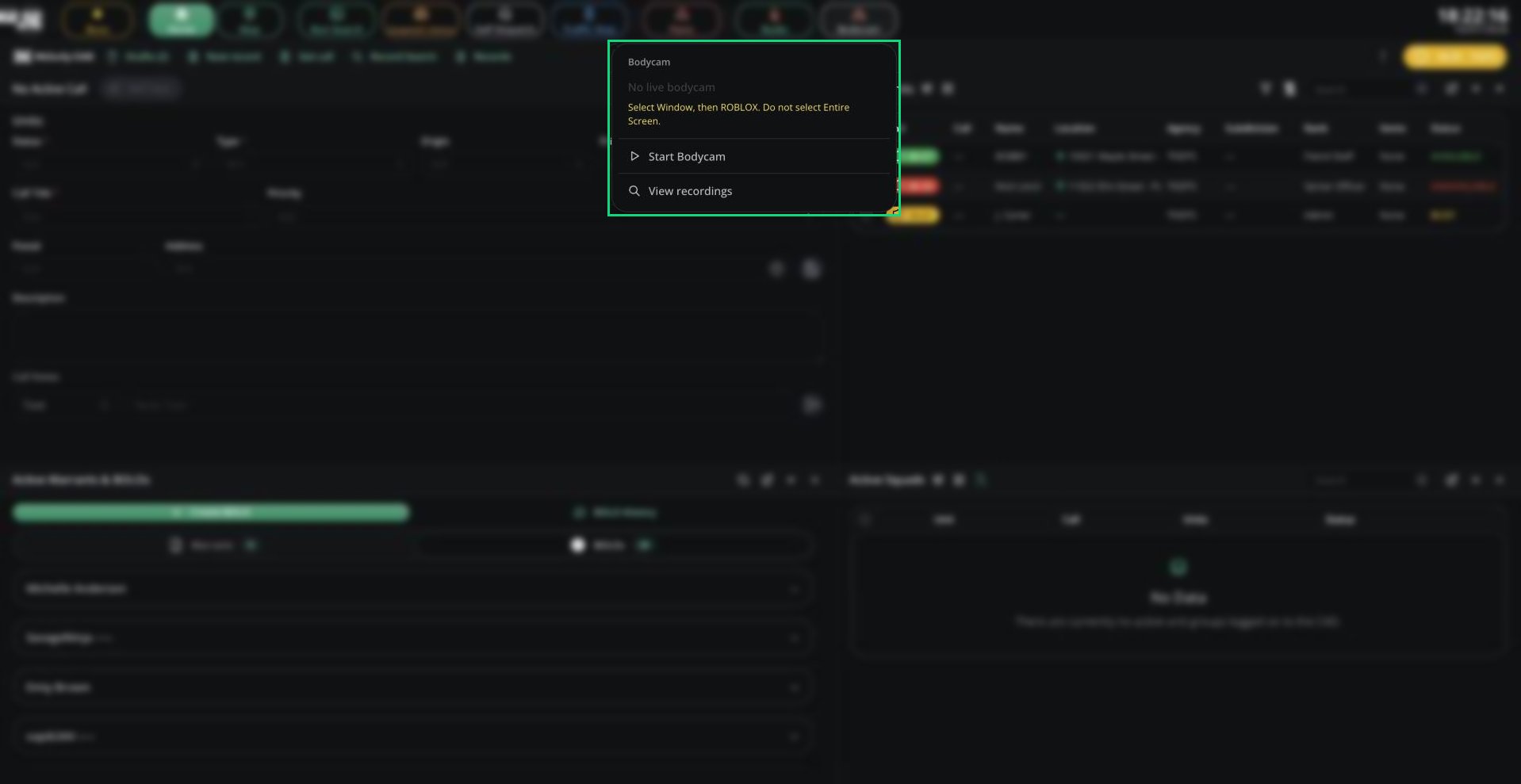
Your bodycam streams your Roblox window live so dispatchers and supervisors can watch. It's available on the Police, Fire, EMS and DOT panels.
 ***
## Using Your Bodycam
Click **Bodycam** in the top bar, then **Start Bodycam**. When asked what to share, choose Window, then ROBLOX. Don't share your whole screen.
Click **Start Recording** or press Alt + R. Click **Stop Recording** to finish.
Click **Stop Bodycam**.
Find your saved recordings under **View recordings**.
***
## Good to Know
* If your server turns on Require Bodycam in [Config](/CAD/Admin/config#general-settings), you must start your bodycam before selecting a unit.
* Dispatchers and supervisors can watch a unit's bodycam by right-clicking it and choosing **View bodycam**.
***
Still have questions? Join our Discord server for support from the Melonly Team.
This documentation is built and hosted on [Mintlify](https://mintlify.com), a developer documentation platform.
***
## Using Your Bodycam
Click **Bodycam** in the top bar, then **Start Bodycam**. When asked what to share, choose Window, then ROBLOX. Don't share your whole screen.
Click **Start Recording** or press Alt + R. Click **Stop Recording** to finish.
Click **Stop Bodycam**.
Find your saved recordings under **View recordings**.
***
## Good to Know
* If your server turns on Require Bodycam in [Config](/CAD/Admin/config#general-settings), you must start your bodycam before selecting a unit.
* Dispatchers and supervisors can watch a unit's bodycam by right-clicking it and choosing **View bodycam**.
***
Still have questions? Join our Discord server for support from the Melonly Team.
This documentation is built and hosted on [Mintlify](https://mintlify.com), a developer documentation platform.