> ## Documentation Index
> Fetch the complete documentation index at: https://docs.melonly.xyz/llms.txt
> Use this file to discover all available pages before exploring further.
# Characters
> Create, switch, edit and delete your civilian characters on the Civilian panel.
***
## What are Characters?
Characters are the people you roleplay as on the Civilian panel. Everything you do there, like registering vehicles or calling 911, applies to your active character.
 ***
## Creating a Character
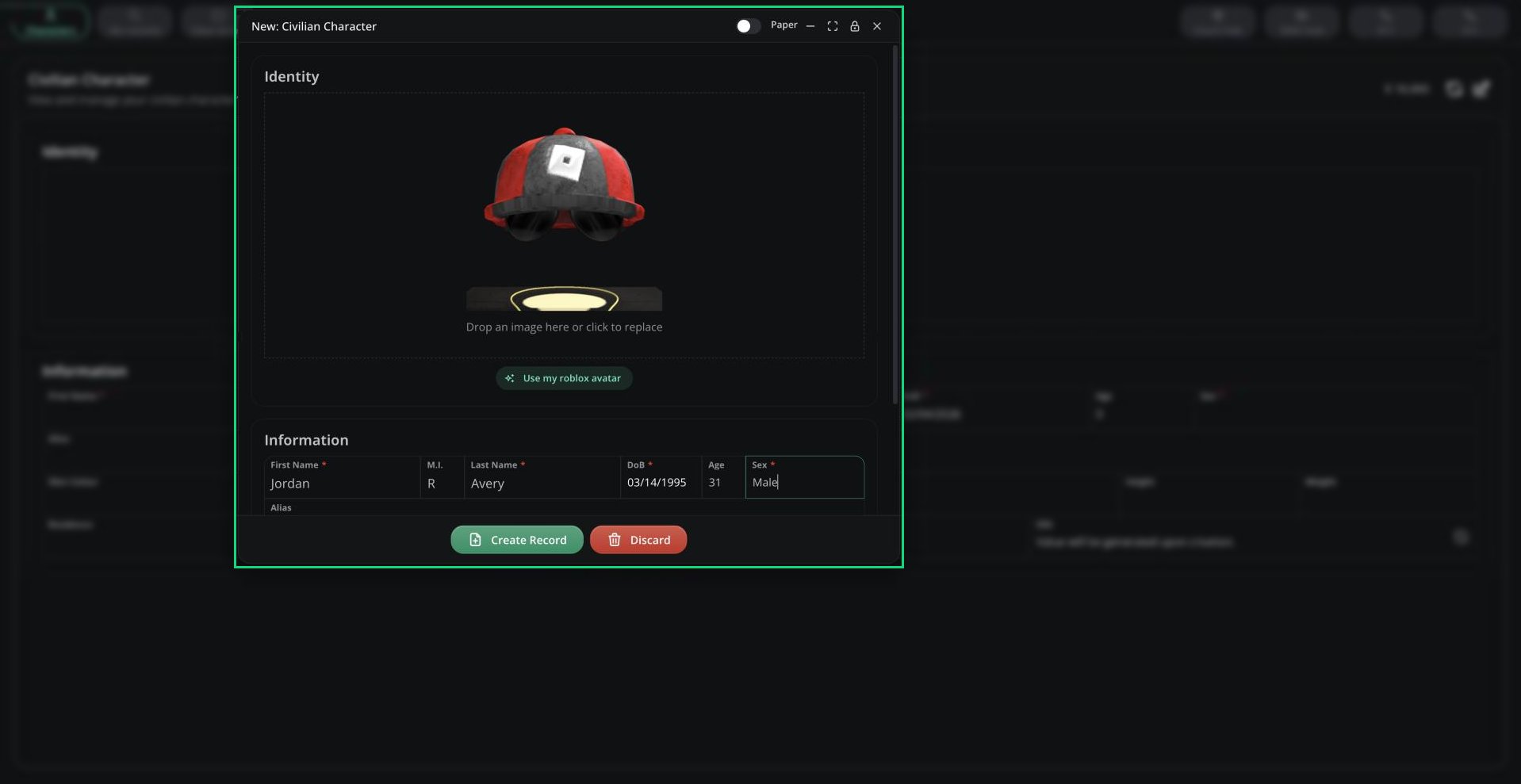
Click **Characters** in the top bar. If you already have characters, click **Add character**.
The fields come from your server's Civilian template. The SSN is generated for you.
Click **Create Record**.
Characters open in the standard [record window](/CAD/User/records/creating), so drafts and the paper view work as usual.
### Rules
* First name, last name and date of birth are always required.
* No two characters on the server can share the same name and date of birth, even if different people own them.
* Your server sets how many characters you can have (1 to 25, default 25).
* New characters start with a balance of 10,000, unless your server has turned balances off.
* Only you can edit or delete your characters. Deleting a character is permanent.
***
## Switching and Managing Characters
Pick your active character from the **Select Character** card. Your choice is remembered next time.
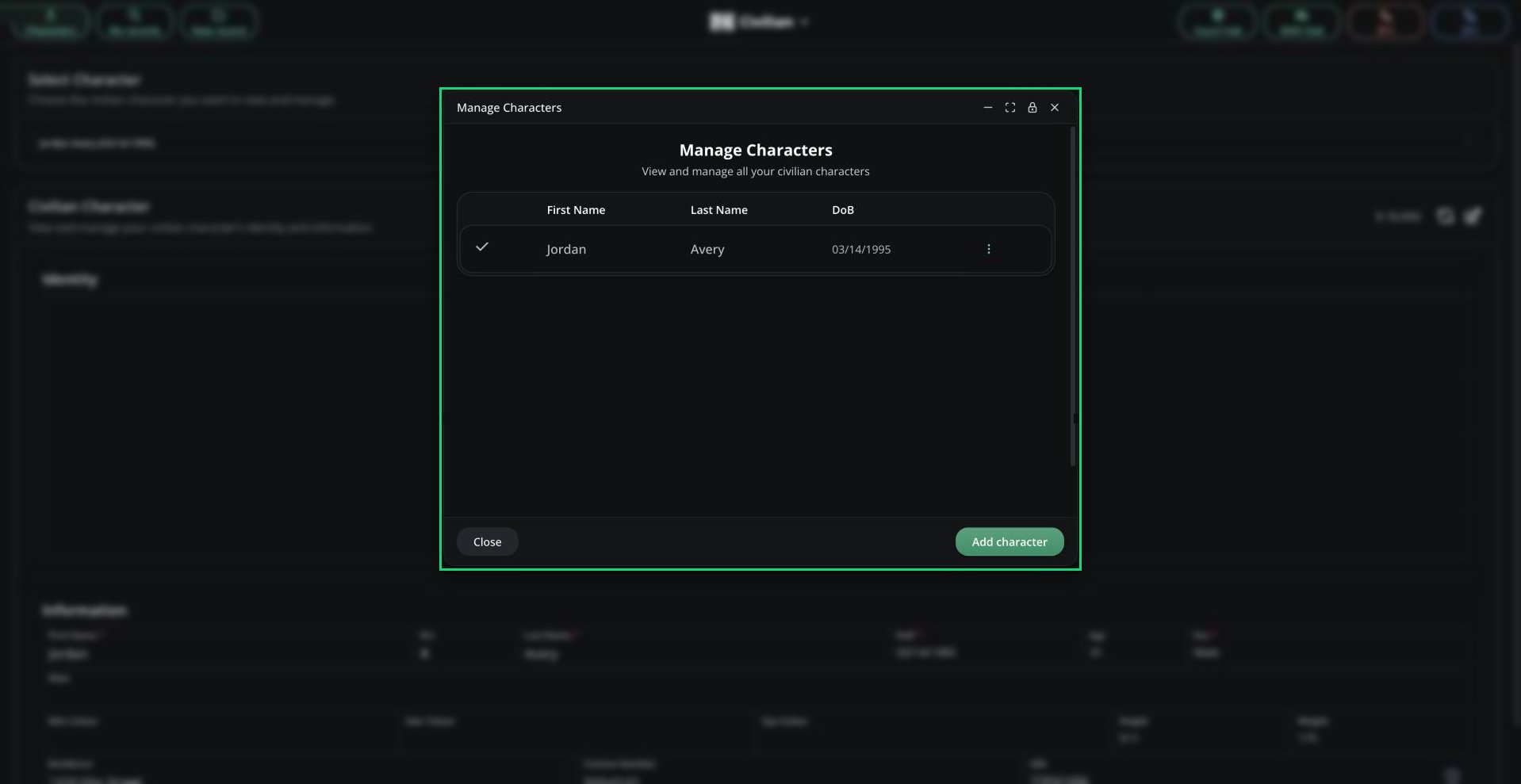
Click **Characters** to open **Manage Characters**, where you can switch characters, or use the **⋮** menu to edit or delete one.
***
## Creating a Character
Click **Characters** in the top bar. If you already have characters, click **Add character**.
The fields come from your server's Civilian template. The SSN is generated for you.
Click **Create Record**.
Characters open in the standard [record window](/CAD/User/records/creating), so drafts and the paper view work as usual.
### Rules
* First name, last name and date of birth are always required.
* No two characters on the server can share the same name and date of birth, even if different people own them.
* Your server sets how many characters you can have (1 to 25, default 25).
* New characters start with a balance of 10,000, unless your server has turned balances off.
* Only you can edit or delete your characters. Deleting a character is permanent.
***
## Switching and Managing Characters
Pick your active character from the **Select Character** card. Your choice is remembered next time.
Click **Characters** to open **Manage Characters**, where you can switch characters, or use the **⋮** menu to edit or delete one.
 ***
Still have questions? Join our Discord server for support from the Melonly Team.
This documentation is built and hosted on [Mintlify](https://mintlify.com), a developer documentation platform.
***
Still have questions? Join our Discord server for support from the Melonly Team.
This documentation is built and hosted on [Mintlify](https://mintlify.com), a developer documentation platform.