> ## Documentation Index
> Fetch the complete documentation index at: https://docs.melonly.xyz/llms.txt
> Use this file to discover all available pages before exploring further.
# Joining the CAD
> Open the CAD, pick a panel, join with a code, and clock in.
***
## Opening the CAD
Go to [melonly.xyz/cad](https://melonly.xyz/cad), or click **CAD** in the Melonly navigation bar, then pick a server. Press `Ctrl` + `Enter` (`⌘` + `Enter` on Mac) to jump into the server you used last.
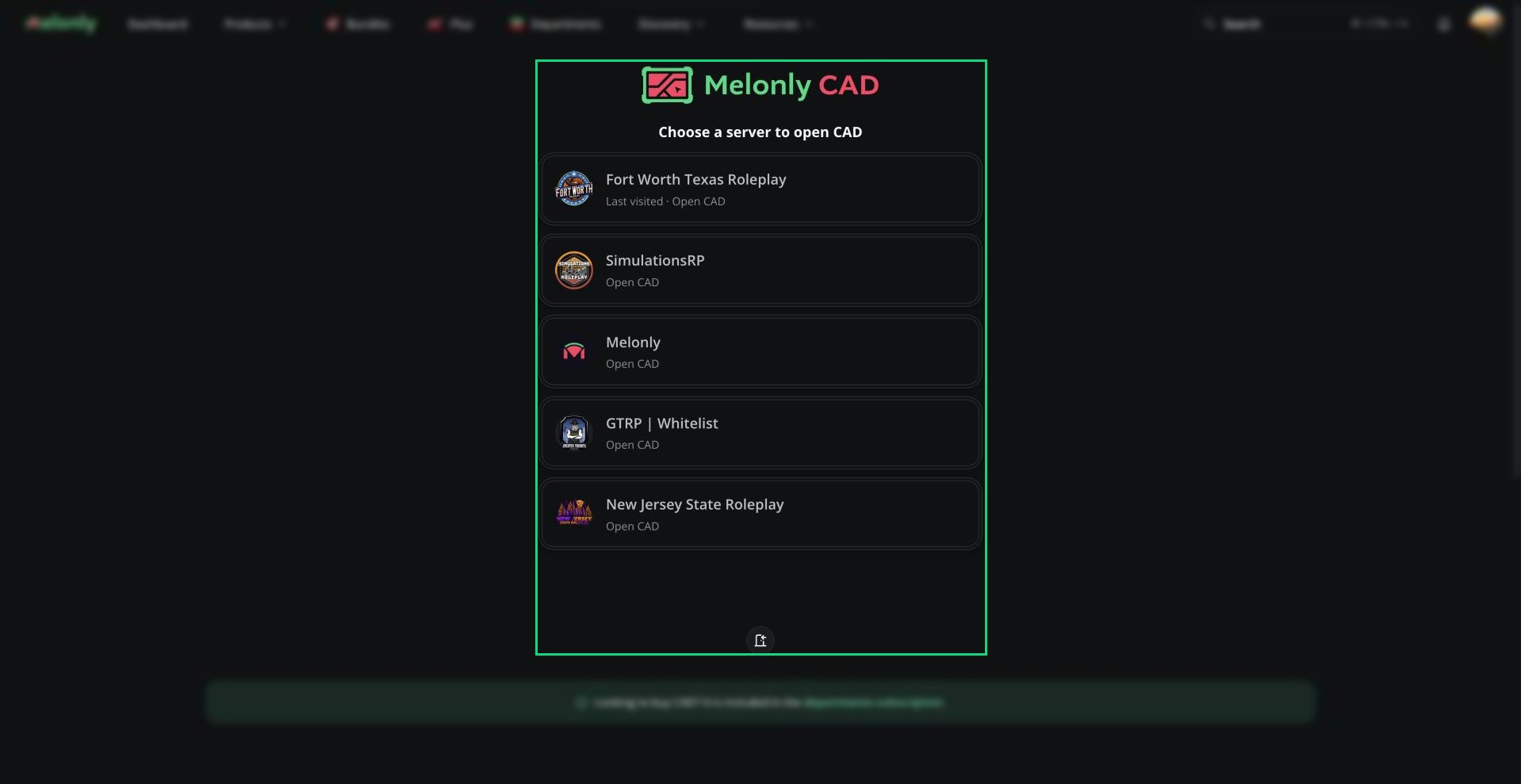 A server shows up when it has the CAD enabled and you have at least one CAD permission there, either from a department rank or a join code. Not seeing your server? Ask your admins for a join code.
***
## Choosing a Panel
After picking a server, click a panel tile to open it. Scroll sideways if you have a lot of panels.
* A greyed-out tile means the server has no department for it yet, or you don't have permission. Hover it to see which. See [Panel Access](/CAD/Intro/permissions#panel-access).
* Dispatch and service panel tiles have a small radio icon that opens a radio-only page. See [Radio](/CAD/User/radio).
* The **Admin** button at the bottom opens the admin panel, if you have CAD Admin.
You can only be active on one panel at a time. If the panel is open in another tab, you'll be asked which one to keep.
***
## Joining with a Code
Join codes let people outside your departments use the CAD. Joining gives you a temporary membership with the permissions on that code.
On the server list, click the **Join Server** door button.
Fill in the Community Code (your server's code) and the Join Code your admins gave you.
Click **Join**. You'll go straight to the server's panel picker.
A server shows up when it has the CAD enabled and you have at least one CAD permission there, either from a department rank or a join code. Not seeing your server? Ask your admins for a join code.
***
## Choosing a Panel
After picking a server, click a panel tile to open it. Scroll sideways if you have a lot of panels.
* A greyed-out tile means the server has no department for it yet, or you don't have permission. Hover it to see which. See [Panel Access](/CAD/Intro/permissions#panel-access).
* Dispatch and service panel tiles have a small radio icon that opens a radio-only page. See [Radio](/CAD/User/radio).
* The **Admin** button at the bottom opens the admin panel, if you have CAD Admin.
You can only be active on one panel at a time. If the panel is open in another tab, you'll be asked which one to keep.
***
## Joining with a Code
Join codes let people outside your departments use the CAD. Joining gives you a temporary membership with the permissions on that code.
On the server list, click the **Join Server** door button.
Fill in the Community Code (your server's code) and the Join Code your admins gave you.
Click **Join**. You'll go straight to the server's panel picker.
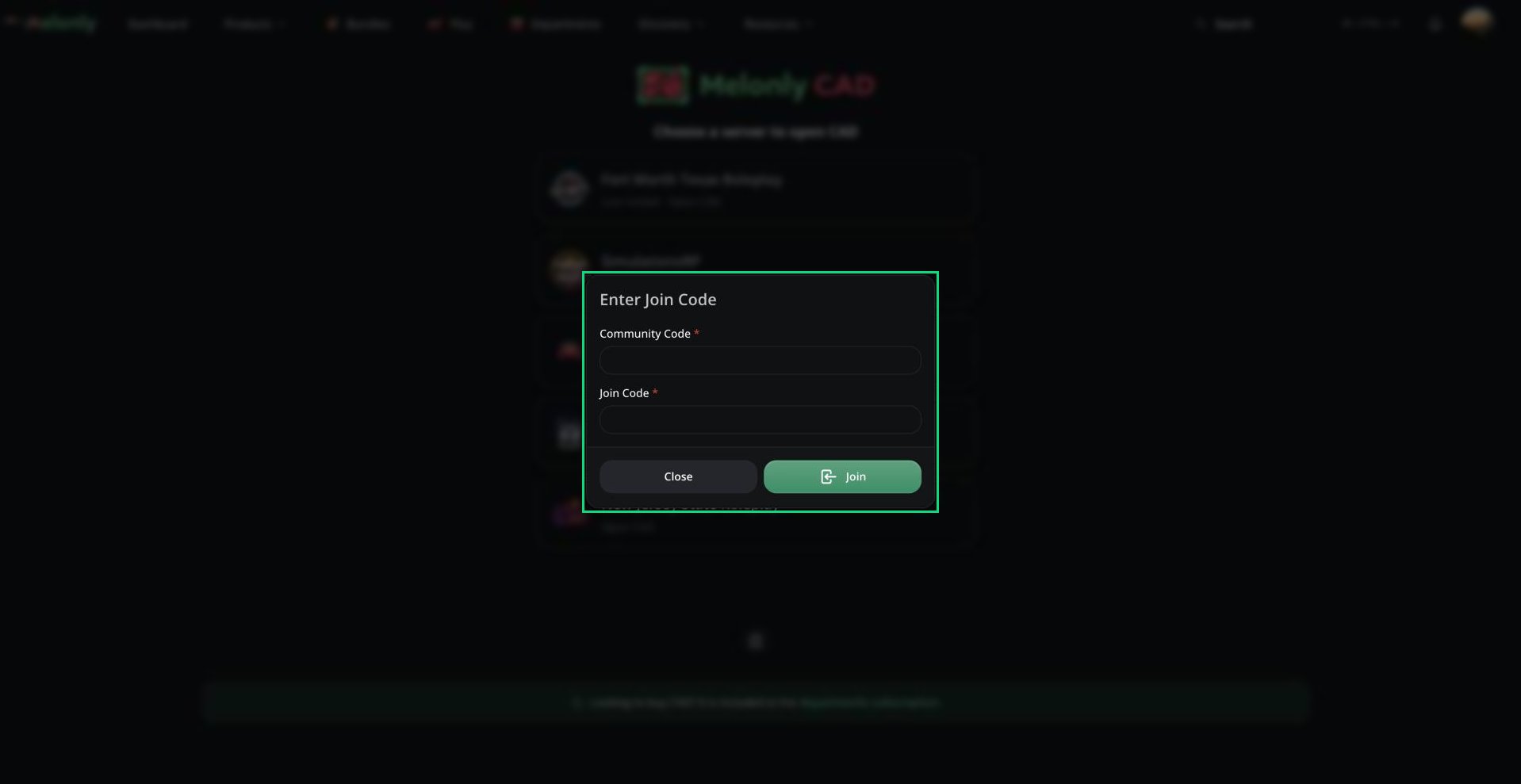 If your admins sent a join link, opening it fills in both codes for you.
Already in a server's CAD and given another code? Click **Enter Permission Code** on its panel picker. The new permissions are added to the ones you have.
* Codes can't give CAD Admin, DMV Panel or radio moderation permissions.
* A code can expire a set number of days after you join. You lose its permissions when it does.
* Some codes need you to have certain Discord roles in the server's linked Discord.
* A CAD admin can remove your membership or block you from joining with codes. Anything your department ranks give you stays.
See [Members](/CAD/Admin/members#members-joined-by-code) for the admin side.
***
## Creating Your Unit
On Police, Fire, EMS, DOT and Dispatch, you need a unit before you can do anything. Click **Create Unit**, enter your unit number and agency, then select it. See [Units](/CAD/User/units).
On the Civilian panel you pick or create a character instead. On the Law panel you set your judicial name. DMV doesn't need either.
### Roblox authorization
On Police, Fire, EMS, DOT and Law, link your Roblox account by clicking **Authorize Roblox** when asked. The panel works without it, but you won't appear on the live map.
***
## Clocking In
You can start and end department shifts without leaving the CAD. Open the CAD menu (the logo in the top-left) and go to **Activity**.
If your admins sent a join link, opening it fills in both codes for you.
Already in a server's CAD and given another code? Click **Enter Permission Code** on its panel picker. The new permissions are added to the ones you have.
* Codes can't give CAD Admin, DMV Panel or radio moderation permissions.
* A code can expire a set number of days after you join. You lose its permissions when it does.
* Some codes need you to have certain Discord roles in the server's linked Discord.
* A CAD admin can remove your membership or block you from joining with codes. Anything your department ranks give you stays.
See [Members](/CAD/Admin/members#members-joined-by-code) for the admin side.
***
## Creating Your Unit
On Police, Fire, EMS, DOT and Dispatch, you need a unit before you can do anything. Click **Create Unit**, enter your unit number and agency, then select it. See [Units](/CAD/User/units).
On the Civilian panel you pick or create a character instead. On the Law panel you set your judicial name. DMV doesn't need either.
### Roblox authorization
On Police, Fire, EMS, DOT and Law, link your Roblox account by clicking **Authorize Roblox** when asked. The panel works without it, but you won't appear on the live map.
***
## Clocking In
You can start and end department shifts without leaving the CAD. Open the CAD menu (the logo in the top-left) and go to **Activity**.
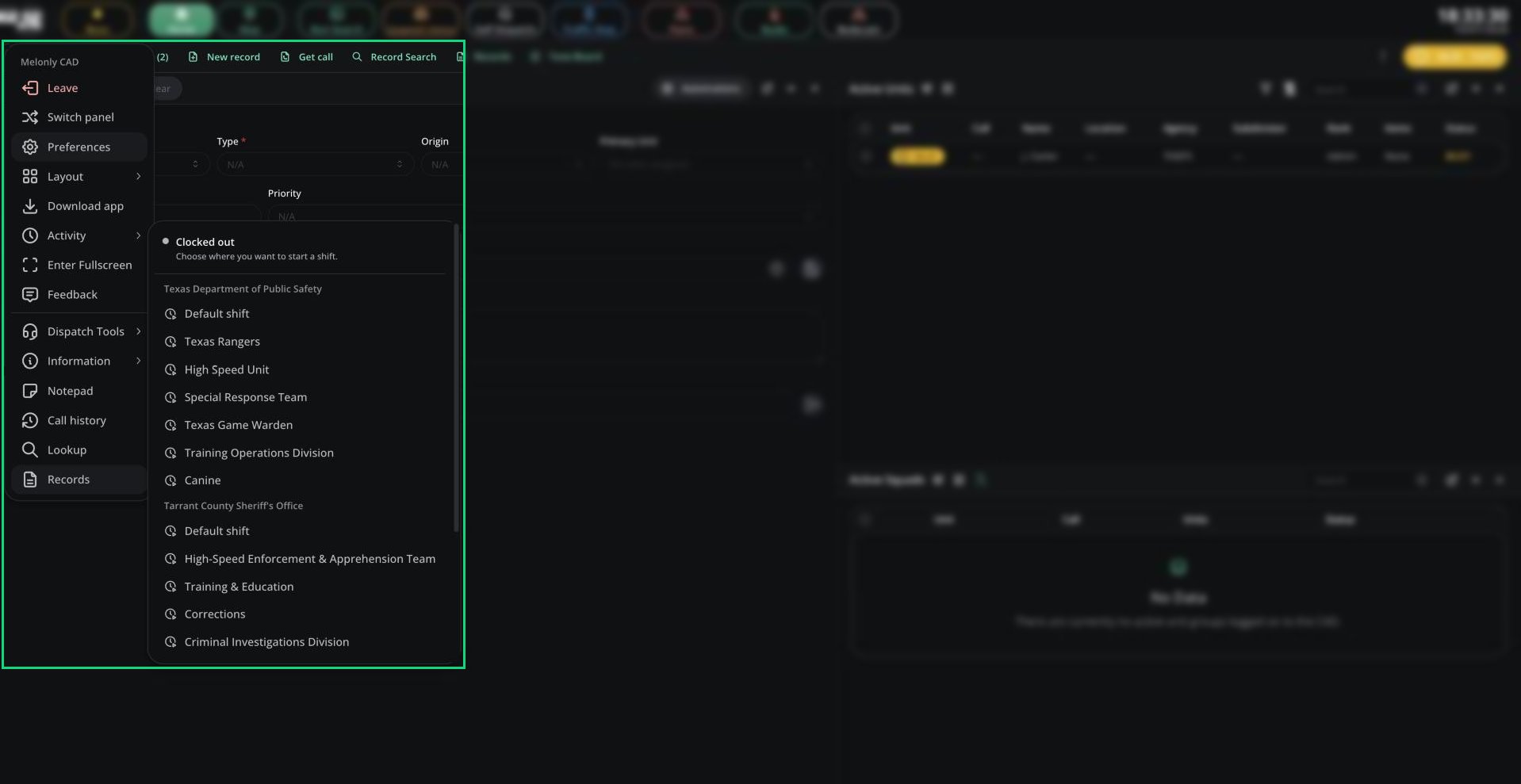 * Pick a department to start a shift, or pick a shift type if it uses them.
* While on shift, you can start or end a break, or end your shift. If the department has a shift report form, it opens when you end.
* Shifts work just like the department's Activity page, including Discord roles and shift logs. See [Department Activity](/Department/activity/shifts#shift-types).
Activity only appears if you're in a department of this panel's type.
A shift you started from the CAD ends automatically when you leave the panel, log out of your unit, or lose connection.
### When clock-in is required
If your server turns on Require Clock-In, you must be on shift before you can become a unit or run lookups. If your shift ends, you're removed from the panel. This doesn't apply to Civilian, Law, DMV or CAD admins.
***
## Bodycam
If your server turns on Require Bodycam, you must start your bodycam before you can become a unit on Police, Fire, EMS or DOT. See [Bodycam](/CAD/Intro/interface#bodycam) for how to start it.
***
## Connection Problems
If you see Connection Failed, click **Try Again**. If you're told you've been removed or disconnected, it's usually because you opened the CAD in another tab or device, an admin kicked you, or your required shift ended.
***
## Desktop and Mobile
The CAD also runs in the [desktop app](/CAD/Intro/interface#desktop-app), which adds global keybinds and pop-out windows, and on [phones and tablets](/CAD/Intro/interface#mobile) in landscape.
***
Still have questions? Join our Discord server for support from the Melonly Team.
This documentation is built and hosted on [Mintlify](https://mintlify.com), a developer documentation platform.
* Pick a department to start a shift, or pick a shift type if it uses them.
* While on shift, you can start or end a break, or end your shift. If the department has a shift report form, it opens when you end.
* Shifts work just like the department's Activity page, including Discord roles and shift logs. See [Department Activity](/Department/activity/shifts#shift-types).
Activity only appears if you're in a department of this panel's type.
A shift you started from the CAD ends automatically when you leave the panel, log out of your unit, or lose connection.
### When clock-in is required
If your server turns on Require Clock-In, you must be on shift before you can become a unit or run lookups. If your shift ends, you're removed from the panel. This doesn't apply to Civilian, Law, DMV or CAD admins.
***
## Bodycam
If your server turns on Require Bodycam, you must start your bodycam before you can become a unit on Police, Fire, EMS or DOT. See [Bodycam](/CAD/Intro/interface#bodycam) for how to start it.
***
## Connection Problems
If you see Connection Failed, click **Try Again**. If you're told you've been removed or disconnected, it's usually because you opened the CAD in another tab or device, an admin kicked you, or your required shift ended.
***
## Desktop and Mobile
The CAD also runs in the [desktop app](/CAD/Intro/interface#desktop-app), which adds global keybinds and pop-out windows, and on [phones and tablets](/CAD/Intro/interface#mobile) in landscape.
***
Still have questions? Join our Discord server for support from the Melonly Team.
This documentation is built and hosted on [Mintlify](https://mintlify.com), a developer documentation platform.