> ## Documentation Index
> Fetch the complete documentation index at: https://docs.melonly.xyz/llms.txt
> Use this file to discover all available pages before exploring further.
# Search Indices
> Add custom search types so users can search records by any field, such as phone number.
***
## What are Search Indices?
Search indices are custom search types that let users search records by any field, such as phone number. They show up as extra tabs in [Record Search](/CAD/User/lookups#record-search), and as search fill options in templates.
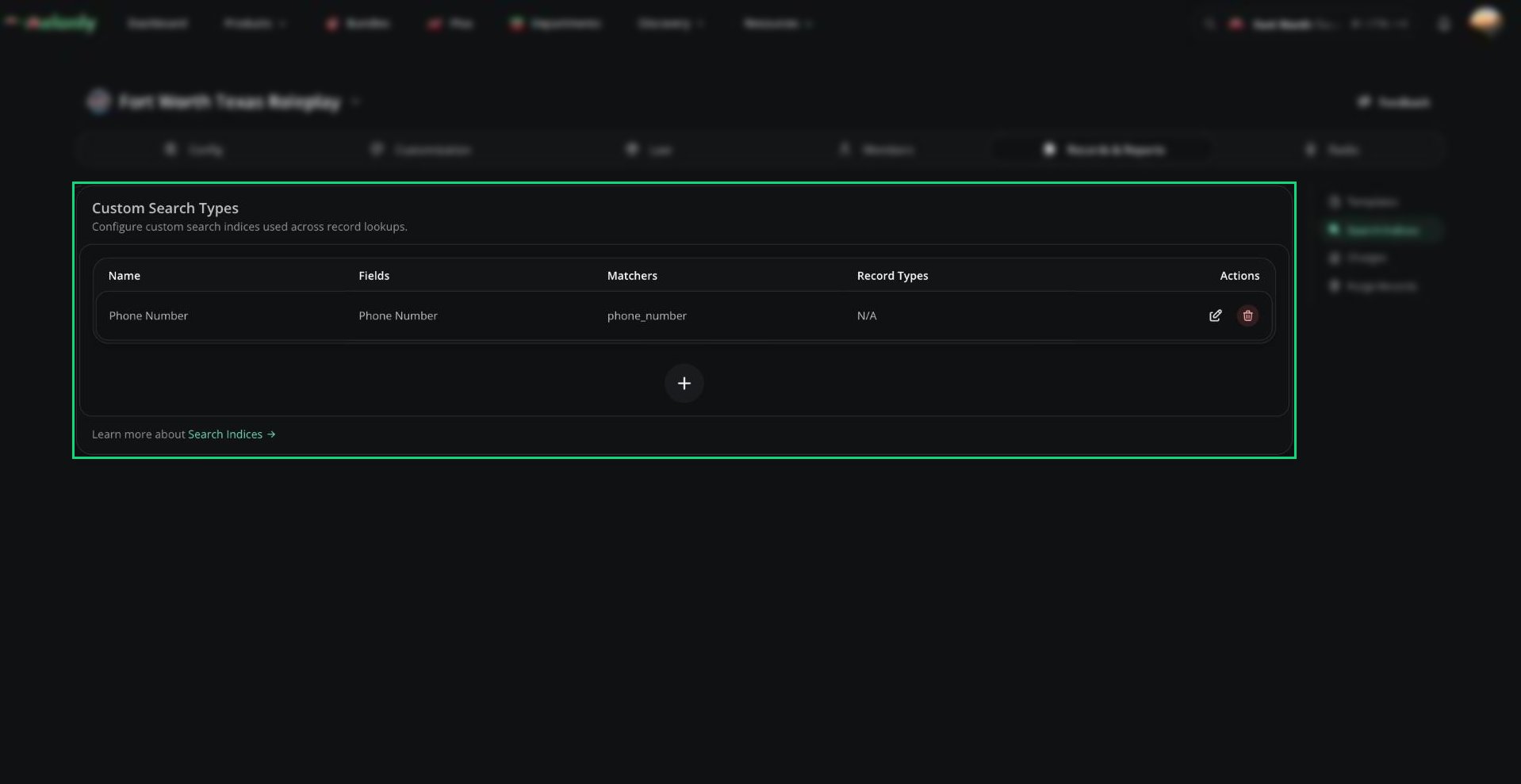
Your CAD starts with a Phone Number search on civilians. You can have up to 5 search types.
 ***
## Adding a Search Type
In the CAD admin panel, open **Records & Reports** → **Search Indices**.
Click **+** and enter a name (3 to 20 characters). Optionally limit it to one record type.
For each field (up to 4), set a name, the matcher it searches, and an optional input mask.
Click **Save Search Index**.
The matcher must match the one set on a template field, or the search won't find anything. See [Matchers](/CAD/Admin/template-editor#matchers).
***
Still have questions? Join our Discord server for support from the Melonly Team.
This documentation is built and hosted on [Mintlify](https://mintlify.com), a developer documentation platform.
***
## Adding a Search Type
In the CAD admin panel, open **Records & Reports** → **Search Indices**.
Click **+** and enter a name (3 to 20 characters). Optionally limit it to one record type.
For each field (up to 4), set a name, the matcher it searches, and an optional input mask.
Click **Save Search Index**.
The matcher must match the one set on a template field, or the search won't find anything. See [Matchers](/CAD/Admin/template-editor#matchers).
***
Still have questions? Join our Discord server for support from the Melonly Team.
This documentation is built and hosted on [Mintlify](https://mintlify.com), a developer documentation platform.