> ## Documentation Index
> Fetch the complete documentation index at: https://docs.melonly.xyz/llms.txt
> Use this file to discover all available pages before exploring further.
# Join Codes
> Create join codes that let people join your CAD as temporary members with the permissions you choose.
***
## What are Join Codes?
Join codes let people join your CAD as temporary members with the permissions you choose. Open **Members** → **Join Codes** in the CAD admin panel.
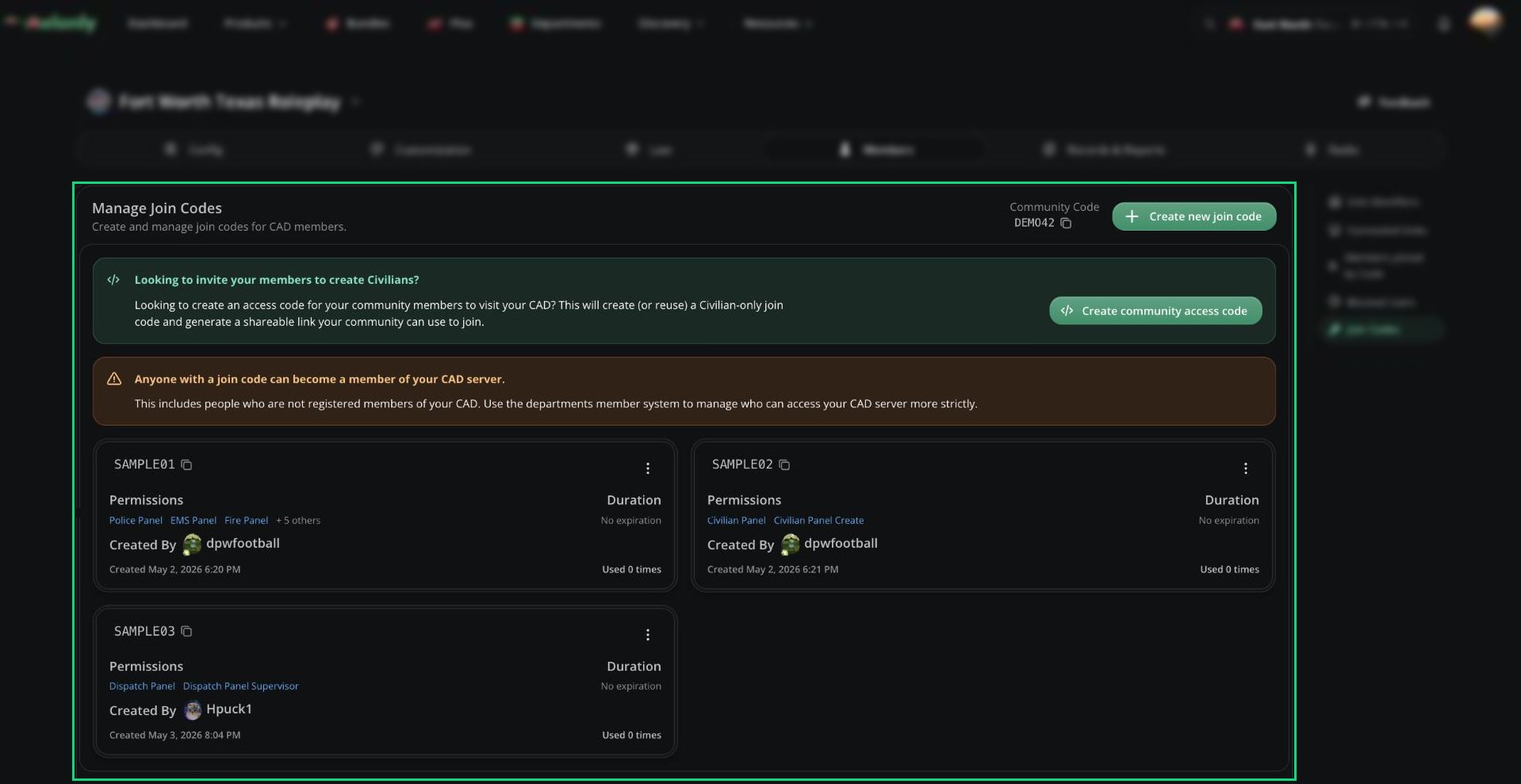 Anyone with a join code can join your CAD, even if they aren't in one of your departments. For stricter control, use [departments](/Department/home).
***
## Creating a Join Code
Click **Create new join code**. A random 8-letter code is generated for you.
Fill in the fields below and pick at least one permission.
Click **Create code**, then copy the message with the join link and send it to your members.
| Field | Description |
| - | - |
| Code | 4 to 10 characters, unique on your server. |
| Expiration Duration (Days) | How long each person's access lasts from when they join. 0 to 365 days. Leave empty for no expiry. |
| Required Discord Roles | Only people with these roles can use the code (up to 25). With several roles, choose whether they need any or all of them. Your server's Discord must be linked for roles to show. |
| Permissions | The CAD permissions people get. |
The join link includes your community code, so people don't need to type anything. For what joining looks like, see [Joining with a Code](/CAD/Intro/joining#joining-with-a-code).
| Panel | Permissions |
| - | - |
| Civilian | Panel, Supervisor, Create, Edit, Delete |
| Police | Panel, Supervisor, Create, Edit, Delete, Close Warrant, Suspend Licence |
| EMS | Panel, Supervisor, Create, Edit, Delete |
| Fire | Panel, Supervisor, Create, Edit, Delete |
| DOT | Panel, Supervisor, Create, Edit, Delete |
| Dispatch | Panel |
| Law | Panel, Supervisor, Create, Edit, Delete |
Panel lets them open that panel. Supervisor allows supervisor actions. Create, Edit, and Delete apply to that panel's records and reports (on the Civilian panel, only their own).
Join codes can't grant DMV Panel, CAD admin, or radio moderation. Use a [department rank](/CAD/Intro/permissions) for those.
***
## Community Access Code
Want everyone to be able to make civilians? Click **Create community access code**. It creates a never-expiring code with all Civilian panel permissions (except Supervisor) and gives you a link to share.
***
## Managing Codes
Each code card shows its permissions, duration, required roles, creator, and how many times it's been used.
* Click the code to copy it.
* Click **See code usage** to see who joined with it and when their access expires.
* Click **Delete code** to remove it. People who already joined keep access until it expires. To remove them now, [block them](/CAD/Admin/members#blocking-a-member).
***
Still have questions? Join our Discord server for support from the Melonly Team.
This documentation is built and hosted on [Mintlify](https://mintlify.com), a developer documentation platform.
Anyone with a join code can join your CAD, even if they aren't in one of your departments. For stricter control, use [departments](/Department/home).
***
## Creating a Join Code
Click **Create new join code**. A random 8-letter code is generated for you.
Fill in the fields below and pick at least one permission.
Click **Create code**, then copy the message with the join link and send it to your members.
| Field | Description |
| - | - |
| Code | 4 to 10 characters, unique on your server. |
| Expiration Duration (Days) | How long each person's access lasts from when they join. 0 to 365 days. Leave empty for no expiry. |
| Required Discord Roles | Only people with these roles can use the code (up to 25). With several roles, choose whether they need any or all of them. Your server's Discord must be linked for roles to show. |
| Permissions | The CAD permissions people get. |
The join link includes your community code, so people don't need to type anything. For what joining looks like, see [Joining with a Code](/CAD/Intro/joining#joining-with-a-code).
| Panel | Permissions |
| - | - |
| Civilian | Panel, Supervisor, Create, Edit, Delete |
| Police | Panel, Supervisor, Create, Edit, Delete, Close Warrant, Suspend Licence |
| EMS | Panel, Supervisor, Create, Edit, Delete |
| Fire | Panel, Supervisor, Create, Edit, Delete |
| DOT | Panel, Supervisor, Create, Edit, Delete |
| Dispatch | Panel |
| Law | Panel, Supervisor, Create, Edit, Delete |
Panel lets them open that panel. Supervisor allows supervisor actions. Create, Edit, and Delete apply to that panel's records and reports (on the Civilian panel, only their own).
Join codes can't grant DMV Panel, CAD admin, or radio moderation. Use a [department rank](/CAD/Intro/permissions) for those.
***
## Community Access Code
Want everyone to be able to make civilians? Click **Create community access code**. It creates a never-expiring code with all Civilian panel permissions (except Supervisor) and gives you a link to share.
***
## Managing Codes
Each code card shows its permissions, duration, required roles, creator, and how many times it's been used.
* Click the code to copy it.
* Click **See code usage** to see who joined with it and when their access expires.
* Click **Delete code** to remove it. People who already joined keep access until it expires. To remove them now, [block them](/CAD/Admin/members#blocking-a-member).
***
Still have questions? Join our Discord server for support from the Melonly Team.
This documentation is built and hosted on [Mintlify](https://mintlify.com), a developer documentation platform.