> ## Documentation Index
> Fetch the complete documentation index at: https://docs.melonly.xyz/llms.txt
> Use this file to discover all available pages before exploring further.
# Tones
> Replace the CAD's notification sounds, add custom tones for the Tone Board, and set up signal presets.
***
## What are Tones?
The Tones page lets you replace the CAD's sounds, add your own tones for the Tone Board, and set up signal presets.
Open **Customization** → **Tones** in the CAD admin panel. Changes are kept as a draft until you click **Save Changes** (`Ctrl` + `S`). New sounds upload when you save, up to 10 files per save.
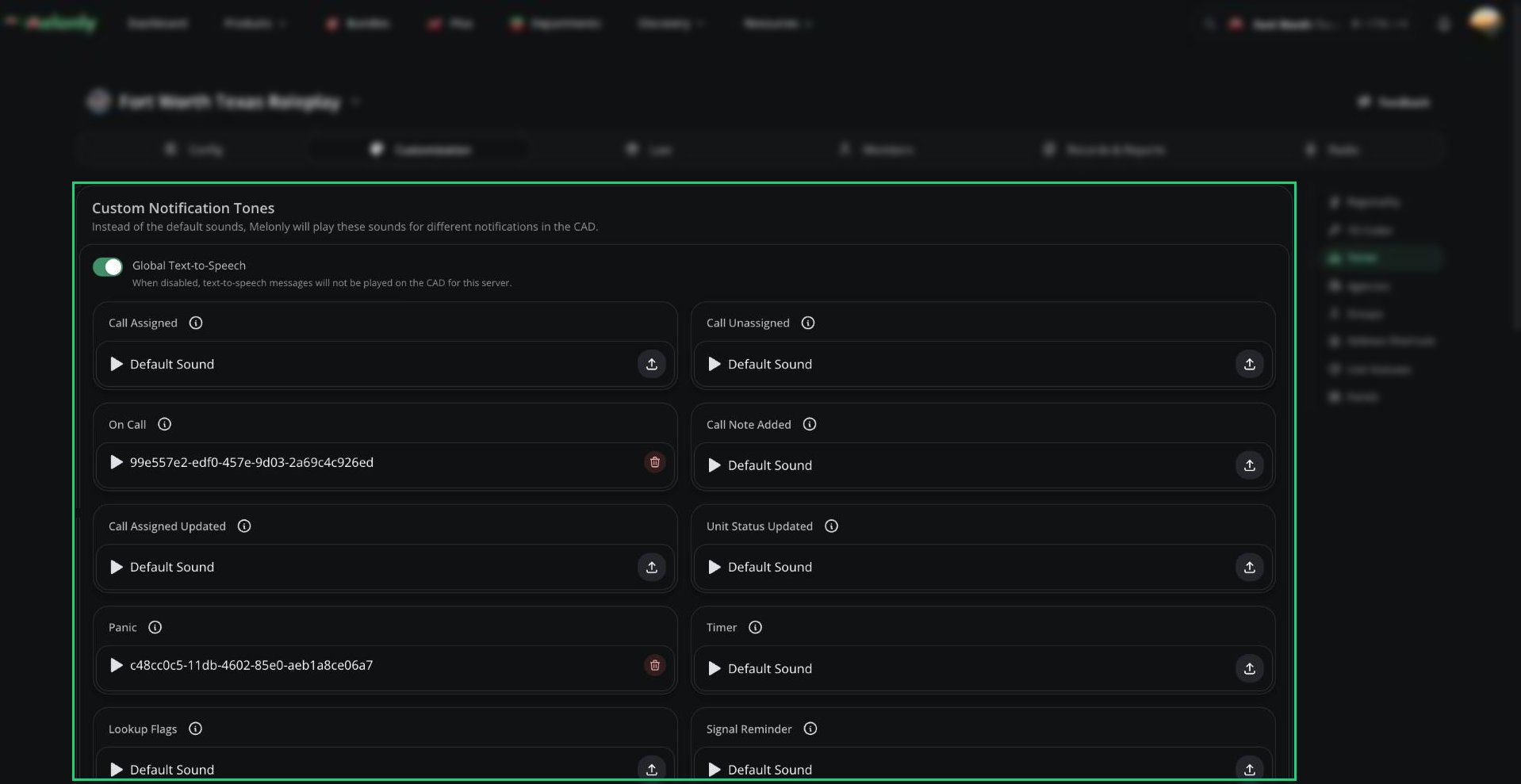 ***
## Custom Notification Tones
Upload an audio file on any event to replace its default sound for everyone on your CAD. Remove it to go back to the default. Each user's own volume settings still apply. For when each tone plays, see [Notification Sounds](/CAD/Intro/preferences#notification-sounds).
Global Text-to-Speech is on by default. Turn it off to stop all spoken alerts (call assignments, new calls, group changes, panic) on your server. Dispatch AI's voice isn't affected. Users can also turn TTS off just for themselves in [Preferences](/CAD/Intro/preferences#text-to-speech).
***
## Custom Tones
Custom tones are sounds units and dispatchers can send from the Tone Board, for example over a radio channel. You can have up to 30.
Click **New custom tone** and give it a name.
Upload a sound, and pick a colour and icon.
Click **Save Changes**. A tone without a sound file is removed when you save.
The order here is the order on the Tone Board. See [Tones and Signals](/CAD/User/tones-signals) for using the Tone Board.
***
## Signal Presets
Signal presets are ready-made signals (like a Signal 100) that load in one click from the Signal Manager. You can have up to 30.
| Setting | Description |
| - | - |
| Signal Code | The signal's name, for example `100`. |
| Signal Panels | Panels that receive the signal: Police, Fire, EMS, DOT. At least one is required. |
| Tone | Optional custom tone to play with the signal. |
| Tone Panels | Panels that hear the tone. |
| Repeat | Seconds between repeats (up to 300). Blank plays it once. |
| Repeat Count | How many times to repeat. Blank repeats until the signal ends. |
***
Still have questions? Join our Discord server for support from the Melonly Team.
This documentation is built and hosted on [Mintlify](https://mintlify.com), a developer documentation platform.
***
## Custom Notification Tones
Upload an audio file on any event to replace its default sound for everyone on your CAD. Remove it to go back to the default. Each user's own volume settings still apply. For when each tone plays, see [Notification Sounds](/CAD/Intro/preferences#notification-sounds).
Global Text-to-Speech is on by default. Turn it off to stop all spoken alerts (call assignments, new calls, group changes, panic) on your server. Dispatch AI's voice isn't affected. Users can also turn TTS off just for themselves in [Preferences](/CAD/Intro/preferences#text-to-speech).
***
## Custom Tones
Custom tones are sounds units and dispatchers can send from the Tone Board, for example over a radio channel. You can have up to 30.
Click **New custom tone** and give it a name.
Upload a sound, and pick a colour and icon.
Click **Save Changes**. A tone without a sound file is removed when you save.
The order here is the order on the Tone Board. See [Tones and Signals](/CAD/User/tones-signals) for using the Tone Board.
***
## Signal Presets
Signal presets are ready-made signals (like a Signal 100) that load in one click from the Signal Manager. You can have up to 30.
| Setting | Description |
| - | - |
| Signal Code | The signal's name, for example `100`. |
| Signal Panels | Panels that receive the signal: Police, Fire, EMS, DOT. At least one is required. |
| Tone | Optional custom tone to play with the signal. |
| Tone Panels | Panels that hear the tone. |
| Repeat | Seconds between repeats (up to 300). Blank plays it once. |
| Repeat Count | How many times to repeat. Blank repeats until the signal ends. |
***
Still have questions? Join our Discord server for support from the Melonly Team.
This documentation is built and hosted on [Mintlify](https://mintlify.com), a developer documentation platform.