> ## Documentation Index
> Fetch the complete documentation index at: https://docs.melonly.xyz/llms.txt
> Use this file to discover all available pages before exploring further.
# 10-Codes
> Build the 10-code list units and dispatchers use, paste a whole list at once, or import it from Sonoran CAD.
***
## What are 10-Codes?
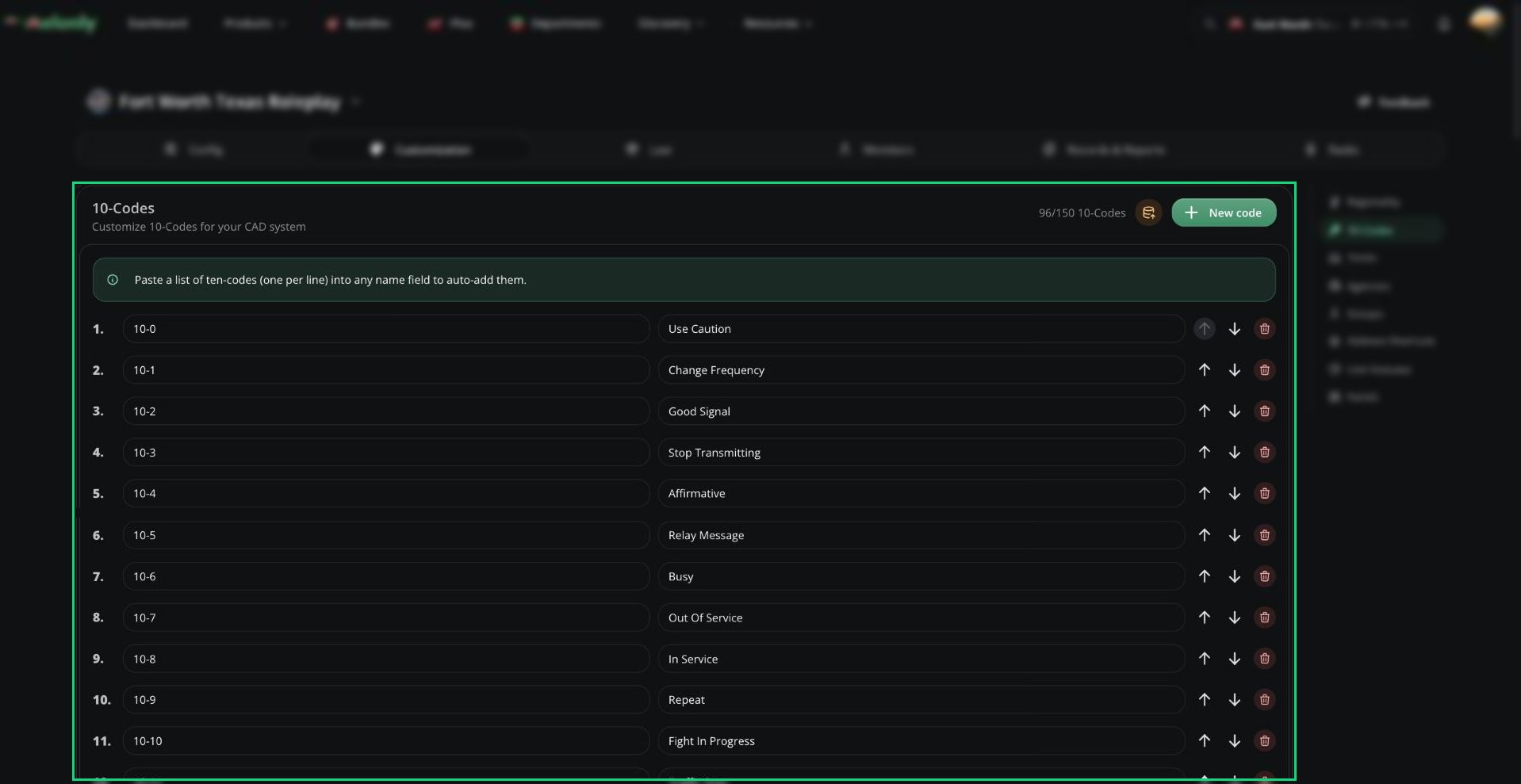
The 10-Codes page holds the code list your units and dispatchers pick from on calls and see in the 10-codes reference window. You can have up to 150 codes.
Open **Customization** → **10-Codes** in the CAD admin panel. Changes are kept as a draft until you click **Save Changes** (`Ctrl` + `S`).
 ***
## Adding Codes
Click **New code**.
Enter a name, like `10-4` (2 to 12 characters), and a definition, like `Affirmative` (3 to 48 characters). Code names must be unique.
Use the arrows to reorder, then click **Save Changes**.
When an officer starts a traffic stop, the CAD uses the first code whose definition matches "traffic stop", so keep one in your list.
***
## Pasting a Whole List
Paste a list into any Name field, one code per line, and Melonly splits each line into a code and definition. All of these work:
```
10-4: Affirmative
10-8 = In service
10-20 Location
10-97 - On scene
```
Bullet points are stripped, and a line without a code is added to the previous definition.
***
## Importing from Sonoran CAD
Export your 10-codes from Sonoran CAD as a JSON file.
Click **Import from Sonoran CAD** and enter the separator between code and meaning (for `10-4: Affirmative` it's `:`).
Upload the file and click **Import ten codes**.
The import replaces every existing code and saves straight away, so Reset can't undo it.
***
Still have questions? Join our Discord server for support from the Melonly Team.
This documentation is built and hosted on [Mintlify](https://mintlify.com), a developer documentation platform.
***
## Adding Codes
Click **New code**.
Enter a name, like `10-4` (2 to 12 characters), and a definition, like `Affirmative` (3 to 48 characters). Code names must be unique.
Use the arrows to reorder, then click **Save Changes**.
When an officer starts a traffic stop, the CAD uses the first code whose definition matches "traffic stop", so keep one in your list.
***
## Pasting a Whole List
Paste a list into any Name field, one code per line, and Melonly splits each line into a code and definition. All of these work:
```
10-4: Affirmative
10-8 = In service
10-20 Location
10-97 - On scene
```
Bullet points are stripped, and a line without a code is added to the previous definition.
***
## Importing from Sonoran CAD
Export your 10-codes from Sonoran CAD as a JSON file.
Click **Import from Sonoran CAD** and enter the separator between code and meaning (for `10-4: Affirmative` it's `:`).
Upload the file and click **Import ten codes**.
The import replaces every existing code and saves straight away, so Reset can't undo it.
***
Still have questions? Join our Discord server for support from the Melonly Team.
This documentation is built and hosted on [Mintlify](https://mintlify.com), a developer documentation platform.