> ## Documentation Index
> Fetch the complete documentation index at: https://docs.melonly.xyz/llms.txt
> Use this file to discover all available pages before exploring further.
# Groups & Statuses
> Set up premade unit groups, rename the built-in unit statuses, and add your own status codes.
***
## Groups and Statuses
Premade groups and unit statuses shape how units are organised and shown on every panel. Both live under **Customization** in the CAD admin panel.
***
## Premade Groups
Premade groups are ready-made unit groups that units can join and dispatchers can assign. You can have up to 30. Open **Customization** → **Groups** and click **New group** to add one.
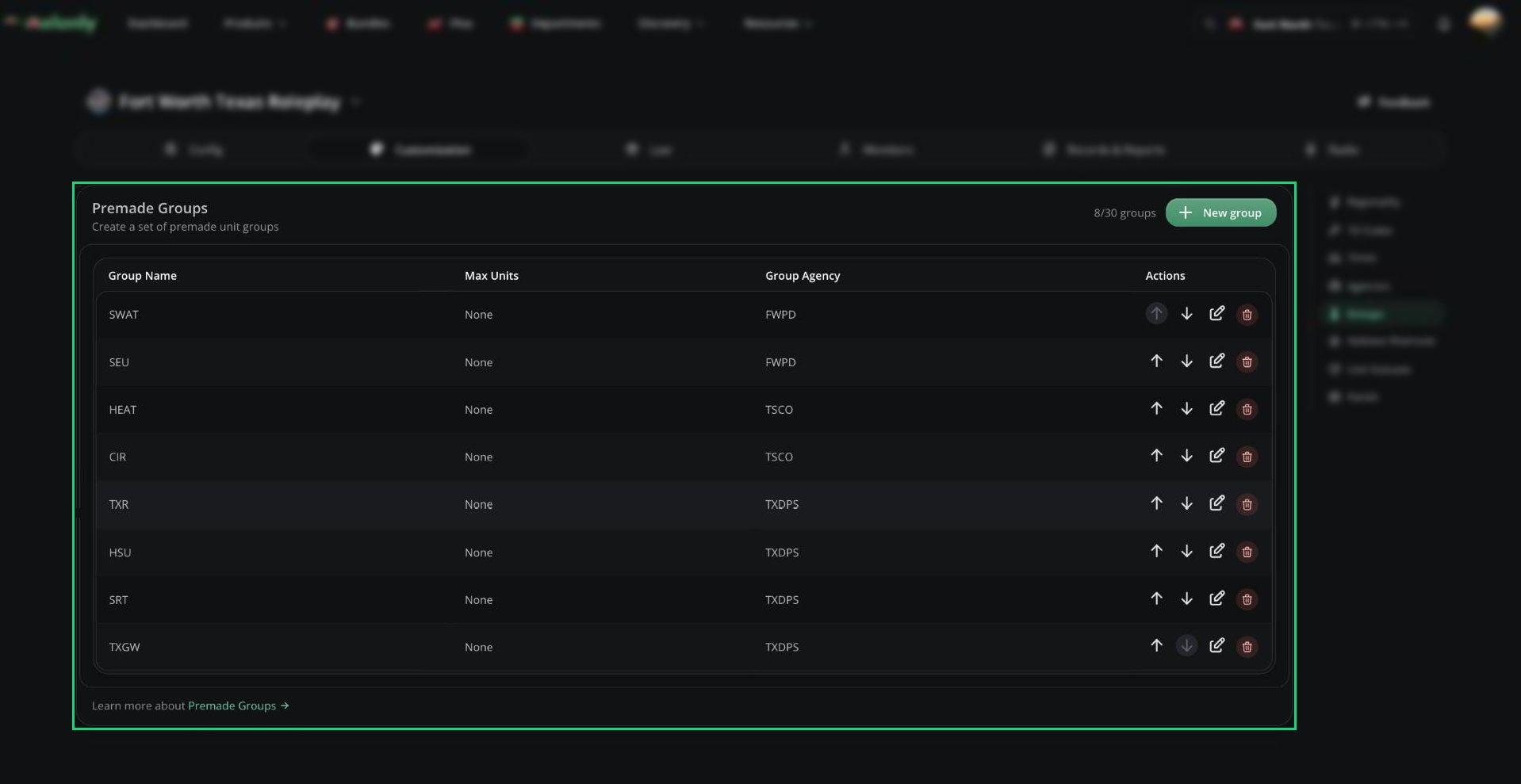 Unlike the other Customization pages, changes on the Groups page save straight away.
| Setting | Description |
| - | - |
| Group Name | 2 to 16 characters. Must be unique among all active groups. |
| Max Units | Optional limit. A group can never hold more than 4 units. |
| Restrict Agency | Optional. Only units from this agency can join. |
* You can only edit a group while it's empty, and only delete it while it has no active units.
* Premade groups show in the New Unit window in your order, and full groups are hidden.
* To stop dispatchers making their own groups, turn on Only Premade Groups in [General Settings](/CAD/Admin/config#general-settings).
***
## Unit Statuses
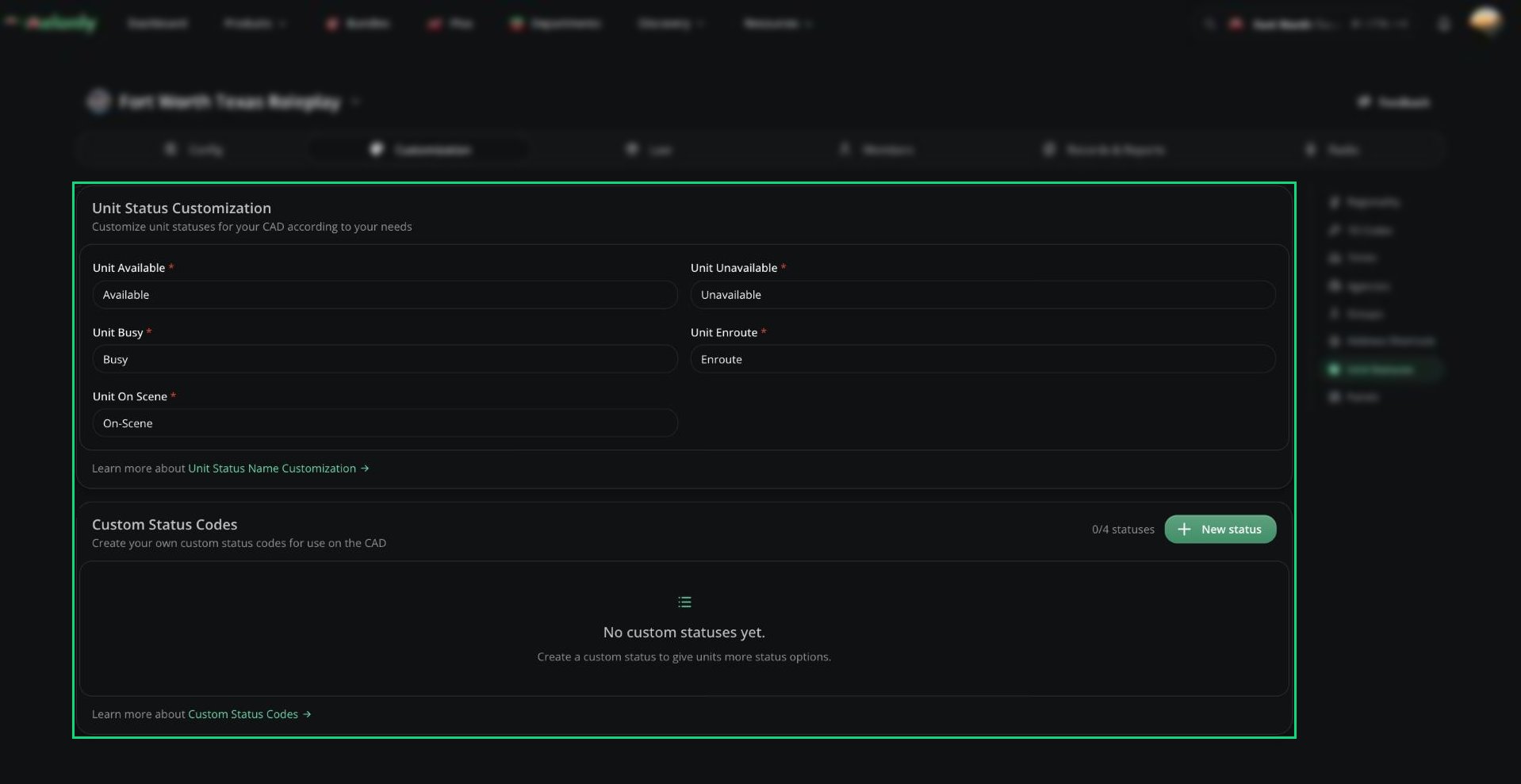
Open **Customization** → **Unit Statuses** to rename the five built-in statuses: Available, Unavailable, Busy, Enroute and On-Scene (3 to 20 characters each). Your names show everywhere a status appears, including radio and spoken alerts. Click **Save Changes** when you're done.
Unlike the other Customization pages, changes on the Groups page save straight away.
| Setting | Description |
| - | - |
| Group Name | 2 to 16 characters. Must be unique among all active groups. |
| Max Units | Optional limit. A group can never hold more than 4 units. |
| Restrict Agency | Optional. Only units from this agency can join. |
* You can only edit a group while it's empty, and only delete it while it has no active units.
* Premade groups show in the New Unit window in your order, and full groups are hidden.
* To stop dispatchers making their own groups, turn on Only Premade Groups in [General Settings](/CAD/Admin/config#general-settings).
***
## Unit Statuses
Open **Customization** → **Unit Statuses** to rename the five built-in statuses: Available, Unavailable, Busy, Enroute and On-Scene (3 to 20 characters each). Your names show everywhere a status appears, including radio and spoken alerts. Click **Save Changes** when you're done.
 ### Custom Status Codes
You can add up to 4 extra statuses. Click **New status** and set:
| Setting | Description |
| - | - |
| Name | 3 to 20 characters. |
| Color | The colour of the status and of unit chips using it. |
| Restrict Panel | Optional. Only show the status on one panel. |
Custom statuses appear in the status selector and the Auto Status window. See [Units](/CAD/User/units).
***
Still have questions? Join our Discord server for support from the Melonly Team.
This documentation is built and hosted on [Mintlify](https://mintlify.com), a developer documentation platform.
### Custom Status Codes
You can add up to 4 extra statuses. Click **New status** and set:
| Setting | Description |
| - | - |
| Name | 3 to 20 characters. |
| Color | The colour of the status and of unit chips using it. |
| Restrict Panel | Optional. Only show the status on one panel. |
Custom statuses appear in the status selector and the Auto Status window. See [Units](/CAD/User/units).
***
Still have questions? Join our Discord server for support from the Melonly Team.
This documentation is built and hosted on [Mintlify](https://mintlify.com), a developer documentation platform.