> ## Documentation Index
> Fetch the complete documentation index at: https://docs.melonly.xyz/llms.txt
> Use this file to discover all available pages before exploring further.
# Falcon Cameras
> Place plate-reading cameras around the ER:LC map that alert Police and Dispatch to wanted vehicles.
***
## What are Falcon Cameras?
Falcon Cameras are plate readers around the ER:LC map. When a player drives past one and their civilian has an open warrant or BOLO, Police and Dispatch get an alert.
Cameras need a linked ER:LC server. For what officers see when a camera fires, see [Falcon ALPR](/CAD/User/law-enforcement#falcon-alpr).
 ***
## Turning On Cameras
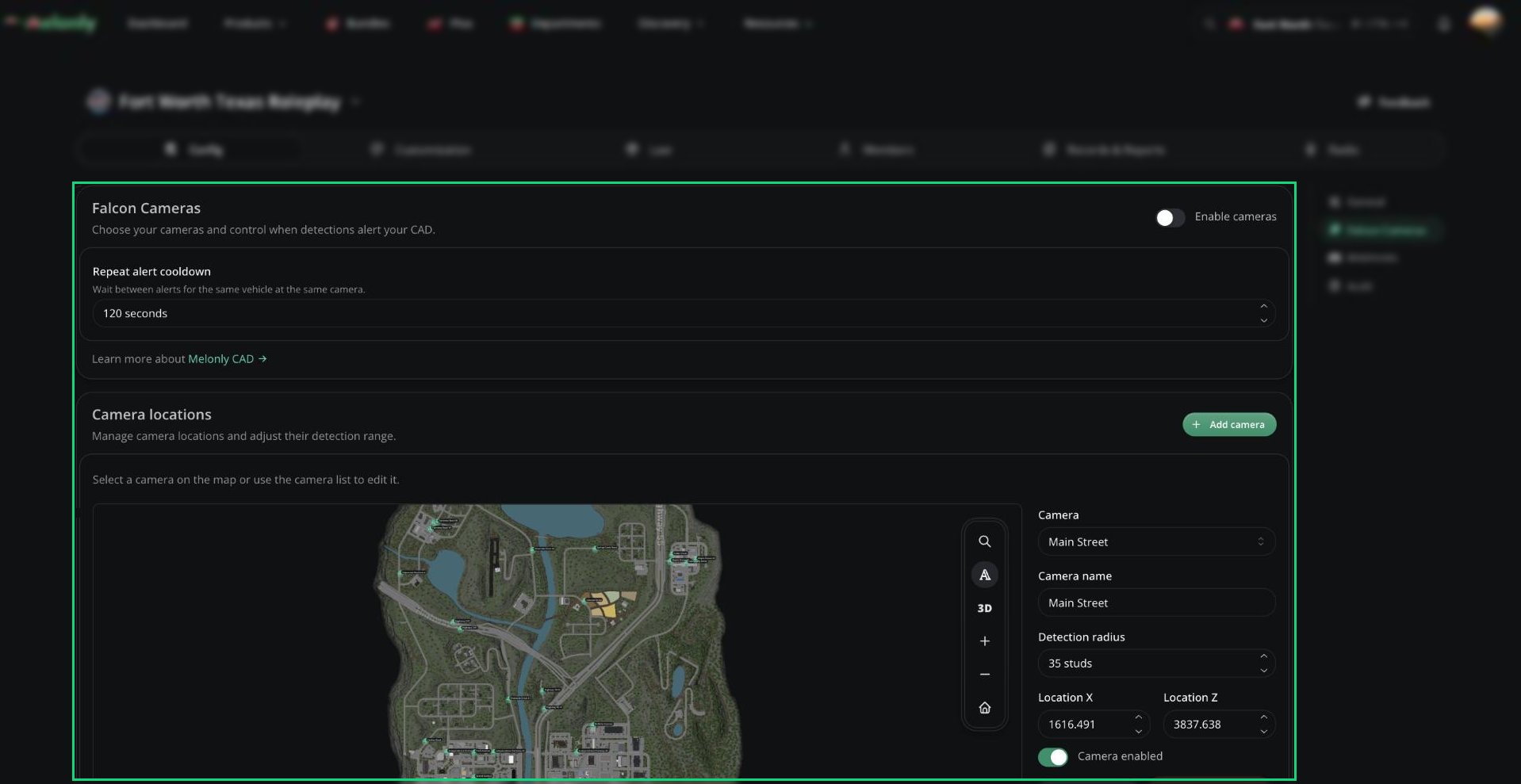
In the CAD admin panel, open **Config** → **Falcon Cameras**.
Turn on **Enable cameras** and choose **Melonly Falcon Camera**.
Click **Save Changes** (or press `Ctrl` + `S`). Your CAD starts with 30 cameras on major streets.
***
## Placing Cameras
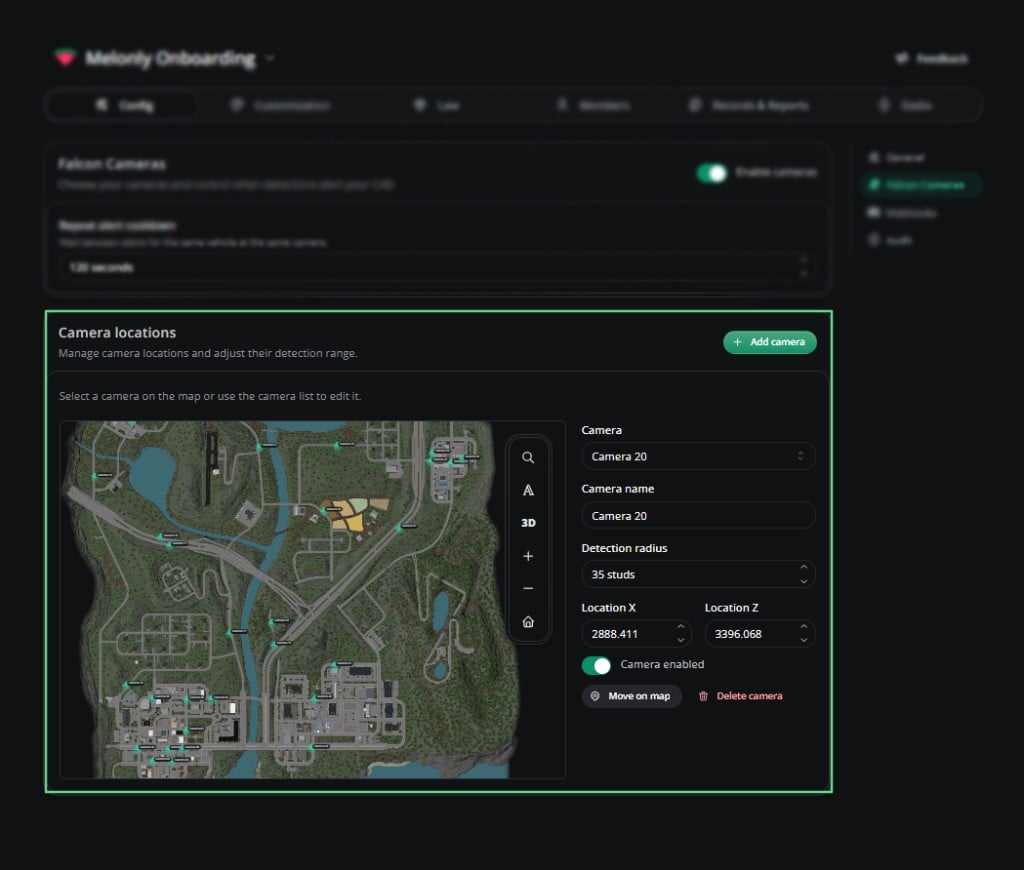
You can have up to 100 cameras. Changes are kept as a draft until you save.
* Click **Add camera** to place a new one.
* Select a camera, then click **Move on map** or **Delete camera**.
* Click **Save Changes** when you're done.
***
## Turning On Cameras
In the CAD admin panel, open **Config** → **Falcon Cameras**.
Turn on **Enable cameras** and choose **Melonly Falcon Camera**.
Click **Save Changes** (or press `Ctrl` + `S`). Your CAD starts with 30 cameras on major streets.
***
## Placing Cameras
You can have up to 100 cameras. Changes are kept as a draft until you save.
* Click **Add camera** to place a new one.
* Select a camera, then click **Move on map** or **Delete camera**.
* Click **Save Changes** when you're done.
 ***
## Settings
| Setting | Description |
| - | - |
| Repeat alert cooldown | Seconds (10 to 3600) before a camera alerts again for the same vehicle. Default 120. |
| Camera name | 1 to 80 characters. Defaults to the street name. |
| Detection radius | How close a vehicle must pass, 5 to 200 studs. Default 35. |
| Location X / Z | Exact map position. |
| Camera enabled | Turns one camera on or off. |
***
Still have questions? Join our Discord server for support from the Melonly Team.
This documentation is built and hosted on [Mintlify](https://mintlify.com), a developer documentation platform.
***
## Settings
| Setting | Description |
| - | - |
| Repeat alert cooldown | Seconds (10 to 3600) before a camera alerts again for the same vehicle. Default 120. |
| Camera name | 1 to 80 characters. Defaults to the street name. |
| Detection radius | How close a vehicle must pass, 5 to 200 studs. Default 35. |
| Location X / Z | Exact map position. |
| Camera enabled | Turns one camera on or off. |
***
Still have questions? Join our Discord server for support from the Melonly Team.
This documentation is built and hosted on [Mintlify](https://mintlify.com), a developer documentation platform.